> ## Documentation Index
> Fetch the complete documentation index at: https://docs.messagedesk.com/llms.txt
> Use this file to discover all available pages before exploring further.
# Filter Contacts & Save Filters for Reuse
> Build contact filters from criteria and conditions in MessageDesk, save them as reusable views, and message every contact in a saved filter at once.
# Filter contacts and save filters for reuse
The Contacts module lets you filter contacts based on their properties saved in MessageDesk. You can use **Criteria** and **Conditions** to create various types of filters, then save a filter as a reusable view. A saved filter effectively gives you a reusable group of contacts that you can select and message together.
**Filters organize contacts. Labels organize conversations.** If you're looking to group message threads in your Inbox, see [Labels](/inbox/labels). For a side-by-side comparison, see [Labels vs. contact filters](#labels-vs-contact-filters) below.
 ## Add criteria
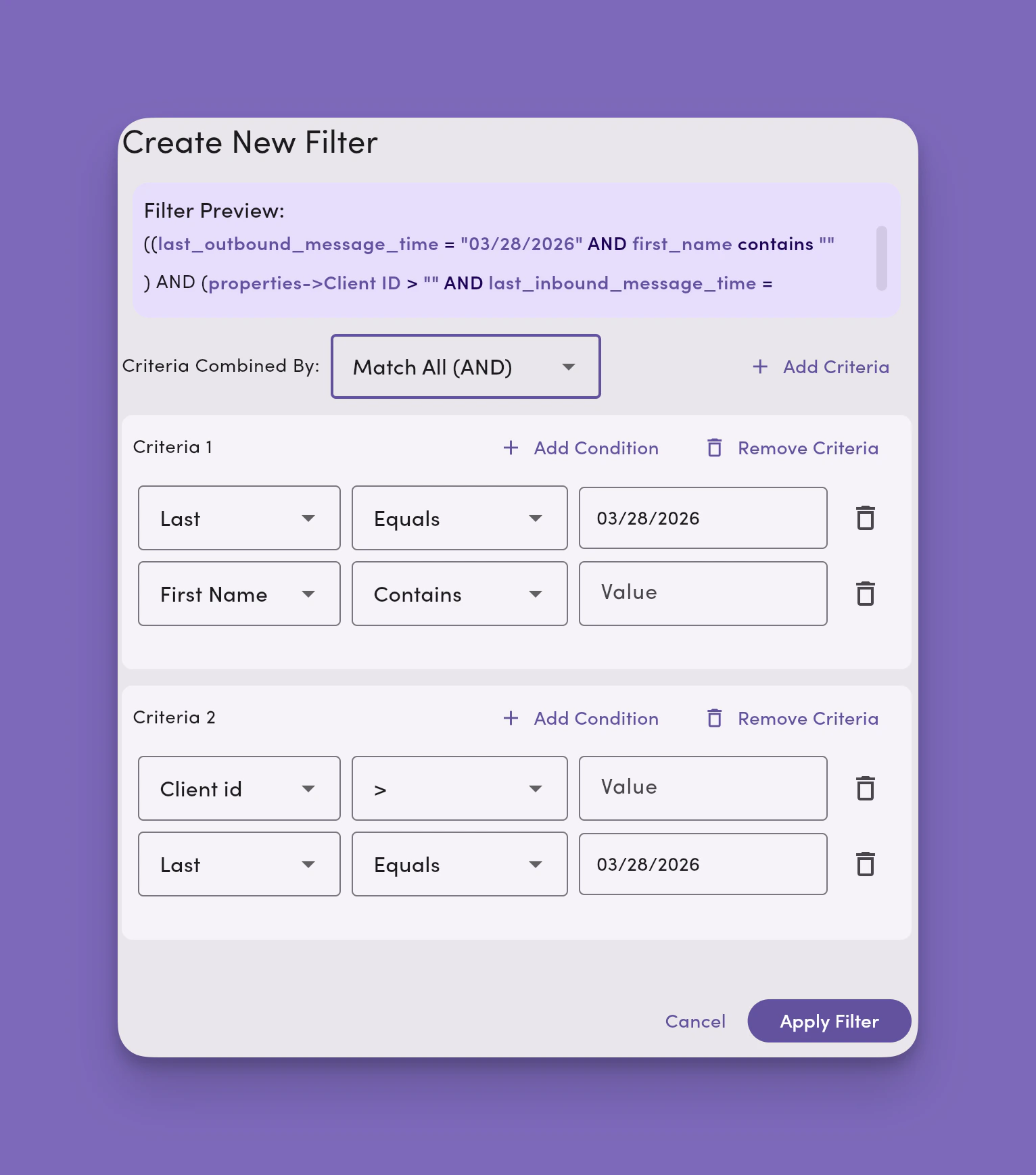
Criteria are a set of conditions. You can add as many criteria as you like to a filter. As you add criteria, you'll see a filter preview.
Criteria work in two ways: creating AND and OR statements.
* **Selecting Match All (AND)** means all criteria must meet the filter's conditions.
* **Selecting Match ANY (OR)** means any criteria must meet the filter's conditions.
## Add conditions
Conditions are based on data fields saved and populated as part of the contact's profile in MessageDesk.
You set your filter on conditions on standard fields like:
* First Name
* Last Name
* Last Outbound Message Time
* Last Inbound Message Time
You can also set filter conditions based on [**custom fields**](/settings/workspace-settings/custom-fields) added to MessageDesk.
## Condition operators
Use condition operators to create logical expressions for your filters. The types of operators available depend on the field's data type (true/false, dropdown, date, number, phone, and text).
### Available condition operators
* Contains
* Equals
* In
* Is Empty
* \> (greater than)
* \>= (greater than or equal to)
* \< (less than)
* \<= (less than or equal to)
* NOT Contains (does not contain)
* NOT Equals (does not equal)
**Is Empty doesn't take a value.** When you select **Is Empty**, the value selector is removed. The operator alone defines the match. Use it to find contacts missing a value in a given field (for example, contacts with no opt-in status set).
Once you're satisfied with your filter, click **Apply Filter** to view a list of contacts matching your filter conditions and criteria.
## Save and edit filters
## Add criteria
Criteria are a set of conditions. You can add as many criteria as you like to a filter. As you add criteria, you'll see a filter preview.
Criteria work in two ways: creating AND and OR statements.
* **Selecting Match All (AND)** means all criteria must meet the filter's conditions.
* **Selecting Match ANY (OR)** means any criteria must meet the filter's conditions.
## Add conditions
Conditions are based on data fields saved and populated as part of the contact's profile in MessageDesk.
You set your filter on conditions on standard fields like:
* First Name
* Last Name
* Last Outbound Message Time
* Last Inbound Message Time
You can also set filter conditions based on [**custom fields**](/settings/workspace-settings/custom-fields) added to MessageDesk.
## Condition operators
Use condition operators to create logical expressions for your filters. The types of operators available depend on the field's data type (true/false, dropdown, date, number, phone, and text).
### Available condition operators
* Contains
* Equals
* In
* Is Empty
* \> (greater than)
* \>= (greater than or equal to)
* \< (less than)
* \<= (less than or equal to)
* NOT Contains (does not contain)
* NOT Equals (does not equal)
**Is Empty doesn't take a value.** When you select **Is Empty**, the value selector is removed. The operator alone defines the match. Use it to find contacts missing a value in a given field (for example, contacts with no opt-in status set).
Once you're satisfied with your filter, click **Apply Filter** to view a list of contacts matching your filter conditions and criteria.
## Save and edit filters
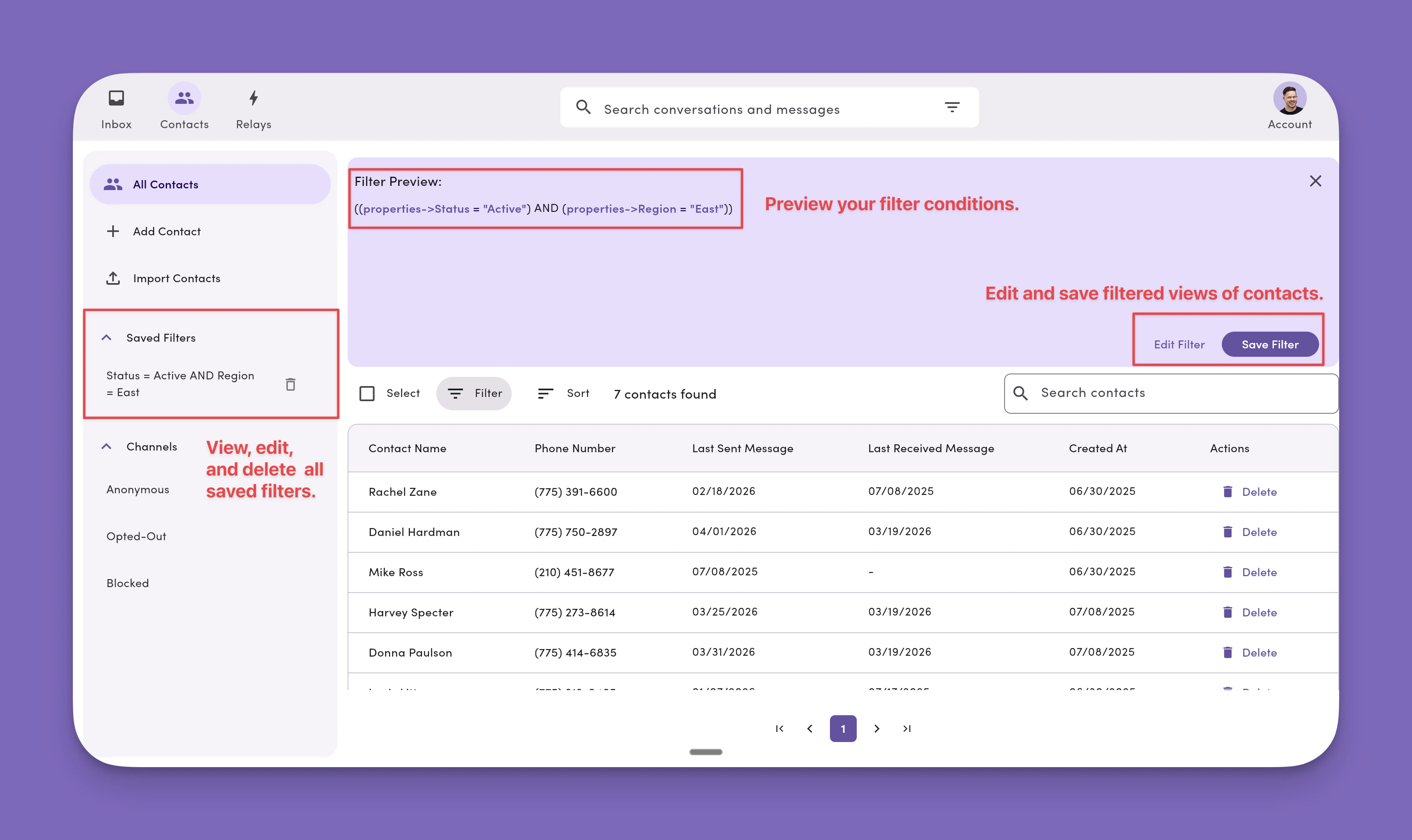 After applying a filter, you can save it for quick access later:
1. Click **Save Filter**.
2. Give your filter a name.
3. Click **Save**.
Saved filters appear in the **side menu** of the Contacts module. Click any saved filter to instantly view the contacts that match its criteria.
## Search saved filters
Use the search widget in the Contacts side menu to quickly find a saved filter by name. Selecting a result navigates to Contacts with that filter applied.
Saved filter search is available on the **desktop web app only**. It's not available on tablet or mobile, since filters can't currently be managed in Contacts on those platforms.
* Search matches against the **filter name only** (not its criteria or conditions).
* The widget follows the same design as the global search bar and the Contacts search bar for a consistent experience across MessageDesk.
## Delete a saved filter
To remove a saved filter:
1. Open **Contacts** in the desktop web app.
2. In the Contacts side menu, find the saved filter you want to remove.
3. Click the **Delete** button on the filter.
4. Confirm the deletion.
The **Delete** button is available for both simple and **compound filters** (filters built from multiple conditions).
Deleting a saved filter is permanent. It doesn't delete any contacts, only the saved view.
## Message contacts from a saved filter
Open a saved filter in Contacts, select the contacts in that filtered view, and send a message to that group.
When sending, you can also apply one or more [labels](/inbox/labels) to the conversations the message creates. Use [post-send actions](/messaging/new-message-compose#post-send-actions) in the New Message Compose screen to choose the labels before sending.
***
## Labels vs. contact filters
Labels and contact filters serve different purposes in Inbox by MessageDesk.
* **Labels organize conversations.** They can be applied when sending a message, directly from the Inbox, or automatically using a [Relay](/relays/overview). See [Labels](/inbox/labels).
* **Contact filters organize contacts.** You filter contacts based on properties such as [custom fields](/settings/workspace-settings/custom-fields) and save those filters for future use. A saved filter effectively gives you a reusable group of contacts that you can select and message together.
When sending a message to contacts from a filter, you can use [post-send actions](/messaging/new-message-compose#post-send-actions) to apply one or more labels. Those labels apply to each conversation the message creates.
***
## FAQ
**Can I apply a label to a contact in a saved filter?**\
Labels apply to conversations, not directly to contacts. To label contacts from a filter, select them and send a message with a label chosen under [post-send actions](/messaging/new-message-compose#post-send-actions). The label applies to each conversation the message creates. See [How to apply labels to contacts](/inbox/labels#faq) for the full breakdown.
**Can I export the contacts in a saved filter?**\
No. Contact exports are a full workspace dump. Filtered exports aren't supported in this version. See [Data Center](/settings/workspace-settings/data-center#export).
After applying a filter, you can save it for quick access later:
1. Click **Save Filter**.
2. Give your filter a name.
3. Click **Save**.
Saved filters appear in the **side menu** of the Contacts module. Click any saved filter to instantly view the contacts that match its criteria.
## Search saved filters
Use the search widget in the Contacts side menu to quickly find a saved filter by name. Selecting a result navigates to Contacts with that filter applied.
Saved filter search is available on the **desktop web app only**. It's not available on tablet or mobile, since filters can't currently be managed in Contacts on those platforms.
* Search matches against the **filter name only** (not its criteria or conditions).
* The widget follows the same design as the global search bar and the Contacts search bar for a consistent experience across MessageDesk.
## Delete a saved filter
To remove a saved filter:
1. Open **Contacts** in the desktop web app.
2. In the Contacts side menu, find the saved filter you want to remove.
3. Click the **Delete** button on the filter.
4. Confirm the deletion.
The **Delete** button is available for both simple and **compound filters** (filters built from multiple conditions).
Deleting a saved filter is permanent. It doesn't delete any contacts, only the saved view.
## Message contacts from a saved filter
Open a saved filter in Contacts, select the contacts in that filtered view, and send a message to that group.
When sending, you can also apply one or more [labels](/inbox/labels) to the conversations the message creates. Use [post-send actions](/messaging/new-message-compose#post-send-actions) in the New Message Compose screen to choose the labels before sending.
***
## Labels vs. contact filters
Labels and contact filters serve different purposes in Inbox by MessageDesk.
* **Labels organize conversations.** They can be applied when sending a message, directly from the Inbox, or automatically using a [Relay](/relays/overview). See [Labels](/inbox/labels).
* **Contact filters organize contacts.** You filter contacts based on properties such as [custom fields](/settings/workspace-settings/custom-fields) and save those filters for future use. A saved filter effectively gives you a reusable group of contacts that you can select and message together.
When sending a message to contacts from a filter, you can use [post-send actions](/messaging/new-message-compose#post-send-actions) to apply one or more labels. Those labels apply to each conversation the message creates.
***
## FAQ
**Can I apply a label to a contact in a saved filter?**\
Labels apply to conversations, not directly to contacts. To label contacts from a filter, select them and send a message with a label chosen under [post-send actions](/messaging/new-message-compose#post-send-actions). The label applies to each conversation the message creates. See [How to apply labels to contacts](/inbox/labels#faq) for the full breakdown.
**Can I export the contacts in a saved filter?**\
No. Contact exports are a full workspace dump. Filtered exports aren't supported in this version. See [Data Center](/settings/workspace-settings/data-center#export).