> ## Documentation Index
> Fetch the complete documentation index at: https://docs.messagedesk.com/llms.txt
> Use this file to discover all available pages before exploring further.
# Join an Existing MessageDesk Workspace
> Accept your MessageDesk email invitation, create a user profile, set up your account, and start collaborating in your team's shared SMS Inbox today.
***
# Accept your MessageDesk invitation
You'll receive an email from MessageDesk with a **Join the Team** button.
Click **Join the Team** to open the sign-in page and complete your account.
Log in or create an account using the **exact same email address** that you were invited with (usually your work email). If you sign up with a different email, you'll create a **separate workspace**.
 ***
## Create your user account (as an invited user)
You have two ways to finish the setup:
1. **Sign in with email:** we'll send a **one-time 6-digit code** to your mobile phone and email. Enter it to continue.
2. **Sign in with Google:** no codes required. Approve with your Google account.
After you complete account creation, you'll land directly in your team's workspace.
Enter a **valid personal mobile phone number** when logging in via email. This phone number is for **authentication and login only**. It's separate from the phone numbers associated with your MessageDesk workspace.
***
## Create your user account (as an invited user)
You have two ways to finish the setup:
1. **Sign in with email:** we'll send a **one-time 6-digit code** to your mobile phone and email. Enter it to continue.
2. **Sign in with Google:** no codes required. Approve with your Google account.
After you complete account creation, you'll land directly in your team's workspace.
Enter a **valid personal mobile phone number** when logging in via email. This phone number is for **authentication and login only**. It's separate from the phone numbers associated with your MessageDesk workspace.
 ## Log in and complete two-factor authentication
1. Confirm sign up via SMS by entering the 6-digit code sent to your personal mobile phone.
2. Confirm sign up via email by entering the 6-digit code sent to your email address.
Didn't receive an SMS? Double-check that you entered a **valid mobile phone number**. You can also click Send Code to resend the code to your number.
Didn't receive an email? Double-check your spam/junk folder and look for an email from **[noreply@messagedesk.com](mailto:noreply@messagedesk.com)**
## Log in and complete two-factor authentication
1. Confirm sign up via SMS by entering the 6-digit code sent to your personal mobile phone.
2. Confirm sign up via email by entering the 6-digit code sent to your email address.
Didn't receive an SMS? Double-check that you entered a **valid mobile phone number**. You can also click Send Code to resend the code to your number.
Didn't receive an email? Double-check your spam/junk folder and look for an email from **[noreply@messagedesk.com](mailto:noreply@messagedesk.com)**

 ***
## Join multiple workspaces
You can be a member of **multiple** MessageDesk workspaces. If you already have a MessageDesk account:
* Clicking a new invite opens the **workspace selection screen** with workspaces you've been invited to.
* Workspaces are **grouped by tenant** (the parent company account), so you can quickly tell which company each workspace belongs to.
* Choose the workspace you want to join.
***
## Join multiple workspaces
You can be a member of **multiple** MessageDesk workspaces. If you already have a MessageDesk account:
* Clicking a new invite opens the **workspace selection screen** with workspaces you've been invited to.
* Workspaces are **grouped by tenant** (the parent company account), so you can quickly tell which company each workspace belongs to.
* Choose the workspace you want to join.
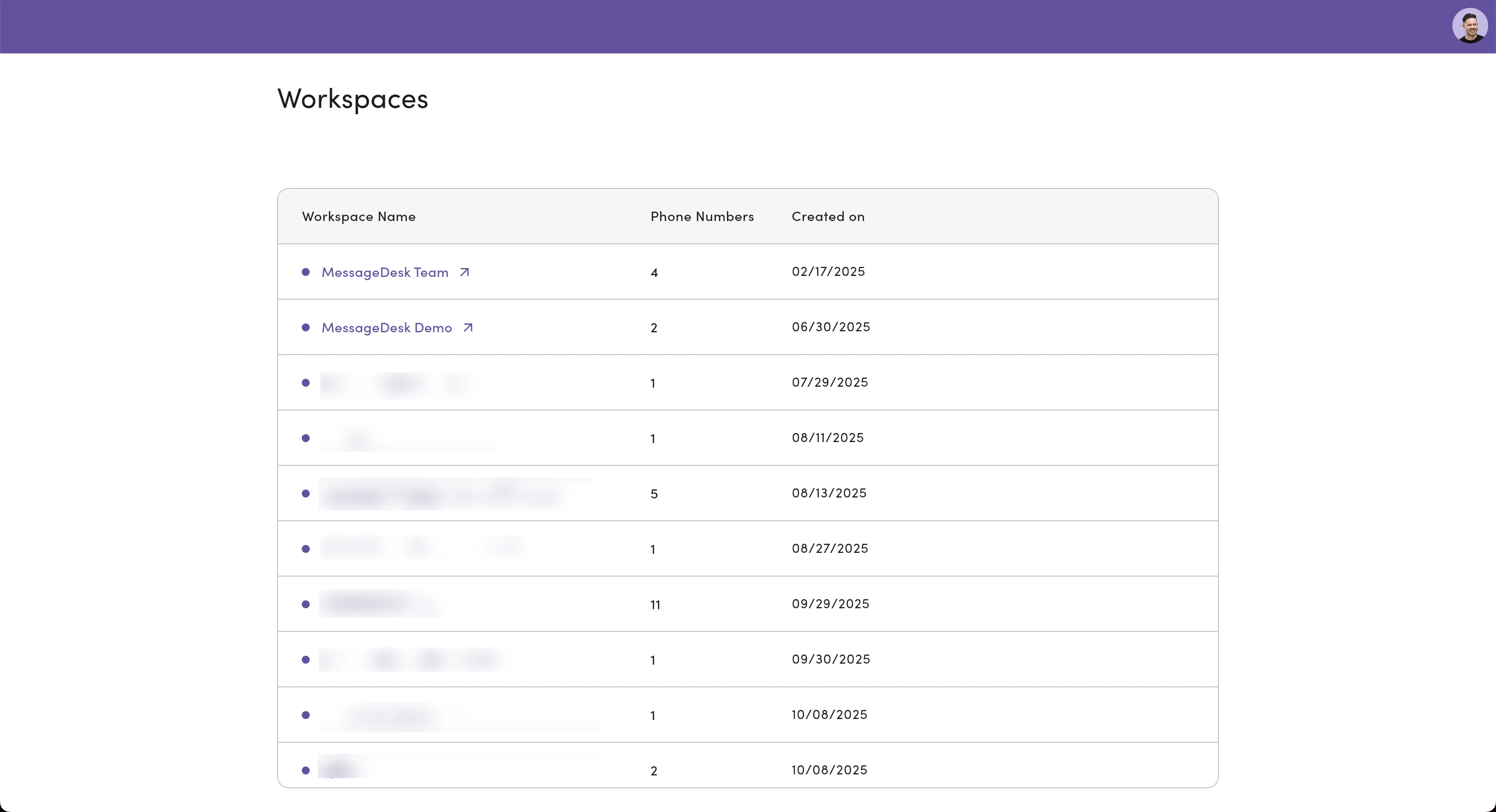 Switching between workspaces is quick. Open the workspace switcher (top-left or profile menu, depending on app view) and select the workspace you need.
**Tenant admins** can also create new workspaces directly from the workspace selection screen. See [Tenant Management](/get-started/tenant-management) for details.
***
## What happens next
* Your admin sets your access through **roles and permissions** (Admin, Manager, Operator, or a custom role).
* You'll see the **Inbox**, can view or send messages according to your permissions, and (optionally) receive notifications once configured.
* If you don't see expected phone lines or labels, your role may limit access. Ask an admin to adjust.
***
## Troubleshooting
**Didn't receive the invite email?**
* Check **spam/junk** and any **security/quarantine** filters.
* Confirm with your admin that the **email address** is correct.
* Ask IT to allowlist `messagedesk.com`, then have the admin **resend** the invite.
**Invite link expired or not working?**
* Ask your admin to **resend the invitation** from **Settings → Team Management**.
* Try opening the link in an **incognito/private** browser window.
**Signed in with the wrong email by accident?**
* Log out, then sign in again using the **exact email you were invited to**.
* If you created a new workspace by mistake, your admin can resend the invite to the correct address.
**I joined, but don't see Team Management or certain phone lines.**
* Your role may be **Viewer** on those features/lines. Ask an admin to review your **role** and any **resource-level** permissions.
**Can I switch between email/password and Google sign-in?**
* If you **already have an account** created with an **email/password**, you can sign in with **Google** (using the same email). MessageDesk will link your Google identity to your existing account.
* If your account was **created with Google first**, you must continue using Google to sign in. You can't add email/password login to a Google-first account.
Switching between workspaces is quick. Open the workspace switcher (top-left or profile menu, depending on app view) and select the workspace you need.
**Tenant admins** can also create new workspaces directly from the workspace selection screen. See [Tenant Management](/get-started/tenant-management) for details.
***
## What happens next
* Your admin sets your access through **roles and permissions** (Admin, Manager, Operator, or a custom role).
* You'll see the **Inbox**, can view or send messages according to your permissions, and (optionally) receive notifications once configured.
* If you don't see expected phone lines or labels, your role may limit access. Ask an admin to adjust.
***
## Troubleshooting
**Didn't receive the invite email?**
* Check **spam/junk** and any **security/quarantine** filters.
* Confirm with your admin that the **email address** is correct.
* Ask IT to allowlist `messagedesk.com`, then have the admin **resend** the invite.
**Invite link expired or not working?**
* Ask your admin to **resend the invitation** from **Settings → Team Management**.
* Try opening the link in an **incognito/private** browser window.
**Signed in with the wrong email by accident?**
* Log out, then sign in again using the **exact email you were invited to**.
* If you created a new workspace by mistake, your admin can resend the invite to the correct address.
**I joined, but don't see Team Management or certain phone lines.**
* Your role may be **Viewer** on those features/lines. Ask an admin to review your **role** and any **resource-level** permissions.
**Can I switch between email/password and Google sign-in?**
* If you **already have an account** created with an **email/password**, you can sign in with **Google** (using the same email). MessageDesk will link your Google identity to your existing account.
* If your account was **created with Google first**, you must continue using Google to sign in. You can't add email/password login to a Google-first account.