> ## Documentation Index
> Fetch the complete documentation index at: https://docs.messagedesk.com/llms.txt
> Use this file to discover all available pages before exploring further.
# Comments, Mentions & Reactions
> Collaborate inside MessageDesk SMS conversations with private team comments, @mentions, and emoji reactions to keep internal context visible.
# Team collaboration: comments, mentions, and emoji reactions
Collaborate inside MessageDesk without ever sending an unintended text. Use **comments** for internal notes, **mentions** to alert teammates, and **emoji reactions** to respond quickly without typing a message.
***
## Comments
### What are comments?
Comments are **internal-only notes** that appear inside a text thread but **never go to contacts**.\
Use them for:
* Internal handoffs.
* Approvals or QA reviews.
* Context before responding.
* Reminders or documentation.
You're in **comment mode** when the compose box turns **purple** (default theme).
On **mobile**, comments, threaded replies, and mentions are currently **read-only**. Full functionality is coming soon.
***
## Mentions
### What are mentions?
Mentions let you notify teammates directly inside a conversation.
* Type **@** to mention one or more teammates (you can @yourself too).
* Mentions trigger **email** and **browser notifications** that link to the conversation.
* Great for follow-ups, approvals, or assigning the next step.
**Example:**\
"@Jordan please confirm details before closing this ticket."
***
## Emoji reactions
### What are emoji reactions?
Emoji reactions let you quickly acknowledge or respond to messages and comments without typing a full reply.
* Available on **messages** and **non-threaded comments**.
* Shown in the **top-left** corner of a message or comment.
* Show a **count of unique reactions** (hover or click to see who reacted).
**When to use reactions**
* 👍 Confirm you've seen a message.
* 🎉 Celebrate a win.
* ❤️ Show appreciation.
* 👀 Indicate "reviewing" without replying.
### Inbound reactions from iPhone customers ("Loved", "Liked", etc.)
When a customer reacts to one of your texts from an iPhone (for example, tapping **Loved** on a product photo), Apple sends that reaction over SMS as plain text. You'll see something like `Loved "test outbound"`.
**How it appears in MessageDesk:**
* The reaction lands in the conversation as a normal **inbound message** containing the reaction text and a snippet of the message they reacted to.
* You'll get an inbound message **notification** just like any other reply.
* MessageDesk doesn't render the reaction as a native iOS-style Tapback bubble or attach it visually to the original outbound message. There's no count or icon overlay on the original send.
**Why:** Carrier SMS doesn't carry a structured "reaction" payload between iPhone and non-Apple platforms (Android recipients see the same text strings). MessageDesk receives only the text Apple emits.
**Tips for iPhone-heavy audiences:**
* When sending product photos, ask customers to **reply with the product name or number** instead of (or in addition to) tapping a reaction. This keeps intent unambiguous.
* Use the inbound text itself as the signal. `Loved "Blue floral dress – $48"` clearly maps back to what the customer wants.
***
## How to use comments, mentions & reactions
### 1. Open a conversation
From your **Inbox**, open any conversation.
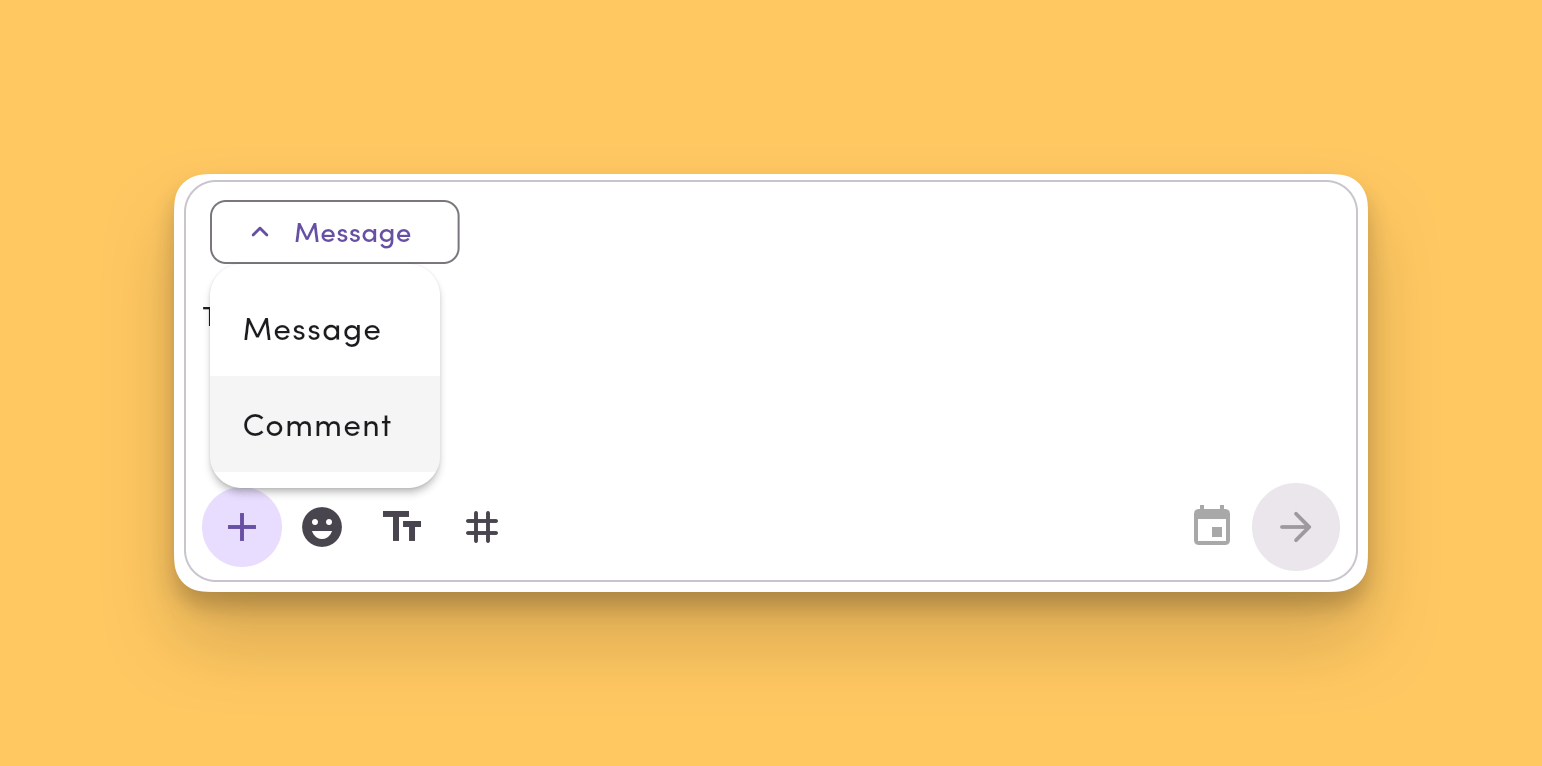
### 2. Switch to comment mode
Use the **Message Type dropdown** to switch from **Message** to **Comment**.\
The composer turns **purple**.
 ### 3. Mention teammates
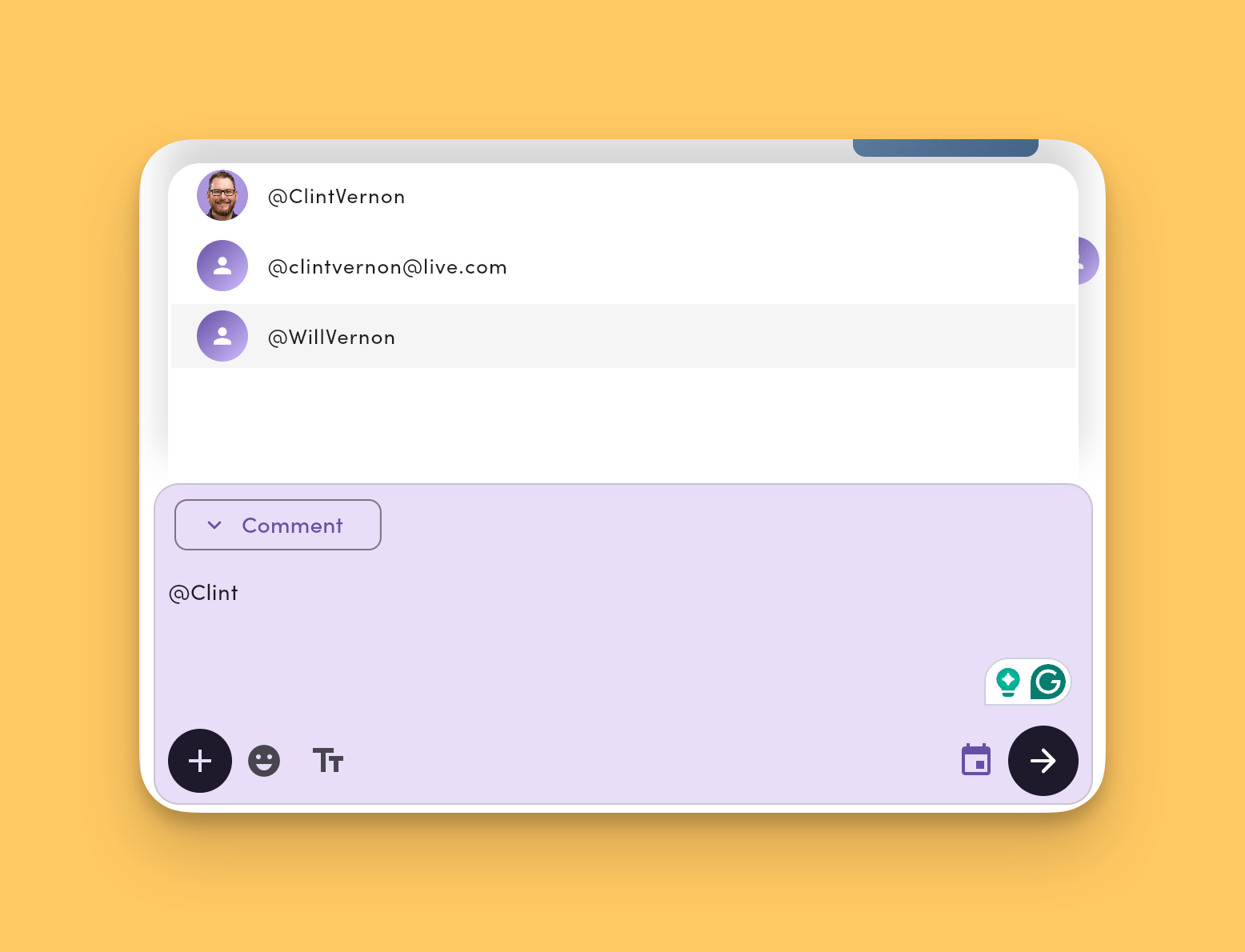
Type **@** anywhere in your comment to open the inline mention menu. You can mention:
* One or multiple teammates.
* Yourself (as a personal reminder).
How the inline mention menu works:
* Type **@** to open the menu, then keep typing to filter by name.
* Use the **arrow keys** to navigate, then press **Enter** to insert the highlighted teammate, or click a name to insert it.
* Teammates appear by their **first + last name** (no spaces). If a teammate hasn't set a name, you'll see their **email** instead.
Mentioning yourself is a quick way to set reminders or flag items for follow-up.
### 3. Mention teammates
Type **@** anywhere in your comment to open the inline mention menu. You can mention:
* One or multiple teammates.
* Yourself (as a personal reminder).
How the inline mention menu works:
* Type **@** to open the menu, then keep typing to filter by name.
* Use the **arrow keys** to navigate, then press **Enter** to insert the highlighted teammate, or click a name to insert it.
* Teammates appear by their **first + last name** (no spaces). If a teammate hasn't set a name, you'll see their **email** instead.
Mentioning yourself is a quick way to set reminders or flag items for follow-up.
 ### 4. Write and send your comment
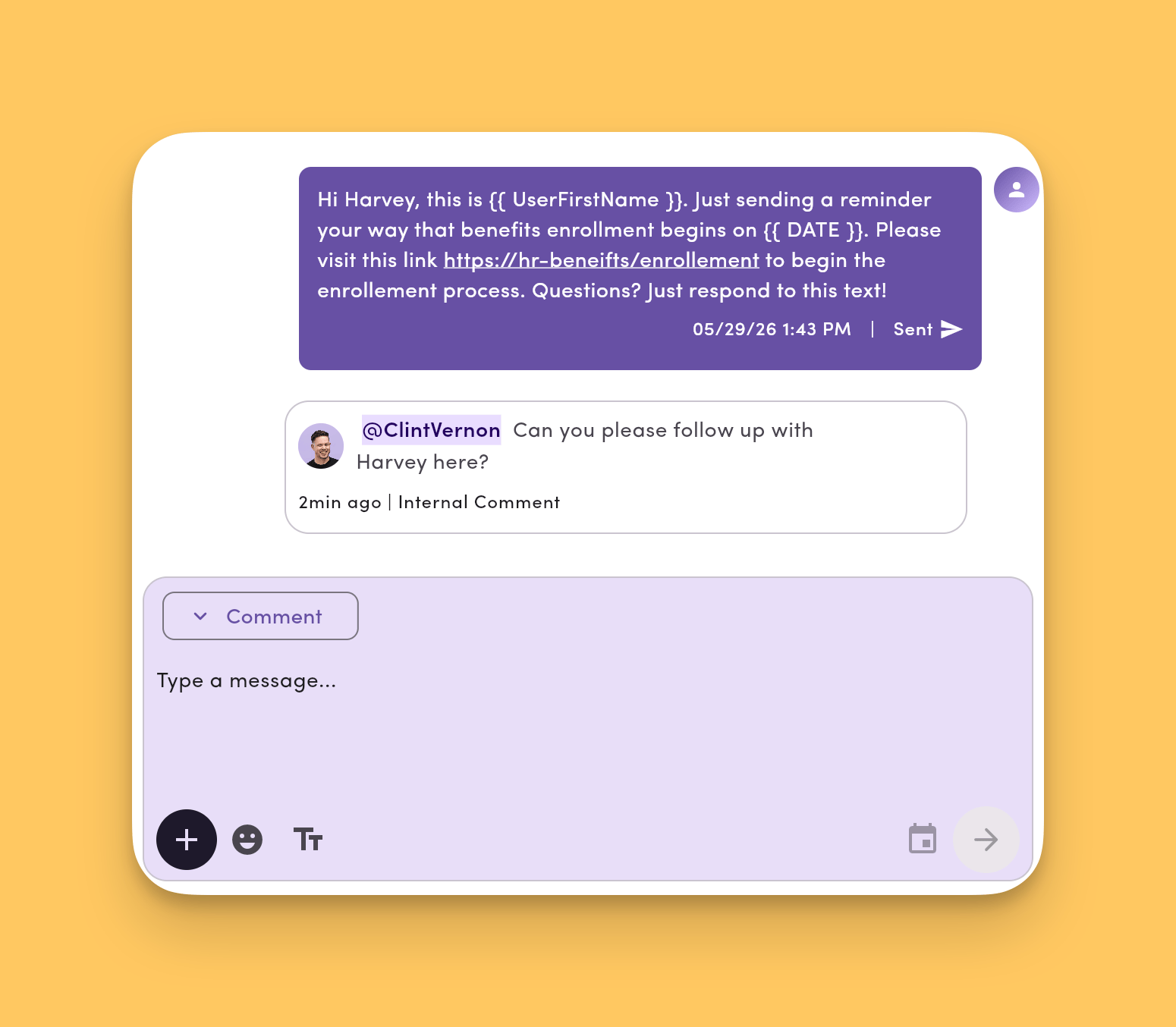
Type your comment, then click **Send**. It appears in the thread but **doesn't** send as a text.
* Optional: click **+** to [attach media](/messaging/media) (images, files, and so on).
* Switch back to **Message** mode to send an actual SMS.
### 4. Write and send your comment
Type your comment, then click **Send**. It appears in the thread but **doesn't** send as a text.
* Optional: click **+** to [attach media](/messaging/media) (images, files, and so on).
* Switch back to **Message** mode to send an actual SMS.
 ### 5. Add an emoji reaction
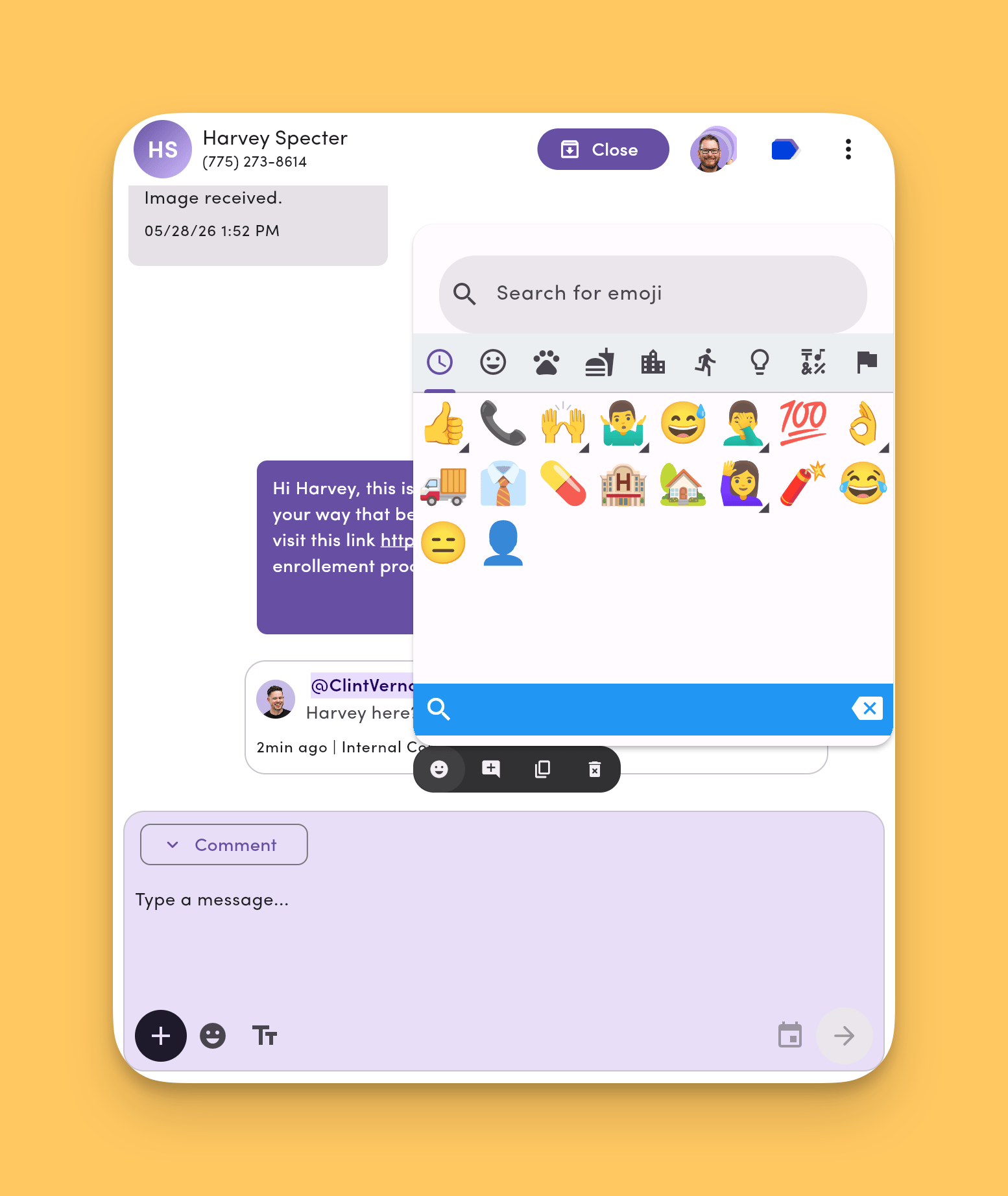
Hover over any message or comment, click the **emoji icon**, then choose a reaction.\
Click an existing emoji to see who reacted.
### 5. Add an emoji reaction
Hover over any message or comment, click the **emoji icon**, then choose a reaction.\
Click an existing emoji to see who reacted.
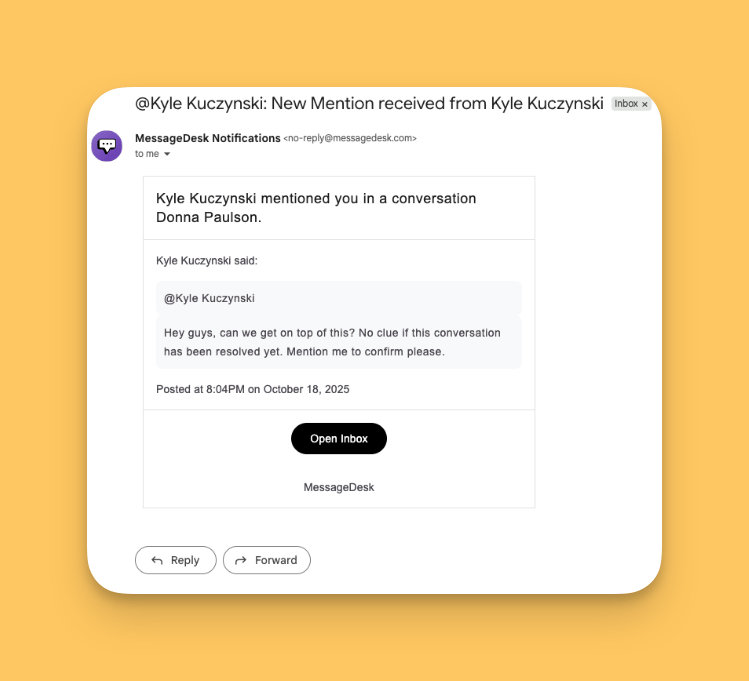
 ### 6. Mentions trigger notifications
Mentioned teammates get:
* An **email notification** with a direct link to the thread.
* A **browser push notification** if enabled.
### 6. Mentions trigger notifications
Mentioned teammates get:
* An **email notification** with a direct link to the thread.
* A **browser push notification** if enabled.
 ***
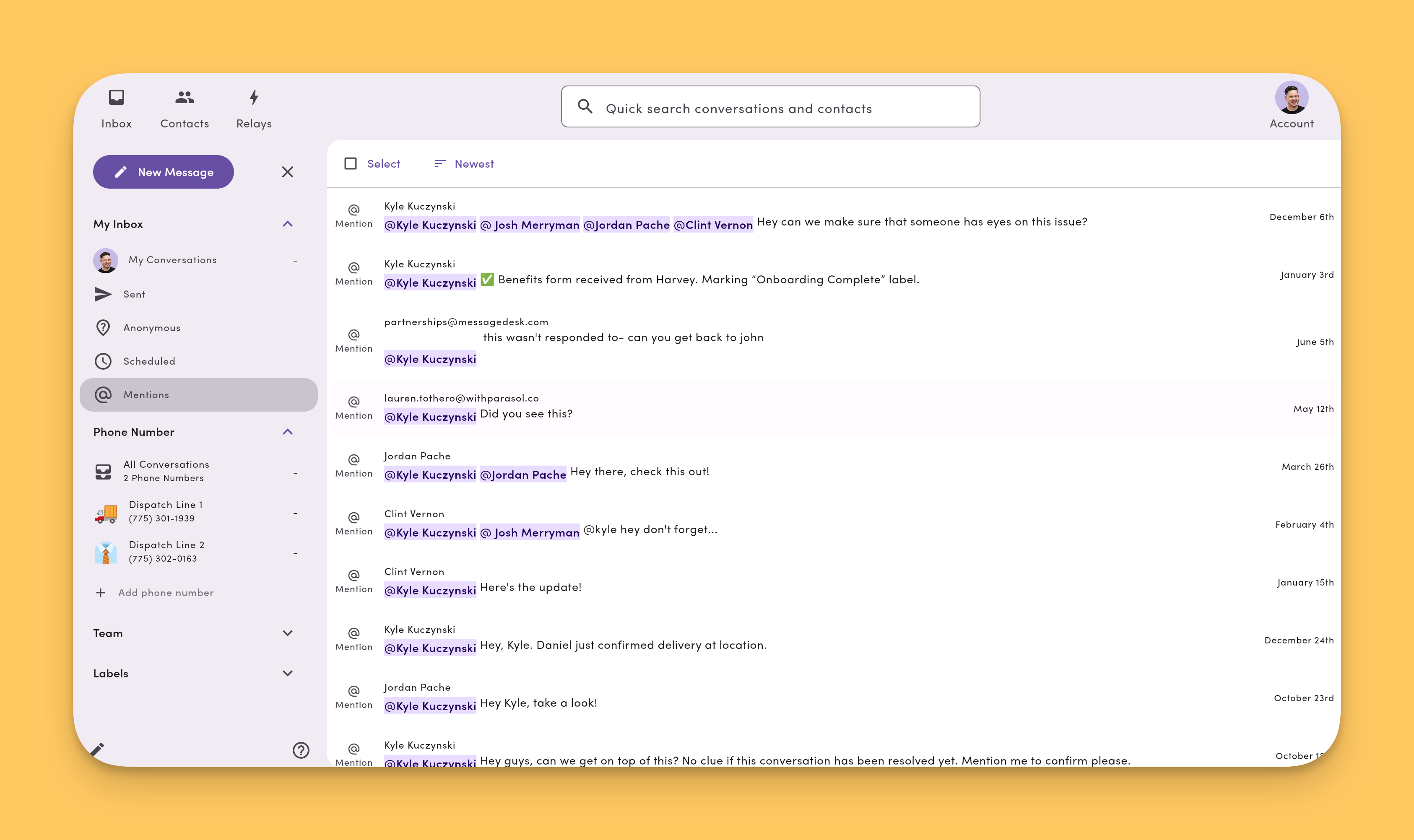
## Find comments you're mentioned in
1. Go to your **Inbox**.
2. Open **My Inbox** (left sidebar).
3. Select the pre-saved view for **Comments you're mentioned in**.
4. Click a conversation to jump directly to your mention.
***
## Find comments you're mentioned in
1. Go to your **Inbox**.
2. Open **My Inbox** (left sidebar).
3. Select the pre-saved view for **Comments you're mentioned in**.
4. Click a conversation to jump directly to your mention.
 ***
## Searching for comments
Comment search lives in [Advanced Search](/search/advanced-search), not Quick Search. [Quick Search](/search/quick-search) (⌘K) only returns contacts and conversations.
1. Open [Advanced Search](/search/advanced-search):
* On **desktop**, press **⌘K** / **Ctrl K** to open [Quick Search](/search/quick-search), then press **Enter** on a result or click **Open Advanced Search**.
* On **mobile or tablet**, tap the search icon near the account settings icon.
2. Type your search query and review the **Comments** results section, which has its own per-type filters and pagination.
3. Click a comment result to open the conversation and scroll directly to that comment.
Search respects your existing permissions. You'll only see comments from conversations you have access to.
***
## Comment threads
### What are comment threads?
Threads let you reply directly to a specific comment or message, keeping related discussions together.
* Organize back-and-forth discussions.
* Keep follow-ups separate from the main message feed.
* Available on desktop (hover) and mobile (force touch).
***
## Searching for comments
Comment search lives in [Advanced Search](/search/advanced-search), not Quick Search. [Quick Search](/search/quick-search) (⌘K) only returns contacts and conversations.
1. Open [Advanced Search](/search/advanced-search):
* On **desktop**, press **⌘K** / **Ctrl K** to open [Quick Search](/search/quick-search), then press **Enter** on a result or click **Open Advanced Search**.
* On **mobile or tablet**, tap the search icon near the account settings icon.
2. Type your search query and review the **Comments** results section, which has its own per-type filters and pagination.
3. Click a comment result to open the conversation and scroll directly to that comment.
Search respects your existing permissions. You'll only see comments from conversations you have access to.
***
## Comment threads
### What are comment threads?
Threads let you reply directly to a specific comment or message, keeping related discussions together.
* Organize back-and-forth discussions.
* Keep follow-ups separate from the main message feed.
* Available on desktop (hover) and mobile (force touch).
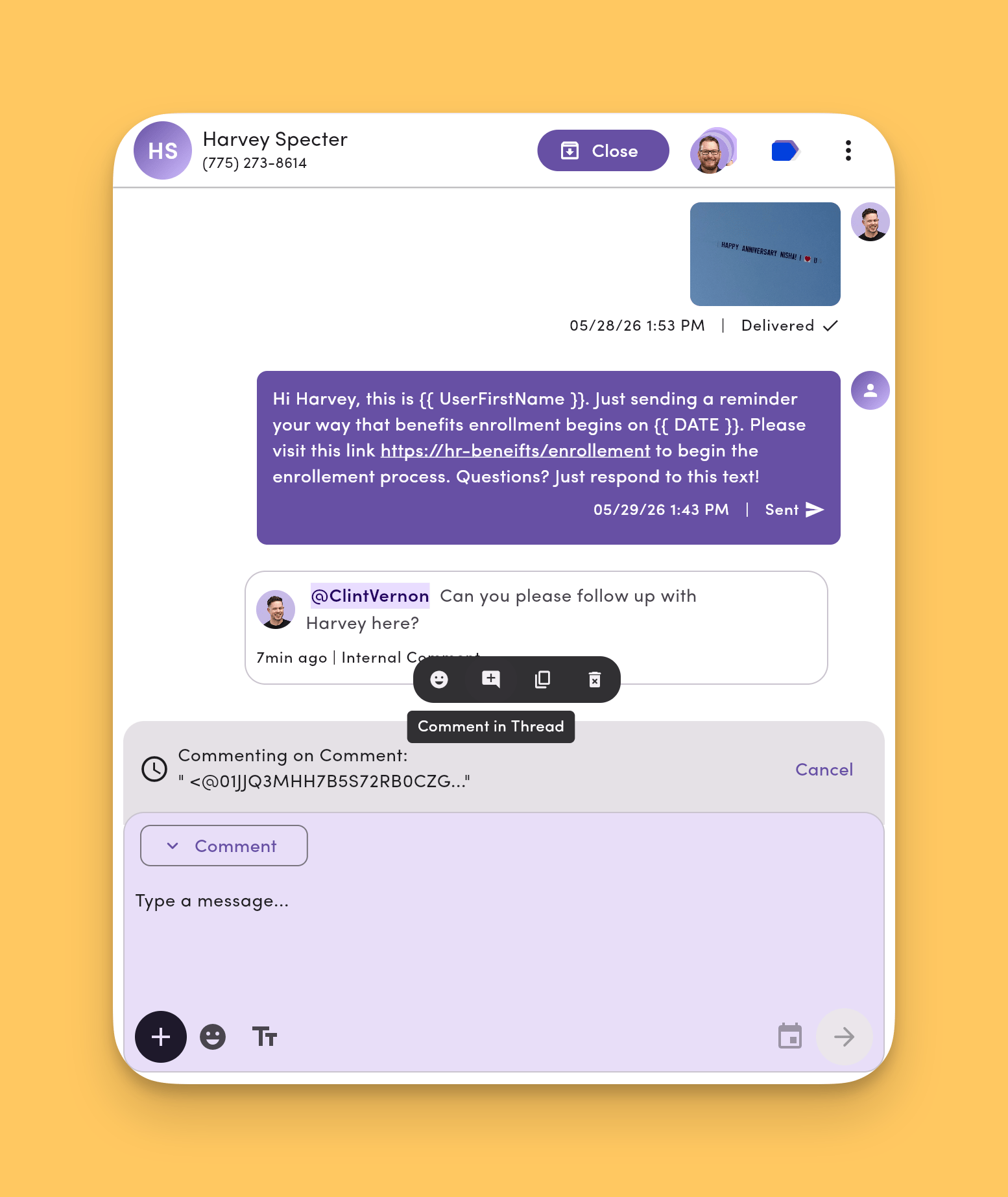 ### Reply in a thread
1. Hover over a comment or message, then click **Reply**.
2. Type your reply.
3. Click **Send**.
You can reply from the **original comment** or the **last message** in a thread. Both add to the same thread.
### Reply in a thread
1. Hover over a comment or message, then click **Reply**.
2. Type your reply.
3. Click **Send**.
You can reply from the **original comment** or the **last message** in a thread. Both add to the same thread.
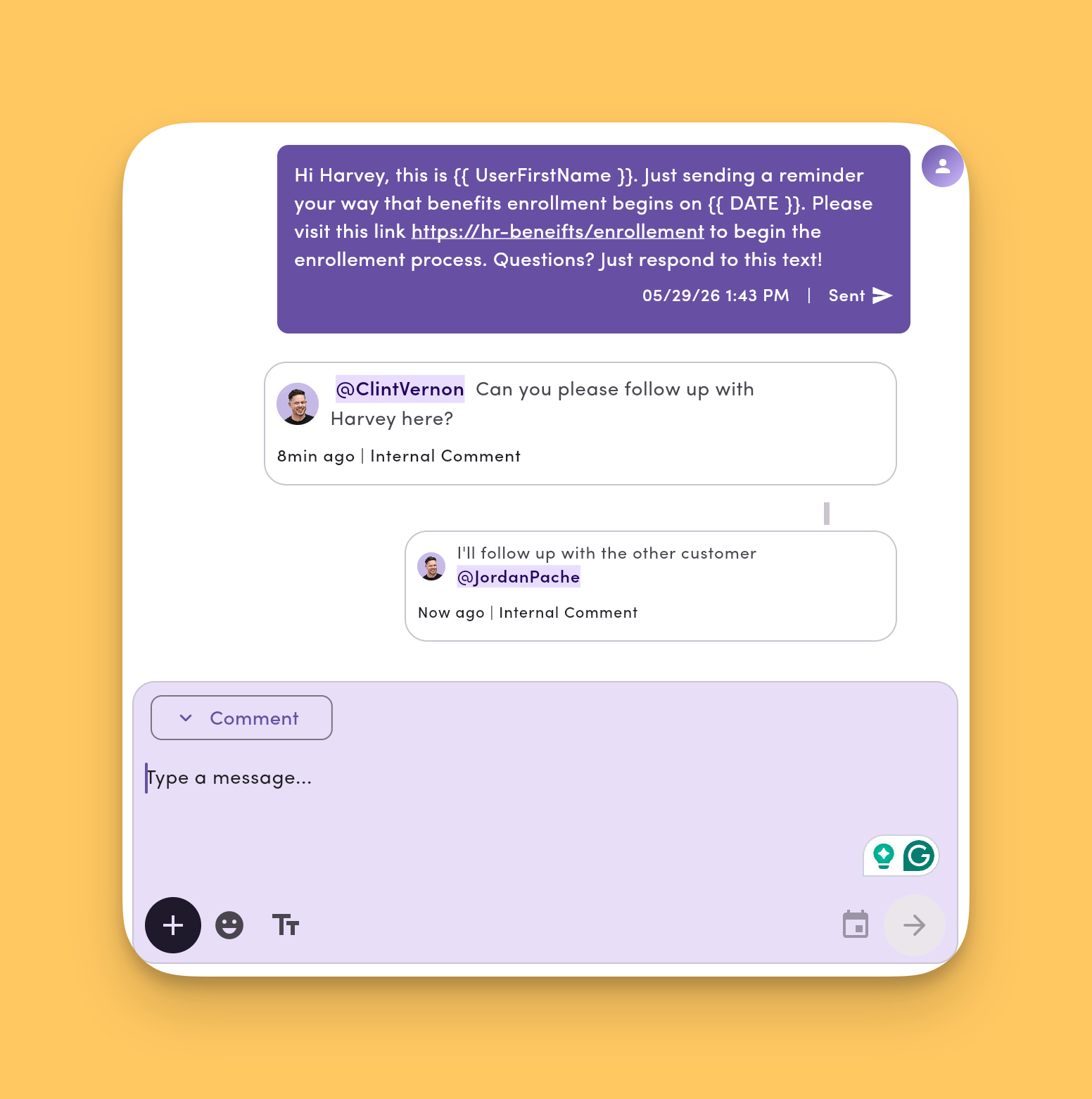 ### When to use threads
* **Follow-ups.** Ask clarifying questions without cluttering the main chat.
* **Status updates.** Keep progress notes in one place.
* **Focused discussions.** Avoid cross-talk in busy conversations.
***
## Deleting comments
Delete comments you no longer need. Comments are **soft-deleted**. They're removed from view but stay in the database for record-keeping.
### Delete a comment
1. Hover over the comment in the conversation thread.
2. Click the **trash can icon** (🗑️).
3. MessageDesk removes the comment from the thread.
### What happens when you delete a comment
* **Individual comments** (non-threaded): Disappear from the conversation pane entirely.
* **Threaded comments**: A placeholder showing "Comment was deleted" stays to preserve thread context.
Deleted comments are soft-deleted. They no longer appear in the conversation, but they stay in the database and still show up in **conversation exports**.
***
## Common team scenarios
| Scenario | Example comment |
| ----------------- | ---------------------------------------------------------- |
| **Handoff** | "@Sam customer confirmed 2pm. Please send prep checklist." |
| **Approval** | "@Alex can you approve this refund before I close?" |
| **Triage** | "@Support urgent billing issue. See last two messages." |
| **Coaching** | "@Jordan next time, use template 'Appt Reminder – 24h'." |
| **Self-reminder** | "@Me follow up Friday if no response." |
***
## Tips & best practices
* ✅ **Keep one comment = one ask.** Easier to read and act on.
* 🧭 **Add context before tagging.** Summarize the issue or goal.
* 👥 **Mention the owner.** Tag the responsible teammate so nothing slips through.
* 📎 **Attach files.** Use screenshots, PDFs, or photos for clarity.
* 🔁 **Close the loop.** Add a "Resolved, closing thread" note when finished.
* ⚡ **React instead of reply.** Use emojis for quick acknowledgments to cut noise.
***
## Privacy & visibility
* Comments are **internal only**. They're never sent to contacts.
* Mentions trigger **email/browser notifications** to the tagged teammates.
* Comments stay in the conversation for **historical context and auditing**.
***
## FAQ
**Do comments send to the customer?**\
No. They're internal-only.
**How do I know I'm commenting, not texting?**\
The composer turns **purple**, and the message type shows **Comment**.
**Can I mention multiple teammates?**\
Yes. Mention as many as needed.
**Can I attach media to a comment?**\
Yes. Use the **+** icon to upload files or images.
**Will I get notified if someone mentions me?**\
Yes. Mentions trigger **email** and **browser** notifications.
**How do I reply to a specific comment or message?**\
Hover over it, click **Reply**, and your message appears as a **threaded reply**.
**Can I see all my mentions in one place?**\
Yes. In **My Inbox**, use the **"Comments you're mentioned in"** view.
**Can I delete a comment?**\
Yes. Hover over the comment and click the **trash can icon**. Individual comments disappear entirely. Threaded comments show "Comment was deleted" as a placeholder. Deleted comments are soft-deleted and still appear in conversation exports.
***
## Troubleshooting
**I don't see the Comment option.**\
Make sure you're inside a specific conversation (not just the list). If it's still missing, check with your admin about permissions.
**Can I search for comments?**\
Yes. Comment search lives in [Advanced Search](/search/advanced-search). On desktop, open [Quick Search](/search/quick-search) with **⌘K** / **Ctrl K** and press **Enter** or click **Open Advanced Search**. On mobile or tablet, tap the search icon near account settings.
**My comment sent as a text.**\
You were probably in **Message** mode. Switch to **Comment** (purple composer) before sending.
**Mentions aren't notifying teammates.**\
Make sure you used **@** to select teammates from the inline menu (arrow keys + Enter, or click) instead of just typing their name as plain text.\
Ask teammates to check email spam/junk folders if no notification appears.
***
## Related articles
* [Inbox Overview](/inbox/overview)
* [Roles & Permissions](/settings/workspace-settings/team-management)
* [Media & Attachments](/messaging/media)
***
### When to use threads
* **Follow-ups.** Ask clarifying questions without cluttering the main chat.
* **Status updates.** Keep progress notes in one place.
* **Focused discussions.** Avoid cross-talk in busy conversations.
***
## Deleting comments
Delete comments you no longer need. Comments are **soft-deleted**. They're removed from view but stay in the database for record-keeping.
### Delete a comment
1. Hover over the comment in the conversation thread.
2. Click the **trash can icon** (🗑️).
3. MessageDesk removes the comment from the thread.
### What happens when you delete a comment
* **Individual comments** (non-threaded): Disappear from the conversation pane entirely.
* **Threaded comments**: A placeholder showing "Comment was deleted" stays to preserve thread context.
Deleted comments are soft-deleted. They no longer appear in the conversation, but they stay in the database and still show up in **conversation exports**.
***
## Common team scenarios
| Scenario | Example comment |
| ----------------- | ---------------------------------------------------------- |
| **Handoff** | "@Sam customer confirmed 2pm. Please send prep checklist." |
| **Approval** | "@Alex can you approve this refund before I close?" |
| **Triage** | "@Support urgent billing issue. See last two messages." |
| **Coaching** | "@Jordan next time, use template 'Appt Reminder – 24h'." |
| **Self-reminder** | "@Me follow up Friday if no response." |
***
## Tips & best practices
* ✅ **Keep one comment = one ask.** Easier to read and act on.
* 🧭 **Add context before tagging.** Summarize the issue or goal.
* 👥 **Mention the owner.** Tag the responsible teammate so nothing slips through.
* 📎 **Attach files.** Use screenshots, PDFs, or photos for clarity.
* 🔁 **Close the loop.** Add a "Resolved, closing thread" note when finished.
* ⚡ **React instead of reply.** Use emojis for quick acknowledgments to cut noise.
***
## Privacy & visibility
* Comments are **internal only**. They're never sent to contacts.
* Mentions trigger **email/browser notifications** to the tagged teammates.
* Comments stay in the conversation for **historical context and auditing**.
***
## FAQ
**Do comments send to the customer?**\
No. They're internal-only.
**How do I know I'm commenting, not texting?**\
The composer turns **purple**, and the message type shows **Comment**.
**Can I mention multiple teammates?**\
Yes. Mention as many as needed.
**Can I attach media to a comment?**\
Yes. Use the **+** icon to upload files or images.
**Will I get notified if someone mentions me?**\
Yes. Mentions trigger **email** and **browser** notifications.
**How do I reply to a specific comment or message?**\
Hover over it, click **Reply**, and your message appears as a **threaded reply**.
**Can I see all my mentions in one place?**\
Yes. In **My Inbox**, use the **"Comments you're mentioned in"** view.
**Can I delete a comment?**\
Yes. Hover over the comment and click the **trash can icon**. Individual comments disappear entirely. Threaded comments show "Comment was deleted" as a placeholder. Deleted comments are soft-deleted and still appear in conversation exports.
***
## Troubleshooting
**I don't see the Comment option.**\
Make sure you're inside a specific conversation (not just the list). If it's still missing, check with your admin about permissions.
**Can I search for comments?**\
Yes. Comment search lives in [Advanced Search](/search/advanced-search). On desktop, open [Quick Search](/search/quick-search) with **⌘K** / **Ctrl K** and press **Enter** or click **Open Advanced Search**. On mobile or tablet, tap the search icon near account settings.
**My comment sent as a text.**\
You were probably in **Message** mode. Switch to **Comment** (purple composer) before sending.
**Mentions aren't notifying teammates.**\
Make sure you used **@** to select teammates from the inline menu (arrow keys + Enter, or click) instead of just typing their name as plain text.\
Ask teammates to check email spam/junk folders if no notification appears.
***
## Related articles
* [Inbox Overview](/inbox/overview)
* [Roles & Permissions](/settings/workspace-settings/team-management)
* [Media & Attachments](/messaging/media)
***