> ## Documentation Index
> Fetch the complete documentation index at: https://docs.messagedesk.com/llms.txt
> Use this file to discover all available pages before exploring further.
# Export a conversation
> Export a single MessageDesk conversation as CSV or PDF from the conversation toolbar. Messages, comments, timestamps, and media are included.
# Export a conversation
Export any individual conversation to **CSV** or **PDF** directly from the conversation toolbar. Use exports for audits, compliance reviews, customer records, or handing context to a stakeholder outside MessageDesk.
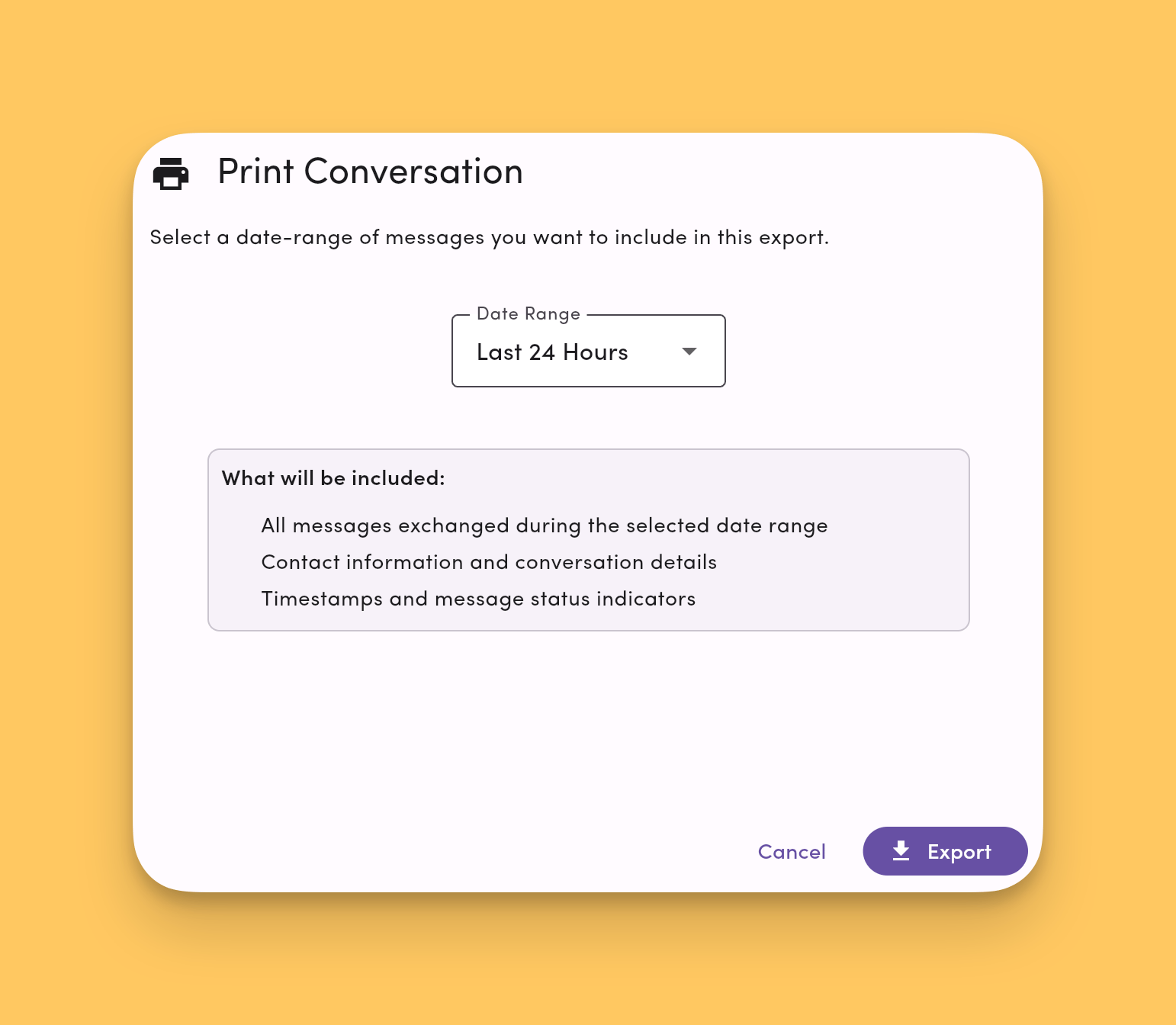 Need to export **across many conversations** by date, contact, label, and so on? Use [Data Center → Message History](/settings/workspace-settings/data-center#message-history) instead.
***
## Start an export
Need to export **across many conversations** by date, contact, label, and so on? Use [Data Center → Message History](/settings/workspace-settings/data-center#message-history) instead.
***
## Start an export
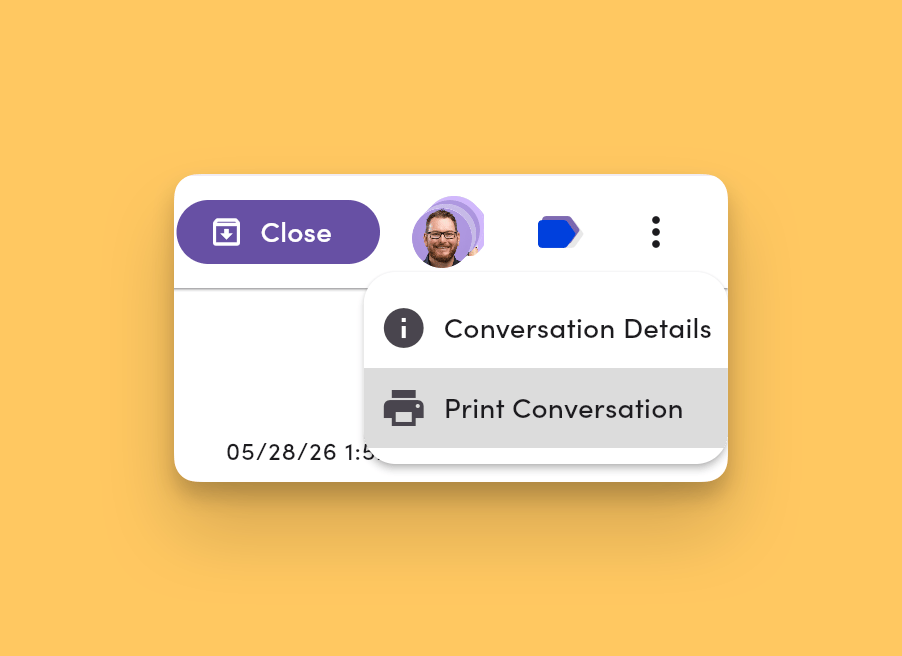 1. Open the conversation you want to export from the Inbox.
2. In the conversation toolbar, click the **More Options ⋯** menu.
3. Select **Print Conversation**.
4. Choose a format:
* **CSV.** Best for data and reporting.
* **PDF.** A shareable, human-readable record of the conversation.
The export runs **asynchronously** in the background. Keep working in MessageDesk while it's preparing.
***
## When your export is ready
1. Open the conversation you want to export from the Inbox.
2. In the conversation toolbar, click the **More Options ⋯** menu.
3. Select **Print Conversation**.
4. Choose a format:
* **CSV.** Best for data and reporting.
* **PDF.** A shareable, human-readable record of the conversation.
The export runs **asynchronously** in the background. Keep working in MessageDesk while it's preparing.
***
## When your export is ready
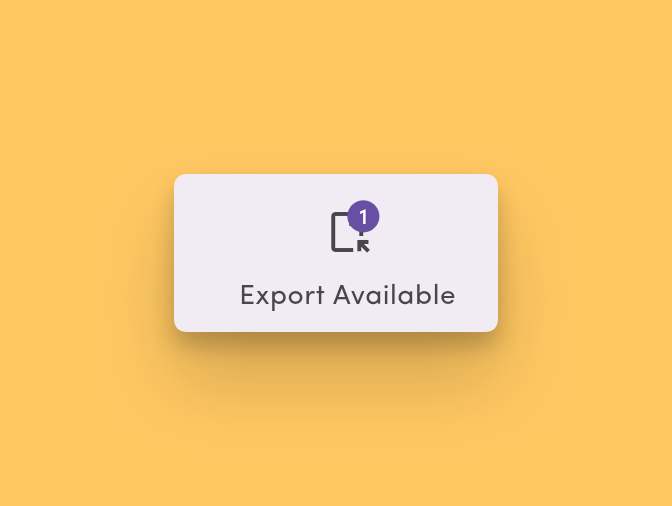 When the export finishes, an **Export Available** button appears in the **top nav**. Click it to download your file.
You'll also get a notification on devices where you've enabled them:
* **Push notification** on the MessageDesk mobile app.
* **Browser notification** in the installed app or in Chrome.
Notifications only go to the **user who triggered the export**. They aren't sent to your whole team.
Manage where you get these notifications in [Notification Preferences](/settings/my-settings/notification-preferences).
***
## Export formats
### CSV
CSV exports contain **message text and metadata**, built for analysis, reporting, and bulk archiving.
Included for each row:
* Message text.
* Direction (inbound / outbound).
* Timestamp.
* Sender / recipient (participant info).
* Channel / phone line.
* Internal **comments** alongside messages.
* Delivery status.
CSV exports **don't** embed media. Use PDF if you need media in the file.
### PDF
PDF exports produce a **shareable, human-readable** record of the full conversation:
* Messages and internal comments interleaved in order.
* Timestamps and participant info on every entry.
* **Renderable media** (images) embedded **inline**.
* **Non-renderable media** (videos and other unsupported file types) replaced with a direct **S3 link to the file** and the note **"Could not load preview"** so the attachment stays accessible from the PDF.
***
## What's included
| Item | CSV | PDF |
| ---------------------------------- | ------------- | ---------------------------------- |
| Messages (text) | ✅ | ✅ |
| Internal comments | ✅ | ✅ |
| Timestamps | ✅ | ✅ |
| Participant info | ✅ | ✅ |
| Direction / channel | ✅ | ✅ |
| Renderable media (images) | ❌ (text only) | ✅ Embedded inline |
| Non-renderable media (video, etc.) | ❌ (text only) | S3 link + "Could not load preview" |
**Deleted messages are still exportable.** Deleting a message in MessageDesk **soft-deletes** it. The record stays on the backend. Exports include soft-deleted messages so the conversation record stays complete for audits and compliance.
***
## FAQ
**Who can export a conversation?**\
Anyone with access to the conversation can export it from the **⋯ More Options** menu. Permissions follow your **Inbox Access** for the phone line the conversation lives on. See [Team Management → Permissions](/settings/workspace-settings/team-management#what-each-permission-level-grants-access-to) for the full breakdown.
**How long is the export file available?**\
The **Export Available** button stays in the top nav until you download the file or sign out. If you miss it, re-run the export from the conversation's **⋯** menu.
**Are scheduled messages included?**\
No. Exports include **messages that have actually been sent or received** plus internal comments. Pending scheduled messages haven't been sent yet, so they aren't part of the conversation record. Once a scheduled message sends, it appears in future exports.
**Can I export many conversations at once?**\
Not from the per-conversation toolbar. For workspace-wide filtered exports across date ranges, labels, contacts, or channels, use [Data Center → Message History](/settings/workspace-settings/data-center#message-history).
**Is the export delivered by email?**\
No. Exports stay in MessageDesk. Click the **Export Available** button in the top nav to download.
***
## See also
* [Data Center → Message History](/settings/workspace-settings/data-center#message-history). Workspace-wide search, filter, and export.
* [Notification Preferences](/settings/my-settings/notification-preferences). Manage push and browser notifications for the Export Available alert.
* [Comments, mentions & reactions](/inbox/comments-mentions). What's captured alongside messages in exports.
When the export finishes, an **Export Available** button appears in the **top nav**. Click it to download your file.
You'll also get a notification on devices where you've enabled them:
* **Push notification** on the MessageDesk mobile app.
* **Browser notification** in the installed app or in Chrome.
Notifications only go to the **user who triggered the export**. They aren't sent to your whole team.
Manage where you get these notifications in [Notification Preferences](/settings/my-settings/notification-preferences).
***
## Export formats
### CSV
CSV exports contain **message text and metadata**, built for analysis, reporting, and bulk archiving.
Included for each row:
* Message text.
* Direction (inbound / outbound).
* Timestamp.
* Sender / recipient (participant info).
* Channel / phone line.
* Internal **comments** alongside messages.
* Delivery status.
CSV exports **don't** embed media. Use PDF if you need media in the file.
### PDF
PDF exports produce a **shareable, human-readable** record of the full conversation:
* Messages and internal comments interleaved in order.
* Timestamps and participant info on every entry.
* **Renderable media** (images) embedded **inline**.
* **Non-renderable media** (videos and other unsupported file types) replaced with a direct **S3 link to the file** and the note **"Could not load preview"** so the attachment stays accessible from the PDF.
***
## What's included
| Item | CSV | PDF |
| ---------------------------------- | ------------- | ---------------------------------- |
| Messages (text) | ✅ | ✅ |
| Internal comments | ✅ | ✅ |
| Timestamps | ✅ | ✅ |
| Participant info | ✅ | ✅ |
| Direction / channel | ✅ | ✅ |
| Renderable media (images) | ❌ (text only) | ✅ Embedded inline |
| Non-renderable media (video, etc.) | ❌ (text only) | S3 link + "Could not load preview" |
**Deleted messages are still exportable.** Deleting a message in MessageDesk **soft-deletes** it. The record stays on the backend. Exports include soft-deleted messages so the conversation record stays complete for audits and compliance.
***
## FAQ
**Who can export a conversation?**\
Anyone with access to the conversation can export it from the **⋯ More Options** menu. Permissions follow your **Inbox Access** for the phone line the conversation lives on. See [Team Management → Permissions](/settings/workspace-settings/team-management#what-each-permission-level-grants-access-to) for the full breakdown.
**How long is the export file available?**\
The **Export Available** button stays in the top nav until you download the file or sign out. If you miss it, re-run the export from the conversation's **⋯** menu.
**Are scheduled messages included?**\
No. Exports include **messages that have actually been sent or received** plus internal comments. Pending scheduled messages haven't been sent yet, so they aren't part of the conversation record. Once a scheduled message sends, it appears in future exports.
**Can I export many conversations at once?**\
Not from the per-conversation toolbar. For workspace-wide filtered exports across date ranges, labels, contacts, or channels, use [Data Center → Message History](/settings/workspace-settings/data-center#message-history).
**Is the export delivered by email?**\
No. Exports stay in MessageDesk. Click the **Export Available** button in the top nav to download.
***
## See also
* [Data Center → Message History](/settings/workspace-settings/data-center#message-history). Workspace-wide search, filter, and export.
* [Notification Preferences](/settings/my-settings/notification-preferences). Manage push and browser notifications for the Export Available alert.
* [Comments, mentions & reactions](/inbox/comments-mentions). What's captured alongside messages in exports.