> ## Documentation Index
> Fetch the complete documentation index at: https://docs.messagedesk.com/llms.txt
> Use this file to discover all available pages before exploring further.
# Organize Inbox Conversations with Labels
> Create, apply, and manage color-coded labels in MessageDesk to organize SMS conversations, build saved filters, and group threads across your team workspace.
# Organize & Group Conversations With Labels
Labels let you sort, find, and manage conversations fast without building complicated folder structures.
A label is a small badge made of **text + color + icon** that you can apply to any conversation.
***
## Why use labels
* **Stay organized.** Group related conversations across teams and topics.
* **Work faster.** Scan your inbox and spot priorities by color/icon.
* **Report & review.** Filter by label to see everything for a project, region, or status.
* **Keep it simple.** Add or remove labels anytime. No impact on message delivery.
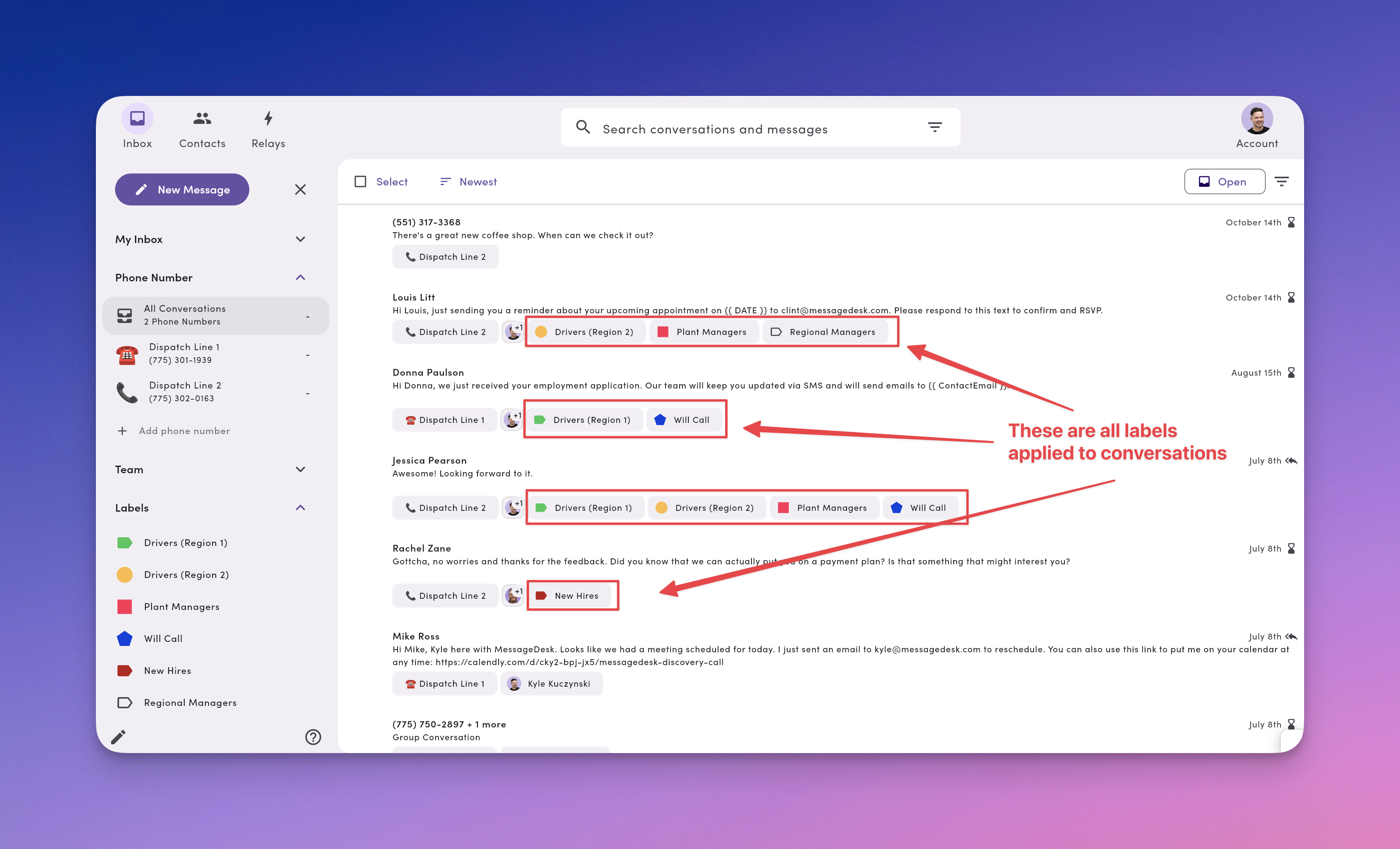
You can apply **multiple labels** to the same conversation.
***
## Common label ideas (by team)
**Logistics / Dispatch**
* **Drivers.** Conversations with field staff.
* **Region: North** / **Region: South.** Geographic routing.
* **Urgent.** Time-sensitive jobs.
**HR**
* **Benefits.** Questions and announcements.
* **New hire.** Onboarding conversations.
**Support / Success**
* **Support.** Active cases.
* **Review-ready.** Happy customers to invite for a review.
* **Bug.** Product issues to track.
**Sales / Ops**
* **Proposal.** Outstanding quotes.
* **Order.** Order updates.
* **Won** / **Lost.** Quick stage markers.
Use a short **prefix** for clarity (`HR: New hire`, `Sales: Proposal`, `Support: Bug`).
***
## Label a conversation (from the Inbox)
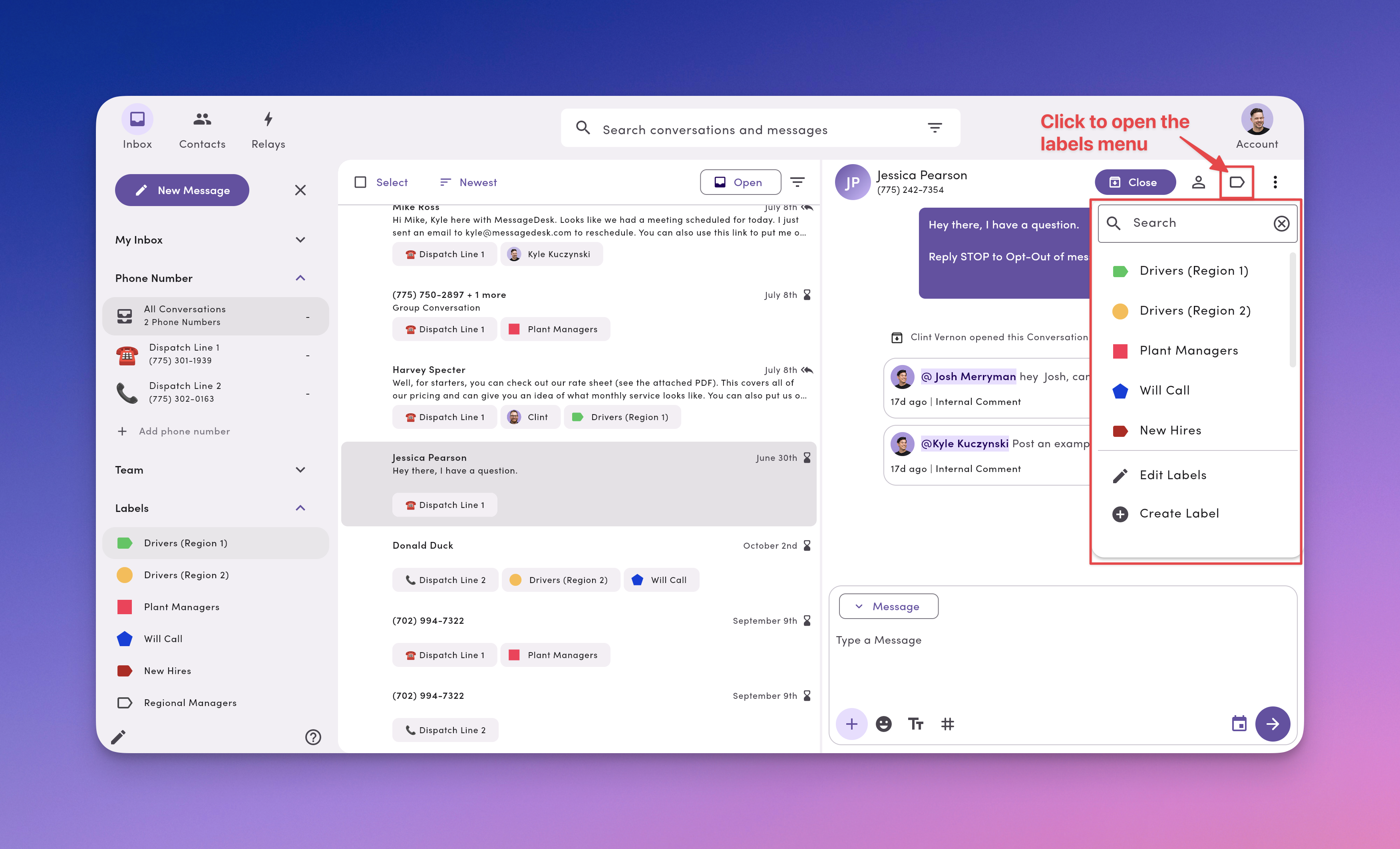
1. Open a conversation.
2. Click the **Label** icon (top-right of the thread).
3. Check one or more labels to apply them.
4. Close the menu. The labels appear above the thread and in the conversation list.
**Remove a label.** Reopen the **Label** menu and uncheck it.
Labels without a custom icon show a placeholder label icon in the menu.
 After you label a conversation, you'll see every label on that conversation in the Inbox list.
 ## Create & edit labels (quickly from the message thread)
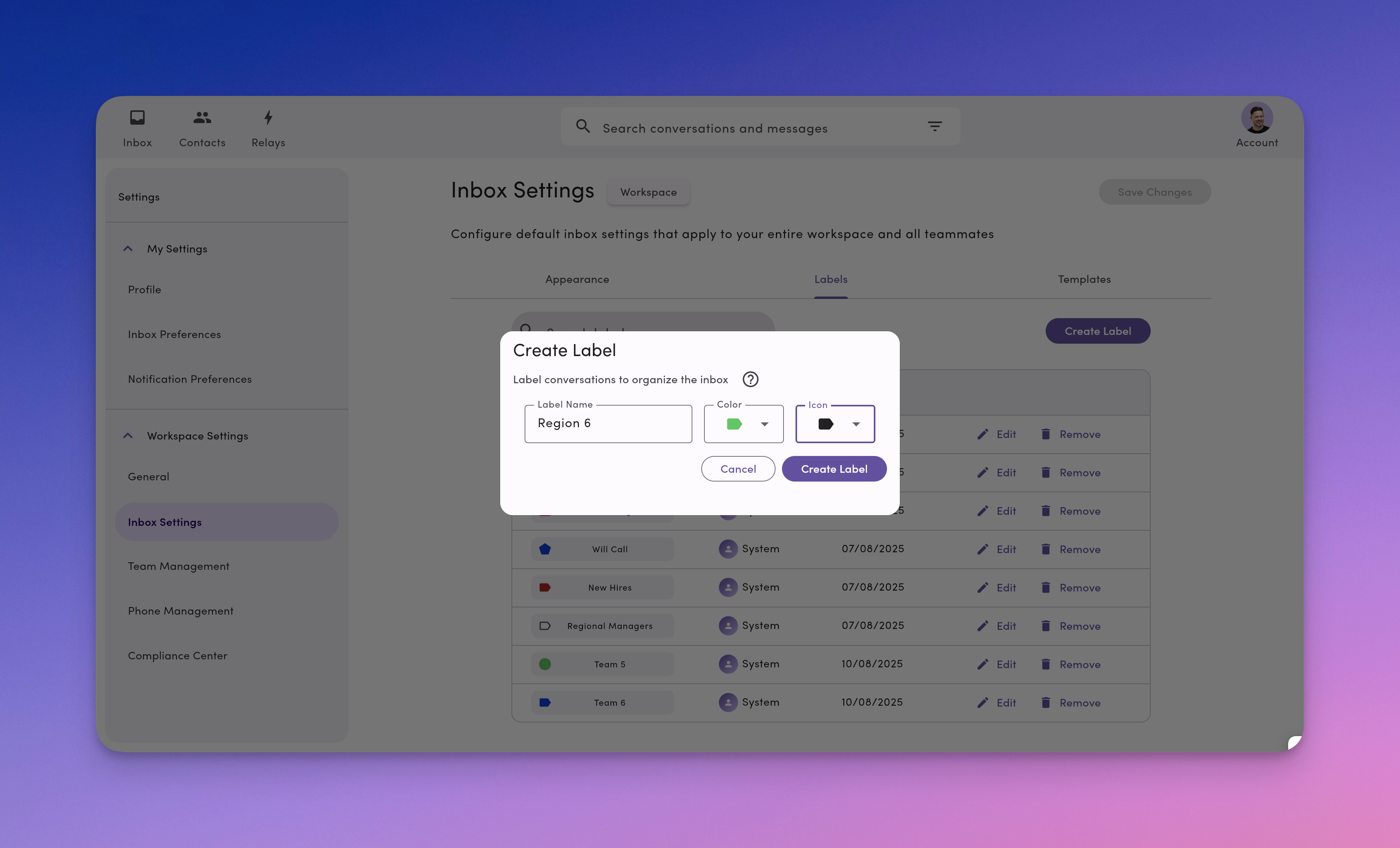
1. Open a conversation, then click the **Label** icon.
2. Click **Create label** (or **Edit labels**).
3. Set **Name**, **Color**, and **Icon**, then click **Save**.
Keep names short and scannable. Prefer `Proposal – ACME` over `All proposals currently outstanding for ACME Corp`.
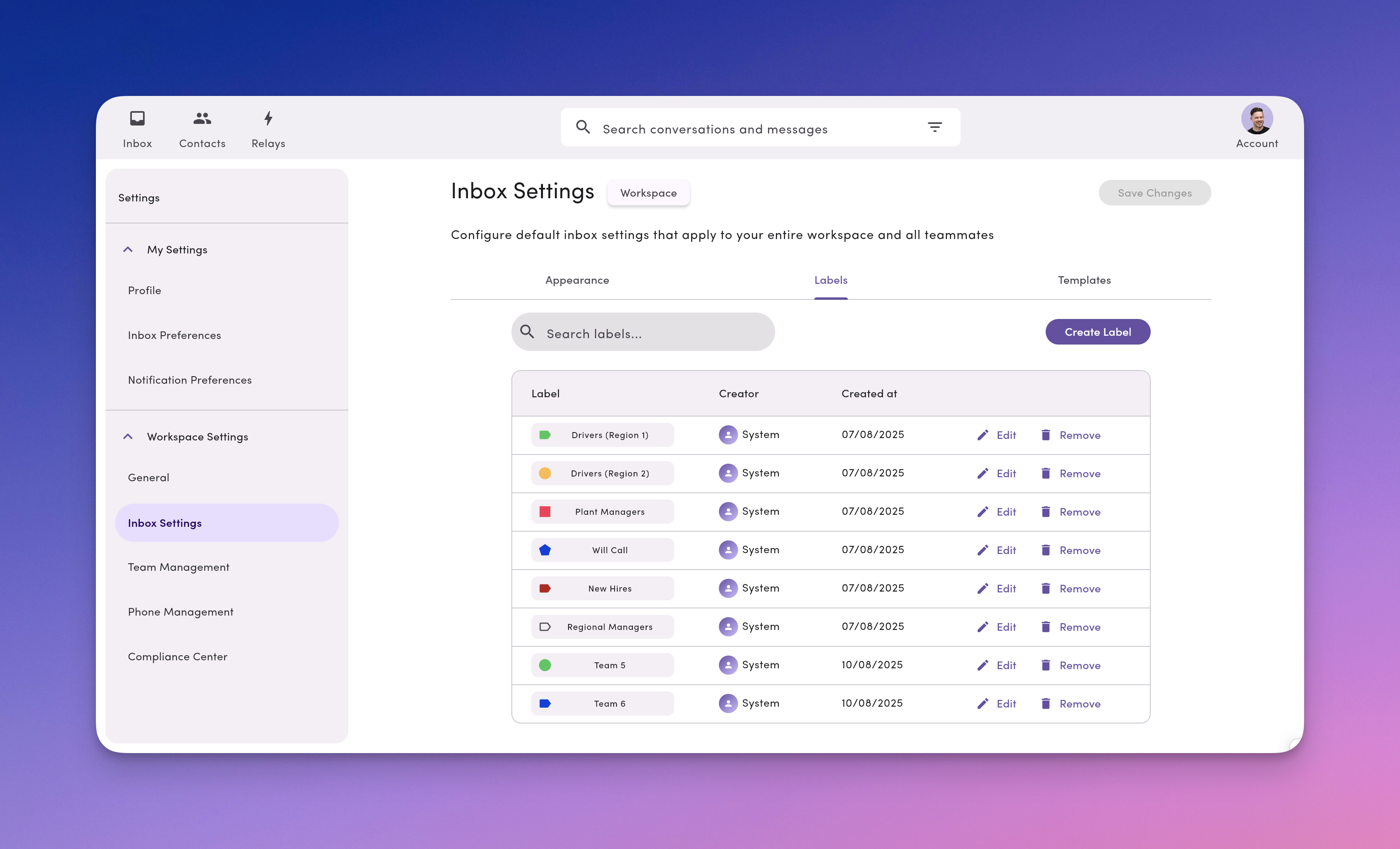
## Create & manage labels (Workspace Settings)
Admins can manage labels for everyone.
1. Go to **Account → Settings**.
2. Under **Workspace Settings**, open **Inbox Settings → Labels**.
3. **Create**, **rename**, **change color/icon**, or **remove** labels.
**Multi-select** labels and **delete them in bulk** from Label Settings. No need to remove them one at a time.
Labels sort **alphabetically (A–Z)** by name across label menus, settings, and filters. To control where a label appears, rename it (add a prefix like `HR:` or `Support:`).
Renaming a label updates it **everywhere** it's used.
## Create & edit labels (quickly from the message thread)
1. Open a conversation, then click the **Label** icon.
2. Click **Create label** (or **Edit labels**).
3. Set **Name**, **Color**, and **Icon**, then click **Save**.
Keep names short and scannable. Prefer `Proposal – ACME` over `All proposals currently outstanding for ACME Corp`.
## Create & manage labels (Workspace Settings)
Admins can manage labels for everyone.
1. Go to **Account → Settings**.
2. Under **Workspace Settings**, open **Inbox Settings → Labels**.
3. **Create**, **rename**, **change color/icon**, or **remove** labels.
**Multi-select** labels and **delete them in bulk** from Label Settings. No need to remove them one at a time.
Labels sort **alphabetically (A–Z)** by name across label menus, settings, and filters. To control where a label appears, rename it (add a prefix like `HR:` or `Support:`).
Renaming a label updates it **everywhere** it's used.
 ## Find conversations by label
* Open your **Inbox** and use the **filter/search** to show conversations with a specific label.
* Save common filters (`Support + Urgent`) as a **view** so your team can jump in fast.
***
## Label naming & color conventions
* **Keep it short.** 1–2 words, or a word plus emoji/icon.
* **Use prefixes.** `HR:`, `Ops:`, `Sales:`, `Support:`.
* **Color with intent.**
* Green = success/ready
* Yellow = waiting/attention
* Red = urgent/blocker
* **Avoid duplicates.** One meaning per label name.
**Examples**
* `Support: Urgent`
* `Sales: Proposal`
* `Ops: Region – West`
* `HR: New hire`
* `Review-ready`
***
## FAQ
**Can I apply more than one label to a conversation?**\
Yes. Apply as many as you need.
**Do labels affect who can see a conversation or whether messages send?**\
No. Labels don't change permissions or deliverability. They're for organization and filtering only.
**Can I edit or delete a label later?**\
Yes. Edit the name/color/icon anytime from **Inbox (Label menu)** or **Workspace Settings**. Deleting a label removes it from every conversation. You can also multi-select and delete multiple labels at once from **Label Settings**.
**Can I filter by more than one label at a time?**\
Yes. Combine labels in a filter to narrow your view (`Support` + `Urgent`).
***
## Troubleshooting
* **I don't see the Label icon.**\
Make sure you're inside a conversation, not just the inbox list. If it's still missing, check your workspace permissions.
* **I created a label, but teammates can't find it.**\
Ask them to refresh the inbox. Confirm you created it in **Workspace Settings** if it should be available to everyone.
* **We have too many similar labels.**\
Standardize names with prefixes, merge duplicates (rename to the preferred label, then archive the old one), and document your naming rules in a short internal note.
## Find conversations by label
* Open your **Inbox** and use the **filter/search** to show conversations with a specific label.
* Save common filters (`Support + Urgent`) as a **view** so your team can jump in fast.
***
## Label naming & color conventions
* **Keep it short.** 1–2 words, or a word plus emoji/icon.
* **Use prefixes.** `HR:`, `Ops:`, `Sales:`, `Support:`.
* **Color with intent.**
* Green = success/ready
* Yellow = waiting/attention
* Red = urgent/blocker
* **Avoid duplicates.** One meaning per label name.
**Examples**
* `Support: Urgent`
* `Sales: Proposal`
* `Ops: Region – West`
* `HR: New hire`
* `Review-ready`
***
## FAQ
**Can I apply more than one label to a conversation?**\
Yes. Apply as many as you need.
**Do labels affect who can see a conversation or whether messages send?**\
No. Labels don't change permissions or deliverability. They're for organization and filtering only.
**Can I edit or delete a label later?**\
Yes. Edit the name/color/icon anytime from **Inbox (Label menu)** or **Workspace Settings**. Deleting a label removes it from every conversation. You can also multi-select and delete multiple labels at once from **Label Settings**.
**Can I filter by more than one label at a time?**\
Yes. Combine labels in a filter to narrow your view (`Support` + `Urgent`).
***
## Troubleshooting
* **I don't see the Label icon.**\
Make sure you're inside a conversation, not just the inbox list. If it's still missing, check your workspace permissions.
* **I created a label, but teammates can't find it.**\
Ask them to refresh the inbox. Confirm you created it in **Workspace Settings** if it should be available to everyone.
* **We have too many similar labels.**\
Standardize names with prefixes, merge duplicates (rename to the preferred label, then archive the old one), and document your naming rules in a short internal note.