> ## Documentation Index
> Fetch the complete documentation index at: https://docs.messagedesk.com/llms.txt
> Use this file to discover all available pages before exploring further.
# Open, Close & Assign Conversations
> Manage MessageDesk SMS conversation states. Open, close, reopen, and assign threads to teammates so nothing slips through and every message gets answered.
# Manage Open, Closed & Assigned Conversations
## What Open and Closed mean
Mark conversations **Open** or **Closed** and assign owners to keep your inbox focused and your team aligned.
#### Open vs. Closed
* **Open.** Active and needs attention. You or a teammate is working the thread.
* **Closed.** Resolved and archived from your active view. Reopen anytime.
Closing finished threads cuts clutter and helps your team see what actually needs action.
## Why Open and Closed matter
Conversation volume grows fast. Closing a thread once it's resolved keeps your active list short and focused.
Closing a conversation doesn't just cut clutter for you. It also keeps your teammates' view honest about what still needs work.
## Inbox views (filters)
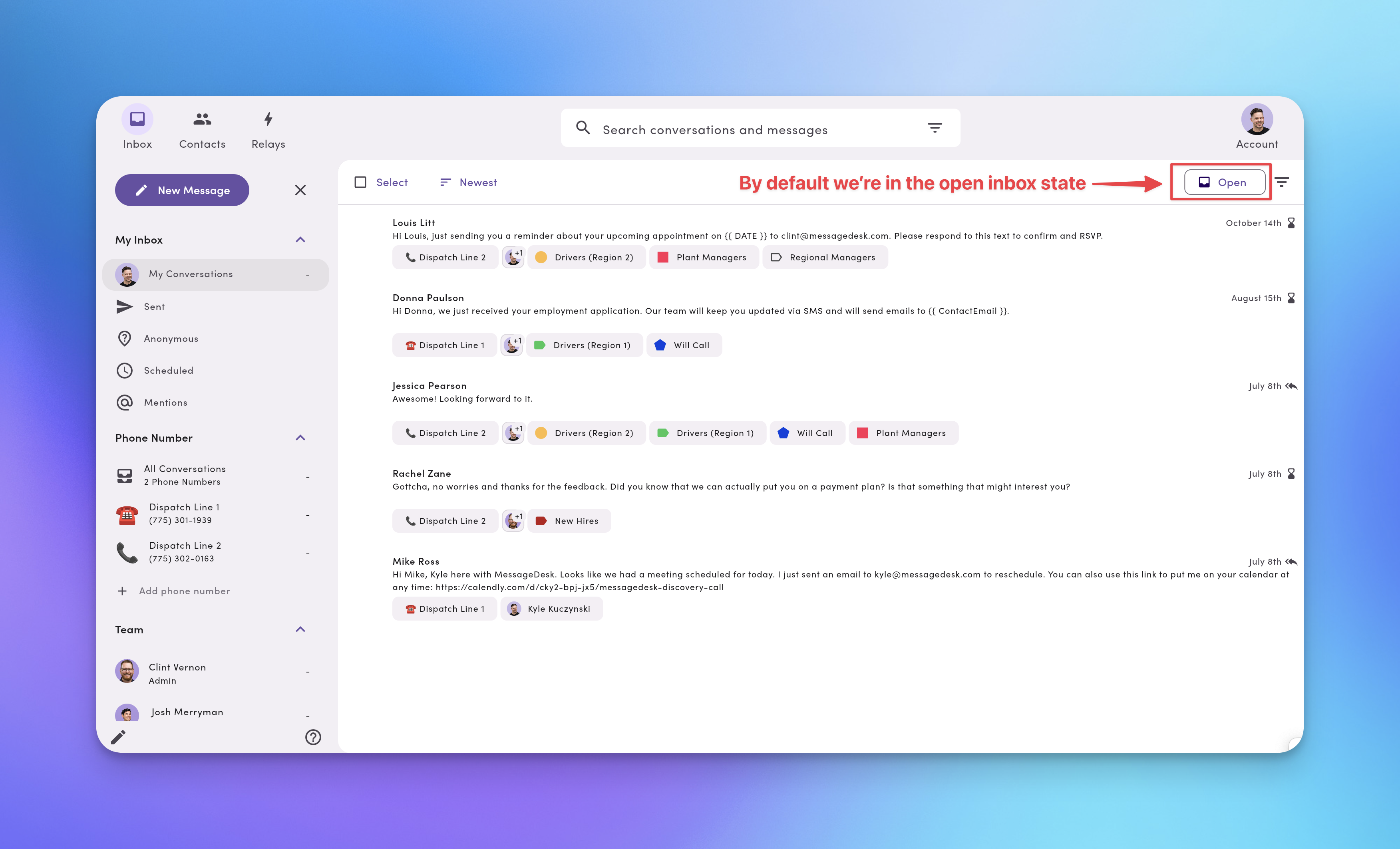
Your inbox is a set of saved filters. By default you'll see:
* **Open Inbox.** All active conversations.
* **Closed Inbox.** Conversations you've closed.
Your inbox defaults to **Open Inbox**. Look for the **Open Inbox** label/icon above the conversation list.
Use the **Assignee** filter to show only **Unassigned** conversations: threads without an owner yet. See [Filter, search & sort](/inbox/filter-search-sort) for details.
### View open conversations
1. Go to **Inbox**.
2. Confirm the **Open Inbox** filter is selected.
3. Click any conversation to work it.
New conversations start **Open** by default.
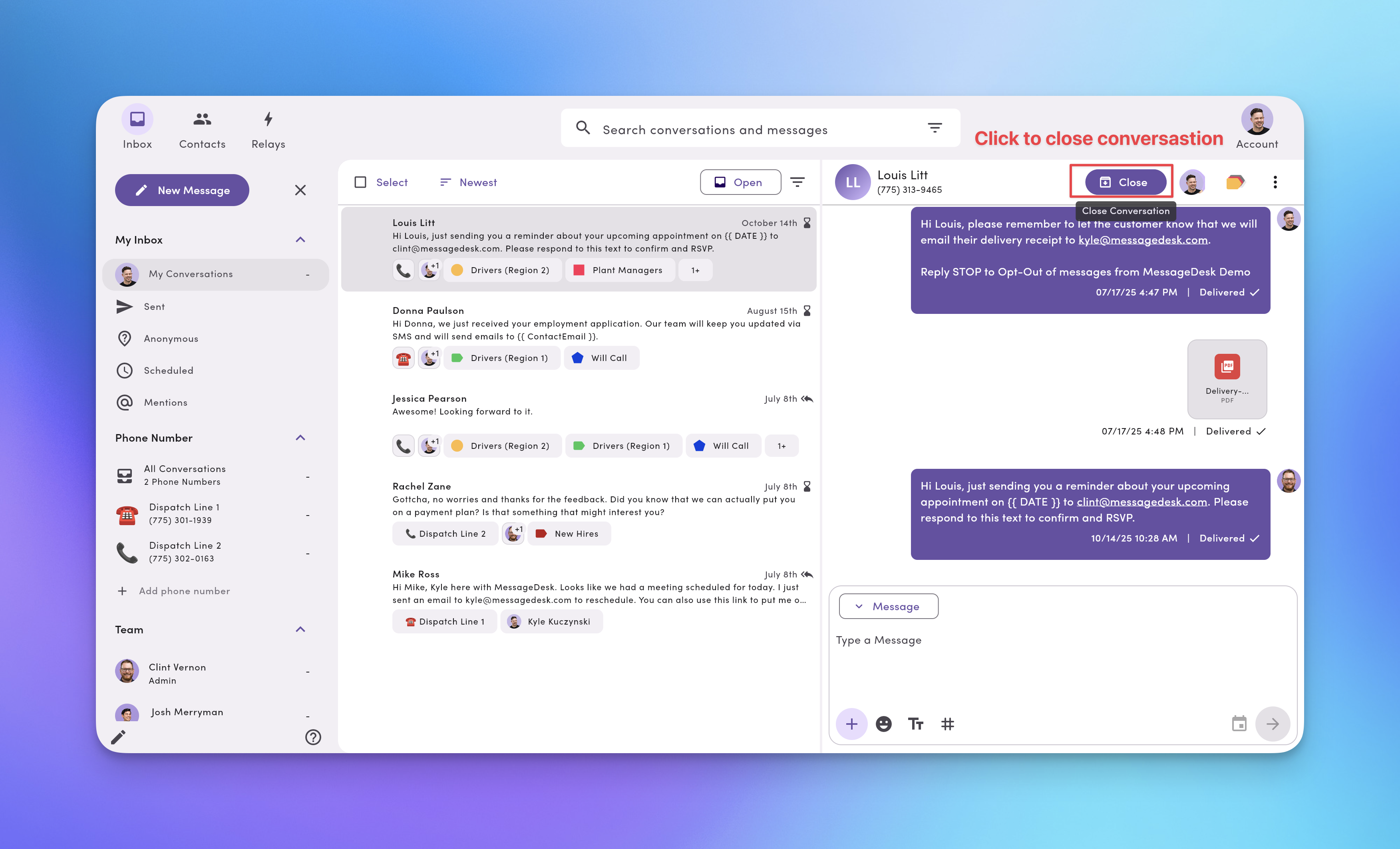
 ### Close a conversation
1. Open the conversation.
2. Click **Close** (above the thread).
3. The conversation disappears from your left-hand list and moves to **Closed Inbox**.
Close a thread once the request is resolved or no action is needed.
### Close a conversation
1. Open the conversation.
2. Click **Close** (above the thread).
3. The conversation disappears from your left-hand list and moves to **Closed Inbox**.
Close a thread once the request is resolved or no action is needed.
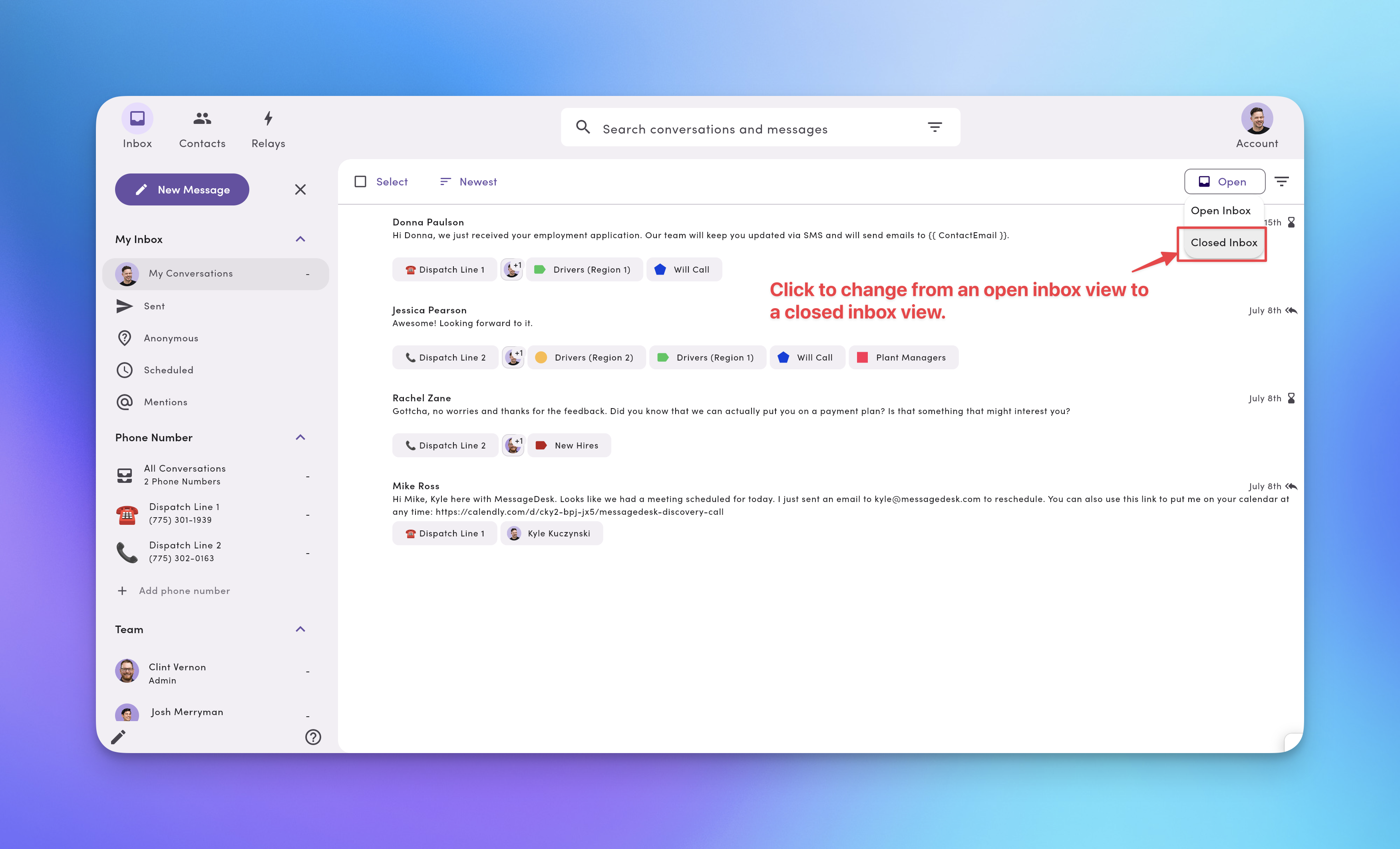
 ### View closed conversations
1. In **Inbox**, switch to **Closed Inbox**.
2. You'll see a list of closed threads.
3. Click any thread to review or reopen.
### View closed conversations
1. In **Inbox**, switch to **Closed Inbox**.
2. You'll see a list of closed threads.
3. Click any thread to review or reopen.
 When you click Closed Inbox, your inbox view switches and you'll see a list of closed conversations. The **Closed Icon** tells you you're in the closed inbox.
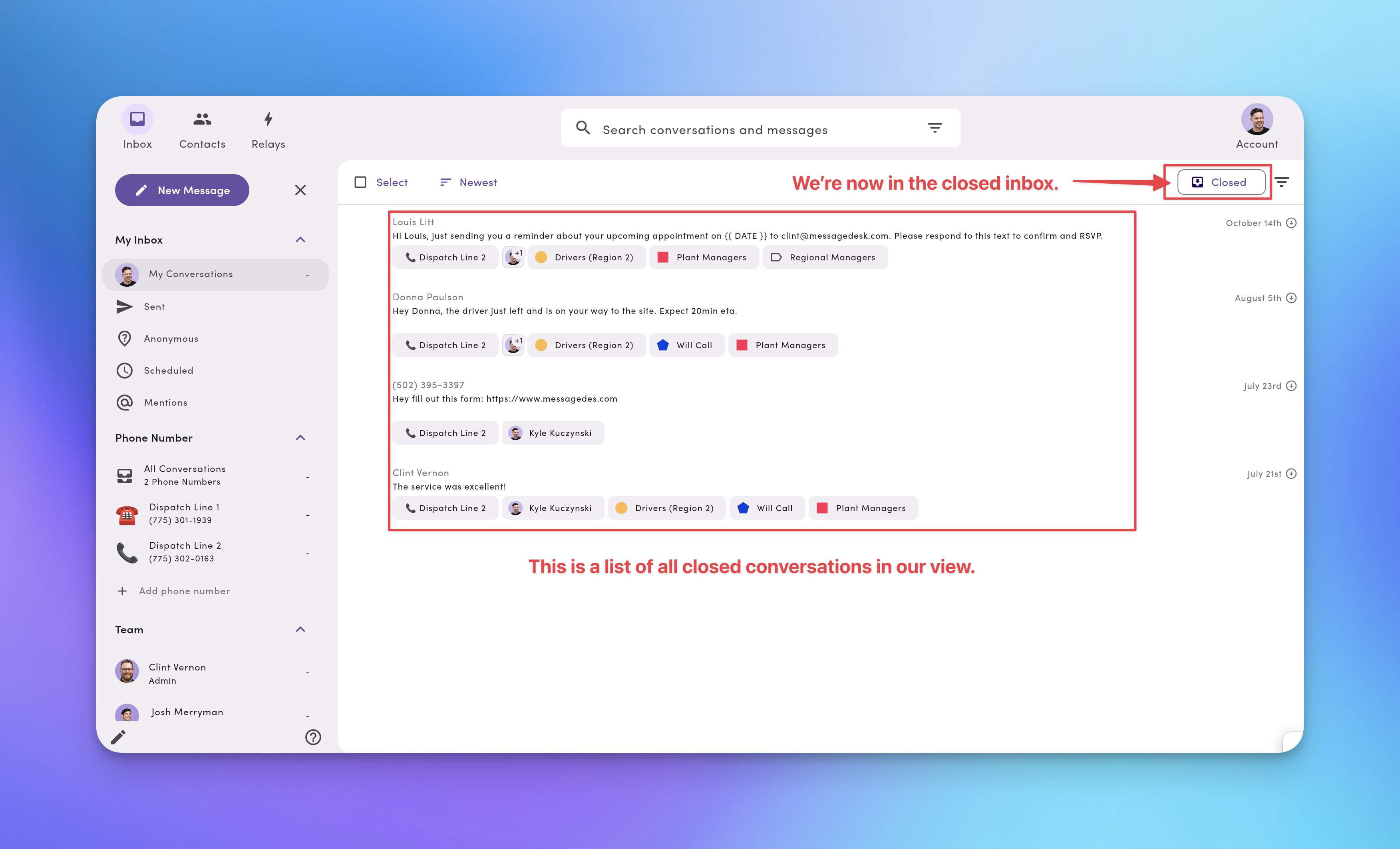 ### Reopen a closed conversation
* **Manual.** In a closed thread, click **Open** to move it back to **Open Inbox**.
* **Automatic.** Any **new message** in a closed thread (inbound or outbound) reopens it and marks it **Unread** in **Open Inbox**.
### Reopen a closed conversation
* **Manual.** In a closed thread, click **Open** to move it back to **Open Inbox**.
* **Automatic.** Any **new message** in a closed thread (inbound or outbound) reopens it and marks it **Unread** in **Open Inbox**.
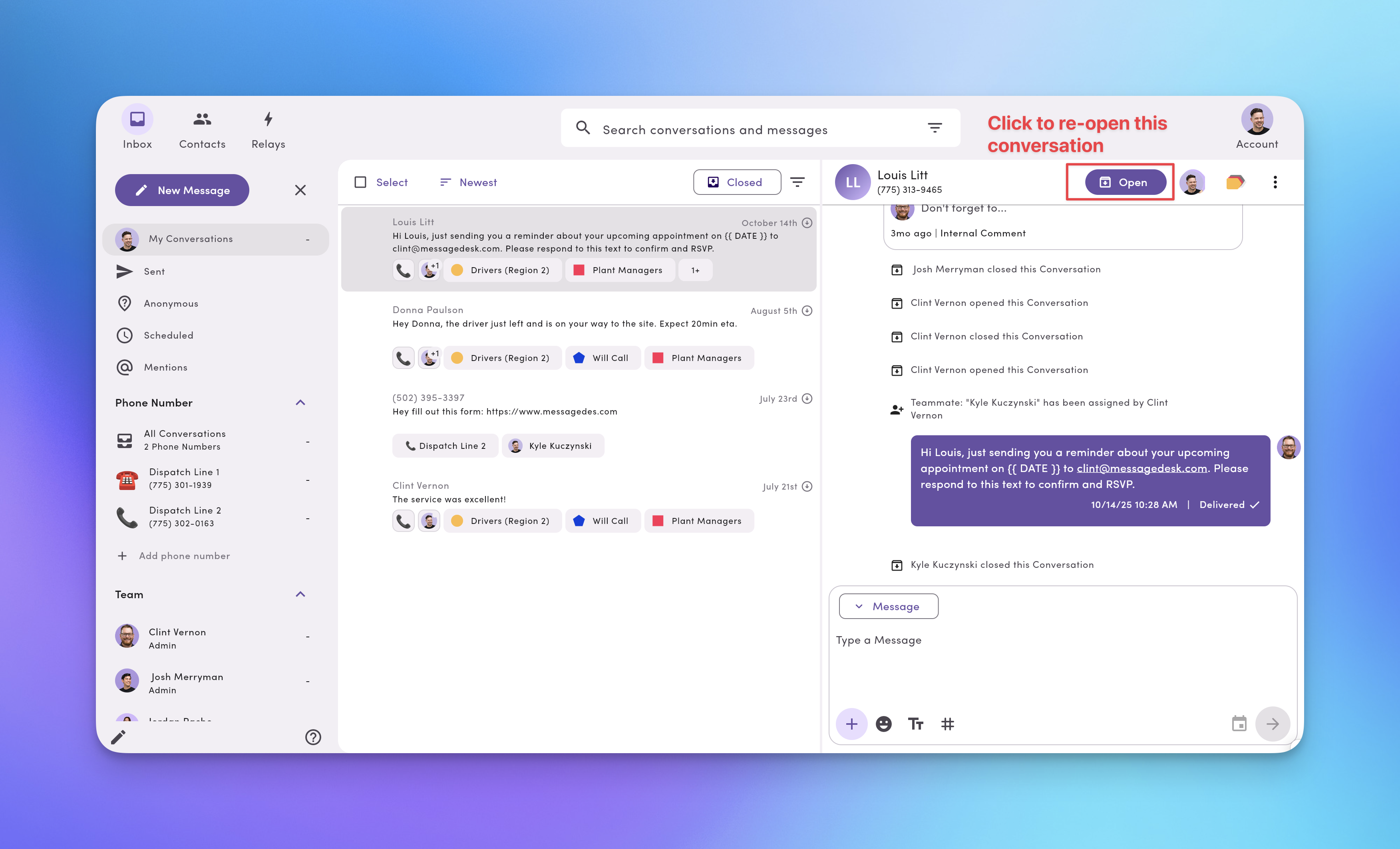 Any new message sent inside a closed conversation thread reopens that conversation in the Open Inbox and shows an unread icon next to it.
## Assign a conversation to teammates
Assign conversations to make ownership clear and avoid double work.
1. Open the conversation.
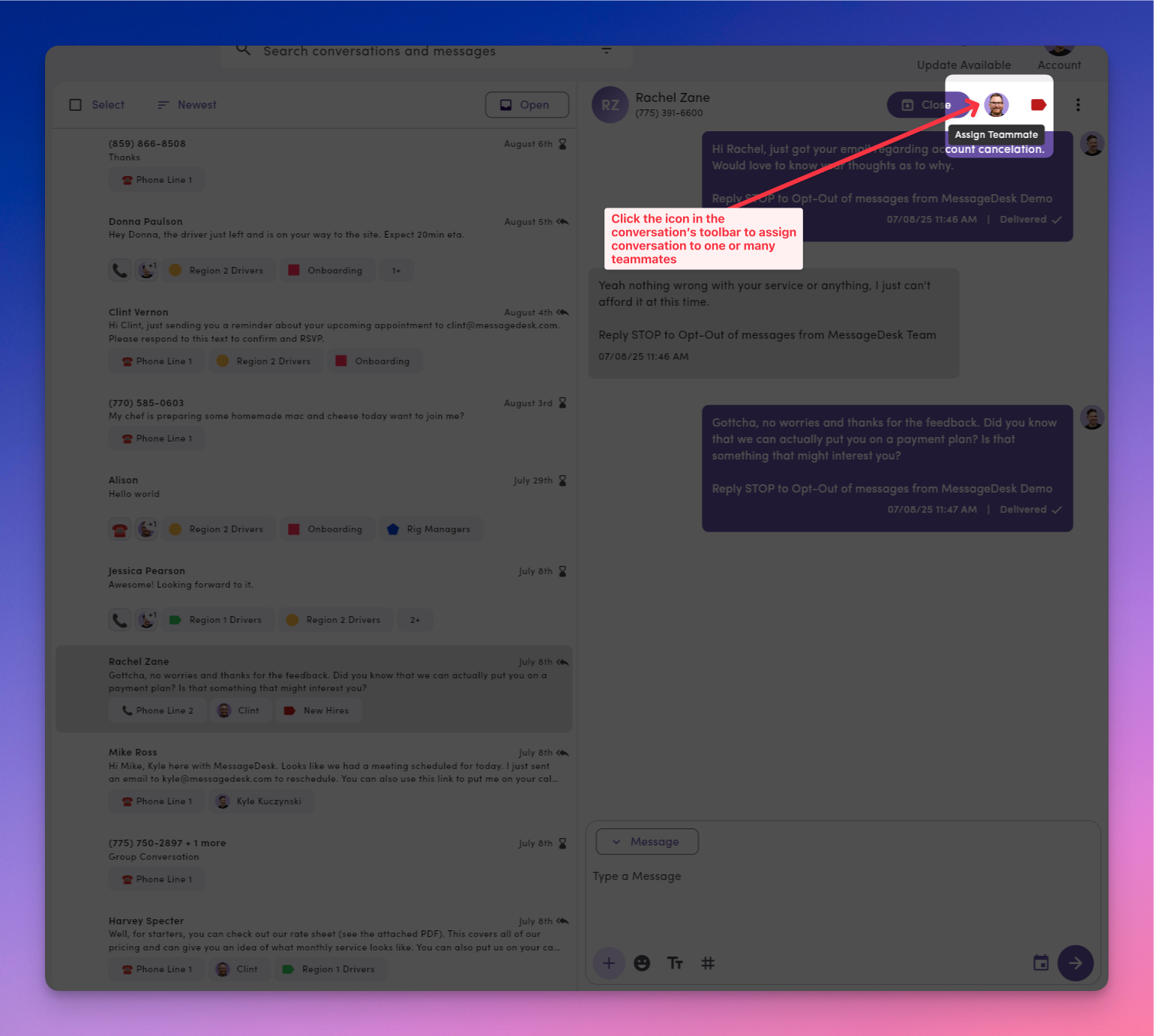
2. Click the **Assign (person)** icon (top-right).
3. Select one or multiple teammates.
4. Assigned teammates keep access to that thread.
Drop a quick internal [comment](/inbox/comments-mentions) when reassigning so the new owner has context.
Any new message sent inside a closed conversation thread reopens that conversation in the Open Inbox and shows an unread icon next to it.
## Assign a conversation to teammates
Assign conversations to make ownership clear and avoid double work.
1. Open the conversation.
2. Click the **Assign (person)** icon (top-right).
3. Select one or multiple teammates.
4. Assigned teammates keep access to that thread.
Drop a quick internal [comment](/inbox/comments-mentions) when reassigning so the new owner has context.
 ## FAQ
**Do closed conversations stay closed forever?**\
No. You can reopen any time. New activity also reopens the thread automatically.
**Can multiple teammates be assigned?**\
Yes. Assign one or many.
**What happens when I close a conversation by mistake?**\
Open **Closed Inbox**, select the thread, and click **Open** to restore it.
**Will my teammate be notified when I assign a conversation?**\
If notifications are enabled for them, they'll get one (per their notification settings).
## Troubleshooting
* **I don't see the Close or Open button.**\
Confirm you're viewing a specific conversation (not just the list) and that you have permission to update its state.
* **My closed thread didn't reopen when I replied.**\
Make sure your reply was sent in that thread and not as a new message to the same contact.
***
## Best practices
* **Close fast, reopen when needed.** Keeps the team's working queue clean.
* **Assign on first touch.** Ownership prevents duplicate replies.
* **Leave a comment on handoff.** Summarize the situation and the next step.
* **Review the Closed Inbox weekly.** Spot repeat issues and training opportunities.
## FAQ
**Do closed conversations stay closed forever?**\
No. You can reopen any time. New activity also reopens the thread automatically.
**Can multiple teammates be assigned?**\
Yes. Assign one or many.
**What happens when I close a conversation by mistake?**\
Open **Closed Inbox**, select the thread, and click **Open** to restore it.
**Will my teammate be notified when I assign a conversation?**\
If notifications are enabled for them, they'll get one (per their notification settings).
## Troubleshooting
* **I don't see the Close or Open button.**\
Confirm you're viewing a specific conversation (not just the list) and that you have permission to update its state.
* **My closed thread didn't reopen when I replied.**\
Make sure your reply was sent in that thread and not as a new message to the same contact.
***
## Best practices
* **Close fast, reopen when needed.** Keeps the team's working queue clean.
* **Assign on first touch.** Ownership prevents duplicate replies.
* **Leave a comment on handoff.** Summarize the situation and the next step.
* **Review the Closed Inbox weekly.** Spot repeat issues and training opportunities.