> ## Documentation Index
> Fetch the complete documentation index at: https://docs.messagedesk.com/llms.txt
> Use this file to discover all available pages before exploring further.
# MessageDesk Zapier Integration (Beta)
> Automate SMS workflows by connecting MessageDesk to 6,000+ apps with Zapier. Triggers, actions, and recipe ideas for syncing CRM, forms, and ticketing tools.
# Zapier integration (Beta)
Connect MessageDesk to thousands of other apps using **Zapier**.\
Automate workflows by triggering actions when messages are sent or received, or perform tasks like **creating contacts**, **sending messages**, and **adding comments** when events occur in other tools.
**Permissions required.** To build a Zap that authenticates with your MessageDesk account, your user role needs **Editor** or **Owner** on the **Developer** feature in [Team Management](/settings/workspace-settings/team-management). **Admins** have this by default. **Viewers** can't authenticate Zapier under their own account, so any Zap a Viewer builds or owns won't run.
Each Zap runs under the **MessageDesk account that authenticated it**. If a Zap stops working, check the authenticated user's role first.
***
## What you can automate
* **When a message is received** → Create helpdesk tickets, send Slack or Teams notifications, or log messages to Google Sheets.
* **When a message is sent** → Update CRM records, trigger a follow-up task, or post delivery updates.
* **From your CRM, forms, or scheduling tools** → Automatically create or update contacts in MessageDesk and send personalized text messages.
* **From payments or invoicing systems** → Send SMS confirmations when a customer pays or when a new invoice is issued.
**Requirements:**
* A [Zapier](https://zapier.com) account and a connected MessageDesk workspace.
* Outbound texting via Zapier follows the same [**registration**](/carrier-registration/overview), [**delivery**](/messaging/delivery-status-errors), and [**compliance**](/settings/workspace-settings/compliance-center) standards as sending directly from MessageDesk.
***
## How Zapier works
Each Zap has two main components:
| Type | Description |
| ----------- | -------------------------------------------------------------------------------------------- |
| **Trigger** | The event that starts your Zap (e.g., a message received in MessageDesk). |
| **Action** | The task Zapier performs after the trigger fires (e.g., send a message or create a contact). |
***
## Available MessageDesk triggers
| Trigger | Description |
| -------------------- | ----------------------------------------------------------------------- |
| **Message Received** | Fires when your workspace receives a new inbound text message. |
| **Message Sent** | Fires when a message is sent from your workspace (manual or automated). |
***
## Available MessageDesk actions
| Action | Description |
| ---------------------------- | -------------------------------------------------------------------- |
| **Create or Update Contact** | Adds a new contact or updates an existing one based on phone number. |
| **Send Message** | Sends a text message through your MessageDesk workspace. |
| **Create Comment** | Posts a new comment in a MessageDesk conversation thread. |
***
## Triggers
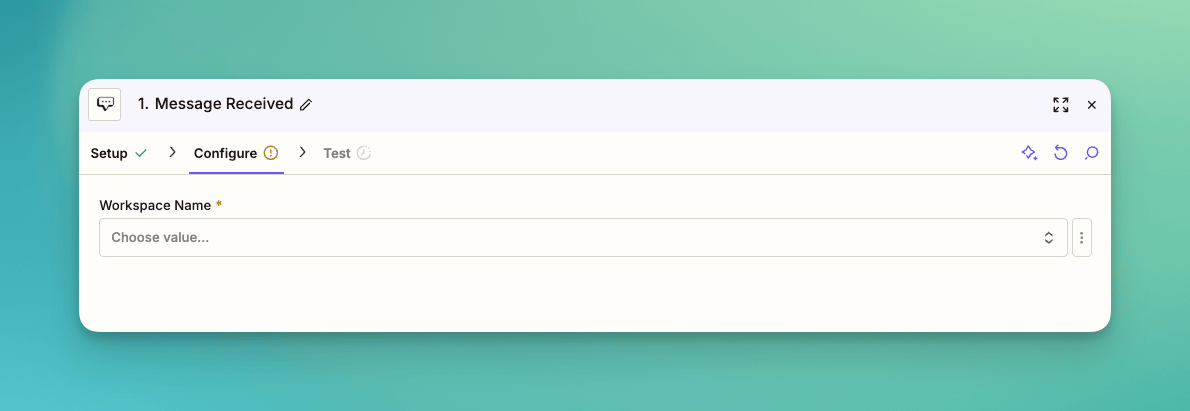
### Message Received
Fires when your MessageDesk workspace receives an inbound message.
| Field | Required | Description |
| ------------------ | -------- | --------------------------------------- |
| **Workspace Name** | ✅ | The name of your MessageDesk workspace. |
 ***
### Message Sent
Fires when your MessageDesk workspace sends an outbound message.
| Field | Required | Description |
| ------------------ | -------- | --------------------------------------- |
| **Workspace Name** | ✅ | The name of your MessageDesk workspace. |
***
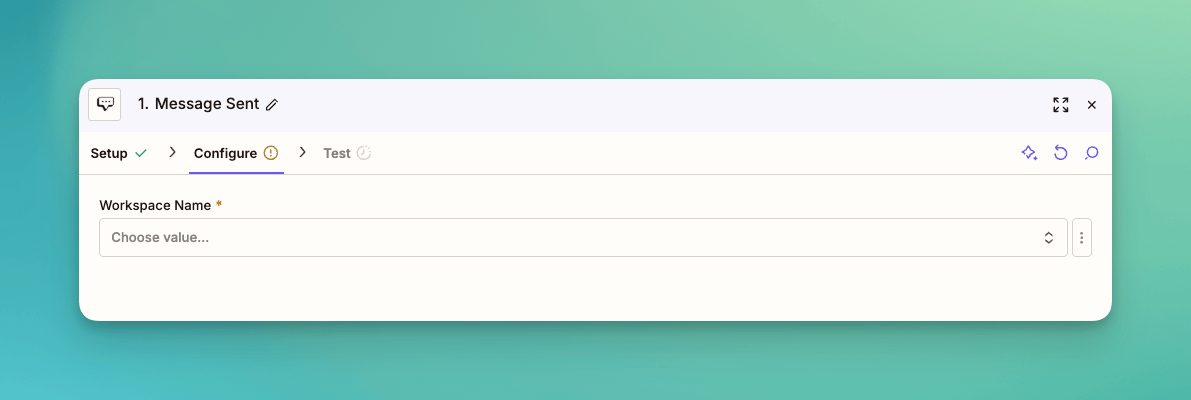
### Message Sent
Fires when your MessageDesk workspace sends an outbound message.
| Field | Required | Description |
| ------------------ | -------- | --------------------------------------- |
| **Workspace Name** | ✅ | The name of your MessageDesk workspace. |
 ***
## Actions
### Create or Update Contact
Creates or updates a contact in your selected workspace. Perfect for syncing leads, form submissions, or new customer signups.
| Field | Required | Description |
| -------------------------- | -------- | ------------------------------------------------------------------ |
| **Workspace Name** | ✅ | The name of your MessageDesk workspace. |
| **Contact Phone Number** | ✅ | The contact's phone number in E.164 format (e.g., `+15551234567`). |
| **First Name / Last Name** | ❌ | Optional contact name fields. |
| **Email** | ❌ | Optional email address. |
***
## Actions
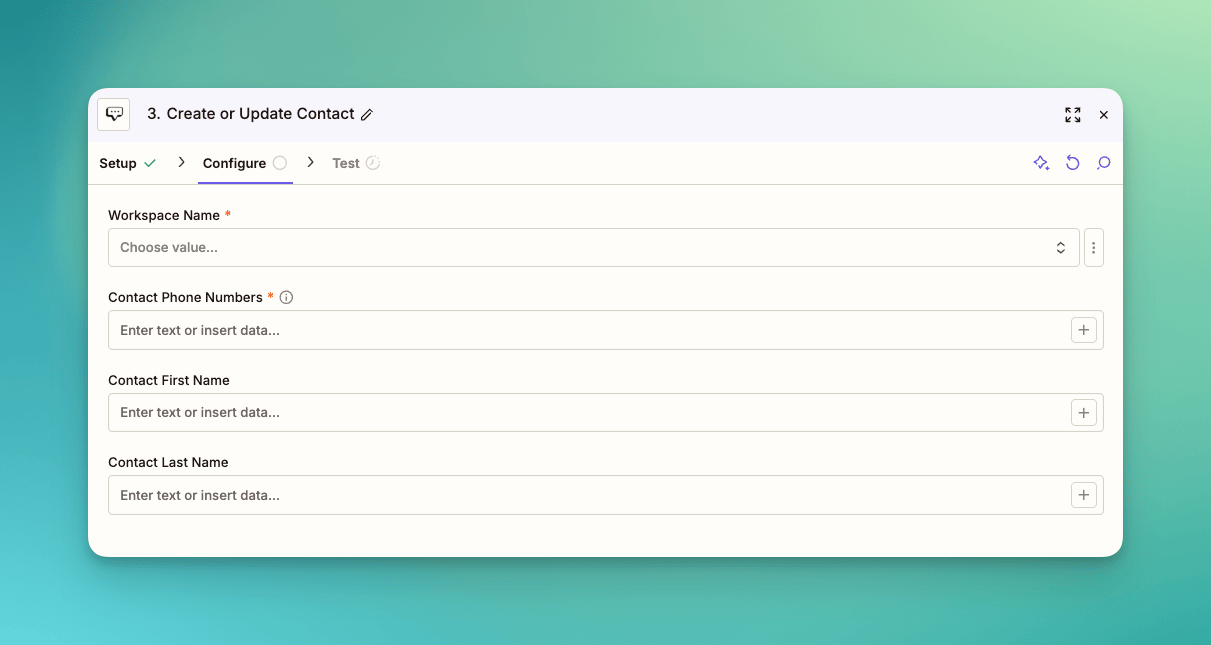
### Create or Update Contact
Creates or updates a contact in your selected workspace. Perfect for syncing leads, form submissions, or new customer signups.
| Field | Required | Description |
| -------------------------- | -------- | ------------------------------------------------------------------ |
| **Workspace Name** | ✅ | The name of your MessageDesk workspace. |
| **Contact Phone Number** | ✅ | The contact's phone number in E.164 format (e.g., `+15551234567`). |
| **First Name / Last Name** | ❌ | Optional contact name fields. |
| **Email** | ❌ | Optional email address. |
 ***
### Send Message
Sends an outbound text message from MessageDesk. Each Zap run sends one message at a time.
| Field | Required | Description |
| --------------------------------- | -------- | ------------------------------------------------------------- |
| **Workspace Name** | ✅ | The name of your MessageDesk workspace. |
| **Workspace Number to Send From** | ✅ | The phone number you'll send the message from (E.164 format). |
| **Recipient Number** | ✅ | The phone number to send your message to (E.164 format). |
| **Message Text** | ✅ | The body of your message. |
***
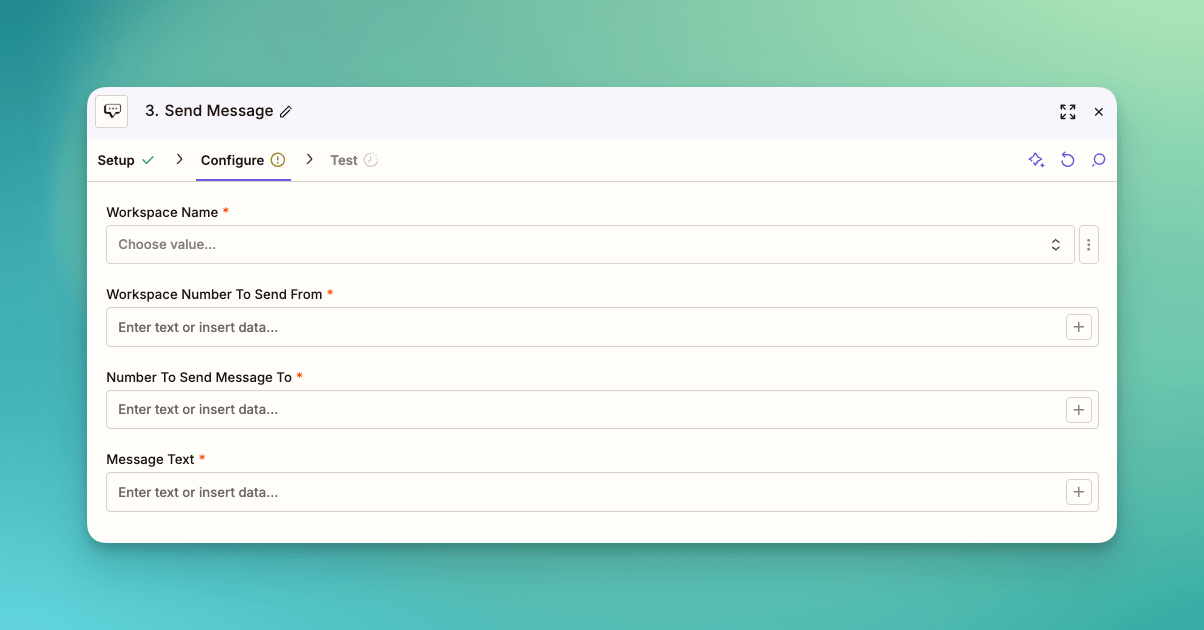
### Send Message
Sends an outbound text message from MessageDesk. Each Zap run sends one message at a time.
| Field | Required | Description |
| --------------------------------- | -------- | ------------------------------------------------------------- |
| **Workspace Name** | ✅ | The name of your MessageDesk workspace. |
| **Workspace Number to Send From** | ✅ | The phone number you'll send the message from (E.164 format). |
| **Recipient Number** | ✅ | The phone number to send your message to (E.164 format). |
| **Message Text** | ✅ | The body of your message. |
 Messages sent through Zapier count toward your MessageDesk usage and must follow the same carrier and compliance rules as messages sent from your Inbox.
***
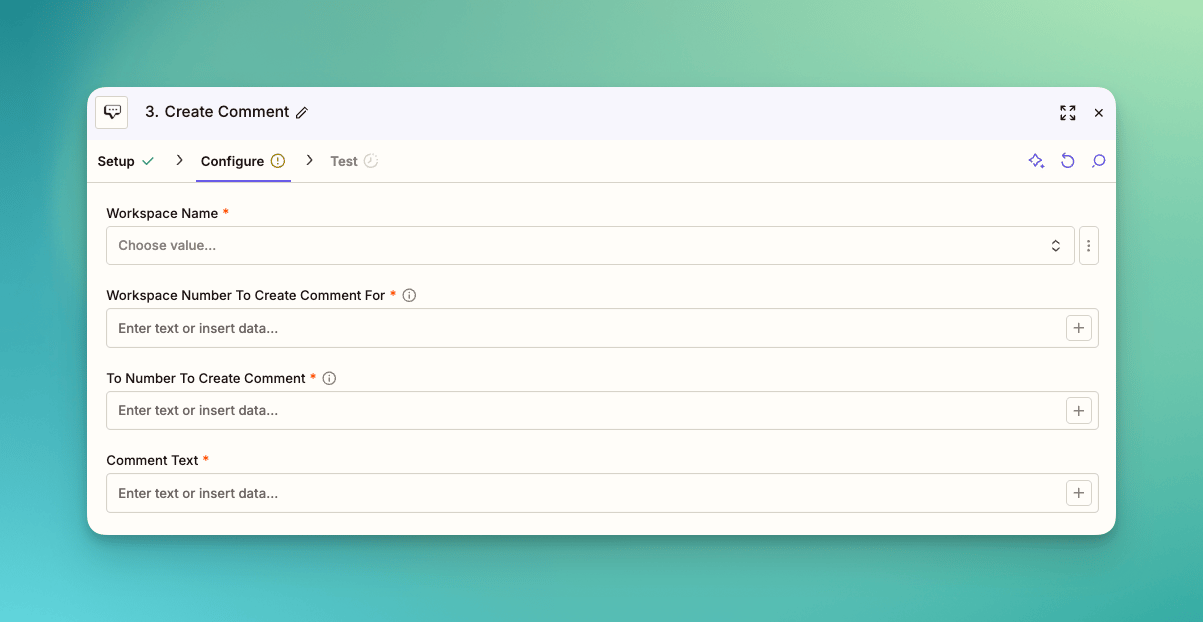
### Create Comment
Posts a comment in an existing conversation thread. Use this action to add internal notes, mention teammates, or automate updates from other apps.
| Field | Required | Description |
| -------------------- | -------- | ------------------------------------------------------------------- |
| **Workspace Name** | ✅ | The name of your MessageDesk workspace. |
| **Workspace Number** | ✅ | The phone number tied to the workspace conversation (E.164 format). |
| **Contact Number** | ✅ | The contact's phone number to identify the conversation. |
| **Comment Text** | ✅ | The text body of your comment. |
Messages sent through Zapier count toward your MessageDesk usage and must follow the same carrier and compliance rules as messages sent from your Inbox.
***
### Create Comment
Posts a comment in an existing conversation thread. Use this action to add internal notes, mention teammates, or automate updates from other apps.
| Field | Required | Description |
| -------------------- | -------- | ------------------------------------------------------------------- |
| **Workspace Name** | ✅ | The name of your MessageDesk workspace. |
| **Workspace Number** | ✅ | The phone number tied to the workspace conversation (E.164 format). |
| **Contact Number** | ✅ | The contact's phone number to identify the conversation. |
| **Comment Text** | ✅ | The text body of your comment. |
 ***
## How to build your first MessageDesk Zap
### 1. Gain early beta access
[Request access here](https://messagedesk.typeform.com/to/C3cEgPAm) to join the Zapier beta.
### 2. Accept the invitation from Zapier in your inbox
Go to your email, find an invitation from Zapier, and click accept to gain access to the Zapier integration.
Note: You must be an admin for your Zapier account to accept the invitation and gain access to the MessageDesk Zapier integration.
### 3. Log in to Zapier
Once you accept the invitation, visit [**zapier.com**](https://zapier.com) to log in or create a new account.
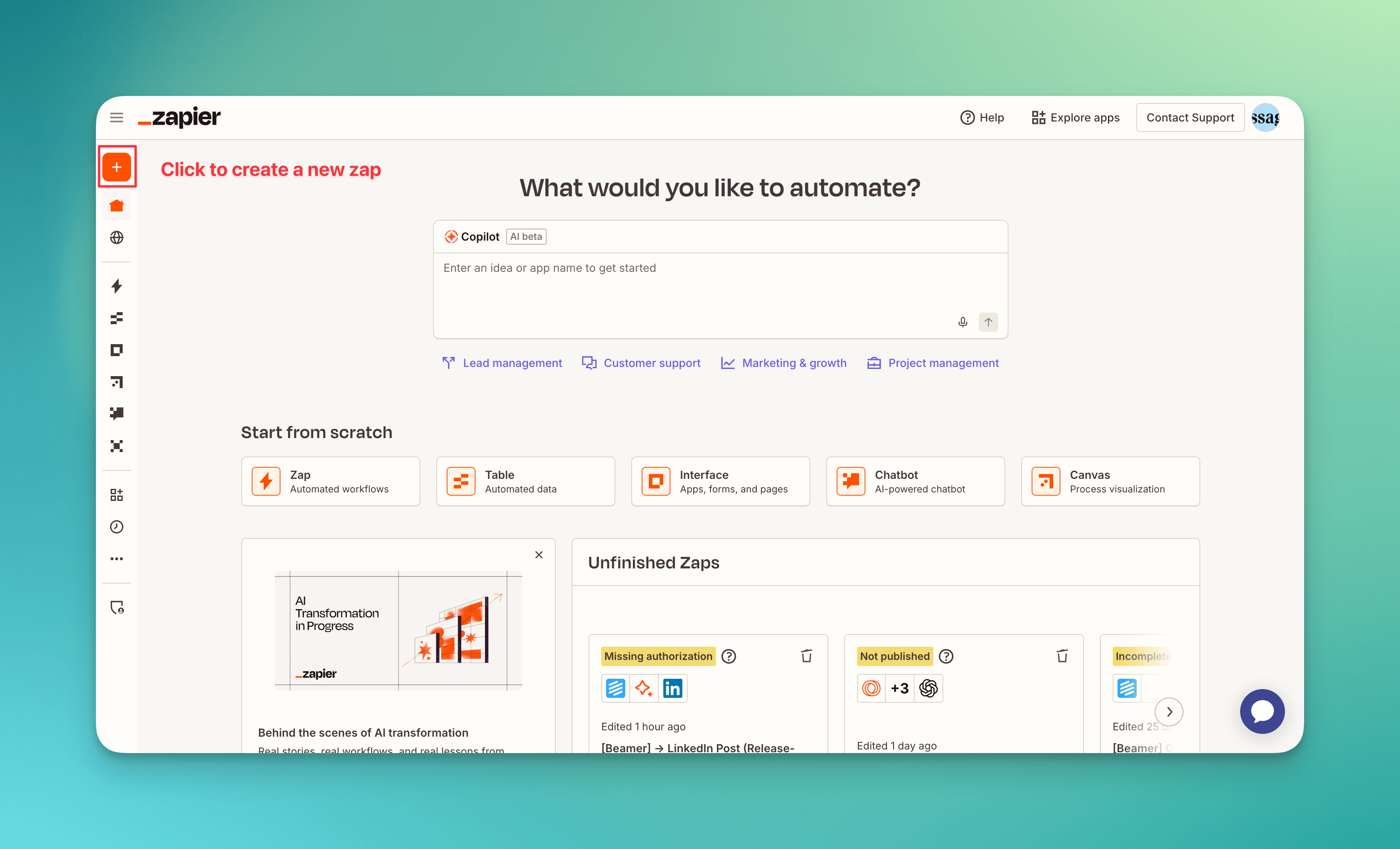
### 4. Create a new Zap
Click **Create Zap** on your dashboard.
***
## How to build your first MessageDesk Zap
### 1. Gain early beta access
[Request access here](https://messagedesk.typeform.com/to/C3cEgPAm) to join the Zapier beta.
### 2. Accept the invitation from Zapier in your inbox
Go to your email, find an invitation from Zapier, and click accept to gain access to the Zapier integration.
Note: You must be an admin for your Zapier account to accept the invitation and gain access to the MessageDesk Zapier integration.
### 3. Log in to Zapier
Once you accept the invitation, visit [**zapier.com**](https://zapier.com) to log in or create a new account.
### 4. Create a new Zap
Click **Create Zap** on your dashboard.
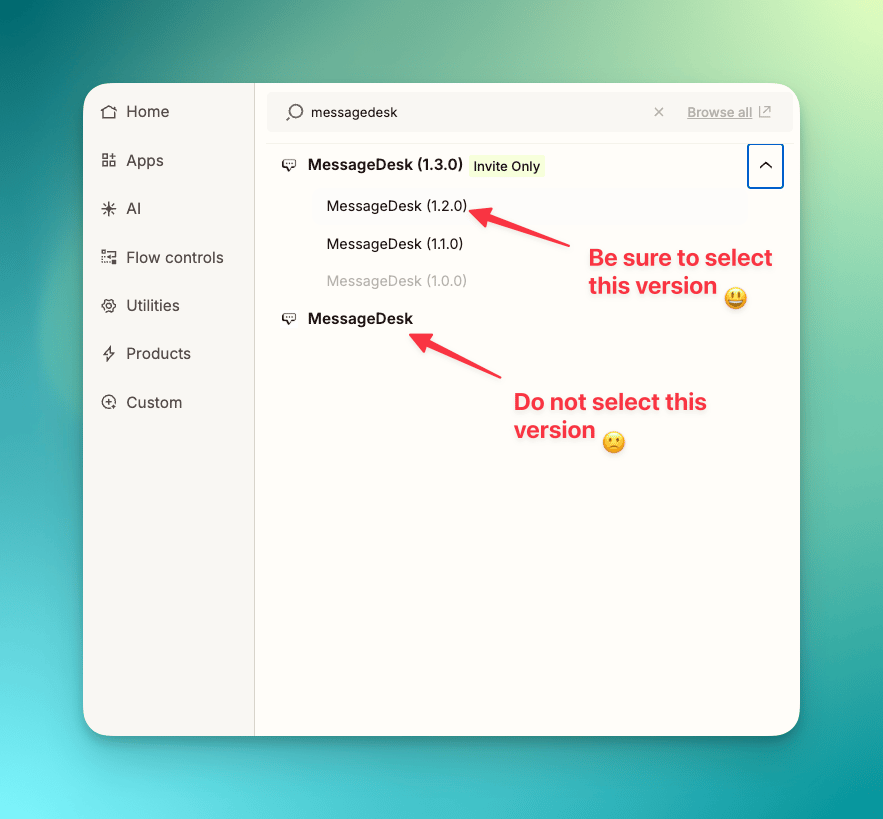
 ### 5. Add MessageDesk
Search for **MessageDesk (Invite Only)** and select **version 1.2.0** from the dropdown.
### 5. Add MessageDesk
Search for **MessageDesk (Invite Only)** and select **version 1.2.0** from the dropdown.
 You can use MessageDesk as either a **trigger** or an **action**.
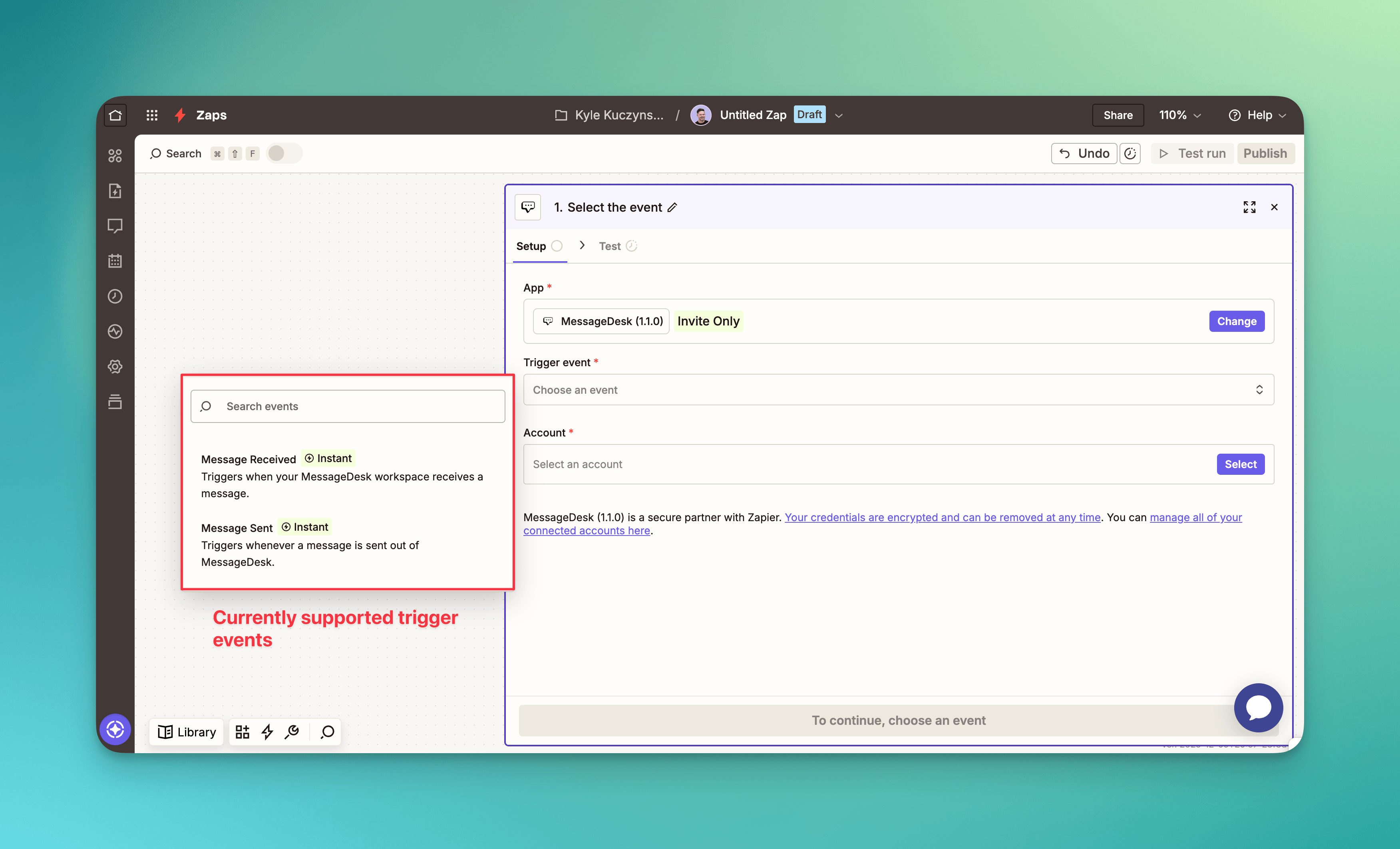
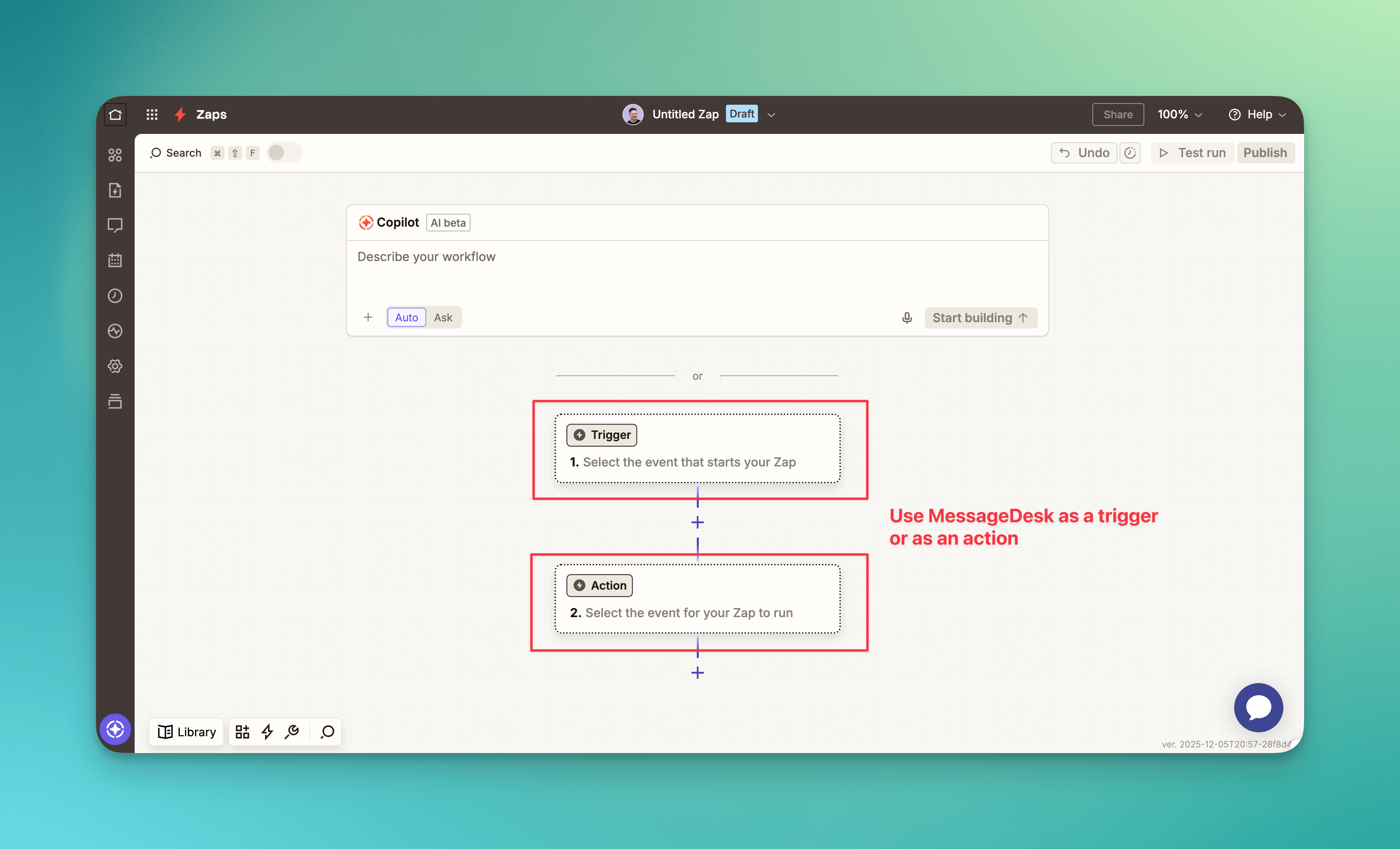 ### 6. Choose a trigger
Select one of the following:
* **Message Received**
* **Message Sent**
Then connect your MessageDesk account and select your workspace.
### 6. Choose a trigger
Select one of the following:
* **Message Received**
* **Message Sent**
Then connect your MessageDesk account and select your workspace.
 ### 7. Add an action
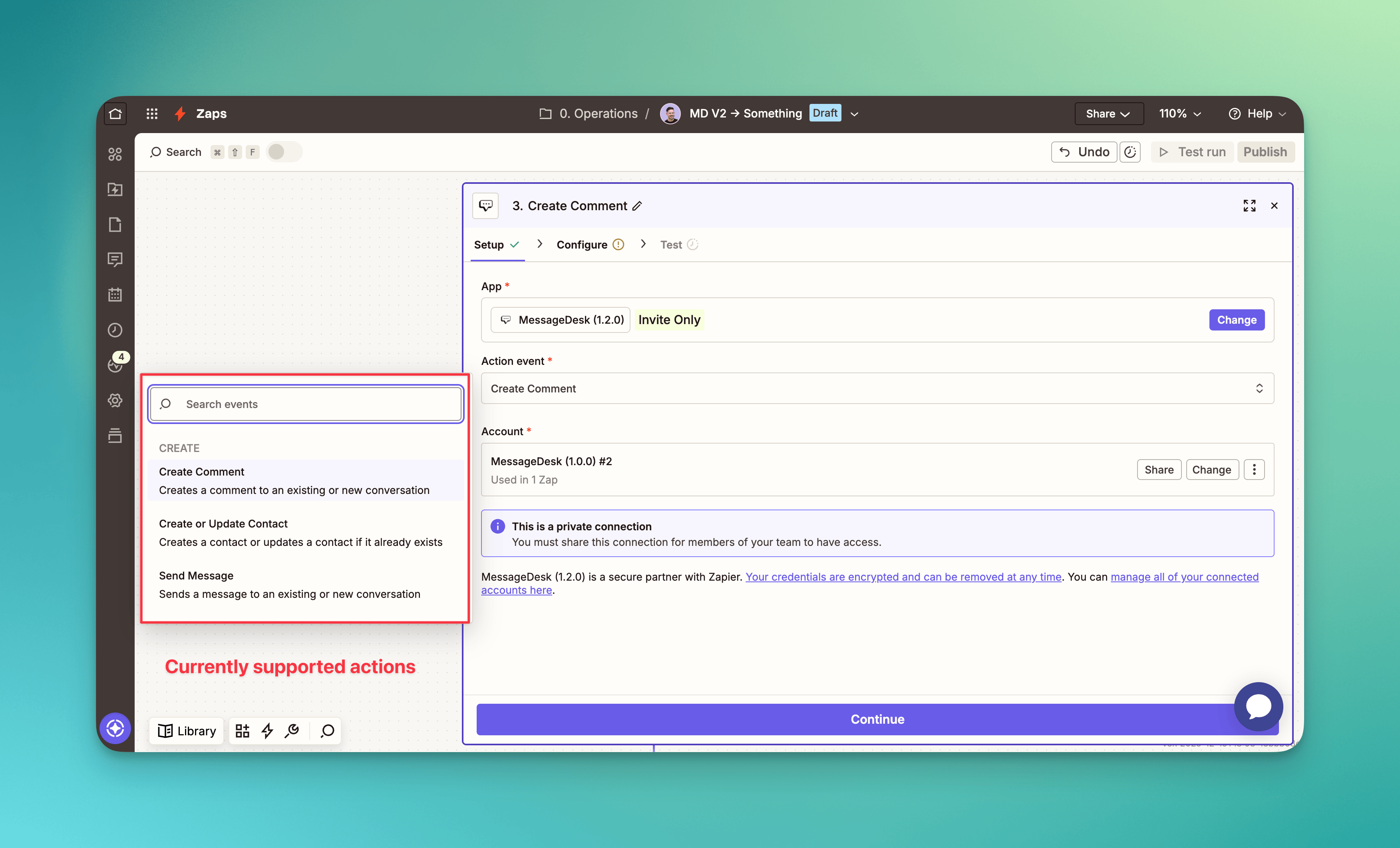
Choose from:
* **Create or Update Contact**
* **Send Message**
* **Create Comment**
Map your fields, test your Zap, and turn it on.
### 7. Add an action
Choose from:
* **Create or Update Contact**
* **Send Message**
* **Create Comment**
Map your fields, test your Zap, and turn it on.
 ***
## Popular Zapier workflows
Use these examples to get inspired and automate common MessageDesk tasks:
| Workflow | Connected Apps | Description |
| --------------------------------------------------------------- | --------------------------------- | -------------------------------------------------------------------------------------------------------------------------------------------------------------- |
| **New CRM Lead → Add to MessageDesk** | HubSpot, Pipedrive, Zoho CRM | When a new lead is created, automatically create or update the contact in MessageDesk and send a personalized welcome text. |
| **Job or Appointment Booked → Send Reminder Text** | Calendly, Google Calendar, Jobber | Send automated appointment reminders or confirmations directly from MessageDesk. |
| **New Message in MessageDesk → Notify Teammates** | Slack, Microsoft Teams | Post a notification with message details and contact info when a new message arrives in MessageDesk. |
| **Invoice Created or Payment Received → Send Confirmation SMS** | QuickBooks, Xero | When a new invoice is issued or a payment is logged, send a text confirmation to the customer. |
| **New Form Submission → Create Comment with Mention** | Google Forms, Typeform | Automatically post a comment when a new form or chatbot submission is received. |
| **Email or Message → Comment in Thread** | Outlook, Gmail, Teams | Create an internal comment in MessageDesk when an external email or chat arrives, keeping your team aligned. |
| **Customer Review Received → Thank You Text** | Google Reviews, Mailchimp | Automatically send a thank-you message when a customer leaves a new review or completes feedback. |
| **New Twilio BYOC Number Added → Notify Slack Channel** | Twilio, Slack | Post a message to a Slack channel when a new Twilio BYOC number is connected to MessageDesk so admins and the support team stay in sync on phone-line changes. |
| **New Opted-Out Contact → Update CRM Record as Unsubscribed** | HubSpot, Salesforce | When a contact opts out of SMS in MessageDesk, flag the matching CRM record as unsubscribed so marketing automations and sales sequences stop messaging them. |
| **Conversation Closed → Create Follow-Up Task** | Asana, ClickUp, Monday.com | When a MessageDesk conversation is closed, create a follow-up task in your project management tool so nothing slips through after the thread is resolved. |
***
## Best practices
* ✅ **Include opt-out text:** "Reply STOP to opt out" for promotional or automated messages.
* ✅ **Always use E.164 format:** `+15551234567` for all phone numbers.
* ✅ **Test with real data:** Before turning on your Zap.
* ⚠️ **Avoid bulk sends:** Each Zap run sends one message. Use MessageDesk **Broadcasts** for larger campaigns.
* 🧩 **Use filters and conditions:** Limit your Zaps to relevant events (e.g., only messages containing "Support").
***
## Troubleshooting
| Issue | Solution |
| ----------------------------------------------------------------------------- | -------------------------------------------------------------------------------------------------------------------------------------------------------------------------------------------------------------------------------------------------------------------------------------------------------------------------------------------------------------------------------------------------------------------------------------------------------------------------------------------------------------------------------------------------------------------------------------- |
| **Authentication fails when connecting to MessageDesk** | Reconnect your account in Zapier and confirm you're using the correct workspace and **Zap version 1.2.0**. |
| **Zap fails during testing** | Make sure all phone numbers are formatted correctly in **E.164**. |
| **Message sent but not delivered** | Check [Delivery Status & Errors](/messaging/delivery-status-errors) for details. |
| **Zap not triggering** | Verify the correct trigger and workspace setup. Send a test message to fire the event. |
| **Contact not updating correctly** | Check field mappings and confirm the contact's phone number matches existing records. |
| **My Zap built fine but isn't firing (or one Zap works and another doesn't)** | Check which **MessageDesk user authenticated** that specific Zap in Zapier. Each Zap runs under the user whose credentials connected the MessageDesk account. That user must have **Editor** or **Owner** on the **Developer** feature in [Team Management](/settings/workspace-settings/team-management). Common cause: an admin authenticated one Zap (works), and a teammate without Developer permission authenticated another (fails). Re-authenticate the failing Zap with a user who has the right permission, or have an admin grant the existing user **Developer = Editor**. |
***
***
## Popular Zapier workflows
Use these examples to get inspired and automate common MessageDesk tasks:
| Workflow | Connected Apps | Description |
| --------------------------------------------------------------- | --------------------------------- | -------------------------------------------------------------------------------------------------------------------------------------------------------------- |
| **New CRM Lead → Add to MessageDesk** | HubSpot, Pipedrive, Zoho CRM | When a new lead is created, automatically create or update the contact in MessageDesk and send a personalized welcome text. |
| **Job or Appointment Booked → Send Reminder Text** | Calendly, Google Calendar, Jobber | Send automated appointment reminders or confirmations directly from MessageDesk. |
| **New Message in MessageDesk → Notify Teammates** | Slack, Microsoft Teams | Post a notification with message details and contact info when a new message arrives in MessageDesk. |
| **Invoice Created or Payment Received → Send Confirmation SMS** | QuickBooks, Xero | When a new invoice is issued or a payment is logged, send a text confirmation to the customer. |
| **New Form Submission → Create Comment with Mention** | Google Forms, Typeform | Automatically post a comment when a new form or chatbot submission is received. |
| **Email or Message → Comment in Thread** | Outlook, Gmail, Teams | Create an internal comment in MessageDesk when an external email or chat arrives, keeping your team aligned. |
| **Customer Review Received → Thank You Text** | Google Reviews, Mailchimp | Automatically send a thank-you message when a customer leaves a new review or completes feedback. |
| **New Twilio BYOC Number Added → Notify Slack Channel** | Twilio, Slack | Post a message to a Slack channel when a new Twilio BYOC number is connected to MessageDesk so admins and the support team stay in sync on phone-line changes. |
| **New Opted-Out Contact → Update CRM Record as Unsubscribed** | HubSpot, Salesforce | When a contact opts out of SMS in MessageDesk, flag the matching CRM record as unsubscribed so marketing automations and sales sequences stop messaging them. |
| **Conversation Closed → Create Follow-Up Task** | Asana, ClickUp, Monday.com | When a MessageDesk conversation is closed, create a follow-up task in your project management tool so nothing slips through after the thread is resolved. |
***
## Best practices
* ✅ **Include opt-out text:** "Reply STOP to opt out" for promotional or automated messages.
* ✅ **Always use E.164 format:** `+15551234567` for all phone numbers.
* ✅ **Test with real data:** Before turning on your Zap.
* ⚠️ **Avoid bulk sends:** Each Zap run sends one message. Use MessageDesk **Broadcasts** for larger campaigns.
* 🧩 **Use filters and conditions:** Limit your Zaps to relevant events (e.g., only messages containing "Support").
***
## Troubleshooting
| Issue | Solution |
| ----------------------------------------------------------------------------- | -------------------------------------------------------------------------------------------------------------------------------------------------------------------------------------------------------------------------------------------------------------------------------------------------------------------------------------------------------------------------------------------------------------------------------------------------------------------------------------------------------------------------------------------------------------------------------------- |
| **Authentication fails when connecting to MessageDesk** | Reconnect your account in Zapier and confirm you're using the correct workspace and **Zap version 1.2.0**. |
| **Zap fails during testing** | Make sure all phone numbers are formatted correctly in **E.164**. |
| **Message sent but not delivered** | Check [Delivery Status & Errors](/messaging/delivery-status-errors) for details. |
| **Zap not triggering** | Verify the correct trigger and workspace setup. Send a test message to fire the event. |
| **Contact not updating correctly** | Check field mappings and confirm the contact's phone number matches existing records. |
| **My Zap built fine but isn't firing (or one Zap works and another doesn't)** | Check which **MessageDesk user authenticated** that specific Zap in Zapier. Each Zap runs under the user whose credentials connected the MessageDesk account. That user must have **Editor** or **Owner** on the **Developer** feature in [Team Management](/settings/workspace-settings/team-management). Common cause: an admin authenticated one Zap (works), and a teammate without Developer permission authenticated another (fails). Re-authenticate the failing Zap with a user who has the right permission, or have an admin grant the existing user **Developer = Editor**. |
***