> ## Documentation Index
> Fetch the complete documentation index at: https://docs.messagedesk.com/llms.txt
> Use this file to discover all available pages before exploring further.
# Send a Broadcast (Mass Text to Many Contacts)
> Send one text to a list of customers with MessageDesk broadcasts. Mass text up to 100 contacts per send, from Contacts or a saved filter, with private 1-on-1 replies.
# Send a text to many contacts with broadcasts
Want to send one text to a list of customers at once? In MessageDesk, that's a **broadcast**. A broadcast sends the same message to each recipient separately. Every reply comes back as its own private 1-on-1 conversation in your Inbox.
**Plan required:** Broadcasts are available on the **Pro** and **Enterprise** plans. See [Pricing](/resources/pricing).
## How broadcasts work
* **One message, many recipients.** Write your message once and MessageDesk sends it to each contact individually.
* **Replies stay private.** Recipients don't see each other or each other's replies. Each reply opens a private thread you can assign, label, and follow up on.
* **Up to 100 contacts per broadcast.** This limit helps prevent spam and abuse. Enterprise workspaces with larger sending needs can ask for a higher limit. [Contact us](/contact-us) to learn more.
**Broadcasts aren't Group SMS.** Group SMS is a separate type of message that creates one shared thread where everyone sees every reply. To learn about it, see [Group SMS](/messaging/overview#group-sms).
## Send a broadcast from Contacts
This is the fastest way to send a broadcast to a specific group of customers, like everyone in a region or everyone with an upcoming appointment.
1. Go to **Contacts**.
2. Narrow the list to the people you want to reach:
* Click **Filter** to [create a filter](/contacts/saved-filters), **or**
* Click a filter under **Saved Filters** in the side menu.
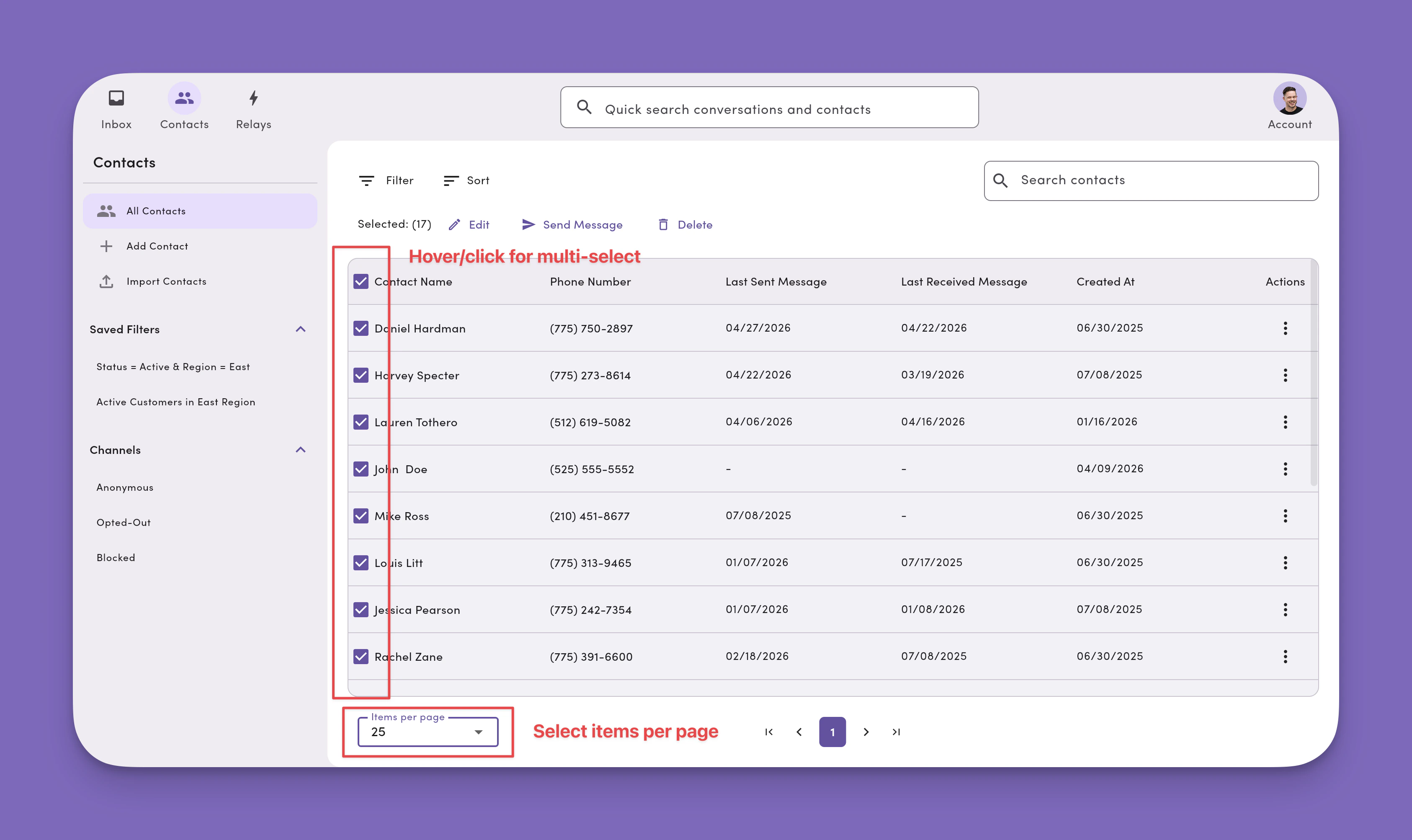
3. Select the contacts you want to message. Hover over a contact and check the box, or use the checkbox in the header to select the whole page. Set **Items per page** to **250** to select up to 250 contacts at once.
4. Click **Send Message**. MessageDesk opens [New message](/messaging/new-message-compose) with your selected contacts already added as recipients. If you selected more than 100 contacts, only the first 100 are added (or up to your workspace's higher limit on Enterprise).
5. Finish your broadcast in the composer. See [Finish and send your broadcast](#finish-and-send-your-broadcast) below.
 **Save filters you message often.** A [saved filter](/contacts/saved-filters) works like a reusable list. Open it any time to message the same group again, and it picks up new contacts that match.
## Send a broadcast from New message
Use this when you already know who you're sending to, or want to message everyone with a certain label or teammate.
1. In the Inbox, click **New Message**.
2. In **Recipients**, add the people you want to reach. You can:
* Search and add individual contacts by name or phone number.
* Copy and paste a list of phone numbers.
* Select a **label** to send to the conversations with that label.
* Select a **teammate** to send to the conversations assigned to them.
3. Finish your broadcast in the composer. See the next section.
For the details on each recipient type, see [Compose new messages](/messaging/new-message-compose#2-add-recipients).
**Save filters you message often.** A [saved filter](/contacts/saved-filters) works like a reusable list. Open it any time to message the same group again, and it picks up new contacts that match.
## Send a broadcast from New message
Use this when you already know who you're sending to, or want to message everyone with a certain label or teammate.
1. In the Inbox, click **New Message**.
2. In **Recipients**, add the people you want to reach. You can:
* Search and add individual contacts by name or phone number.
* Copy and paste a list of phone numbers.
* Select a **label** to send to the conversations with that label.
* Select a **teammate** to send to the conversations assigned to them.
3. Finish your broadcast in the composer. See the next section.
For the details on each recipient type, see [Compose new messages](/messaging/new-message-compose#2-add-recipients).
 ## Finish and send your broadcast
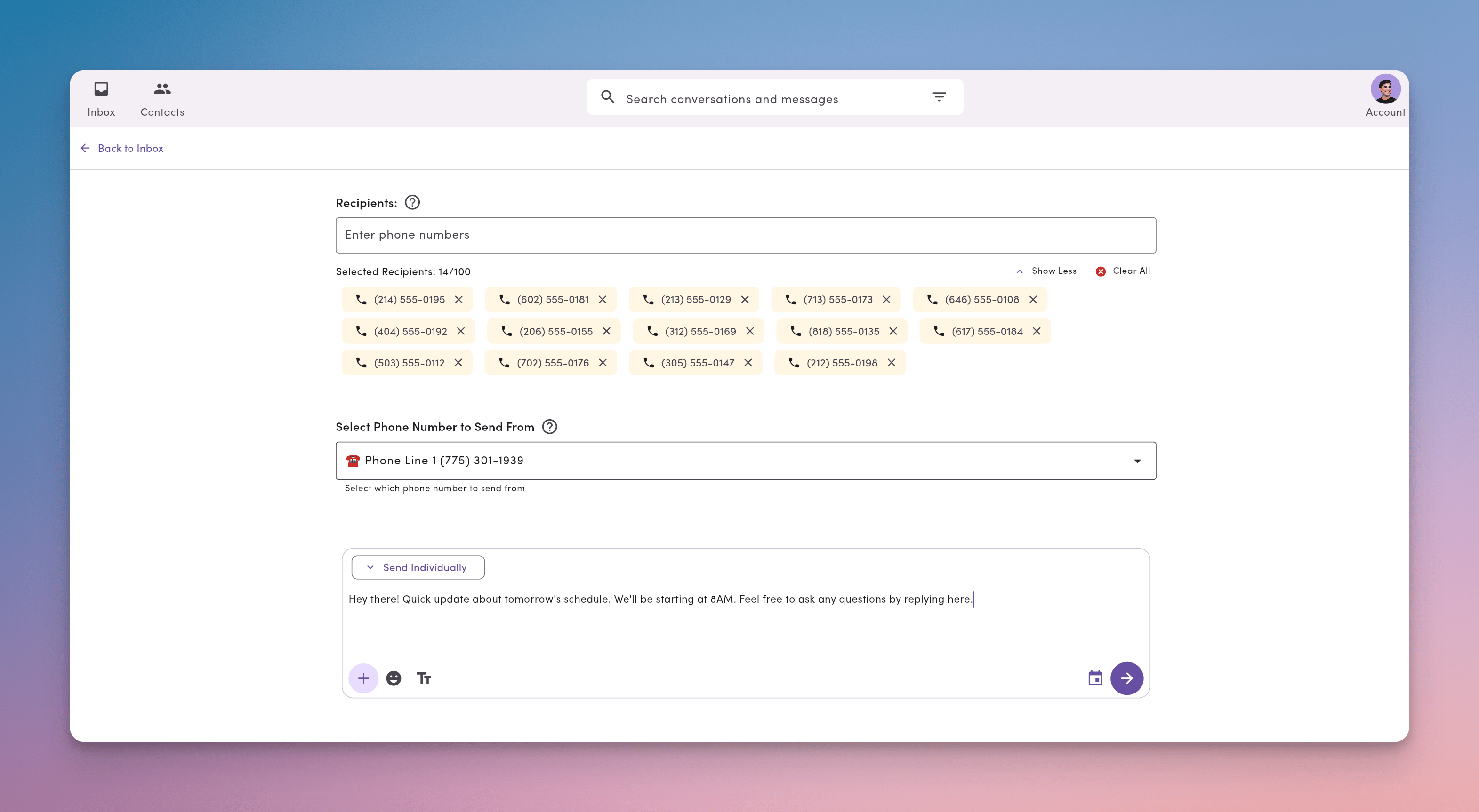
1. **Choose your Send from number.** Pick the connected phone number your contacts expect to hear from.
2. **Choose Send individually.** This is the message type that makes your message a broadcast.
3. **Write your message.** Add a [template](/messaging/templates-tags), [personalization tags](/messaging/templates-tags), [media](/messaging/media), or emoji.
4. **Optional: add post-send actions.** Automatically [apply a label or assign a teammate](/messaging/new-message-compose#post-send-actions) to every conversation the broadcast creates. This makes replies easy to find and follow up on.
5. **Send now or schedule.** Send right away, or [schedule](/messaging/scheduled-messages) the broadcast for later.
After you send, you'll see **Message sends have begun**. MessageDesk sends to each recipient in the background, so you can keep working elsewhere in the app.
## Broadcast best practices
* **Include opt-out language** in promotional or non-conversational messages, like "Reply STOP to opt out." See [Compliance Center](/settings/workspace-settings/compliance-center).
* **Target your list first.** Smaller, filtered lists get better engagement and fewer opt-outs.
* **Personalize with tags.** A first name makes a broadcast read like a 1-on-1 message.
* **Send during business hours.** Schedule broadcasts for when your team can respond to replies.
## Frequently asked questions
Many people say "group text" when they mean a broadcast: one message sent to a list of customers. That's what this page covers. MessageDesk also has [Group SMS](/messaging/overview#group-sms), which is a different feature that puts everyone in one shared conversation.
No. Each recipient gets their own copy of the message, and their replies come only to you.
Up to 100 contacts per broadcast. If you select more than 100 contacts in Contacts, only the first 100 are added to the message. To reach more people, send another broadcast to the next group. Enterprise workspaces can ask for a higher limit by [contacting us](/contact-us).
Broadcasts are available on the Pro and Enterprise plans. If you're on the Team plan, see [Pricing](/resources/pricing) to upgrade.
Yes. Choose **Schedule** instead of **Send now**, then pick a date and time. You can review, reschedule, or cancel it from [Scheduled messages](/messaging/scheduled-messages).
This documentation is built and hosted on [Mintlify](https://mintlify.com), a developer documentation platform.
## Finish and send your broadcast
1. **Choose your Send from number.** Pick the connected phone number your contacts expect to hear from.
2. **Choose Send individually.** This is the message type that makes your message a broadcast.
3. **Write your message.** Add a [template](/messaging/templates-tags), [personalization tags](/messaging/templates-tags), [media](/messaging/media), or emoji.
4. **Optional: add post-send actions.** Automatically [apply a label or assign a teammate](/messaging/new-message-compose#post-send-actions) to every conversation the broadcast creates. This makes replies easy to find and follow up on.
5. **Send now or schedule.** Send right away, or [schedule](/messaging/scheduled-messages) the broadcast for later.
After you send, you'll see **Message sends have begun**. MessageDesk sends to each recipient in the background, so you can keep working elsewhere in the app.
## Broadcast best practices
* **Include opt-out language** in promotional or non-conversational messages, like "Reply STOP to opt out." See [Compliance Center](/settings/workspace-settings/compliance-center).
* **Target your list first.** Smaller, filtered lists get better engagement and fewer opt-outs.
* **Personalize with tags.** A first name makes a broadcast read like a 1-on-1 message.
* **Send during business hours.** Schedule broadcasts for when your team can respond to replies.
## Frequently asked questions
Many people say "group text" when they mean a broadcast: one message sent to a list of customers. That's what this page covers. MessageDesk also has [Group SMS](/messaging/overview#group-sms), which is a different feature that puts everyone in one shared conversation.
No. Each recipient gets their own copy of the message, and their replies come only to you.
Up to 100 contacts per broadcast. If you select more than 100 contacts in Contacts, only the first 100 are added to the message. To reach more people, send another broadcast to the next group. Enterprise workspaces can ask for a higher limit by [contacting us](/contact-us).
Broadcasts are available on the Pro and Enterprise plans. If you're on the Team plan, see [Pricing](/resources/pricing) to upgrade.
Yes. Choose **Schedule** instead of **Send now**, then pick a date and time. You can review, reschedule, or cancel it from [Scheduled messages](/messaging/scheduled-messages).
This documentation is built and hosted on [Mintlify](https://mintlify.com), a developer documentation platform.