> ## Documentation Index
> Fetch the complete documentation index at: https://docs.messagedesk.com/llms.txt
> Use this file to discover all available pages before exploring further.
# Send and Receive MMS Media Files
> Send and receive images, videos, PDFs, and documents through MessageDesk MMS. Supported file types, size limits, and best practices for delivery success.
# Send, receive, and share multimedia files with MessageDesk
Add pictures, PDFs, GIFs, HEIC photos, and even contact cards to any message or internal comment. You can upload new files or reuse files already saved in your workspace, without leaving the thread.
***
## Supported media file types
MessageDesk supports a wide range of file types for both **inbound** (received) and **outbound** (sent) media.
### Images
* **.jpg**
* **.png**
* **.gif**
* **.heic** (see [HEIC photo handling](#heic-photo-handling) for limitations)
* **.webp**
### Audio
* **.mp3**
* **.wav**
* **.m4a**
### Video
* **.mp4**
* **.mov**
### Documents
* **.pdf**
* **.doc**
* **.docx**
* **.vcf** (contact card) - coming soon
***
## In-app display behavior
Different file types display differently within the MessageDesk app:
| File type | In-app behavior |
| -------------------------------------------------- | ----------------------------------------------------------------------------------- |
| **Photos** (jpg, png, gif, heic, webp) | Native preview with full in-app display |
| **Audio** (mp3, wav, m4a) | Native audio player for in-app playback |
| **Video & other files** (mp4, mov, pdf, doc, etc.) | Displays as a file placeholder bubble; clicking opens the file in a new browser tab |
***
## Upload limits and delivery behavior
* **Max file size per upload:** **10 MB** (per individual file)
* **Recommended image size:** **≤ 500 KB** to skip compression and preserve sharpness
* **Max number of files:** **No explicit limit** (upload as many as you need over time)
* **Delivery behavior:** Files **over 500 KB** automatically send as **clickable links**
* **Clipboard paste:** Paste images or files right into the composer with **Cmd + V** (macOS) or **Ctrl + V** (Windows/Linux)
* **Size optimization:** Images may be **compressed** to reduce size and improve delivery
**Why links?** Sending larger files as links improves deliverability and makes downloads more reliable for recipients.
**Recommended image size: ≤ 500 KB.** MessageDesk auto-compresses .jpg, .png, .gif, and .webp images over \~500 KB so they fit within carrier MMS limits. Starting from a file already under 500 KB avoids compression and preserves the sharpest image. That matters for branded product photos. Files that can't be compressed under the threshold (or HEIC files of any size over 500 KB) send as a clickable link instead of an inline image.
***
## How to attach media to a message or a comment on desktop
Attaching media works the same way in **Messaging** mode and **Comment** mode. The button and steps are identical.
1. In the message compose box, click the **+** icon.
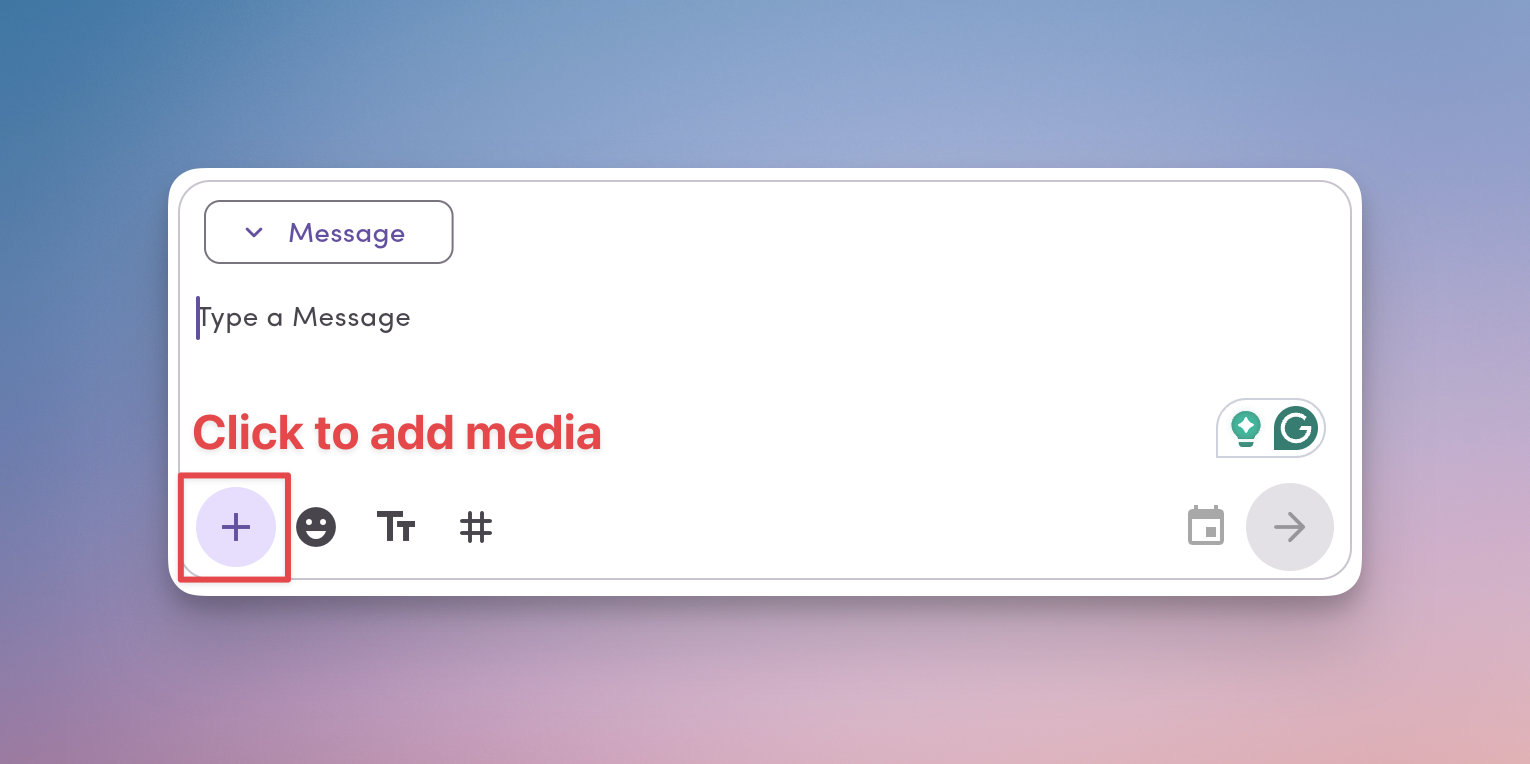 2. Choose one:
* **Upload from your computer** or **Insert a GIF**.
* **Drag and drop** the file into the composer, or click to browse your folders.
* **Select from existing Workspace files** (see next section).
3. Confirm the file appears above the composer.
4. (Optional) Click the **x** on a media item to remove it.
5. **Send** the message or **Save** the comment.
**Pro tip:** You can **copy/paste** images directly into the compose box with **Cmd + V** (macOS) or **Ctrl + V** (Windows/Linux).
**Heads up:** If you use a screen capture tool like CleanShot X, paste behavior may differ.
## How to attach media to a message on mobile
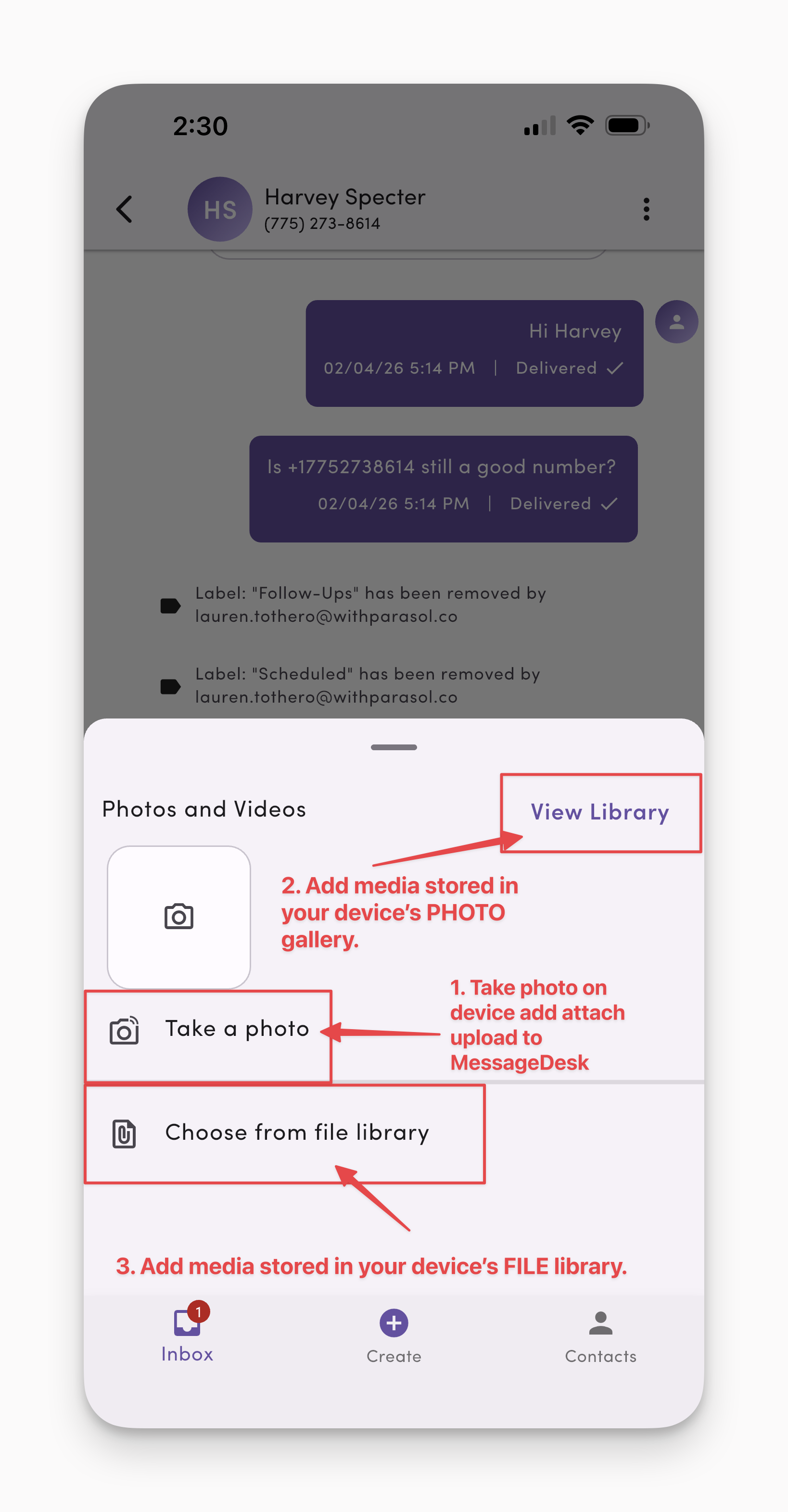
On mobile, you can select and attach media and files to messages in three ways.
### 1. Take a photo or video
When composing a message, **grant MessageDesk access to your camera**. You can then upload and attach your media directly to your message.
### 2. Select an image or video from your phone's camera roll
Tap **"View Library"** and select an image or media to upload and attach to your MessageDesk message.
### 3. Select a document or media from your phone's file library
Tap **"Choose from file library"** to upload images, files, docs, etc. from your device's connected file library.
**Known limitations: iOS voice messages (.amr files)** or voice messages sent from iOS devices use the `.amr` format, which isn't natively supported by most browsers. These files can't currently be played back in MessageDesk.
2. Choose one:
* **Upload from your computer** or **Insert a GIF**.
* **Drag and drop** the file into the composer, or click to browse your folders.
* **Select from existing Workspace files** (see next section).
3. Confirm the file appears above the composer.
4. (Optional) Click the **x** on a media item to remove it.
5. **Send** the message or **Save** the comment.
**Pro tip:** You can **copy/paste** images directly into the compose box with **Cmd + V** (macOS) or **Ctrl + V** (Windows/Linux).
**Heads up:** If you use a screen capture tool like CleanShot X, paste behavior may differ.
## How to attach media to a message on mobile
On mobile, you can select and attach media and files to messages in three ways.
### 1. Take a photo or video
When composing a message, **grant MessageDesk access to your camera**. You can then upload and attach your media directly to your message.
### 2. Select an image or video from your phone's camera roll
Tap **"View Library"** and select an image or media to upload and attach to your MessageDesk message.
### 3. Select a document or media from your phone's file library
Tap **"Choose from file library"** to upload images, files, docs, etc. from your device's connected file library.
**Known limitations: iOS voice messages (.amr files)** or voice messages sent from iOS devices use the `.amr` format, which isn't natively supported by most browsers. These files can't currently be played back in MessageDesk.
 ***
## Insert media from existing workspace files
Reusing a file you've already uploaded keeps things consistent and fast.
1. Click the **+** icon in the composer.
2. Open the **Workspace files** tab.
3. Browse or search, then **select** your media.
4. The file attaches to your draft. Send when ready.
***
## Where media works in MessageDesk
* **1-on-1 messages:** send photos, PDFs, and more to a single contact.
* **Broadcasts (send individually):** attach the same file to each recipient's message.
* **Group SMS:** share media that everyone in the group can see.
* **Internal comments (desktop only):** add files teammates can reference inside the thread.
***
## Tips for smooth sending
* Keep each file **≤ 10 MB**. Split large PDFs or compress images if needed.
* **Aim for ≤ 500 KB per image** to skip auto-compression and keep your branding sharp.
* Use **.jpg** for photos and **.pdf** for documents/forms.
* **Prefer .jpg over .png when texting iPhone recipients.** See [PNGs and iPhone delivery](#pngs-and-iphone-delivery) below.
* **HEIC** (common on iPhone) uploads work. For the most reliable MMS delivery and in-app preview, export photos as **.jpg** or **.png** before sending. See [HEIC photo handling](#heic-photo-handling) below.
* Preview before sending to confirm the right file is attached. Remove with the **x** if needed.
***
## PNGs and iPhone delivery
**PNGs to iPhone recipients can fail intermittently.** This is a known iOS-level handling issue with PNG MMS attachments. It isn't specific to MessageDesk and affects messages from any sending platform. Carriers and Apple haven't provided a fix.
**Recommendation:** When texting customers who are mostly on iPhone, send photos as **.jpg** rather than .png. JPG delivers reliably across iOS and Android and compresses more cleanly for MMS. Reserve .png for screenshots or images that require transparency, and keep them under 500 KB.
***
## HEIC photo handling
HEIC is the default photo format on newer iPhones. You can attach HEIC files in MessageDesk. Here's how they're delivered and previewed:
* **Uploads work.** You can attach `.heic` files from your computer, phone camera roll, or file picker just like any other image.
* **No auto-compression for HEIC.** Images over the \~500 KB MMS threshold are auto-compressed for delivery when they're **.jpg**, **.png**, **.gif**, or **.webp**. HEIC files are **not** auto-compressed.
* **Large HEIC files send as a link.** If a HEIC file is over \~500 KB, it sends as a clickable link in the text instead of an inline MMS image.
* **Carrier and recipient support varies.** Even for smaller HEIC files sent as MMS, not every carrier or recipient device renders HEIC inline.
* **In-app preview may fail on some platforms.** HEIC decoding isn't supported everywhere. In some browsers or desktop environments, the preview can show a broken-image placeholder even though the upload succeeded.
**Recommendation:** For the most reliable experience, especially when texting photos to customers, save or export HEIC photos as **JPEG** or **PNG** before attaching. On iPhone, you can set **Settings → Camera → Formats → Most Compatible** to capture new photos as JPEG by default.
***
***
## How to download images
**On mobile:**
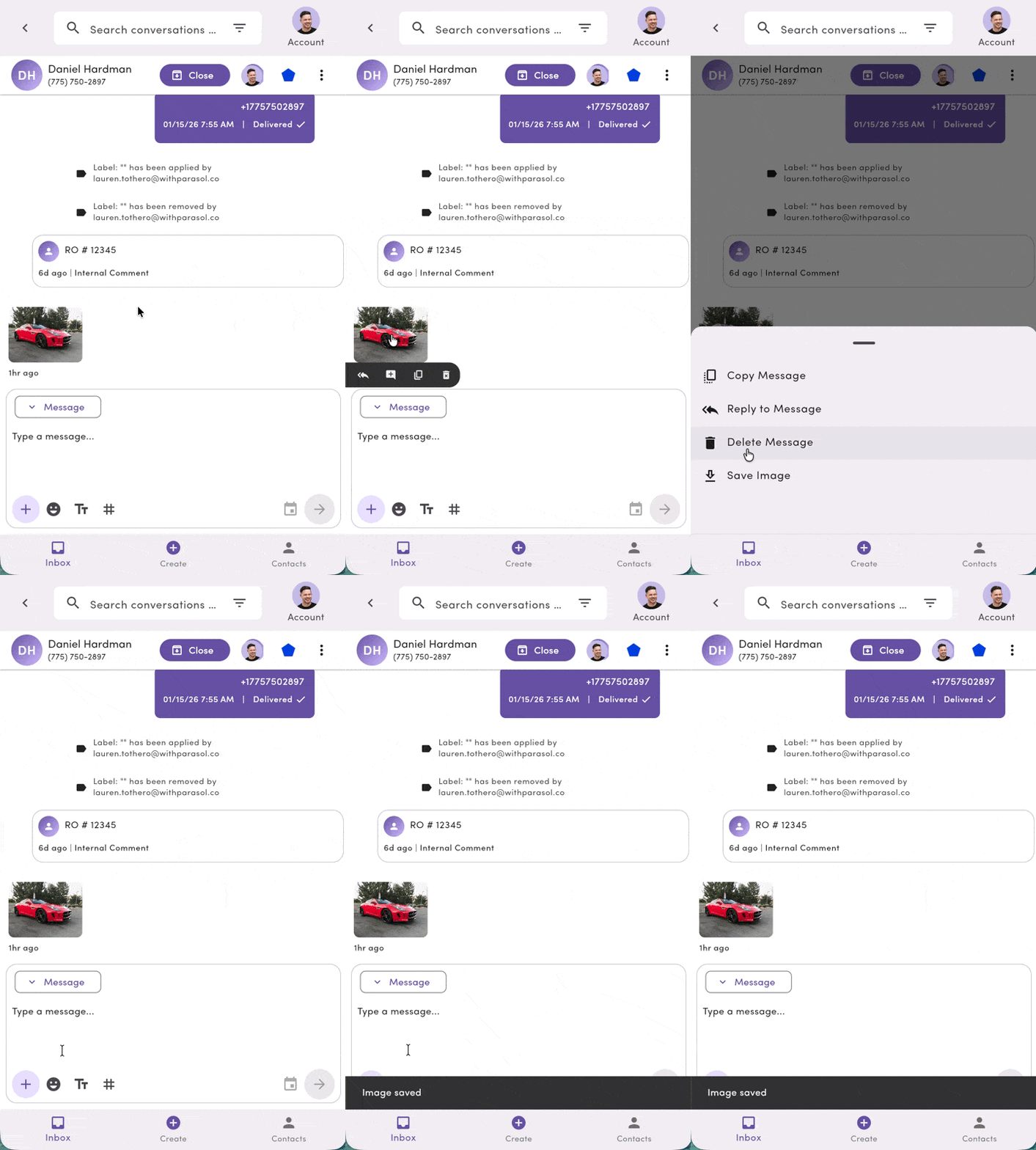
* **Force-touch (long press)** an image and choose **Save Image.**
* The image downloads directly to your device.
***
## Insert media from existing workspace files
Reusing a file you've already uploaded keeps things consistent and fast.
1. Click the **+** icon in the composer.
2. Open the **Workspace files** tab.
3. Browse or search, then **select** your media.
4. The file attaches to your draft. Send when ready.
***
## Where media works in MessageDesk
* **1-on-1 messages:** send photos, PDFs, and more to a single contact.
* **Broadcasts (send individually):** attach the same file to each recipient's message.
* **Group SMS:** share media that everyone in the group can see.
* **Internal comments (desktop only):** add files teammates can reference inside the thread.
***
## Tips for smooth sending
* Keep each file **≤ 10 MB**. Split large PDFs or compress images if needed.
* **Aim for ≤ 500 KB per image** to skip auto-compression and keep your branding sharp.
* Use **.jpg** for photos and **.pdf** for documents/forms.
* **Prefer .jpg over .png when texting iPhone recipients.** See [PNGs and iPhone delivery](#pngs-and-iphone-delivery) below.
* **HEIC** (common on iPhone) uploads work. For the most reliable MMS delivery and in-app preview, export photos as **.jpg** or **.png** before sending. See [HEIC photo handling](#heic-photo-handling) below.
* Preview before sending to confirm the right file is attached. Remove with the **x** if needed.
***
## PNGs and iPhone delivery
**PNGs to iPhone recipients can fail intermittently.** This is a known iOS-level handling issue with PNG MMS attachments. It isn't specific to MessageDesk and affects messages from any sending platform. Carriers and Apple haven't provided a fix.
**Recommendation:** When texting customers who are mostly on iPhone, send photos as **.jpg** rather than .png. JPG delivers reliably across iOS and Android and compresses more cleanly for MMS. Reserve .png for screenshots or images that require transparency, and keep them under 500 KB.
***
## HEIC photo handling
HEIC is the default photo format on newer iPhones. You can attach HEIC files in MessageDesk. Here's how they're delivered and previewed:
* **Uploads work.** You can attach `.heic` files from your computer, phone camera roll, or file picker just like any other image.
* **No auto-compression for HEIC.** Images over the \~500 KB MMS threshold are auto-compressed for delivery when they're **.jpg**, **.png**, **.gif**, or **.webp**. HEIC files are **not** auto-compressed.
* **Large HEIC files send as a link.** If a HEIC file is over \~500 KB, it sends as a clickable link in the text instead of an inline MMS image.
* **Carrier and recipient support varies.** Even for smaller HEIC files sent as MMS, not every carrier or recipient device renders HEIC inline.
* **In-app preview may fail on some platforms.** HEIC decoding isn't supported everywhere. In some browsers or desktop environments, the preview can show a broken-image placeholder even though the upload succeeded.
**Recommendation:** For the most reliable experience, especially when texting photos to customers, save or export HEIC photos as **JPEG** or **PNG** before attaching. On iPhone, you can set **Settings → Camera → Formats → Most Compatible** to capture new photos as JPEG by default.
***
***
## How to download images
**On mobile:**
* **Force-touch (long press)** an image and choose **Save Image.**
* The image downloads directly to your device.
 **On desktop:**
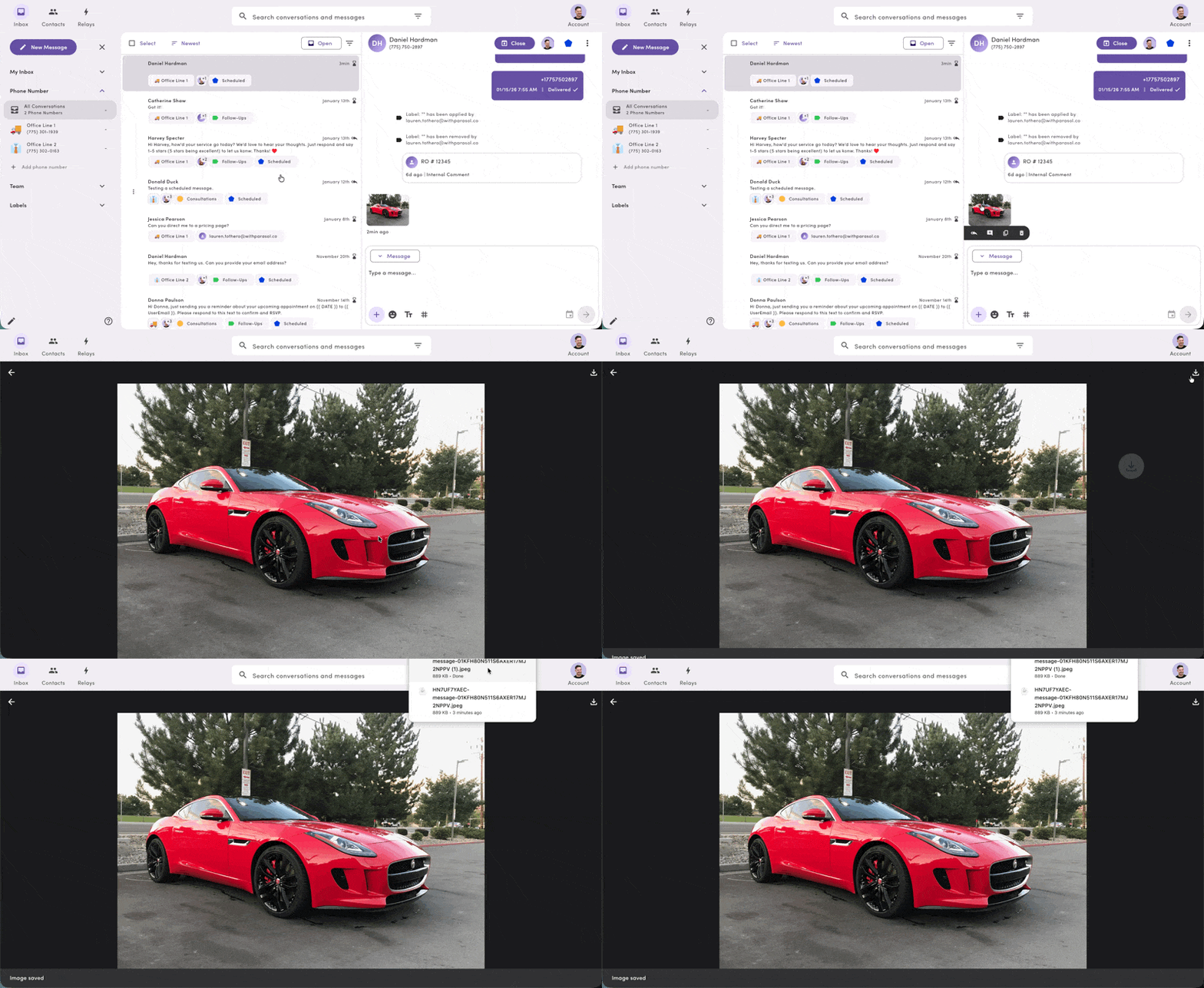
* Click the media file in the message feed.
* **Click the download button** on any image to save it directly to your computer.
**On desktop:**
* Click the media file in the message feed.
* **Click the download button** on any image to save it directly to your computer.
 ***
## Frequently asked media questions
**Can I add multiple media attachments to a message?**\
Yes. Select additional files, and they'll stack above the composer. Keep each file **≤ 10 MB**.
**Can I send multiple images in one message?**\
Yes, on desktop. You can attach multiple images to a single compose. When the message sends, **each image goes out as its own MMS** to the recipient. Fanning out one image per MMS delivers more reliably across carriers than bundling them. Multi-image attach from the mobile app is on the roadmap. For best results, keep each image **≤ 500 KB** and use **.jpg**.
**Is there a limit to how many files I can upload to MessageDesk overall?**\
No explicit limit. You can upload as many files as you like to your workspace.
**Can I attach media to internal comments?**\
Yes. Comments support the same media attachments as messages.
**Does media work with group texts?**\
Yes. You can add media to **any** message type in MessageDesk.
**What happens if a file is over 500 KB?**\
It sends as a **clickable link** so your recipient can view or download it reliably.
**Why does my image look smaller, blurry, or distorted?**\
MessageDesk compresses images over \~500 KB so they fit carrier MMS limits. Heavy compression on a very large source file (especially several MB) can introduce blur or color banding. To keep your branding sharp, **export images at ≤ 500 KB before attaching**. That skips compression entirely. Files that can't be compressed below the threshold send as a downloadable link, which preserves the original quality.
**Are HEIC photos from iPhone supported?**\
Yes. You can attach HEIC files, but HEIC isn't auto-compressed for MMS and may send as a link if it's over \~500 KB. Some devices and browsers also can't preview HEIC inline. For the most reliable delivery, export photos as JPEG or PNG before sending. See [HEIC photo handling](#heic-photo-handling).
**Do media links expire?**\
Links are designed for reliable access and don't expire. If you need time-limited links for compliance, contact support to discuss options.
***
***
## Frequently asked media questions
**Can I add multiple media attachments to a message?**\
Yes. Select additional files, and they'll stack above the composer. Keep each file **≤ 10 MB**.
**Can I send multiple images in one message?**\
Yes, on desktop. You can attach multiple images to a single compose. When the message sends, **each image goes out as its own MMS** to the recipient. Fanning out one image per MMS delivers more reliably across carriers than bundling them. Multi-image attach from the mobile app is on the roadmap. For best results, keep each image **≤ 500 KB** and use **.jpg**.
**Is there a limit to how many files I can upload to MessageDesk overall?**\
No explicit limit. You can upload as many files as you like to your workspace.
**Can I attach media to internal comments?**\
Yes. Comments support the same media attachments as messages.
**Does media work with group texts?**\
Yes. You can add media to **any** message type in MessageDesk.
**What happens if a file is over 500 KB?**\
It sends as a **clickable link** so your recipient can view or download it reliably.
**Why does my image look smaller, blurry, or distorted?**\
MessageDesk compresses images over \~500 KB so they fit carrier MMS limits. Heavy compression on a very large source file (especially several MB) can introduce blur or color banding. To keep your branding sharp, **export images at ≤ 500 KB before attaching**. That skips compression entirely. Files that can't be compressed below the threshold send as a downloadable link, which preserves the original quality.
**Are HEIC photos from iPhone supported?**\
Yes. You can attach HEIC files, but HEIC isn't auto-compressed for MMS and may send as a link if it's over \~500 KB. Some devices and browsers also can't preview HEIC inline. For the most reliable delivery, export photos as JPEG or PNG before sending. See [HEIC photo handling](#heic-photo-handling).
**Do media links expire?**\
Links are designed for reliable access and don't expire. If you need time-limited links for compliance, contact support to discuss options.
***