> ## Documentation Index
> Fetch the complete documentation index at: https://docs.messagedesk.com/llms.txt
> Use this file to discover all available pages before exploring further.

# Relays: Setup & Technical Guide

> Build MessageDesk Relays step-by-step. Configure triggers, conditions, actions, delays, and active hours. Troubleshooting tips and a complete FAQ included.

# How to create, edit, and delete Relays

Build reliable Relays with a clear flow: **Trigger → Conditions → Actions**. This guide shows you how to configure, test, and troubleshoot Relays.

<Note>
  **Permissions required:** By default, only **Admin** users can access Relays. If you don't see the Relays module, ask your workspace admin to grant you **Relay Management** permissions via **Settings → Team Management**. Learn more: [Team Management](/settings/workspace-settings/team-management).
</Note>

***

## How to create or edit a Relay

### 1. Visit the Relays module

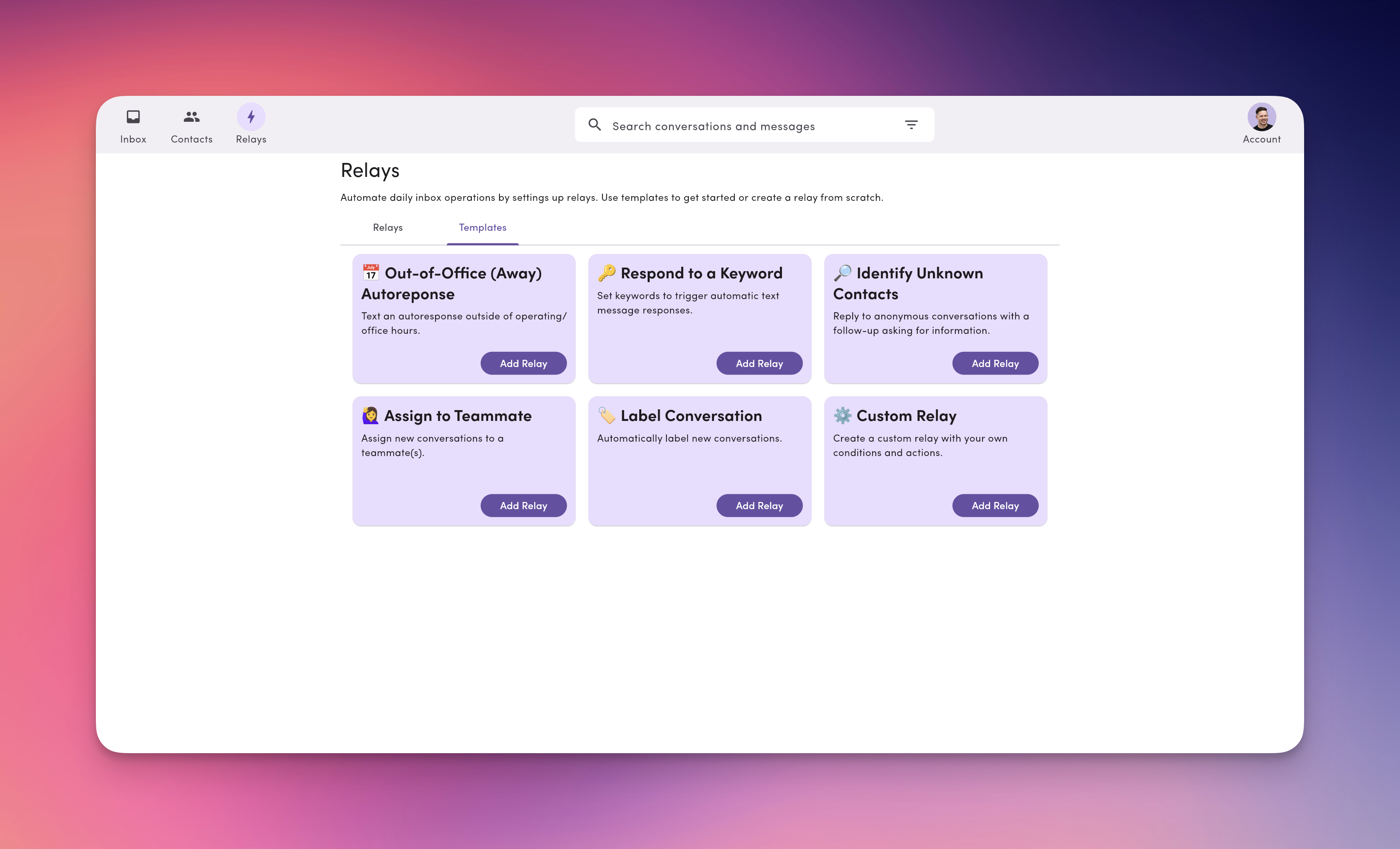
When you first visit **Relays**, you’ll see **templates** you can use as a starting point, just click **Add Relay** to start building.

<img src="https://mintcdn.com/messagedesk/bDvAq5ffyeLhMNRy/images/relays-templates.png?fit=max&auto=format&n=bDvAq5ffyeLhMNRy&q=85&s=71232c582572dfd54cf61057b6c786f5" alt="Relays Templates Pn" width="3504" height="2126" data-path="images/relays-templates.png" />

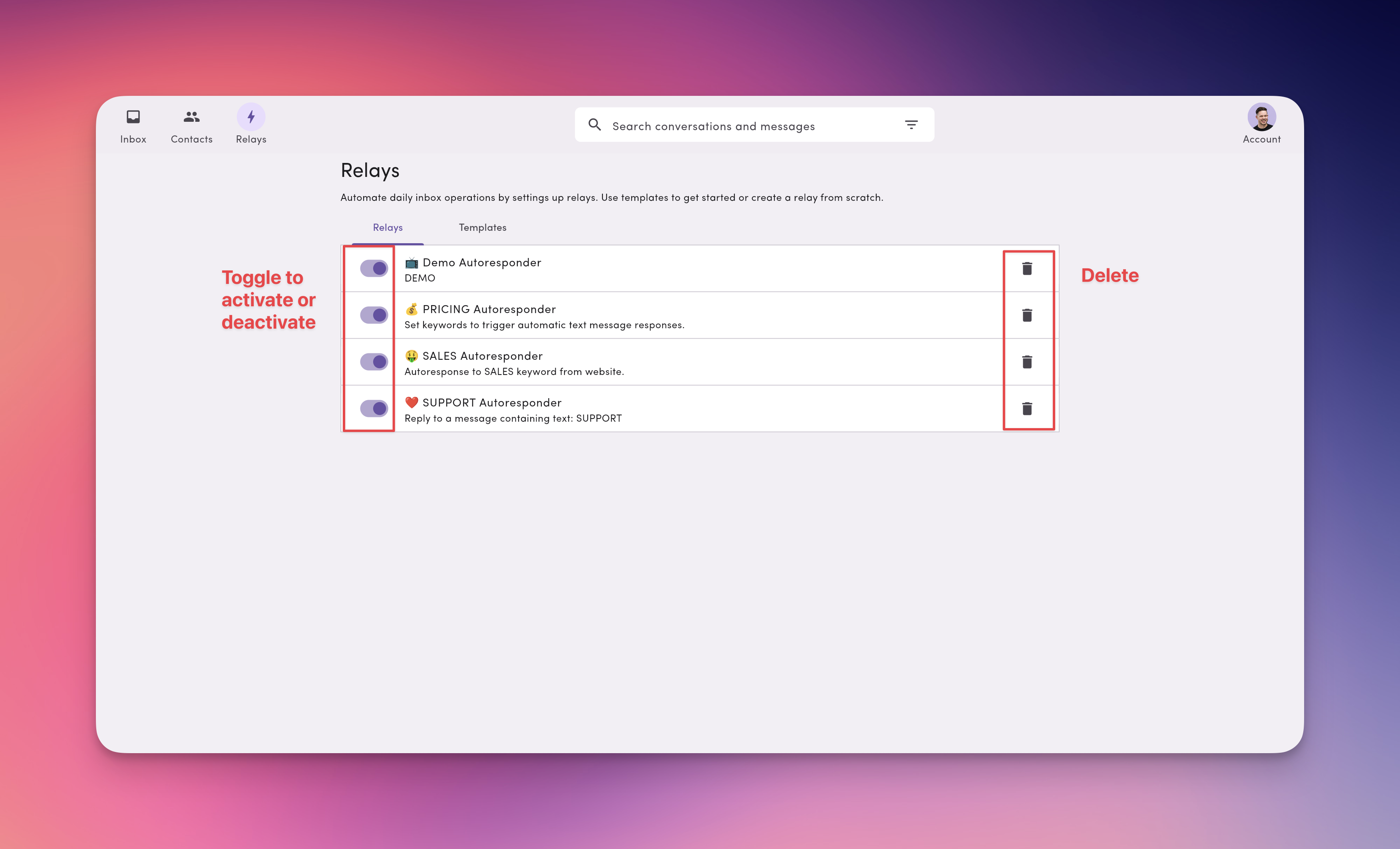
All Relays appear in the **Relays** tab with an **On/Off** toggle. You can delete Relays from the same view.
<Note>
  By default, new Relays are **paused**. Toggle them **On** when you’re ready.
</Note>

<img src="https://mintcdn.com/messagedesk/bDvAq5ffyeLhMNRy/images/relays-tab.png?fit=max&auto=format&n=bDvAq5ffyeLhMNRy&q=85&s=60a50fa7b4938ff46b9f97cf8411556e" alt="Relays Tab Pn" width="3504" height="2126" data-path="images/relays-tab.png" />

### 2. Name and describe your Relay

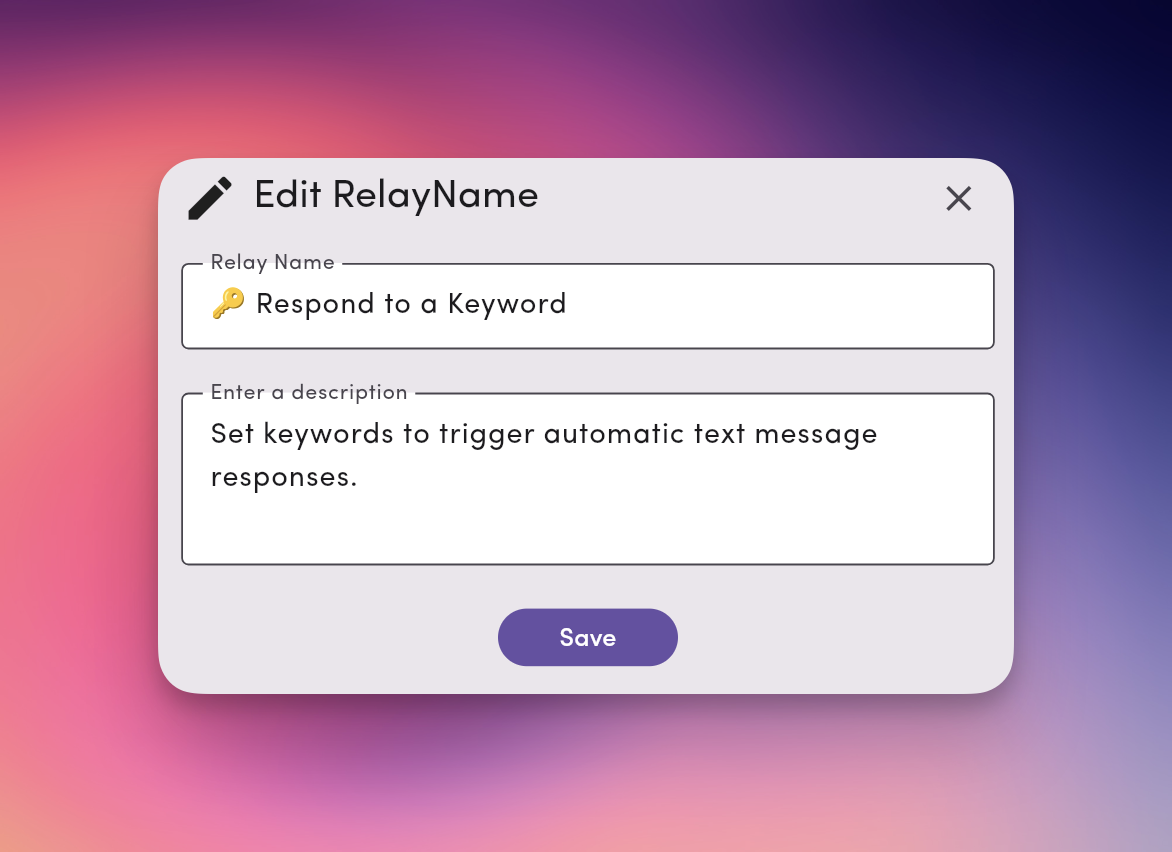
Click the vertical **⋯** (three dots) next to a Relay to **Rename**, **Edit description**, or **Delete**.
<Tip>
  Add an emoji (e.g., 💤 for after-hours) to make Relays easy to scan.
</Tip>

<img src="https://mintcdn.com/messagedesk/bDvAq5ffyeLhMNRy/images/relay-name-description.png?fit=max&auto=format&n=bDvAq5ffyeLhMNRy&q=85&s=914bce75482cf7880c3f2b71cb90a811" alt="Relay Name Description Pn" width="1172" height="852" data-path="images/relay-name-description.png" />

### 3. Set a **Trigger**

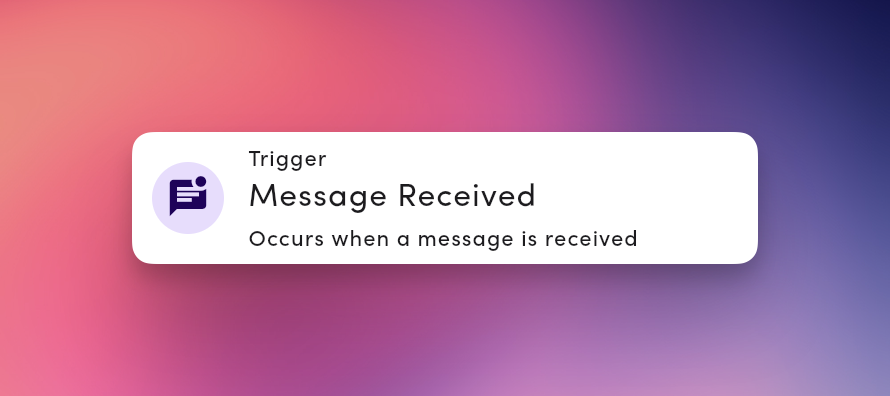
Current supported trigger: **Message Received** (fires when a new inbound SMS arrives).
<Note>
  **Note:** Templates include the **message received** trigger by default.
</Note>

<img src="https://mintcdn.com/messagedesk/DRep1fZFTxlGYkMI/images/relay-message-received-trigger.png?fit=max&auto=format&n=DRep1fZFTxlGYkMI&q=85&s=5f6595f588fe13b5eca1be3a50ae9382" alt="Relay Message Received Trigger Pn" width="890" height="396" data-path="images/relay-message-received-trigger.png" />

### 4. Add **Conditions**

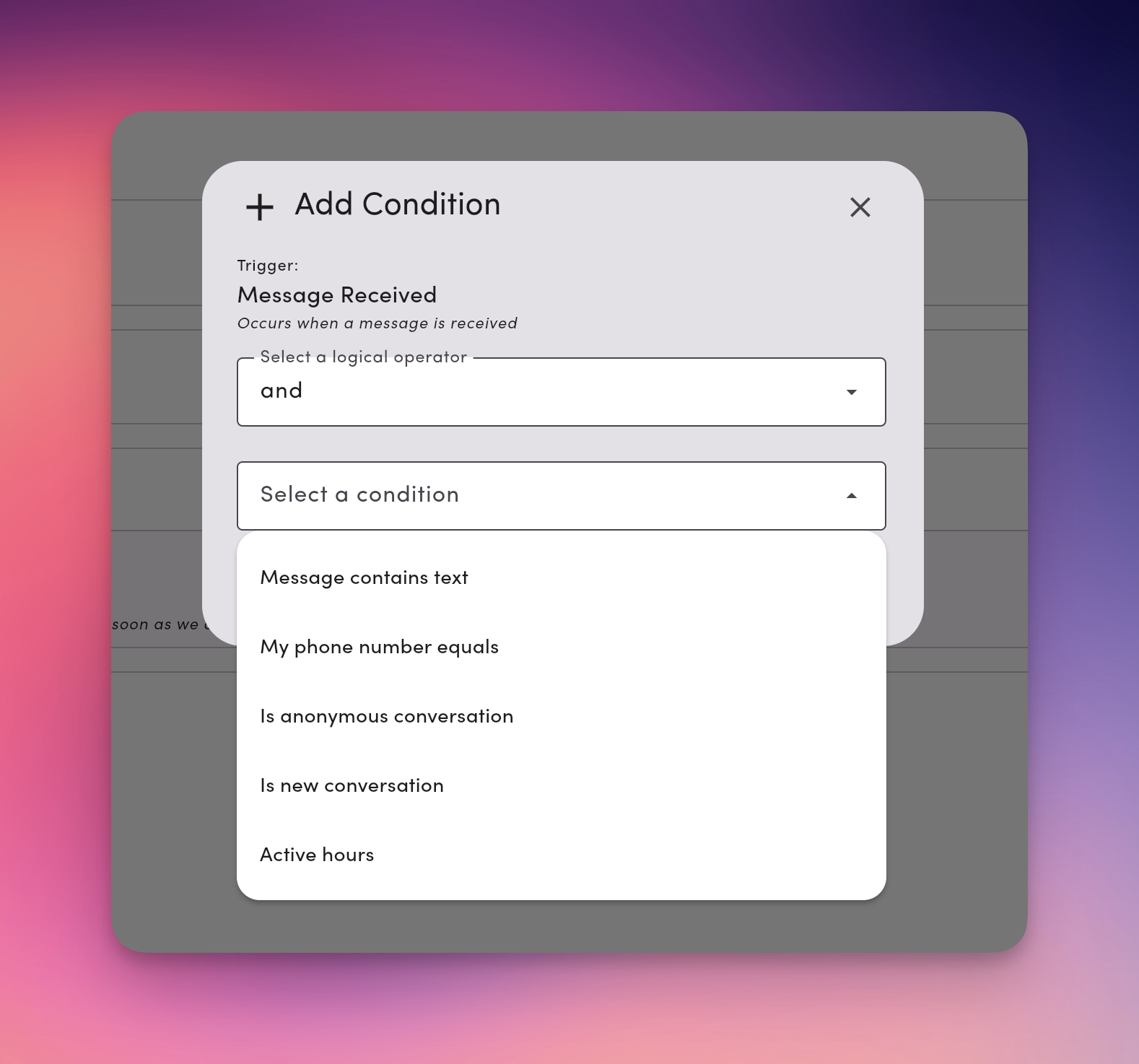
Conditions control **where/when** a Relay runs. You can combine multiple conditions with **AND** or **OR**.

**Available conditions:**

* **Message contains text:** match keywords like `SUPPORT`, `HELP`
* **My phone number equals:** run only on a specific outbound line
* **Is anonymous conversation:** no saved contact yet
* **Is new conversation:** first inbound in a thread
* **Active hours:** restrict to a daily time window
<Tip>
  **Tip:** Turn on **“Trigger outside of business hours”** to invert the time window for after-hours replies.
</Tip>

<img src="https://mintcdn.com/messagedesk/DRep1fZFTxlGYkMI/images/relay-condition.png?fit=max&auto=format&n=DRep1fZFTxlGYkMI&q=85&s=9ff5a9c2f80b8a9e5ccf1c1c0a6f934a" alt="Relay Condition Pn" width="1578" height="1474" data-path="images/relay-condition.png" />

### 5. Add **Actions**

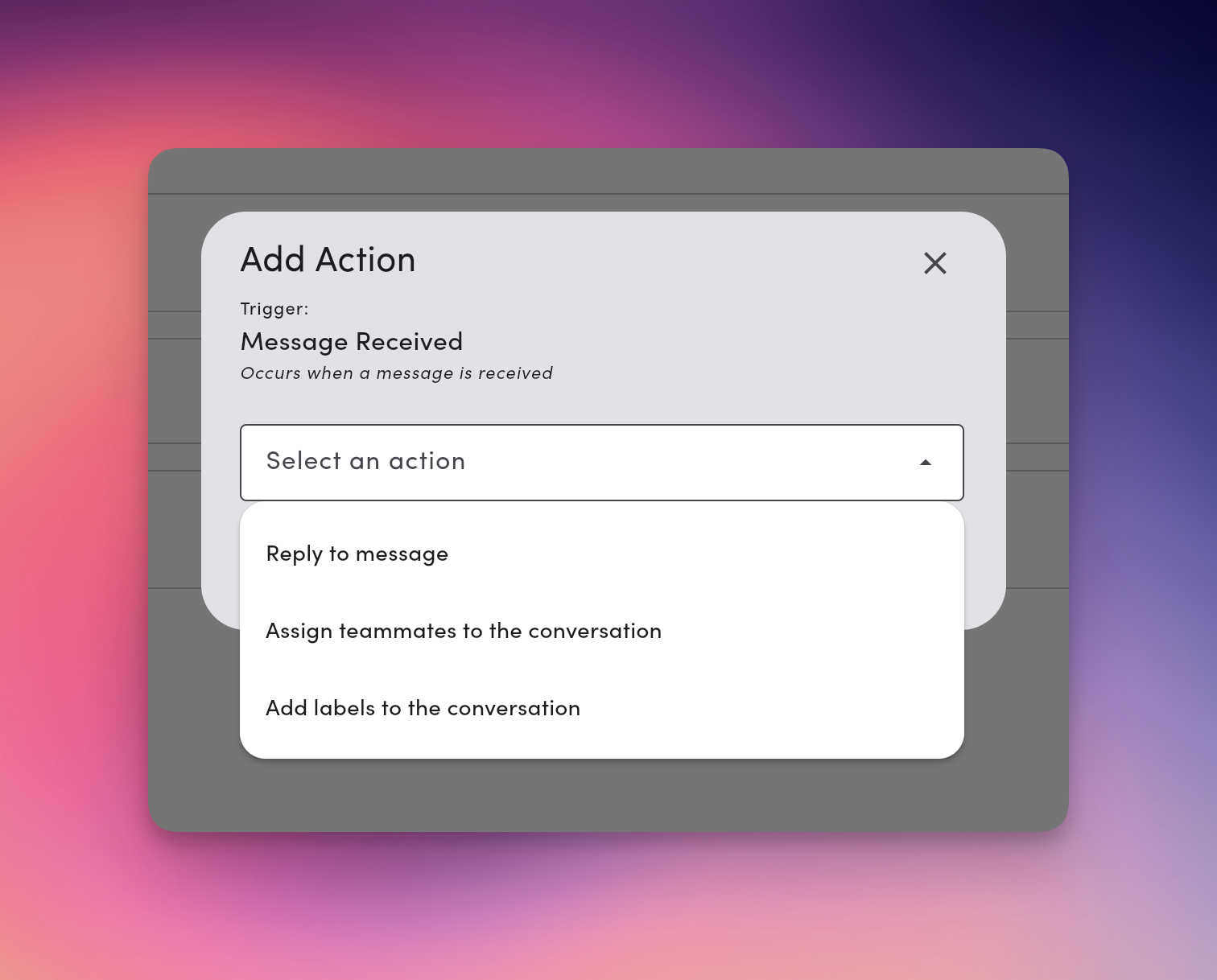
Actions run when the conditions match. You can add **one or many** in the order you want them to execute.

* **Reply to message:** send an SMS/MMS (supports templates, tags, and media)
* **Assign teammates to the conversation:** pick one or more users
* **Add labels to the conversation:** apply one or more labels
* **Remove labels from the conversation:** remove one or more labels
* **Remove teammates from the conversation:** remove one or more assigned users
* **Send webhook:** send event data to your webhook endpoint
<Tip>
  **Tip:** You can chain multiple actions together. For example, **Reply**, **Assign**, and **Label** in a single Relay.
</Tip>

**Delays (optional)**

* Add a **Delay** to **Reply to message** to wait minutes/hours before sending.
* Delays help prevent duplicate auto-replies if a message was sent recently.

<img src="https://mintcdn.com/messagedesk/DRep1fZFTxlGYkMI/images/relay-action.png?fit=max&auto=format&n=DRep1fZFTxlGYkMI&q=85&s=24f7f0598732f45b95a378272a5ad3ab" alt="Relay Action Pn" width="1512" height="1218" data-path="images/relay-action.png" />

### 6. Activate your Relay

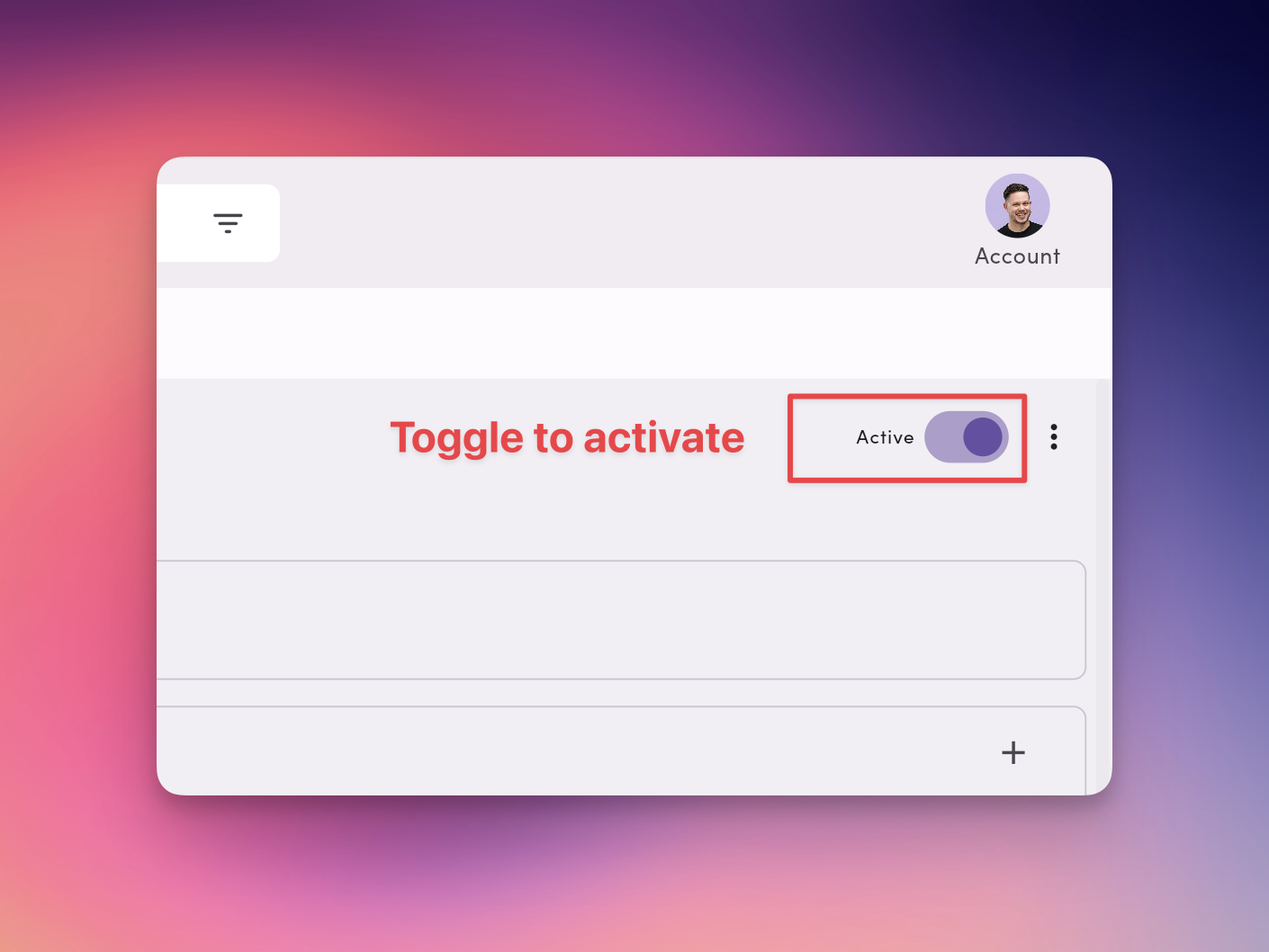
Use the **toggle** to turn the Relay **On**. You can pause anytime without losing your setup.
<img src="https://mintcdn.com/messagedesk/bDvAq5ffyeLhMNRy/images/relay-toggle.png?fit=max&auto=format&n=bDvAq5ffyeLhMNRy&q=85&s=d5f18e6840d7662de7fb12fdcebeee17" alt="Relay Toggle Pn" width="1410" height="1058" data-path="images/relay-toggle.png" />

***

## Managing Relays

### Pause / resume

* From the list: toggle **On/Off**
* From details: use the status toggle at the top

Paused Relays don't evaluate triggers or run actions.

### Delete

Open the Relay → **⋯** → **Delete**.

<Warning>
  **Warning:** Deleting is permanent. If you might reuse the Relay, **pause** instead.
</Warning>

***

## Starter Relay templates (copy and adapt)

### Example 1: Delegation and team routing Relay

Use this setup when multiple teammates need to view and reply on behalf of a manager.

<img src="https://mintcdn.com/messagedesk/_6X5gVGh7XVR2eRs/images/relay-delegation-routing.png?fit=max&auto=format&n=_6X5gVGh7XVR2eRs&q=85&s=3a77f0602e1b4fff1f9a7e9752265bd9" alt="Relay Delegation Routing Pn" width="3504" height="2126" data-path="images/relay-delegation-routing.png" />

<table style={{ minWidth: "75px" }}>
  <colgroup>
    <col style={{ minWidth: "25px" }} />

    <col style={{ minWidth: "25px" }} />

    <col style={{ minWidth: "25px" }} />
  </colgroup>

  <tbody>
    <tr>
      <th colSpan="1" rowSpan="1">
        <p>**Triggers**</p>
      </th>

      <th colSpan="1" rowSpan="1">
        <p>**Conditions**</p>
      </th>

      <th colSpan="1" rowSpan="1">
        <p>**Actions x2**</p>
      </th>
    </tr>

    <tr>
      <td colSpan="1" rowSpan="1">
        <p>Message Received</p>
      </td>

      <td colSpan="1" rowSpan="1">
        <p>On the Manager's or Teammates' phone line</p>
      </td>

      <td colSpan="1" rowSpan="1">
        <p>Assign Manager 1, Teammate 2, and Teammate 3</p>
      </td>
    </tr>

    <tr>
      <td colSpan="1" rowSpan="1">
        <p />
      </td>

      <td colSpan="1" rowSpan="1">
        <p />
      </td>

      <td colSpan="1" rowSpan="1">
        <p>Apply labels “Region 1” and “Region 2”</p>
      </td>
    </tr>
  </tbody>
</table>

**How it works:**<br />When a message comes in on the manager's number, MessageDesk automatically assigns the conversation to the manager and the two direct reports.

The Relay also labels the message by region, keeping everything organized by team and location.

<Tip>
  **Pro Tip:** Use delegation-style relays for managers who want their teams to reply on their behalf or monitor shared inboxes.

  Each teammate assigned to the conversation will [receive notifications by default](/settings/my-settings/notification-preferences).
</Tip>

***

### Relays and conversation status

When a Relay sends an outbound message, MessageDesk updates the conversation's status the same way it would for a teammate's reply. This applies to after-hours auto-replies, out-of-office replies, and any other Relay action that sends a message.

| Event                                          | Resulting status |
| ---------------------------------------------- | ---------------- |
| Inbound message arrives                        | **Unread**       |
| Relay sends an auto-reply                      | **Replied**      |
| A teammate opens the conversation in the Inbox | **Read**         |
| A teammate closes the conversation             | **Closed**       |

<Note>
  **Auto-replies don't mark a conversation as Read.** A Relay reply moves the conversation out of the **Unread** filter and into **Replied**. The conversation is only marked **Read** when a teammate opens it. After-hours threads still surface for human review the next morning, even though the customer already got an automated acknowledgement.
</Note>

This behavior applies to every Relay action that sends a message: after-hours auto-reply, keyword auto-reply, anonymous-contact first-touch, and so on.

***

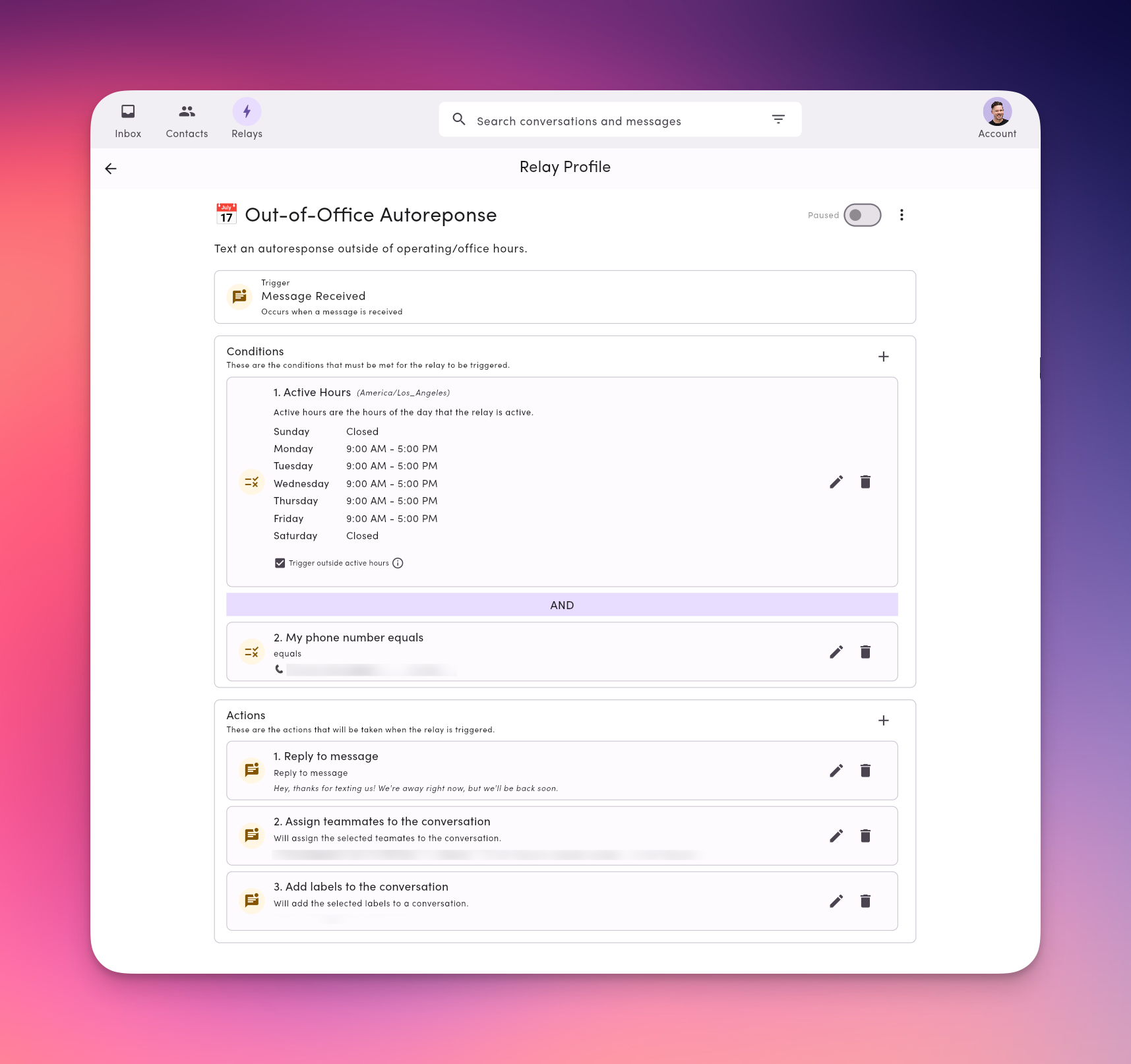
### Example 2: Out-of-office and weekend autoresponder

Use this when teammates want to automatically reply during vacations or after hours.

<img src="https://mintcdn.com/messagedesk/_6X5gVGh7XVR2eRs/images/out-of-office-relay.png?fit=max&auto=format&n=_6X5gVGh7XVR2eRs&q=85&s=557f119319b0d5e17ba8c1e6e0a44f91" alt="Out Of Office Relay Pn" width="1715" height="1614" data-path="images/out-of-office-relay.png" />

<table style={{ minWidth: "75px" }}>
  <colgroup>
    <col style={{ minWidth: "25px" }} />

    <col style={{ minWidth: "25px" }} />

    <col style={{ minWidth: "25px" }} />
  </colgroup>

  <tbody>
    <tr>
      <th colSpan="1" rowSpan="1">
        <p>**Triggers**</p>
      </th>

      <th colSpan="1" rowSpan="1">
        <p>**Conditions x2**</p>
      </th>

      <th colSpan="1" rowSpan="1">
        <p>**Actions x3**</p>
      </th>
    </tr>

    <tr>
      <td colSpan="1" rowSpan="1">
        <p>Message Received</p>
      </td>

      <td colSpan="1" rowSpan="1">
        <p>Active hours</p>
      </td>

      <td colSpan="1" rowSpan="1">
        <p>Send Auto Reply: “Thanks for reaching out! I’m currently out of the office. Please text \[alternate number].”</p>
      </td>
    </tr>

    <tr>
      <td colSpan="1" rowSpan="1">
        <p />
      </td>

      <td colSpan="1" rowSpan="1">
        <p>My phone number is</p>
      </td>

      <td colSpan="1" rowSpan="1">
        <p>Assign to teammates: Teammate 1, 2, and 3</p>
      </td>
    </tr>

    <tr>
      <td colSpan="1" rowSpan="1">
        <p />
      </td>

      <td colSpan="1" rowSpan="1">
        <p />
      </td>

      <td colSpan="1" rowSpan="1">
        <p>Add labels to the conversation: Region 1, Region 2</p>
      </td>
    </tr>
  </tbody>
</table>

**Steps to configure:**

1. Create a new Relay and choose **Message Received** as the trigger.
2. Under conditions, set **Active Hours** for each day to “Closed” or a select time span.
3. Toggle "Trigger outside of active hours" **ON**.
4. Add an **Action → Send Auto Reply** and compose your message.
5. Add an **Action → Assign to teammates** and select teammates.
6. Add an **Action → Add labels to the conversation** and select labels.
7. Toggle the Relay **ON**.
<Tip>
  **Team Tip:** Each team member (Teammate 1, 2, and 3) can have their own relay(s). Be sure to give each Relay a clear descriptive name, like:

  1. `Teammate 1 - Out of Office Autoreply`
  2. `Teammate 2 - Weekend Autoreply`
  3. `Teammate 3 - Vacation Autoreply`
</Tip>

***

### Example 3: Identify unknown contacts/conversations

Use this Relay to automatically collect names from new, anonymous conversations.<br />Perfect for teams who receive texts from unsaved numbers or new contacts.

<img src="https://mintcdn.com/messagedesk/zsx30MeXAv0vW_i4/images/identify-relay.png?fit=max&auto=format&n=zsx30MeXAv0vW_i4&q=85&s=009377dc2184dbe23d346a7a48772ea6" alt="Identify Relay Pn" width="1685" height="1192" data-path="images/identify-relay.png" />

| **Trigger**      | **Condition**                                        | **Actions**                                                                                       |
| ---------------- | ---------------------------------------------------- | ------------------------------------------------------------------------------------------------- |
| Message Received | Conversation is anonymous (contact not in directory) | Send Auto Reply: “Thanks for texting us! What’s your first and last name so we know who to help?” |

**Steps to configure:**

1. Create a new Relay and choose **Message Received** as the trigger.
2. Under conditions, set **My phone number equals** to a connected phone line.
3. Set another condition for **Is anonymous conversation**.
4. Add an **Action → Reply to message** and compose your message.
5. Add an **Action → Assign to teammates** and select teammates.
6. Add an **Action → Add labels to the conversation** and select labels.
7. Toggle the Relay **ON**.

<Tip>
  **Pro Tip:** Combine this Relay with [**Contact Imports**](/contacts/create-import) or [**Labels**](/inbox/labels) (e.g., "Unverified") to track and update new numbers later.
</Tip>

***

### Example 4: Keyword-based autoresponder

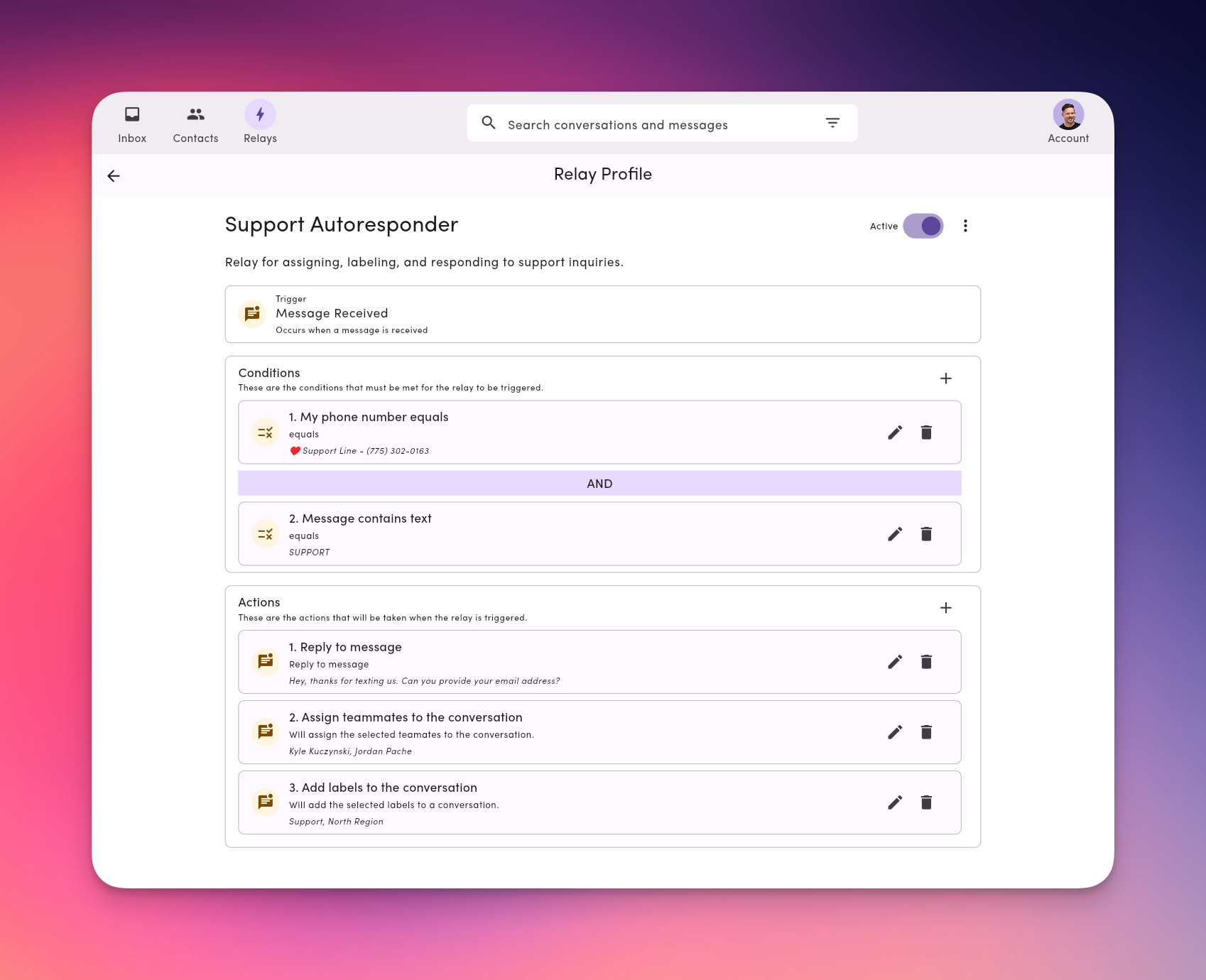
Use this Relay to automatically respond when someone texts in a specific keyword, like **SUPPORT**, **JOIN**, or **BOOK**.

When a contact sends a message containing the word “SUPPORT,” MessageDesk automatically replies with your chosen message. It’s ideal for auto-routing messages or triggering fast replies without manual effort.

<img src="https://mintcdn.com/messagedesk/_6X5gVGh7XVR2eRs/images/support-relay.png?fit=max&auto=format&n=_6X5gVGh7XVR2eRs&q=85&s=8bdd2c968f4cfb3b45be8694f5f573e4" alt="Support Relay Pn" width="1698" height="1380" data-path="images/support-relay.png" />

| **Trigger**      | **Condition**                      | **Actions**                                                                                               |
| ---------------- | ---------------------------------- | --------------------------------------------------------------------------------------------------------- |
| Message Received | Message contains keyword “SUPPORT” | Send Auto Reply: “Thanks for reaching out to support. Please share any extra details, and we’ll jump in.” |

**Steps to configure:**

1. Create a new Relay and choose **Message Received** as the trigger.
2. Under conditions, set **My phone number equals** to a connected phone line.
3. Set another condition for **Message contains text SUPPORT**.
4. Add an **Action → Reply to message** and compose your message.
5. Add an **Action → Assign to teammates** and select teammates.
6. Add an **Action → Add labels to the conversation** and select labels.
7. Toggle the Relay **ON**.

<Tip>
  **Tips for Success:**

  * Keep keywords **short and memorable**. For example, `JOIN`, `HELP`, `SUPPORT`.
  * Use **all caps** for clarity and easy recognition.
  * Create separate keyword relays for each department (e.g., `BOOK` → Sales, `SUPPORT` → Service).
</Tip>

***

## Relays best practices

* **Start simple.** Test one Relay before scaling across teams.
* **Name clearly.** Use descriptive titles like `Teammate 1 - Delegation Relay` or `Region X,Y, Z Autoresponder`.
* **Test with your phone.** Send yourself a message to confirm behavior.
* **Combine with templates.** Use pre-saved templates to standardize replies.
* **Audit regularly.** Disable or update relays as team structure changes.

***

## Technical notes and behavior

* **Action order:** Actions execute top-to-bottom in the order you add them.
* **Delays:** Units include minutes/hours. Use to prevent duplicate “fast follow” replies.
* **Active hours:** Configure daily windows; invert to run only outside business hours.
* **Permissions aware:** Assign/Label actions respect **Roles & Permissions**.
* **Testing tip:** Start with a single condition/action, confirm it fires, then layer on complexity.

***

## Frequently asked Relay questions

**Do Relays respect roles & permissions?**\
Yes. Assign/Label actions follow your **Roles & Permissions** settings.

**Can multiple Relays run on one inbound message?**\
Yes. If conditions match for more than one Relay, each eligible Relay can run.

**Can I include media in auto-replies?**\
Yes. Keep each file **≤ 10 MB** (files **> 500 KB** are sent as links). See [**Media**](/messaging/media).

**Can I pause without losing my setup?**\
Yes. Toggle **Off** to pause. Toggle **On** to resume.

**How do I avoid duplicate automated replies?**\
Add a **Delay** to the **Reply** action, or narrow conditions (e.g., “Is new conversation”).

**Does a Relay auto-reply mark the conversation as Read?**\
No. When a Relay sends an auto-reply, the conversation moves to **Replied** status (so it leaves the **Unread** filter), but it isn't marked **Read**. A conversation is only marked Read when a teammate opens it in the Inbox. See [Relays and conversation status](#relays-and-conversation-status).

***

## Troubleshooting

**A Relay didn’t fire**

* Confirm it’s **On** (not paused).
* Verify the **Trigger** is “Message Received”.
* Temporarily loosen **Conditions** (switch `AND` to `OR`, remove a filter) to test.

**Auto-reply sent multiple times**

* Add a **Delay** to your **Reply** action so back-to-back messages don’t both trigger an instant response.

**Assign/Label didn’t apply**

* Check the target user/label permissions.
* Remove long **Delays** while testing to see results immediately.

**Unexpected timing**

* Review **Active hours** and the **invert** setting.
* Check your workspace **timezone**.