> ## Documentation Index
> Fetch the complete documentation index at: https://docs.messagedesk.com/llms.txt
> Use this file to discover all available pages before exploring further.
# Personal Inbox Appearance, Layout & Signature
> Personalize your MessageDesk inbox view. Pick a light or dark theme, choose navigation layout, set conversation density, and add a personal SMS signature.
# Customize your Inbox: theme, layout, and personal signature
Make your Inbox easier to read, faster to navigate, and on-brand without affecting anyone else on your team.
**Mobile users.** On mobile, you can only change the color theme. Layout and signature settings are desktop-only.
***
## Change your Inbox appearance (theme and color)
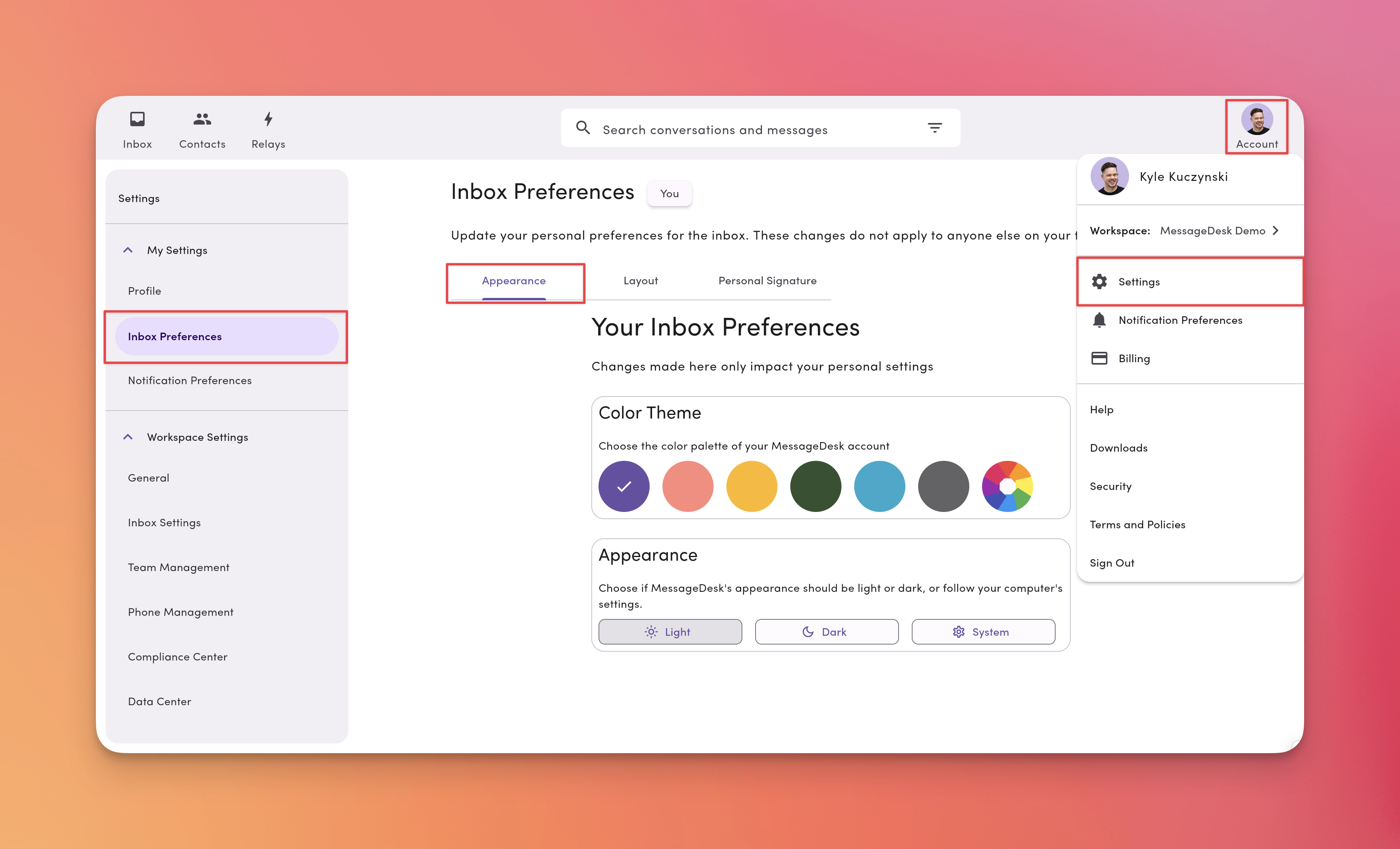
### 1) Go to **Account → Settings → Inbox Preferences (My Settings)**
Open the **Appearance** tab.
### 2) Pick a **Color Theme**
Choose a preset palette or use the color picker for a custom accent.
### 3) Choose a **mode**
* **Light mode:** light UI using your selected color palette
* **Dark mode:** dark UI using your selected color palette
* **System mode:** follows your device's appearance. If your device switches by time of day, MessageDesk follows
 ***
## Organize your Inbox layout (what you see in the left nav)
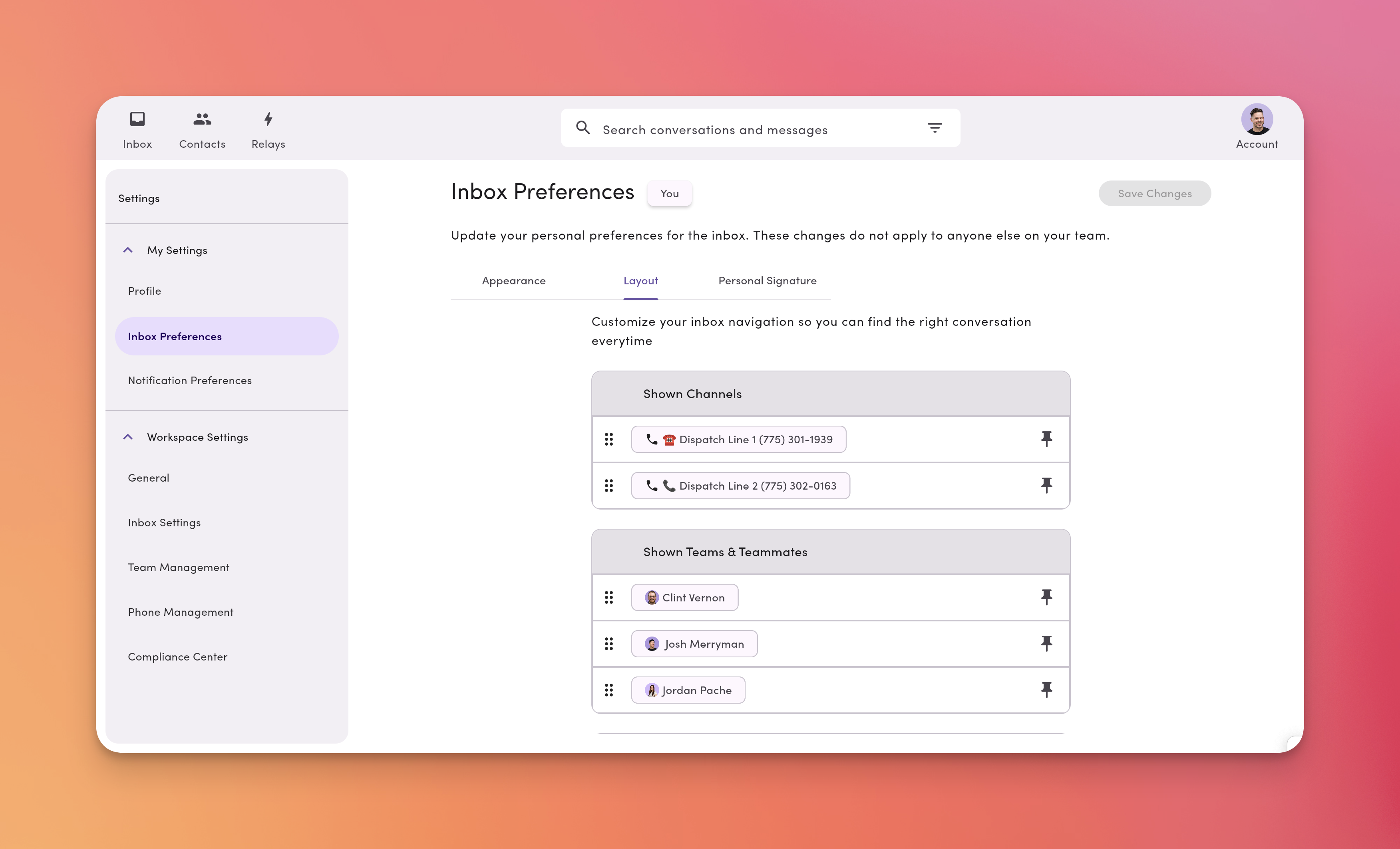
You control which **phone lines**, **teammate inboxes**, and **labels** appear, and in what order.
### 1) Go to **Account → Settings → Inbox Preferences (My Settings)**
Open the **Layout** tab to view your current configuration.
***
## Organize your Inbox layout (what you see in the left nav)
You control which **phone lines**, **teammate inboxes**, and **labels** appear, and in what order.
### 1) Go to **Account → Settings → Inbox Preferences (My Settings)**
Open the **Layout** tab to view your current configuration.
 ### 2) Pin, unpin, and reorder
* **Pin / Unpin** items to show or hide them
* **Drag and drop** to reorder sections and items
* Click **Save changes** when you're done
### 2) Pin, unpin, and reorder
* **Pin / Unpin** items to show or hide them
* **Drag and drop** to reorder sections and items
* Click **Save changes** when you're done
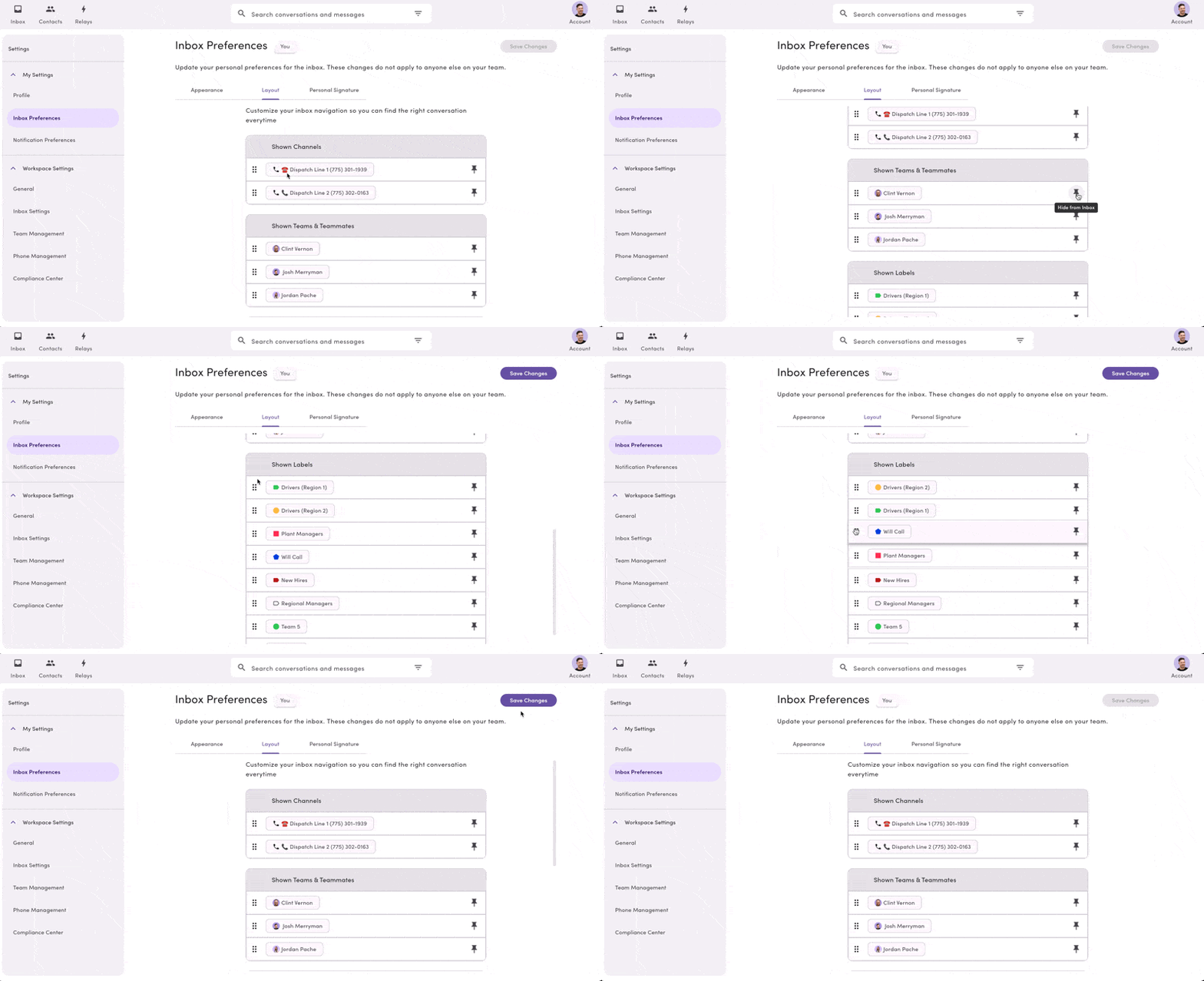 Your layout changes are **personal**. Pinning, unpinning, and reordering only affect your view, not your teammates'.
***
## Create and edit your personal text message signature
Add a short sign-off that auto-appends to your outbound texts from your user profile.
### 1. Go to **Account → Settings → Inbox Preferences (My Settings)**
Open the **Personal Signature** tab.
### 2. Toggle **Apply personal signature** ON
This turns your signature on.
### 3. Click the **pencil** icon to edit your signature
By default, MessageDesk uses **tags** like:
* `{{ UserFirstName }}`: your user first name
* `{{ WorkspaceName }}`: your workspace name
Edit the text and mix in other [tags](/messaging/templates-tags) as needed.
Set your **User First Name** and **Workspace Name** in MessageDesk before enabling signatures. Missing values can produce unexpected signature text.
### 4. Choose when the signature applies
* **Apply signature to all sent messages:** appends to every message you send
* **Only apply to first ever sent message in conversation:** appends only to your first outbound in a thread
Your layout changes are **personal**. Pinning, unpinning, and reordering only affect your view, not your teammates'.
***
## Create and edit your personal text message signature
Add a short sign-off that auto-appends to your outbound texts from your user profile.
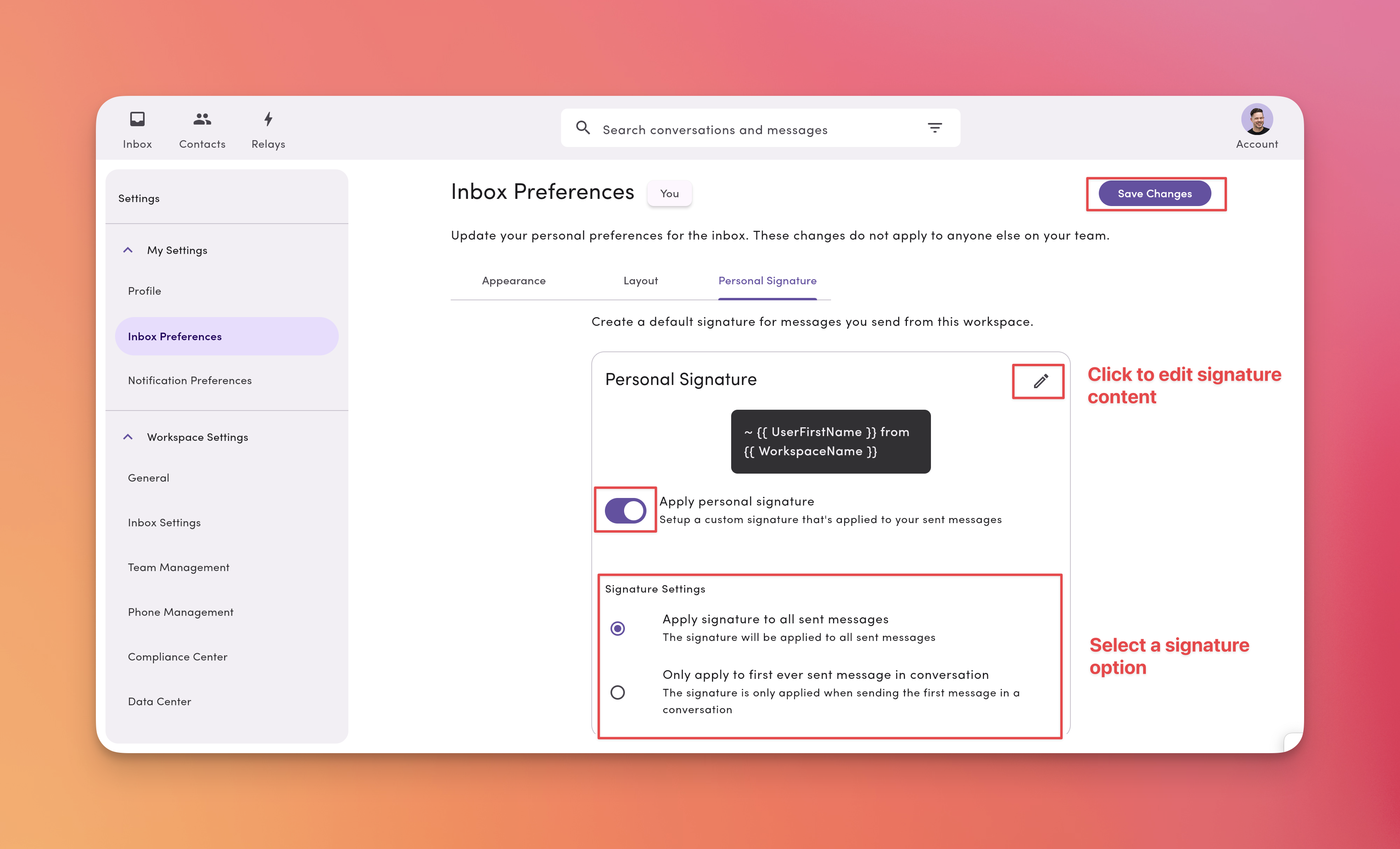
### 1. Go to **Account → Settings → Inbox Preferences (My Settings)**
Open the **Personal Signature** tab.
### 2. Toggle **Apply personal signature** ON
This turns your signature on.
### 3. Click the **pencil** icon to edit your signature
By default, MessageDesk uses **tags** like:
* `{{ UserFirstName }}`: your user first name
* `{{ WorkspaceName }}`: your workspace name
Edit the text and mix in other [tags](/messaging/templates-tags) as needed.
Set your **User First Name** and **Workspace Name** in MessageDesk before enabling signatures. Missing values can produce unexpected signature text.
### 4. Choose when the signature applies
* **Apply signature to all sent messages:** appends to every message you send
* **Only apply to first ever sent message in conversation:** appends only to your first outbound in a thread
 ***
## Language localization
MessageDesk doesn't currently support native language localization or translation features. You can use third-party browser extensions to translate the interface and messages into your preferred language.
### Browser translation tools
Most modern browsers offer built-in or extension-based translation:
* **Google Chrome:** Use the built-in Google Translate feature or install the [Google Translate extension](https://chrome.google.com/webstore/detail/google-translate/aapbdbdomjkkjkaonfhkkikfgjllcleb)
* **Microsoft Edge:** Built-in Microsoft Translator
* **Firefox:** Install translation extensions like [To Google Translate](https://addons.mozilla.org/en-US/firefox/addon/to-google-translate/)
* **Safari:** Use the built-in translation feature (macOS Monterey and later)
These tools translate both the MessageDesk interface and message content in real-time.
Third-party translation tools aren't affiliated with MessageDesk. The extension provider manages translation accuracy and privacy policies.
***
## Language localization
MessageDesk doesn't currently support native language localization or translation features. You can use third-party browser extensions to translate the interface and messages into your preferred language.
### Browser translation tools
Most modern browsers offer built-in or extension-based translation:
* **Google Chrome:** Use the built-in Google Translate feature or install the [Google Translate extension](https://chrome.google.com/webstore/detail/google-translate/aapbdbdomjkkjkaonfhkkikfgjllcleb)
* **Microsoft Edge:** Built-in Microsoft Translator
* **Firefox:** Install translation extensions like [To Google Translate](https://addons.mozilla.org/en-US/firefox/addon/to-google-translate/)
* **Safari:** Use the built-in translation feature (macOS Monterey and later)
These tools translate both the MessageDesk interface and message content in real-time.
Third-party translation tools aren't affiliated with MessageDesk. The extension provider manages translation accuracy and privacy policies.