> ## Documentation Index
> Fetch the complete documentation index at: https://docs.messagedesk.com/llms.txt
> Use this file to discover all available pages before exploring further.
# Personal Notification Preferences
> Customize MessageDesk notification preferences for email, mobile push, and browser. Set quiet hours, mute conversations, and tune alerts for new messages.
# Manage Personal Notification Preferences
Choose when MessageDesk notifies you and on which devices. Set up email, mobile push, and browser notifications so you don't miss messages.
***
## TL;DR
* Open **Account → Settings → Notification Preferences (My Settings)** to pick your **email** notification rule.
* Install the **mobile app** for **push** alerts.
* Turn on **browser** notifications in **Chrome** or the **installed app** (Chrome App or Safari App).
***
## What MessageDesk can notify you about
* **Email**
* **Mobile push** (iOS & Android)
* **Browser notifications**
* **Chrome (browser tab)**
* **Chrome App** (installed PWA)
* **Safari App** on macOS Sonoma+
You control each channel independently. For example, you can keep **email** off and **mobile push** on.
### Notification events
MessageDesk sends notifications for events including:
* **New message.** Inbound activity according to your email rule and push/browser settings.
* **@Mention in a comment.** When a teammate mentions you in an internal comment.
* **Export Available.** Push and browser notification to the user who triggered a [conversation export](/inbox/export-conversation) when the file is ready to download from the **Export Available** button in the top nav.
***
## Configure email notifications
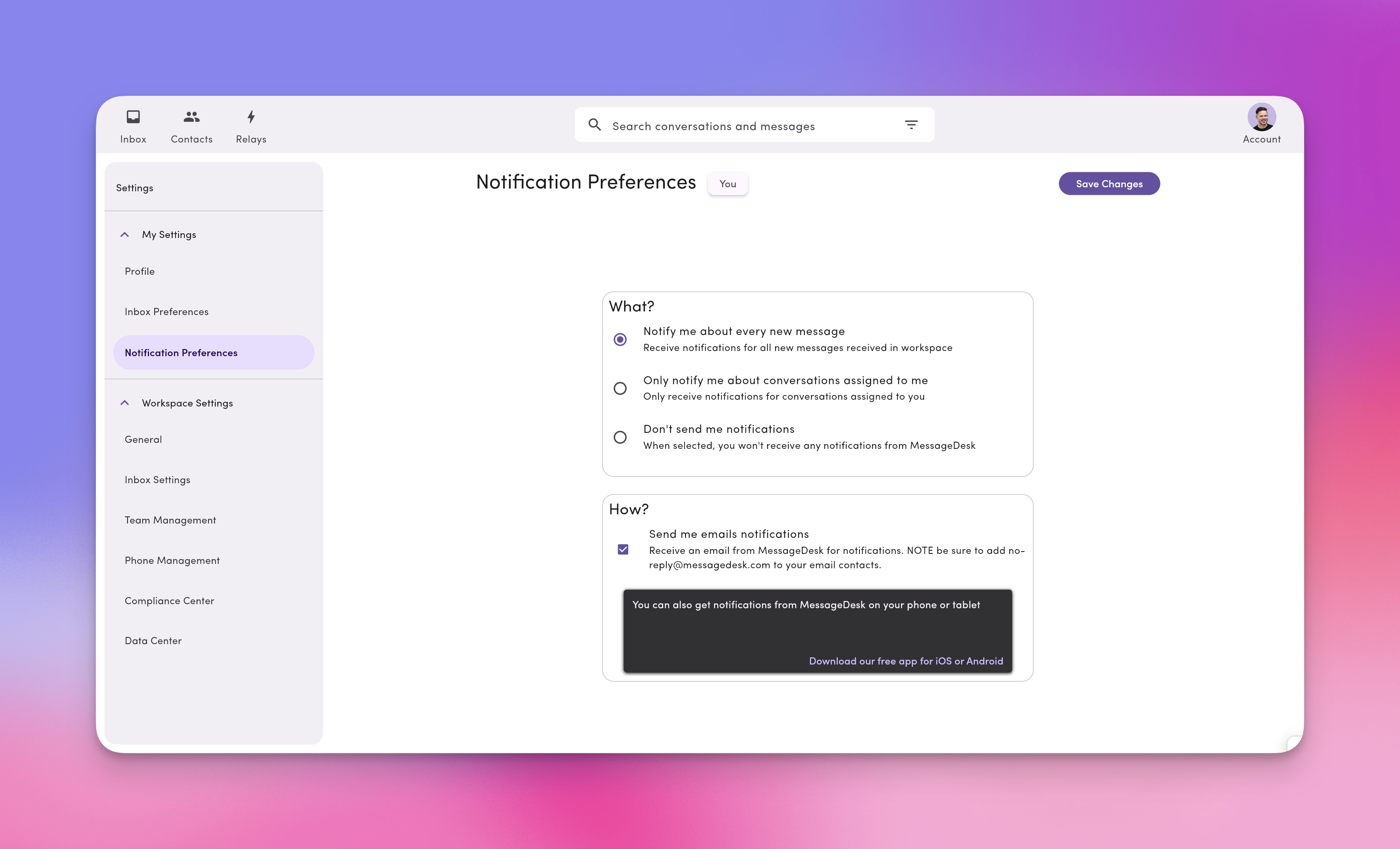
1. In MessageDesk, go to **Account → Settings → Notification Preferences (My Settings)**.
2. Choose one:
* **Notify me about every new message.** Emails for all inbound conversations in your workspace.
* **Only notify me about conversations assigned to me.** Emails only when there's activity in threads you're assigned to.
* **Don't send me notifications.** Turns off email notifications.
3. Click **Save Changes**.
 ***
## Configure mobile push (iOS & Android)
1. [Download the MessageDesk app](/get-started/install-apps) on your device(s).
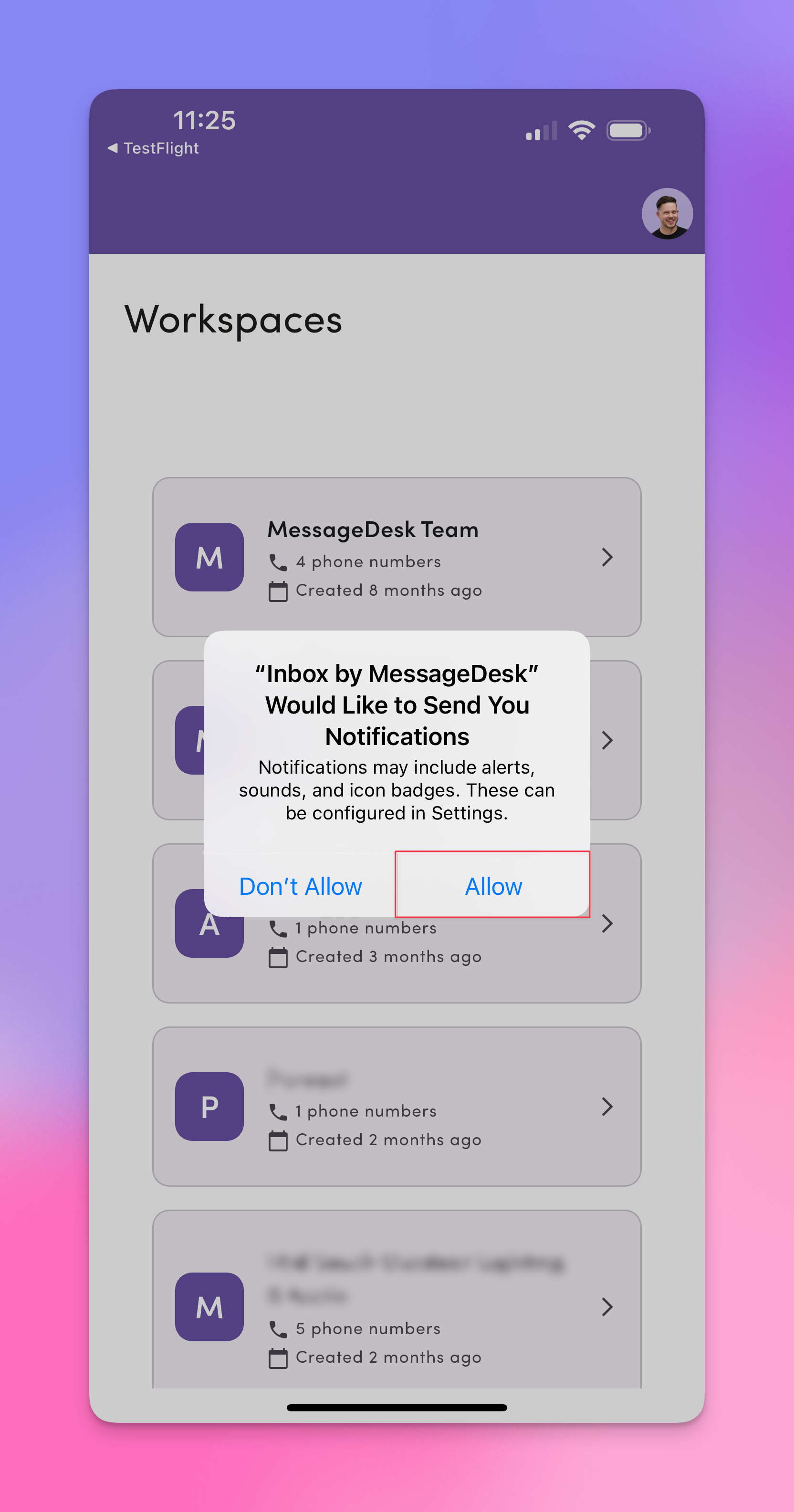
2. Open the app and **Allow** notifications (alerts, sounds, badges) when prompted.
3. Stay signed in to receive pushes.
***
## Configure mobile push (iOS & Android)
1. [Download the MessageDesk app](/get-started/install-apps) on your device(s).
2. Open the app and **Allow** notifications (alerts, sounds, badges) when prompted.
3. Stay signed in to receive pushes.
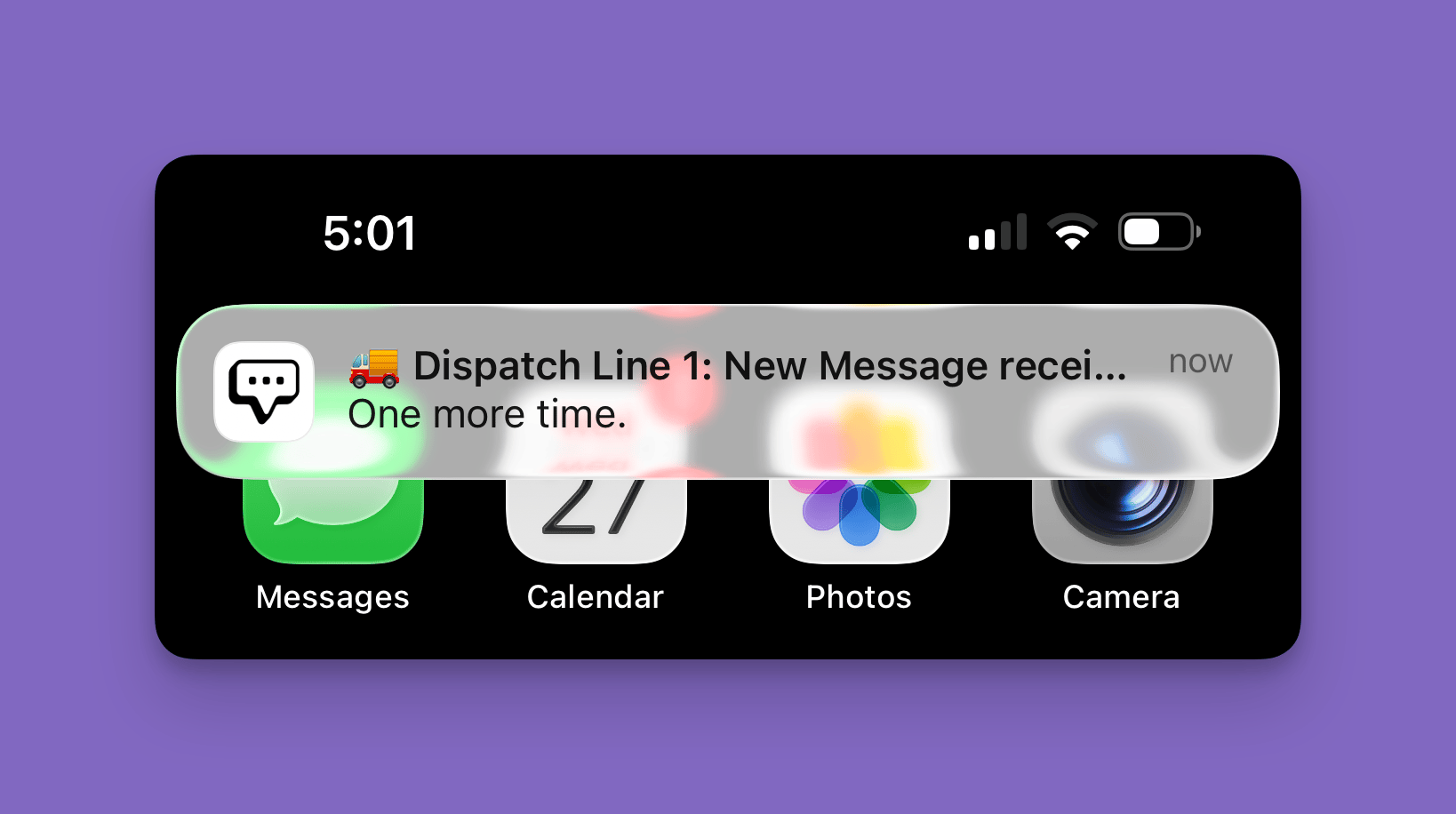 On iOS, fine-tune MessageDesk alerts in **Settings → Notifications → MessageDesk** (banner style, sounds, badges, lock screen, and so on).
Mobile push notifications include **sound and vibration** when a new message arrives. Your device's notification settings control these, not MessageDesk. Manage them in:
* **iOS:** Settings → Notifications → MessageDesk
* **Android:** Settings → Apps → MessageDesk → Notifications
On iOS, fine-tune MessageDesk alerts in **Settings → Notifications → MessageDesk** (banner style, sounds, badges, lock screen, and so on).
Mobile push notifications include **sound and vibration** when a new message arrives. Your device's notification settings control these, not MessageDesk. Manage them in:
* **iOS:** Settings → Notifications → MessageDesk
* **Android:** Settings → Apps → MessageDesk → Notifications
 ### App icon badge count
The number on the MessageDesk app icon on your home screen reflects your **total unread conversations** in the workspace.
* The badge matches the unread count shown next to **All Conversations** in the side nav and on the **Inbox** icon in the bottom nav.
* The badge only appears if notifications are enabled for the MessageDesk app at the device level.
* The badge shows the **total** unread conversations you have access to in the workspace. It is **not** filtered by your Notification Preference setting. For example, if you're set to "Only notify me about conversations assigned to me," the badge still shows the full unread conversation count.
* The badge counts **unread conversations**, not unread messages. Receiving multiple messages from the same contact in an already-unread conversation does not increase the badge.
### App icon badge count
The number on the MessageDesk app icon on your home screen reflects your **total unread conversations** in the workspace.
* The badge matches the unread count shown next to **All Conversations** in the side nav and on the **Inbox** icon in the bottom nav.
* The badge only appears if notifications are enabled for the MessageDesk app at the device level.
* The badge shows the **total** unread conversations you have access to in the workspace. It is **not** filtered by your Notification Preference setting. For example, if you're set to "Only notify me about conversations assigned to me," the badge still shows the full unread conversation count.
* The badge counts **unread conversations**, not unread messages. Receiving multiple messages from the same contact in an already-unread conversation does not increase the badge.
 ***
## Configure browser notifications: Chrome (browser tab)
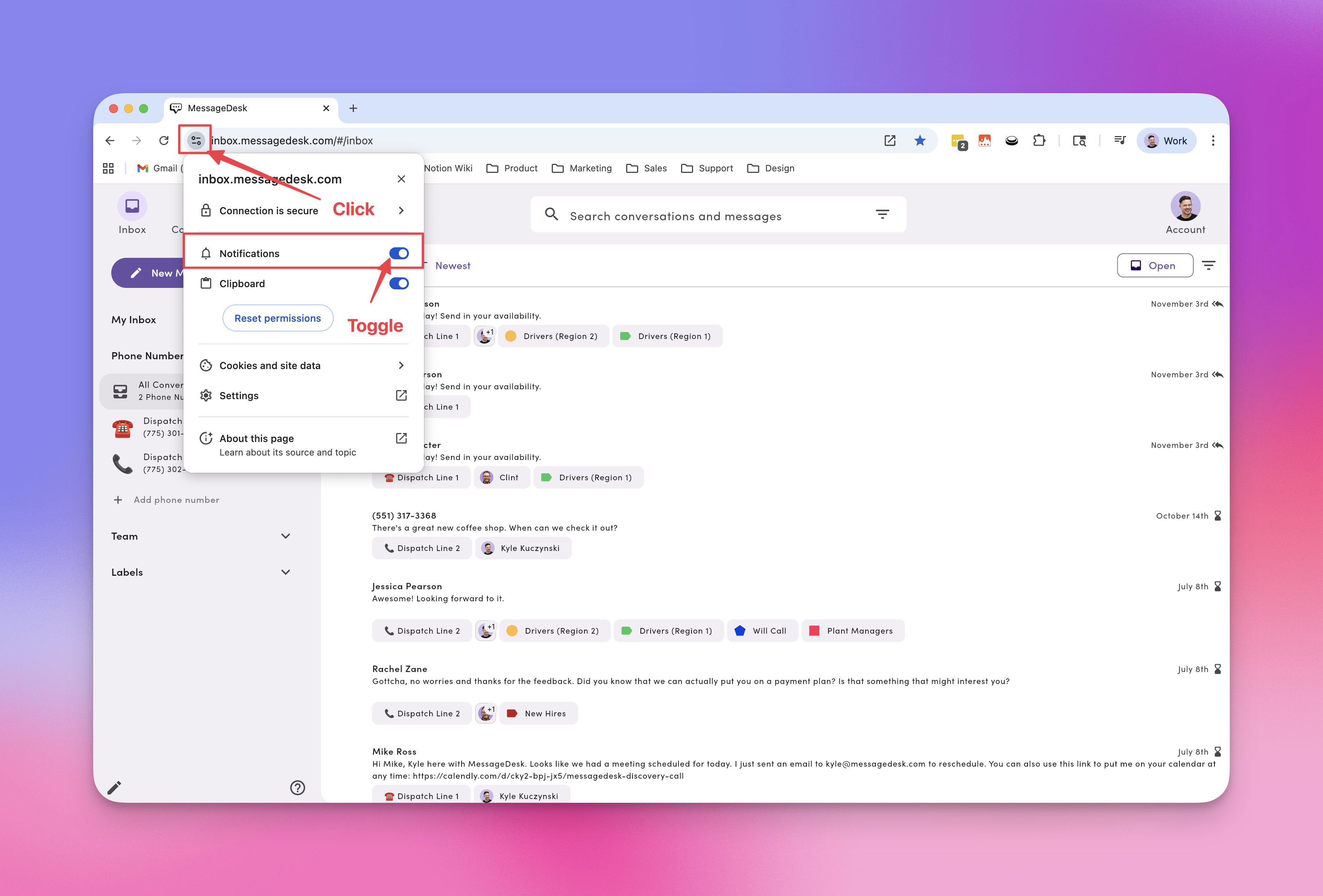
1. Log in to MessageDesk in **Chrome**.
2. Click the **site settings** icon next to the URL.
3. Toggle **Notifications → On/Allow**.
***
## Configure browser notifications: Chrome (browser tab)
1. Log in to MessageDesk in **Chrome**.
2. Click the **site settings** icon next to the URL.
3. Toggle **Notifications → On/Allow**.
 ***
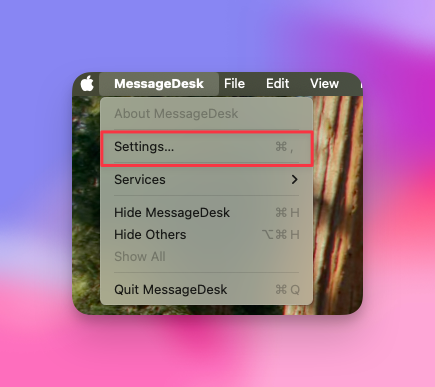
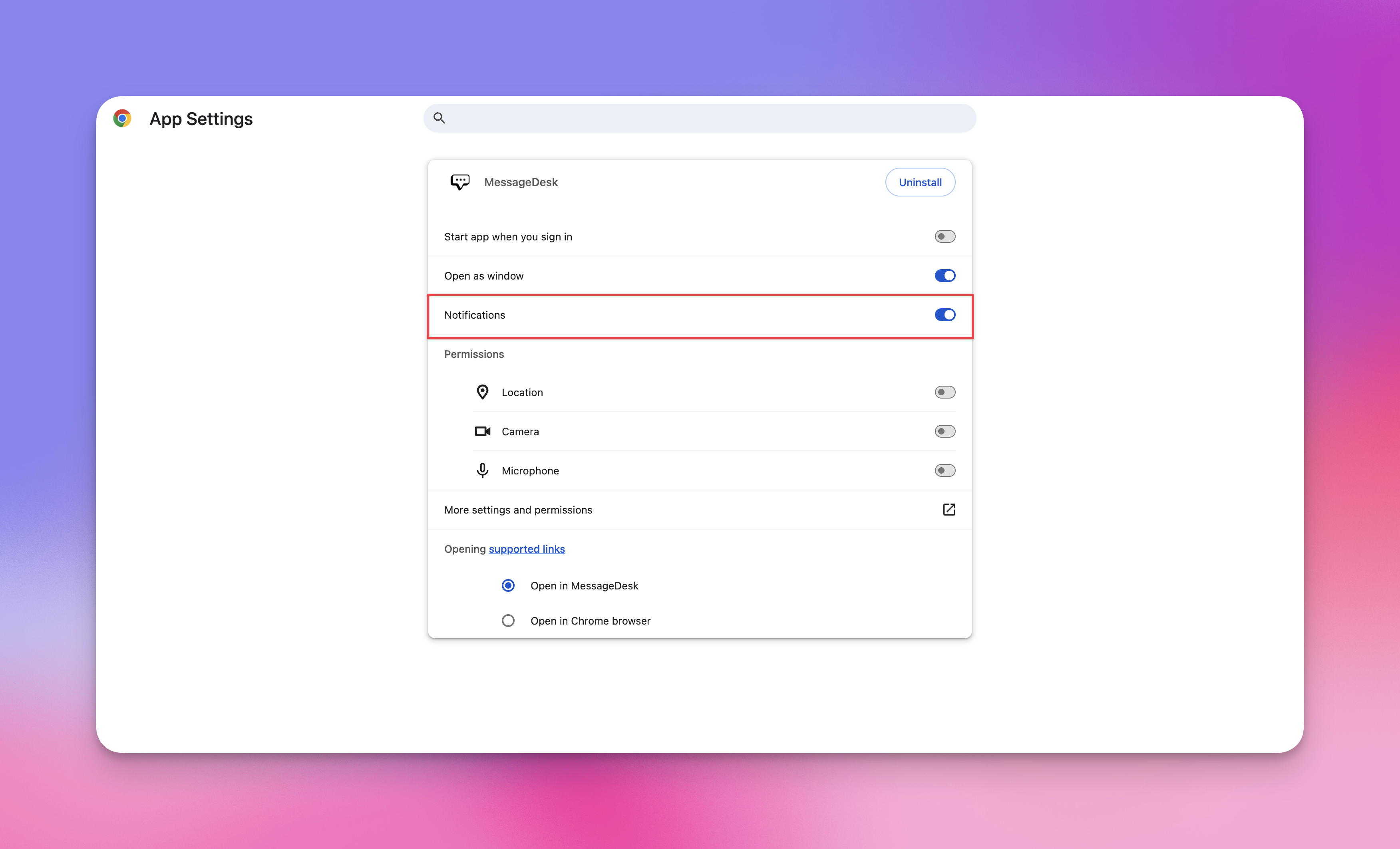
## Configure browser notifications: Chrome App (installed PWA)
1. [Install MessageDesk](/get-started/install-apps) as a Chrome App (PWA).
2. Open your device's **Settings → Apps → MessageDesk**.
3. Open **Notifications** and toggle **On**.
***
## Configure browser notifications: Chrome App (installed PWA)
1. [Install MessageDesk](/get-started/install-apps) as a Chrome App (PWA).
2. Open your device's **Settings → Apps → MessageDesk**.
3. Open **Notifications** and toggle **On**.
 ***
## Configure notifications: Safari App (macOS Sonoma+)
1. [Install MessageDesk](/get-started/install-apps) as a Safari App.
2. On your Mac, open **System Settings → Notifications**.
3. Select **MessageDesk** and choose **None / Banners / Alerts**, plus sounds and badge options.
***
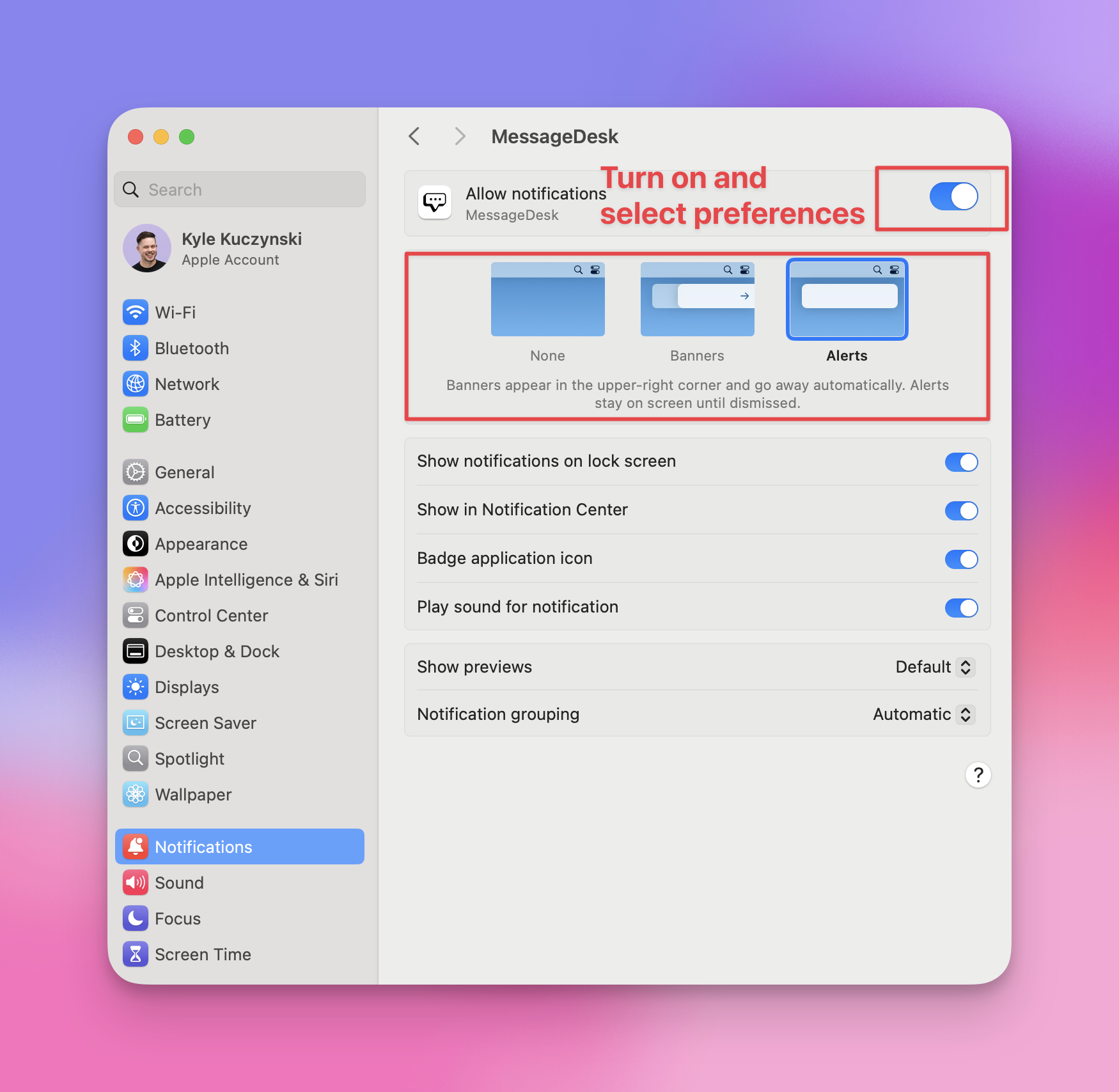
## Configure notifications: Safari App (macOS Sonoma+)
1. [Install MessageDesk](/get-started/install-apps) as a Safari App.
2. On your Mac, open **System Settings → Notifications**.
3. Select **MessageDesk** and choose **None / Banners / Alerts**, plus sounds and badge options.
 ***
## Notification tips & best practices
* **Pick one or two primary channels.** To cut noise, keep either **mobile push** or **browser** as your main real-time channel and rely on **email** as a backup.
* **Use "Assigned to me"** if you only want alerts for threads you own.
* **Respect Focus / DND.** iOS/Android Focus modes and macOS/Windows **Do Not Disturb** can silence MessageDesk. Check these if alerts seem quiet.
* **Stay signed in.** Push and browser notifications need an active login on that device.
* **Test quickly.** Assign a conversation to yourself and send a message to confirm that the device gets alerts.
***
## Troubleshooting
**I'm not getting any notifications.**
* Confirm the setting in **Account → Settings → Notification Preferences**.
* Make sure you're **signed in** on the device.
* Check OS settings (iOS/Android/macOS/Windows) to verify that **Notifications are allowed** for MessageDesk.
* Turn off **Do Not Disturb / Focus** or add MessageDesk as an allowed app.
**Email notifications aren't arriving.**
* Check spam/junk and allowlist `messagedesk.com`.
* Verify your **email address** in **Account → Settings → Profile**.
* If using "Assigned to me," make sure the conversation is **assigned to you**.
**Chrome isn't showing notifications.**
* In the address bar, click the **site settings** icon and set **Notifications: Allow**.
* Make sure **System → Notifications** (Windows/macOS) allows Chrome notifications.
* Keep at least one **MessageDesk tab** open or use the **installed app**.
**Mobile push is inconsistent.**
* Android push notifications are now sent at **high priority** for faster, more reliable delivery. If you're still seeing delays, the steps below still apply.
* Make sure Background App Refresh (iOS) or unrestricted battery (Android) is on for MessageDesk.
* Log out and back in to refresh the device token.
* On cellular networks, push notifications may be delayed when signal strength is poor. That's a device/carrier limitation, not a MessageDesk issue.
***
## FAQ
**If I set "Don't send me notifications," does that affect other users?**\
No. Notification preferences are **per user**.
**Do I need both browser and mobile push?**\
No. Choose the channel that fits your workflow. Many users keep **mobile push on** and **email off**.
**Will I get duplicate notifications?**\
If you turn on multiple channels, you may get duplicates (email + mobile). Fine-tune by turning one off.
**Do closed conversations notify me?**\
Notifications follow your personal rule ("Assigned to me," for instance). If a closed thread reopens and you're assigned, you may get alerts again.
**What does the number on the app icon mean?**\
It's your total **unread conversations** across the workspace, the same count shown next to **All Conversations** in the side nav and on the **Inbox** icon in the bottom nav. It only appears if notifications are enabled for the MessageDesk app at the device level, and it's not filtered by your Notification Preference setting.
***
***
## Notification tips & best practices
* **Pick one or two primary channels.** To cut noise, keep either **mobile push** or **browser** as your main real-time channel and rely on **email** as a backup.
* **Use "Assigned to me"** if you only want alerts for threads you own.
* **Respect Focus / DND.** iOS/Android Focus modes and macOS/Windows **Do Not Disturb** can silence MessageDesk. Check these if alerts seem quiet.
* **Stay signed in.** Push and browser notifications need an active login on that device.
* **Test quickly.** Assign a conversation to yourself and send a message to confirm that the device gets alerts.
***
## Troubleshooting
**I'm not getting any notifications.**
* Confirm the setting in **Account → Settings → Notification Preferences**.
* Make sure you're **signed in** on the device.
* Check OS settings (iOS/Android/macOS/Windows) to verify that **Notifications are allowed** for MessageDesk.
* Turn off **Do Not Disturb / Focus** or add MessageDesk as an allowed app.
**Email notifications aren't arriving.**
* Check spam/junk and allowlist `messagedesk.com`.
* Verify your **email address** in **Account → Settings → Profile**.
* If using "Assigned to me," make sure the conversation is **assigned to you**.
**Chrome isn't showing notifications.**
* In the address bar, click the **site settings** icon and set **Notifications: Allow**.
* Make sure **System → Notifications** (Windows/macOS) allows Chrome notifications.
* Keep at least one **MessageDesk tab** open or use the **installed app**.
**Mobile push is inconsistent.**
* Android push notifications are now sent at **high priority** for faster, more reliable delivery. If you're still seeing delays, the steps below still apply.
* Make sure Background App Refresh (iOS) or unrestricted battery (Android) is on for MessageDesk.
* Log out and back in to refresh the device token.
* On cellular networks, push notifications may be delayed when signal strength is poor. That's a device/carrier limitation, not a MessageDesk issue.
***
## FAQ
**If I set "Don't send me notifications," does that affect other users?**\
No. Notification preferences are **per user**.
**Do I need both browser and mobile push?**\
No. Choose the channel that fits your workflow. Many users keep **mobile push on** and **email off**.
**Will I get duplicate notifications?**\
If you turn on multiple channels, you may get duplicates (email + mobile). Fine-tune by turning one off.
**Do closed conversations notify me?**\
Notifications follow your personal rule ("Assigned to me," for instance). If a closed thread reopens and you're assigned, you may get alerts again.
**What does the number on the app icon mean?**\
It's your total **unread conversations** across the workspace, the same count shown next to **All Conversations** in the side nav and on the **Inbox** icon in the bottom nav. It only appears if notifications are enabled for the MessageDesk app at the device level, and it's not filtered by your Notification Preference setting.
***