> ## Documentation Index
> Fetch the complete documentation index at: https://docs.messagedesk.com/llms.txt
> Use this file to discover all available pages before exploring further.
# Account Security
> Reset your MessageDesk password, enable two-factor authentication, manage active sessions, and follow security best practices to keep your account safe.
# Account Security
Keep your MessageDesk account secure by managing your password and following security best practices.
***
## Reset your user password
 ### Step-by-step instructions
1. Go to the login page ([inbox.messagedesk.com](https://inbox.messagedesk.com)).
2. Click **Forgot your password?**
3. Enter your email address (the one tied to your account).
### Step-by-step instructions
1. Go to the login page ([inbox.messagedesk.com](https://inbox.messagedesk.com)).
2. Click **Forgot your password?**
3. Enter your email address (the one tied to your account).
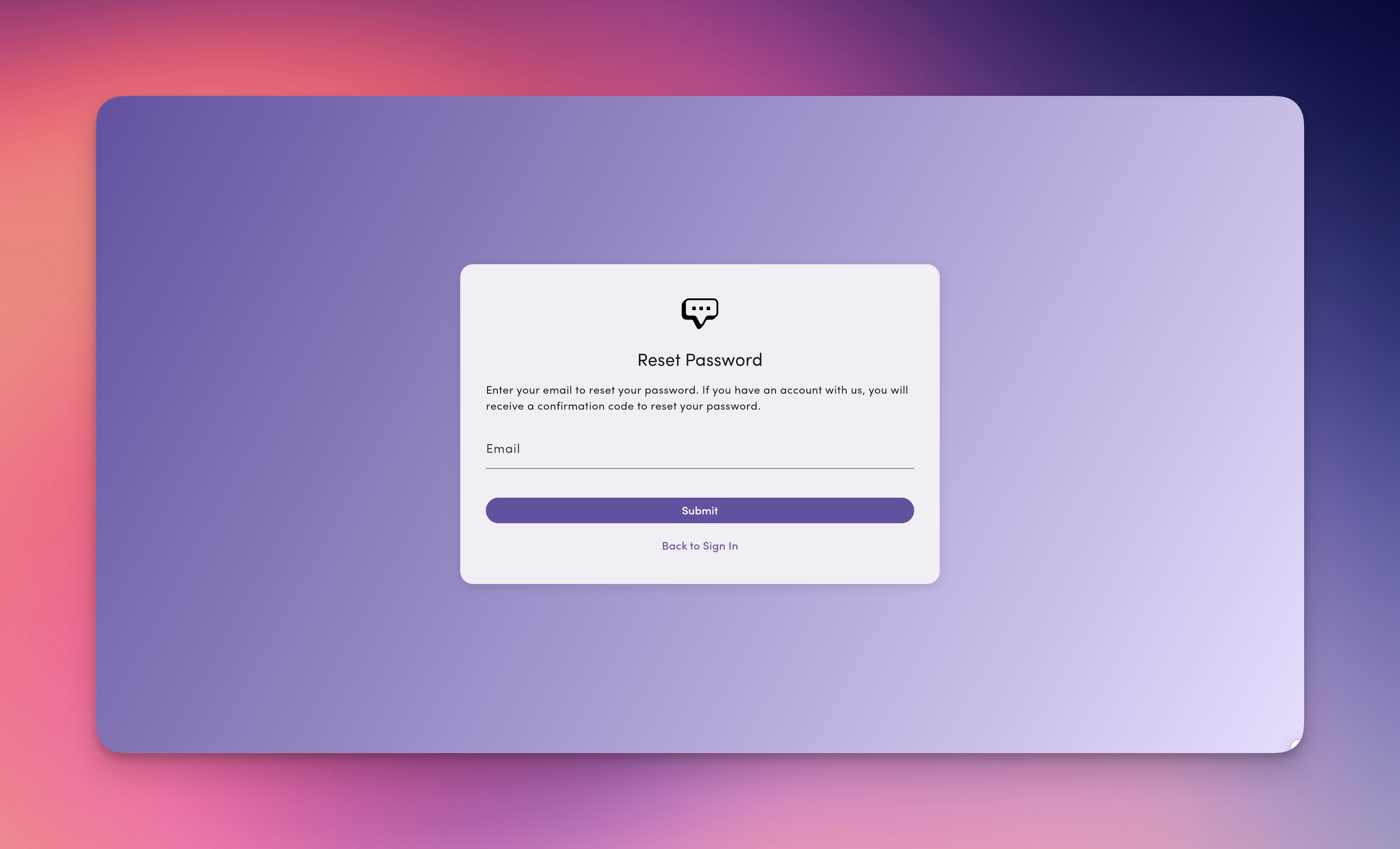 4. Click **Submit**.
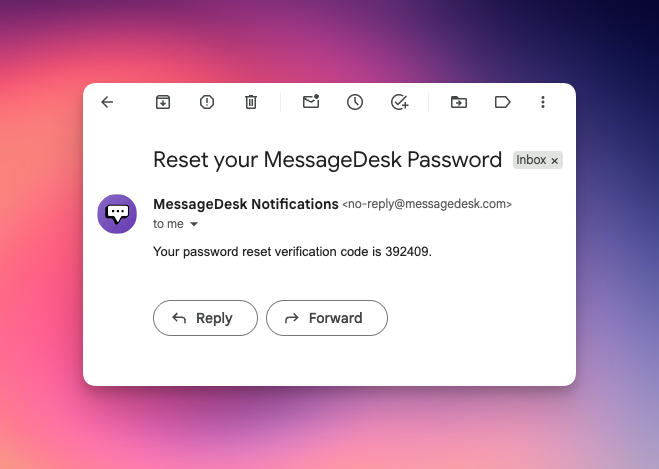
5. Check your email for a verification code:
* **Sender:** [no-reply@messagedesk.com](mailto:no-reply@messagedesk.com)
* **Subject:** "Reset your MessageDesk Password"
* **Contains:** a 6-digit verification code.
* **Delivery:** usually within a few minutes.
* **Where to check:** inbox (and spam/junk if not received).
The verification code is valid for a limited time (typically 15-60 minutes). If it expires, request a new one.
4. Click **Submit**.
5. Check your email for a verification code:
* **Sender:** [no-reply@messagedesk.com](mailto:no-reply@messagedesk.com)
* **Subject:** "Reset your MessageDesk Password"
* **Contains:** a 6-digit verification code.
* **Delivery:** usually within a few minutes.
* **Where to check:** inbox (and spam/junk if not received).
The verification code is valid for a limited time (typically 15-60 minutes). If it expires, request a new one.
 6. Return to the app and enter:
* The verification code from your email.
* Your new password.
* Confirm your new password.
6. Return to the app and enter:
* The verification code from your email.
* Your new password.
* Confirm your new password.
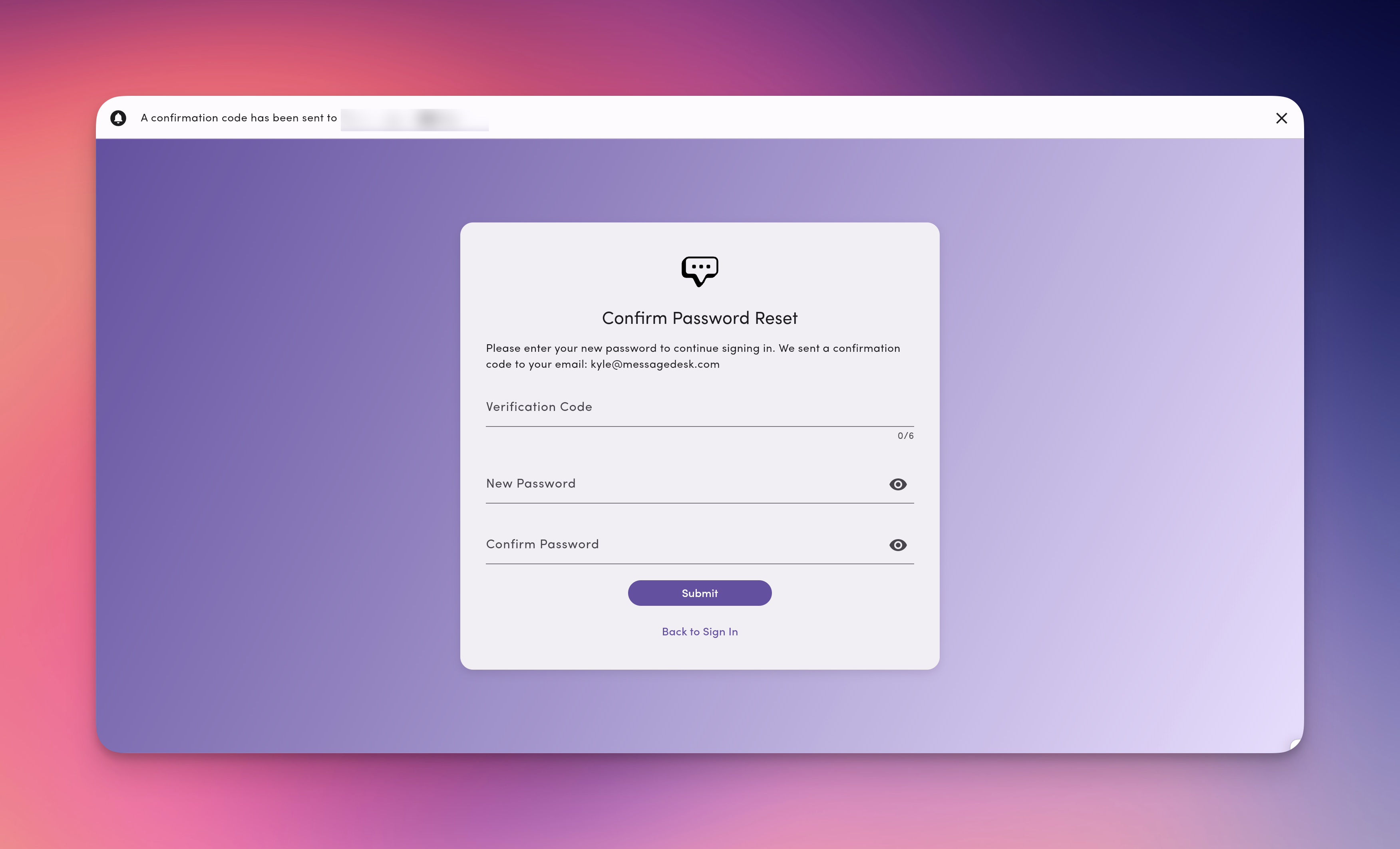 7. Click **Submit**.
You'll be signed in automatically with your new password.
***
## User password requirements
Your new password must meet these requirements:
* At least 8 characters long (maximum 99 characters).
* Contains at least one lowercase letter (a-z).
* Contains at least one uppercase letter (A-Z).
* Contains at least one number (0-9).
* Contains at least one special character (!@#\$&\_\~).
* No spaces allowed.
* Can't match any of your last 8 passwords.
To meet SOC2 Access Management Policy requirements, MessageDesk blocks reuse of your last 8 passwords on reset.
**Example of a valid password:** `MyP@ssw0rd123`
***
## Troubleshooting
### "I didn't receive the email"
* Check your spam/junk folder.
* Verify you're using the correct email address.
* Wait a few minutes (delivery can take up to 5 minutes).
* Request a new code.
* Contact support if the issue persists.
### "The verification code doesn't work"
* Make sure you're entering the code exactly as shown.
* Check whether the code has expired (request a new one).
* Make sure you're using the most recent code sent.
* Verify you're on the correct confirmation page.
### "I'm getting an error message"
* Check that your new password meets every requirement.
* Make sure both password fields match exactly.
* Refresh the page and start over.
* Contact support with the specific error message.
### "I don't remember which email I used"
Contact your workspace administrator or support for help.
***
## Admin-initiated reset
If you can't reset your password:
1. Contact your workspace administrator or owner.
2. They can start a password reset for you.
3. You'll get the same verification code email.
4. Follow the same steps to complete the reset.
***
## Security best practices
* **Use a unique password.** Don't reuse passwords from other accounts. MessageDesk enforces this by blocking reuse of your last 8 passwords.
* **Keep codes private.** Never share your verification code with anyone.
* **Act promptly.** Finish the reset soon after getting the code.
* **Report suspicious activity.** If you didn't request a reset, contact support immediately.
* **Use a password manager.** It generates and stores strong passwords for you.
* **Turn on two-factor authentication.** Add your cell phone in your profile settings for extra security.
Resetting your password signs you out everywhere. You'll need to sign in again on every other device with your new password.
***
## FAQ
The code expires after a set time (typically 15-60 minutes). If it expires, request a new one.
No. To comply with SOC2 Access Management Policy, you can't reuse any of your last 8 passwords.
Yes. There's no limit on how many times you can reset.
Yes. You'll need to sign in again on other devices with your new password.
7. Click **Submit**.
You'll be signed in automatically with your new password.
***
## User password requirements
Your new password must meet these requirements:
* At least 8 characters long (maximum 99 characters).
* Contains at least one lowercase letter (a-z).
* Contains at least one uppercase letter (A-Z).
* Contains at least one number (0-9).
* Contains at least one special character (!@#\$&\_\~).
* No spaces allowed.
* Can't match any of your last 8 passwords.
To meet SOC2 Access Management Policy requirements, MessageDesk blocks reuse of your last 8 passwords on reset.
**Example of a valid password:** `MyP@ssw0rd123`
***
## Troubleshooting
### "I didn't receive the email"
* Check your spam/junk folder.
* Verify you're using the correct email address.
* Wait a few minutes (delivery can take up to 5 minutes).
* Request a new code.
* Contact support if the issue persists.
### "The verification code doesn't work"
* Make sure you're entering the code exactly as shown.
* Check whether the code has expired (request a new one).
* Make sure you're using the most recent code sent.
* Verify you're on the correct confirmation page.
### "I'm getting an error message"
* Check that your new password meets every requirement.
* Make sure both password fields match exactly.
* Refresh the page and start over.
* Contact support with the specific error message.
### "I don't remember which email I used"
Contact your workspace administrator or support for help.
***
## Admin-initiated reset
If you can't reset your password:
1. Contact your workspace administrator or owner.
2. They can start a password reset for you.
3. You'll get the same verification code email.
4. Follow the same steps to complete the reset.
***
## Security best practices
* **Use a unique password.** Don't reuse passwords from other accounts. MessageDesk enforces this by blocking reuse of your last 8 passwords.
* **Keep codes private.** Never share your verification code with anyone.
* **Act promptly.** Finish the reset soon after getting the code.
* **Report suspicious activity.** If you didn't request a reset, contact support immediately.
* **Use a password manager.** It generates and stores strong passwords for you.
* **Turn on two-factor authentication.** Add your cell phone in your profile settings for extra security.
Resetting your password signs you out everywhere. You'll need to sign in again on every other device with your new password.
***
## FAQ
The code expires after a set time (typically 15-60 minutes). If it expires, request a new one.
No. To comply with SOC2 Access Management Policy, you can't reuse any of your last 8 passwords.
Yes. There's no limit on how many times you can reset.
Yes. You'll need to sign in again on other devices with your new password.