> ## Documentation Index
> Fetch the complete documentation index at: https://docs.messagedesk.com/llms.txt
> Use this file to discover all available pages before exploring further.
# Team Workspace Messaging Analytics
> Track SMS performance metrics in MessageDesk. Message volume, response times, channel-level stats, and per-user activity reports for your team workspace.
# Workspace Analytics
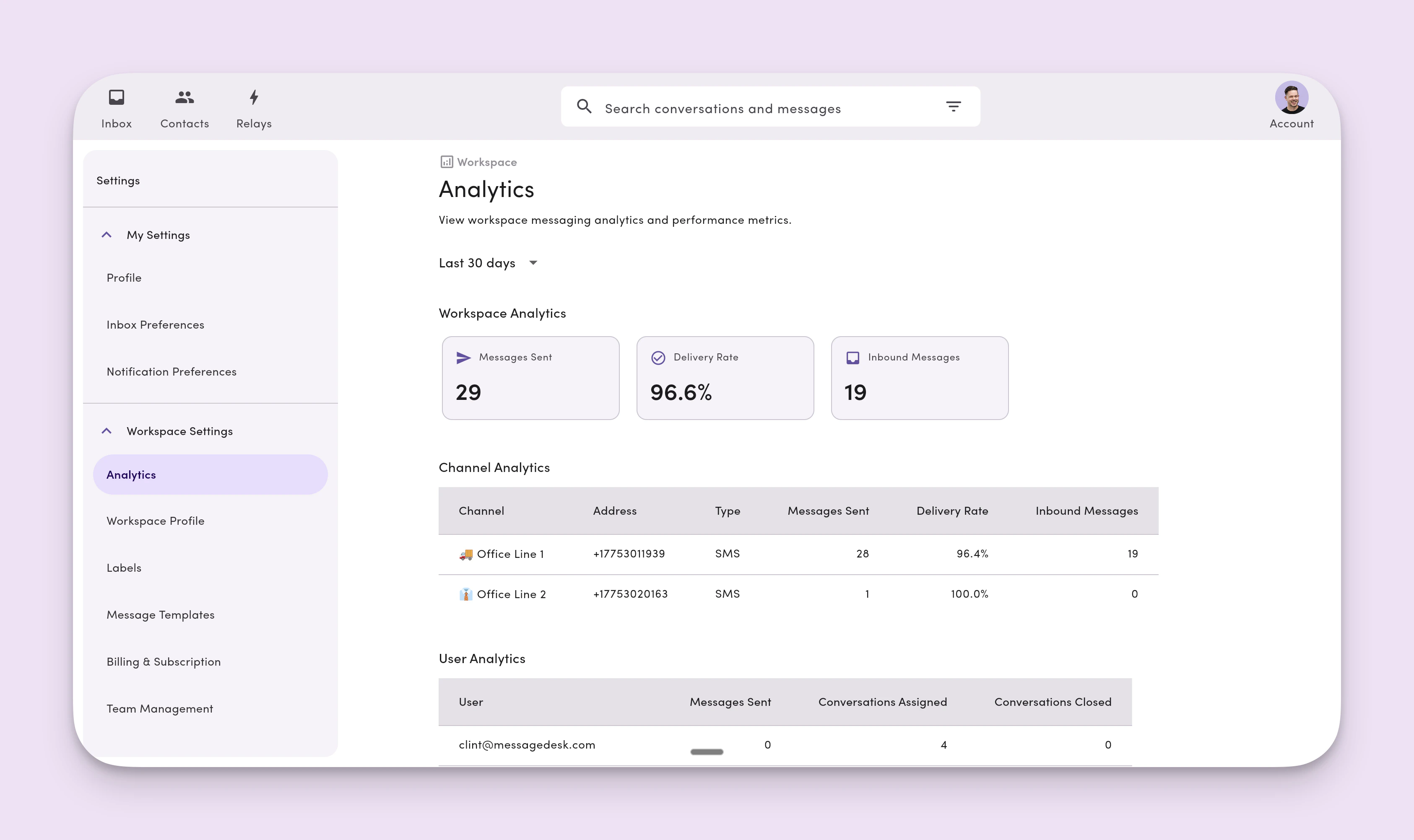
The **Analytics** dashboard gives you a snapshot of messaging activity across your workspace: messages sent, delivery rates, inbound volume, and breakdowns by channel and user.
***
 ## Open the analytics dashboard
1. Click your **profile icon** (top-right).
2. Select **Settings**.
3. In the left nav, open **Workspace Settings → Analytics**.
You can also navigate directly to `/settings/workspace-settings/analytics`.
**Permissions.** Your role controls access to the analytics dashboard. See [Roles & Permissions](/settings/workspace-settings/team-management) for details.
***
## Top-level metrics
The dashboard shows three primary metrics at the top:
* **Messages sent.** Total outbound messages from your workspace.
* **Delivery rate.** Percentage of sent messages successfully delivered.
* **Inbound messages.** Total messages received across every channel.
***
## Channel-level analytics
Below the top-level metrics, you'll see activity **by channel** (phone line). Use this to compare volume and performance across lines in your workspace.
***
## User-level analytics
The dashboard also shows activity **by user**, so you can see how messaging volume splits across your team.
***
## Time windows
Use the time-window selector to filter every metric by a specific date range:
* **30 days**
* **60 days**
* **90 days**
* **180 days**
* **365 days**
Changing the time window updates every metric on the page.
**Data refresh.** Analytics data doesn't update in real time. The dashboard loads a snapshot when you open it. Refresh the page to see the latest data.
***
## FAQ
**Who can access the analytics dashboard?**\
Access depends on your role and the **Analytics** permission assigned to it. Admins have full access by default. See [Roles & Permissions](/settings/workspace-settings/team-management).
**Why doesn't the data update automatically?**\
Analytics queries aggregate large volumes of messaging data. To keep performance fast, the dashboard loads data on page load rather than streaming live updates.
**Can I export analytics data?**\
Export isn't currently available from the analytics dashboard. Contact support if you need a data export.
## Open the analytics dashboard
1. Click your **profile icon** (top-right).
2. Select **Settings**.
3. In the left nav, open **Workspace Settings → Analytics**.
You can also navigate directly to `/settings/workspace-settings/analytics`.
**Permissions.** Your role controls access to the analytics dashboard. See [Roles & Permissions](/settings/workspace-settings/team-management) for details.
***
## Top-level metrics
The dashboard shows three primary metrics at the top:
* **Messages sent.** Total outbound messages from your workspace.
* **Delivery rate.** Percentage of sent messages successfully delivered.
* **Inbound messages.** Total messages received across every channel.
***
## Channel-level analytics
Below the top-level metrics, you'll see activity **by channel** (phone line). Use this to compare volume and performance across lines in your workspace.
***
## User-level analytics
The dashboard also shows activity **by user**, so you can see how messaging volume splits across your team.
***
## Time windows
Use the time-window selector to filter every metric by a specific date range:
* **30 days**
* **60 days**
* **90 days**
* **180 days**
* **365 days**
Changing the time window updates every metric on the page.
**Data refresh.** Analytics data doesn't update in real time. The dashboard loads a snapshot when you open it. Refresh the page to see the latest data.
***
## FAQ
**Who can access the analytics dashboard?**\
Access depends on your role and the **Analytics** permission assigned to it. Admins have full access by default. See [Roles & Permissions](/settings/workspace-settings/team-management).
**Why doesn't the data update automatically?**\
Analytics queries aggregate large volumes of messaging data. To keep performance fast, the dashboard loads data on page load rather than streaming live updates.
**Can I export analytics data?**\
Export isn't currently available from the analytics dashboard. Contact support if you need a data export.