> ## Documentation Index
> Fetch the complete documentation index at: https://docs.messagedesk.com/llms.txt
> Use this file to discover all available pages before exploring further.
# Billing & Subscription Management
> Update payment methods, change plans, view invoices, and manage MessageDesk billing and subscription settings for your team workspace and add-on services.
# Billing & Subscription Management
View your plan, update payment methods, download invoices, and change your MessageDesk subscription, all from **Account → Billing**.
***
## TL;DR
* Go to **Account → Billing** to see **plan**, **next charge**, **seats**, **billing cycle**, and **invoice history**.
* You can **add/update a payment method**, **download invoices**, and **cancel** from the same page.
* To **change plans** (upgrade/downgrade), [contact support](/resources/support). Upgrades prorate immediately. Downgrades apply on your next billing cycle.
***
## Open your billing settings
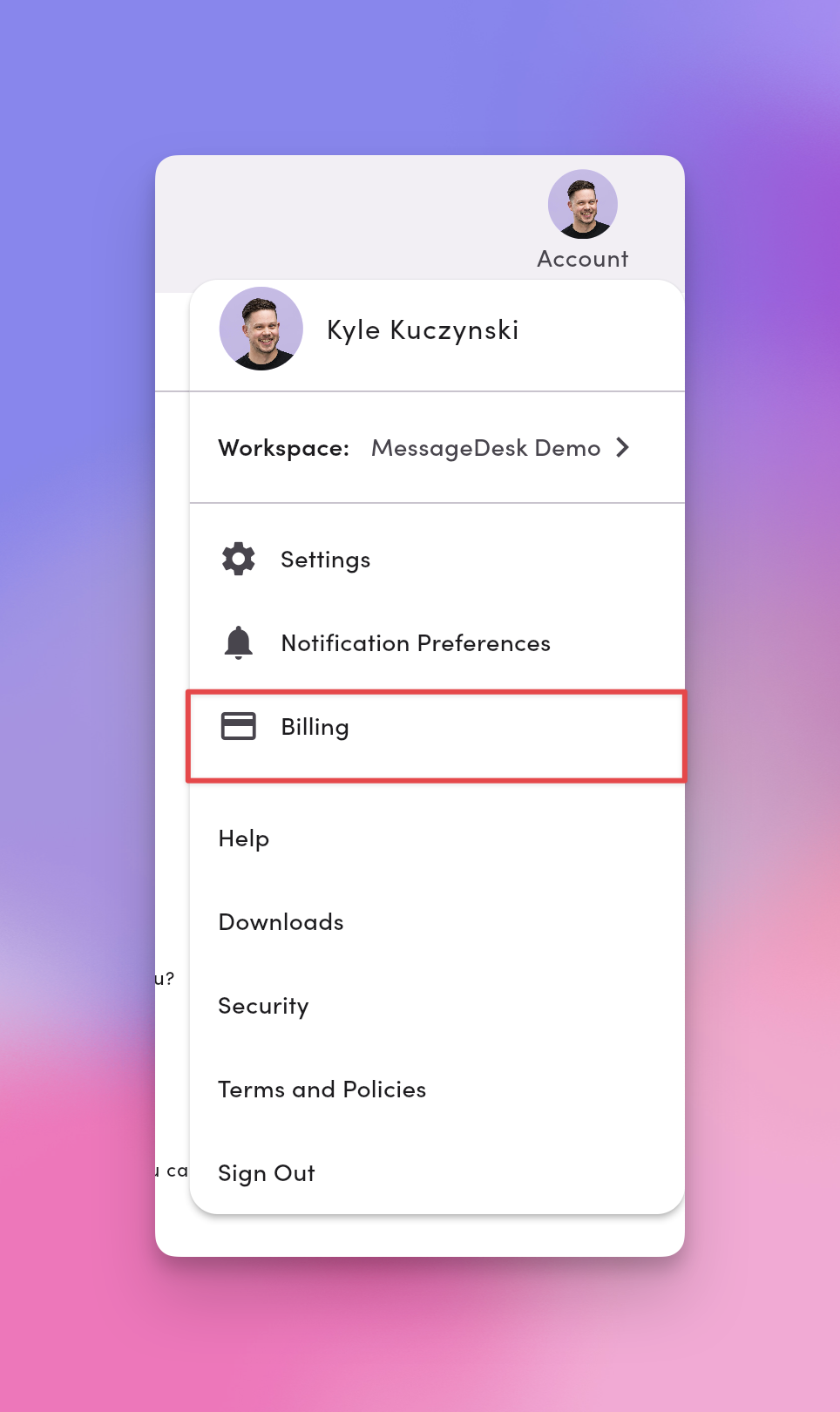
1. Click your **profile icon** (top-right).
2. Choose **Account → Billing**.
 ***
## Manage your subscription
### View current plan & billing details
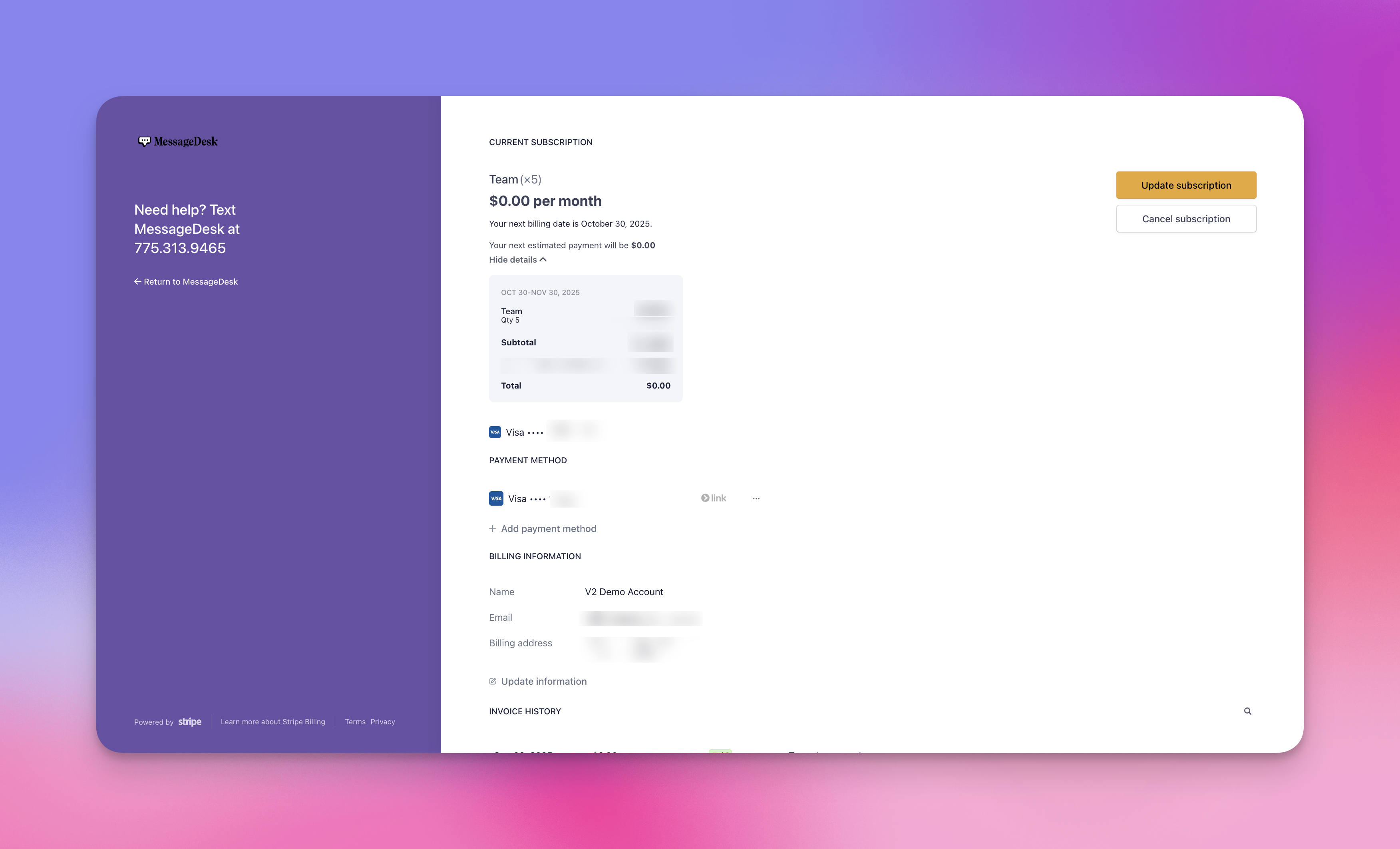
The Billing page shows:
* **Plan name** and **price**.
* **User seats (quantity)**.
* **Billing cycle** (monthly or annual).
* **Next billing date**.
* **Billing contact:** name, email, address, phone.
* **Invoice history**.
**Seat minimums.** The **Team** plan needs at least **3 user seats**. The **Pro** plan has no seat minimum. See [Pricing](/resources/pricing) for plan details.
***
## Manage your subscription
### View current plan & billing details
The Billing page shows:
* **Plan name** and **price**.
* **User seats (quantity)**.
* **Billing cycle** (monthly or annual).
* **Next billing date**.
* **Billing contact:** name, email, address, phone.
* **Invoice history**.
**Seat minimums.** The **Team** plan needs at least **3 user seats**. The **Pro** plan has no seat minimum. See [Pricing](/resources/pricing) for plan details.
 ### Change plans (upgrade or downgrade)
To change plans, [contact support](/resources/support).
* **Upgrades.** Take effect immediately and **prorate**.
* **Downgrades.** Take effect on your **next billing date**.
***
## Payment methods
### Supported options
* **Card** (Visa, Mastercard, Amex, Discover).
* **Bank (ACH)**.
### Add or update a payment method
1. Go to **Account → Billing**.
2. Click **+ Add payment method**.
3. Enter your details.
4. Click **Add**.
Set a new method as **default** during or after adding it.
### Remove a payment method
You must have **at least one** active payment method on file.
* Add a new method first, then remove the old one.
***
## Billing information & history
### Update billing contact info
On **Account → Billing**, edit **name**, **email**, **address**, or **phone** in the **Billing information** section, then **Save**.
### View & download invoices
1. Go to **Account → Billing**.
2. Scroll to **Invoice history**.
3. Click any invoice to **view** or **download** (PDF).
***
## Cancel subscription
1. Go to **Account → Billing**.
2. Click **Cancel subscription**.
3. Confirm **Cancel subscription**.
Your account stays active until the **end of the current billing period**.
***
## FAQ
**When will I be charged?**\
On the **same day each month** (monthly plans) or **once per year** (annual plans). Your **next billing date** shows in Billing.
**What happens if my payment fails?**\
We'll **retry** the charge and send an **email**. Update your **payment method** to avoid service interruption.
**Can I get a refund?**\
Refunds are handled **case-by-case**. Contact support to review your situation.
**Can I switch plans later?**\
Yes. [Contact support](/resources/support) to upgrade or downgrade. Upgrades **prorate immediately**. Downgrades apply on your **next cycle**.
***
### Change plans (upgrade or downgrade)
To change plans, [contact support](/resources/support).
* **Upgrades.** Take effect immediately and **prorate**.
* **Downgrades.** Take effect on your **next billing date**.
***
## Payment methods
### Supported options
* **Card** (Visa, Mastercard, Amex, Discover).
* **Bank (ACH)**.
### Add or update a payment method
1. Go to **Account → Billing**.
2. Click **+ Add payment method**.
3. Enter your details.
4. Click **Add**.
Set a new method as **default** during or after adding it.
### Remove a payment method
You must have **at least one** active payment method on file.
* Add a new method first, then remove the old one.
***
## Billing information & history
### Update billing contact info
On **Account → Billing**, edit **name**, **email**, **address**, or **phone** in the **Billing information** section, then **Save**.
### View & download invoices
1. Go to **Account → Billing**.
2. Scroll to **Invoice history**.
3. Click any invoice to **view** or **download** (PDF).
***
## Cancel subscription
1. Go to **Account → Billing**.
2. Click **Cancel subscription**.
3. Confirm **Cancel subscription**.
Your account stays active until the **end of the current billing period**.
***
## FAQ
**When will I be charged?**\
On the **same day each month** (monthly plans) or **once per year** (annual plans). Your **next billing date** shows in Billing.
**What happens if my payment fails?**\
We'll **retry** the charge and send an **email**. Update your **payment method** to avoid service interruption.
**Can I get a refund?**\
Refunds are handled **case-by-case**. Contact support to review your situation.
**Can I switch plans later?**\
Yes. [Contact support](/resources/support) to upgrade or downgrade. Upgrades **prorate immediately**. Downgrades apply on your **next cycle**.
***