> ## Documentation Index
> Fetch the complete documentation index at: https://docs.messagedesk.com/llms.txt
> Use this file to discover all available pages before exploring further.
# Custom Fields for Contact Data
> Create custom contact fields in MessageDesk to store data like account ID, renewal date, or product interest, then merge values into SMS templates.
# Custom Fields: Organize Contacts and Send Smarter Messages
Custom fields let you save the contact details that matter.
Think region, location, membership type, assigned rep, renewal month, program, or any other contact detail you need to track.
That matters because once the data is on the contact, you can use it. You can [filter contacts](/contacts/create-import) by a custom field, save that filter as a reusable list, and come back to it anytime. Then you can select that group and send the right message to the right people.
Custom fields turn contact data into action.
 ***
## What are custom fields?
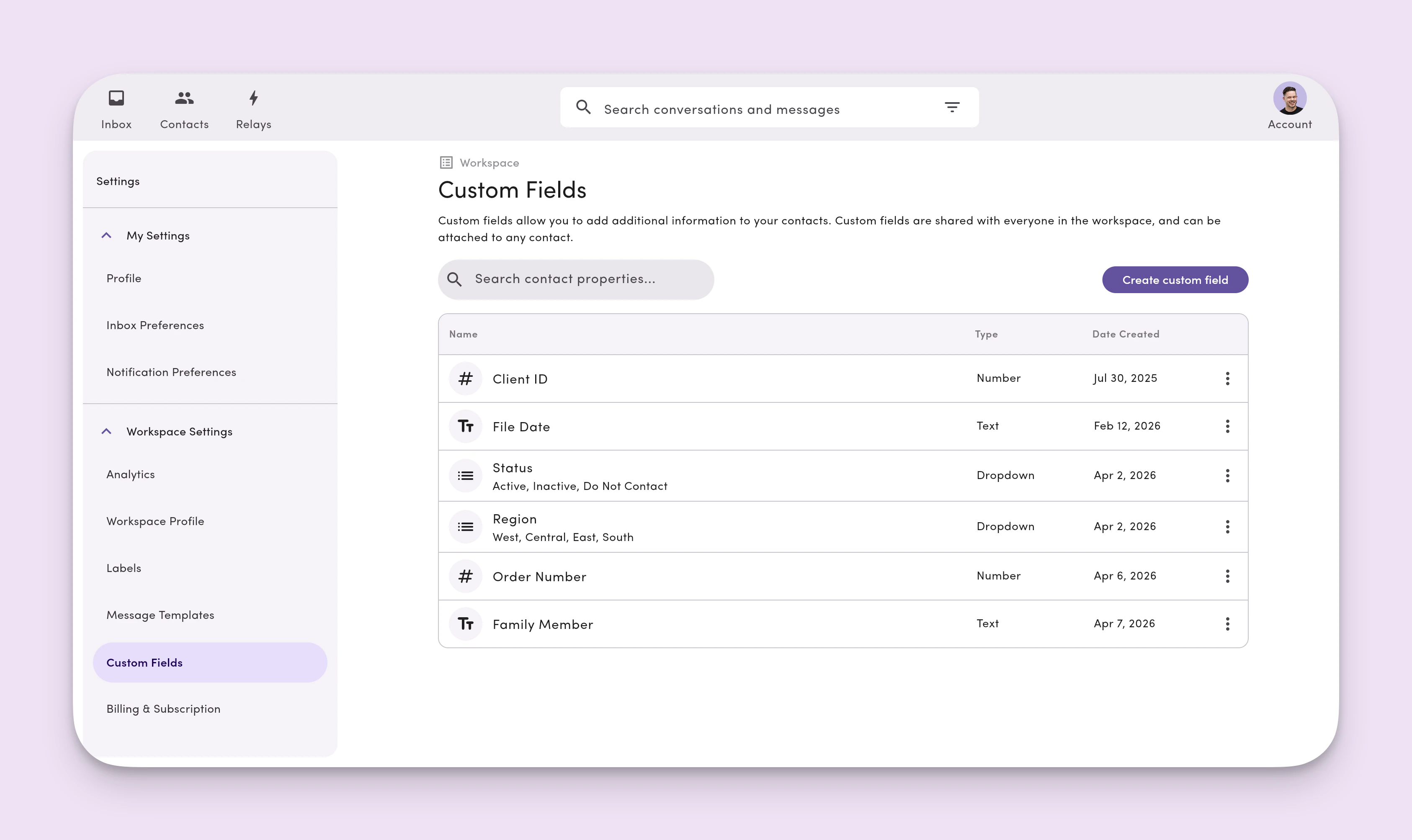
A custom field is a contact field you create yourself.
Use custom fields when the default contact fields aren't enough for how your team works. They help you track the details you care about, keep contacts organized, and build reusable groups for outreach.
For example, you might create custom fields for:
* Region
* Store location
* Customer type
* Assigned rep
* Renewal month
* Membership status
* Campus
* Lead source
***
## Why custom fields matter
Custom fields help you do more than store data.
They help you group contacts in a way that matches your business. Once that data is saved, you can:
* filter contacts by a specific field value
* save that filter as a reusable list
* return to that list anytime
* select contacts in that list
* send a message to that group fast
That means less manual sorting, fewer mistakes, and faster outreach.
***
## Access custom fields
1. Click your **profile icon** (top-right).
2. Select **Settings**.
3. Under **Workspace Settings**, click **Custom Fields**.
**Don't see Custom Fields?** Your role may not include access. Ask an Admin or Manager to adjust your [permissions](/settings/workspace-settings/team-management).
***
## Create a custom field
1. Go to **Settings → Workspace Settings → Custom Fields**.
2. Click **Create Custom Field**.
3. Enter a **name** for the field (e.g., "Customer ID", "Account Type").
4. Select a **field type** (see supported types below).
5. Click **Save**.
Choose your field type carefully. The type determines what data can be stored and how it's validated during import and entry.
***
## What are custom fields?
A custom field is a contact field you create yourself.
Use custom fields when the default contact fields aren't enough for how your team works. They help you track the details you care about, keep contacts organized, and build reusable groups for outreach.
For example, you might create custom fields for:
* Region
* Store location
* Customer type
* Assigned rep
* Renewal month
* Membership status
* Campus
* Lead source
***
## Why custom fields matter
Custom fields help you do more than store data.
They help you group contacts in a way that matches your business. Once that data is saved, you can:
* filter contacts by a specific field value
* save that filter as a reusable list
* return to that list anytime
* select contacts in that list
* send a message to that group fast
That means less manual sorting, fewer mistakes, and faster outreach.
***
## Access custom fields
1. Click your **profile icon** (top-right).
2. Select **Settings**.
3. Under **Workspace Settings**, click **Custom Fields**.
**Don't see Custom Fields?** Your role may not include access. Ask an Admin or Manager to adjust your [permissions](/settings/workspace-settings/team-management).
***
## Create a custom field
1. Go to **Settings → Workspace Settings → Custom Fields**.
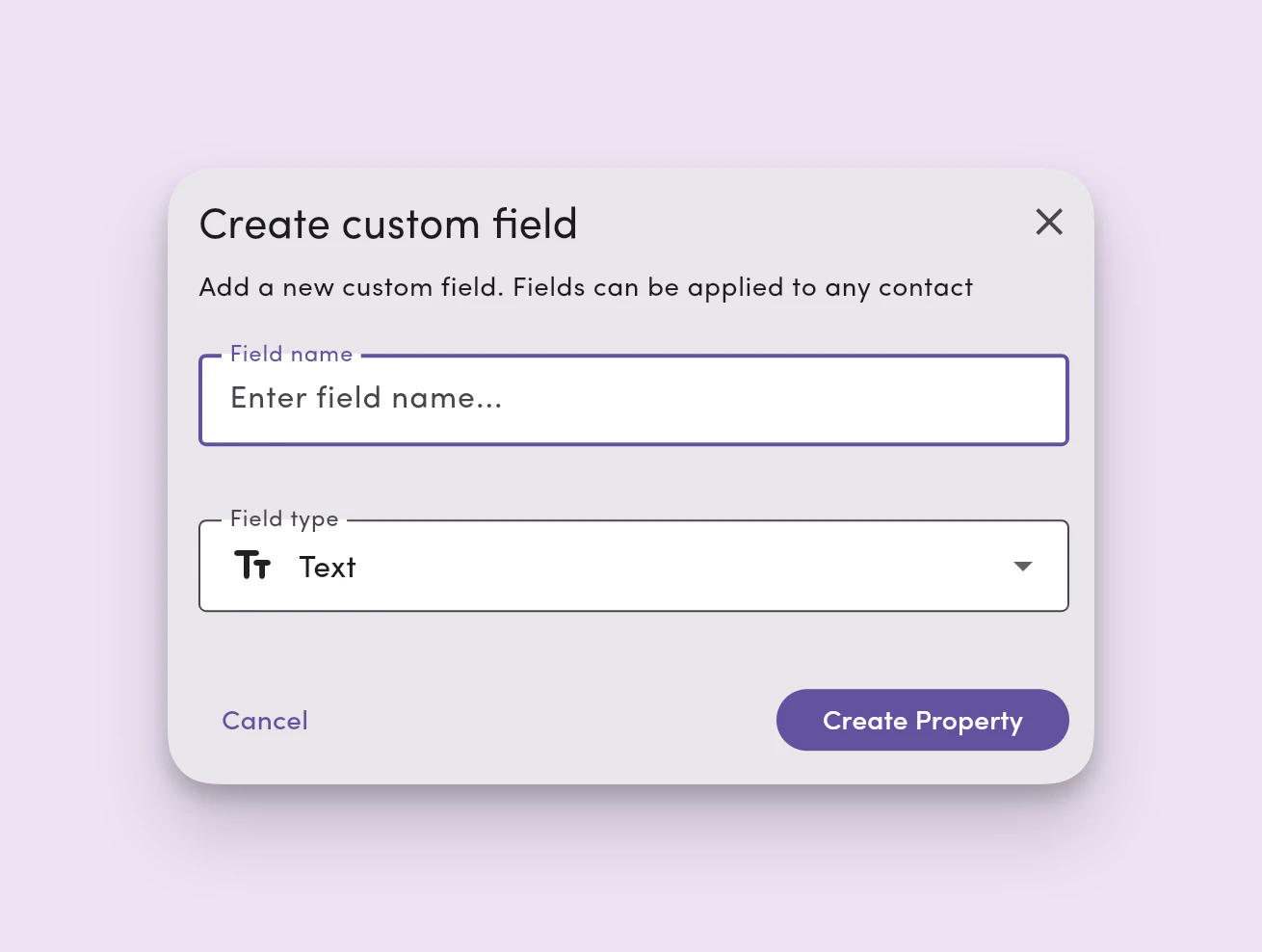
2. Click **Create Custom Field**.
3. Enter a **name** for the field (e.g., "Customer ID", "Account Type").
4. Select a **field type** (see supported types below).
5. Click **Save**.
Choose your field type carefully. The type determines what data can be stored and how it's validated during import and entry.
 ***
## Supported field types
| Type | Description | Example value |
| -------------- | ------------------------------ | -------------------------------- |
| **Text** | Free-form text input | `"Enterprise"` |
| **Number** | Numeric values only | `12345` |
| **Date** | Date values | `2026-04-13` |
| **True/false** | Boolean toggle | `true` / `false` |
| **Dropdown** | Select from predefined options | `"Gold"`, `"Silver"`, `"Bronze"` |
***
## Edit a custom field
1. Go to **Settings → Workspace Settings → Custom Fields**.
2. Find the field you want to update.
3. Click to **edit** the field name or configuration.
4. Click **Save**.
***
## Delete a custom field
1. Go to **Settings → Workspace Settings → Custom Fields**.
2. Find the field you want to remove.
3. Click **Delete**.
4. Confirm the deletion.
Deleting a custom field **permanently removes** the field and its data from every contact. This can't be undone.
***
## Where custom fields appear
* **Contact details.** View and edit custom field values on any contact record from the [Inbox](/inbox/overview) or Contacts module.
* **Contact filters.** Use custom fields as filter conditions when [filtering contacts](/contacts/create-import#filter-contacts).
* **CSV import.** Map CSV columns to custom fields during [contact import](/contacts/create-import#import-contacts-in-bulk-via-csv). Values must match the field's defined type.
* **Message compose and templates.** Insert any custom field as a personalization tag from the `#` menu in the message composer. See [Templates and personalization tags](/messaging/templates-tags#available-tags).
Adding, renaming, or deleting a custom field immediately updates the matching tag everywhere it's used, including in saved message templates.
***
## Permissions
Custom fields access is controlled through [roles and permissions](/settings/workspace-settings/team-management):
| Role | Default access |
| ---------------- | ------------------------------------------------- |
| **Admin** | Owner (full access) |
| **Manager** | Editor (create, edit, view) |
| **Operator** | Viewer (view only) |
| **Custom roles** | No access by default. Must be granted explicitly. |
Users without custom fields access will see a **Blocked Resource** placeholder.
***
## Example: send a message to one region
Say you want to message everyone in the West region.
First, create a custom field called **Region**.
Then add a region value to each contact, like:
* West
* Midwest
* South
* Northeast
Once your contacts have a region value, go to **Contacts** and filter for:
`Region = West`
Save that filter as **West Region**.
Now you have a reusable contact list. Anytime you need to send a regional update, open the **West Region** filter, select the contacts in that view, and send your message.
That's where custom fields pay off. Set them up once, and your team uses them again and again.
***
## Ways to use custom fields
The best custom fields help you answer one question:
**Who do I need to message together later?**
Here are a few common ways teams use them.
### Regional outreach
Create a custom field like **Region** or **Territory**.
Use it to build saved filters for each region so you can send location-based updates, alerts, promotions, or reminders.
**Example.**\
Filter contacts where `Region = West`, save the filter, then use it whenever you need to send a message to that region.
***
### Multi-location businesses
Create a custom field like **Store Location**, **Office**, or **Branch**.
This makes it easy to group contacts by location and send updates that only matter to that site.
**Example.**\
Filter contacts where `Store Location = Mesa`, then send a message about that location's hours, staffing, or appointments.
***
### Staffing and recruiting
Create fields like **Job Site**, **Candidate Stage**, or **Recruiter**.
This helps you organize contacts by hiring workflow and send messages to the right group at the right time.
**Examples.**
* Filter `Candidate Stage = Interview Scheduled` to send reminders.
* Filter `Job Site = Reno` to send a site-specific update.
* Filter `Recruiter = Alex` to see and message one rep's contacts.
***
### Membership and community groups
Create fields like **Membership Type**, **Campus**, **Chapter**, or **Program**.
This helps you send targeted reminders and announcements without rebuilding lists every time.
**Example.**\
Filter `Membership Type = Premium` to send updates only to that group.
***
### Sales and account management
Create fields like **Assigned Rep**, **Renewal Month**, or **Customer Segment**.
These fields help your team stay organized and follow up faster.
**Examples.**
* Filter `Assigned Rep = Jamie` so one rep can work their own book of business.
* Filter `Renewal Month = June` to send proactive renewal reminders.
* Filter `Customer Segment = Enterprise` to send messages to a specific account tier.
***
## Best custom fields to create first
If you're not sure where to start, begin with fields that help you segment contacts and act on that segment later.
Good first custom fields include:
* Region
* Location
* Customer type
* Status
* Assigned rep
* Renewal month
* Membership type
* Lead source
A good rule: create fields that help you group contacts for future messaging.
***
## What makes a good custom field?
A good custom field is easy to understand, easy to keep updated, and useful for filtering.
### Good custom field
**Region**
Why it works:
* Clear values.
* Easy to assign.
* Easy to filter.
* Useful for saved lists and messaging.
### Less useful custom field
**Notes from trade show conversation**
Why it's less useful:
* Too inconsistent.
* Hard to filter cleanly.
* Not ideal for building reusable contact groups.
Use custom fields for structured information you want to organize and act on. Use notes for context.
***
## Tips for setting up custom fields
Keep your custom fields simple.
### Use consistent values
If one contact says `West` and another says `Western Region`, your filters won't be as useful.
Pick one format and stick with it.
### Create fields your team will actually use
Don't create fields just because you can. Create fields that support a real workflow.
### Think ahead to filtering
Before you create a field, ask:
**Will I want to group contacts by this later?**
If the answer is yes, it's probably a good custom field.
### Start small
You don't need to create everything at once. Start with one or two fields that support your most common messaging workflows.
***
## Common workflow: from custom field to message
A simple way to think about it:
**Custom field** → **Filter** → **Saved list** → **Message**
For example:
**Region** → **West** → **West Region** → **Send update to West contacts**
Your team doesn't have to rebuild the audience every time. That saves time.
***
## When to use custom fields vs. labels
Use **custom fields** when you want structured contact data that you can filter by later.
Use **labels** when you want a more flexible way to tag or organize conversations.
### Use a custom field when:
* The value should live on the contact record.
* The field should stay consistent.
* You want to filter and build reusable lists from it.
### Use a label when:
* You need something lightweight and flexible.
* The grouping is temporary or less structured.
* You don't need a formal field on the contact.
If you're deciding between the two, ask whether this is a structured property of the contact. If it is, use a custom field.
***
## FAQs
### Can I use custom fields to build reusable contact lists?
Yes. Once contacts have values in a custom field, you can filter by that field and save the filter for quick access later.
***
### Can I message contacts from a saved filter?
Yes. After opening a saved filter in Contacts, you can select the contacts in that filtered view and send a message to that group.
***
### What kinds of custom fields should I create?
Create fields that help you organize contacts in a way your team can use later.
Good examples include region, location, assigned rep, status, membership type, and renewal month.
***
### Should I create a custom field for everything?
No. Start with the fields that support a real workflow. Too many fields can make your contact data harder to manage.
***
### Do custom fields help with segmentation?
Yes. That's one of their biggest benefits. Custom fields make it easier to group contacts, save those groups, and send more relevant messages.
***
## Next step
Start with one simple field that supports a real messaging workflow.
For most teams, **Region**, **Location**, or **Assigned Rep** is a good place to begin.
Once that field is added to your contacts, build a saved filter from it. Then use that filter the next time you need to send a targeted message.
That's where custom fields earn their keep.
***
## Supported field types
| Type | Description | Example value |
| -------------- | ------------------------------ | -------------------------------- |
| **Text** | Free-form text input | `"Enterprise"` |
| **Number** | Numeric values only | `12345` |
| **Date** | Date values | `2026-04-13` |
| **True/false** | Boolean toggle | `true` / `false` |
| **Dropdown** | Select from predefined options | `"Gold"`, `"Silver"`, `"Bronze"` |
***
## Edit a custom field
1. Go to **Settings → Workspace Settings → Custom Fields**.
2. Find the field you want to update.
3. Click to **edit** the field name or configuration.
4. Click **Save**.
***
## Delete a custom field
1. Go to **Settings → Workspace Settings → Custom Fields**.
2. Find the field you want to remove.
3. Click **Delete**.
4. Confirm the deletion.
Deleting a custom field **permanently removes** the field and its data from every contact. This can't be undone.
***
## Where custom fields appear
* **Contact details.** View and edit custom field values on any contact record from the [Inbox](/inbox/overview) or Contacts module.
* **Contact filters.** Use custom fields as filter conditions when [filtering contacts](/contacts/create-import#filter-contacts).
* **CSV import.** Map CSV columns to custom fields during [contact import](/contacts/create-import#import-contacts-in-bulk-via-csv). Values must match the field's defined type.
* **Message compose and templates.** Insert any custom field as a personalization tag from the `#` menu in the message composer. See [Templates and personalization tags](/messaging/templates-tags#available-tags).
Adding, renaming, or deleting a custom field immediately updates the matching tag everywhere it's used, including in saved message templates.
***
## Permissions
Custom fields access is controlled through [roles and permissions](/settings/workspace-settings/team-management):
| Role | Default access |
| ---------------- | ------------------------------------------------- |
| **Admin** | Owner (full access) |
| **Manager** | Editor (create, edit, view) |
| **Operator** | Viewer (view only) |
| **Custom roles** | No access by default. Must be granted explicitly. |
Users without custom fields access will see a **Blocked Resource** placeholder.
***
## Example: send a message to one region
Say you want to message everyone in the West region.
First, create a custom field called **Region**.
Then add a region value to each contact, like:
* West
* Midwest
* South
* Northeast
Once your contacts have a region value, go to **Contacts** and filter for:
`Region = West`
Save that filter as **West Region**.
Now you have a reusable contact list. Anytime you need to send a regional update, open the **West Region** filter, select the contacts in that view, and send your message.
That's where custom fields pay off. Set them up once, and your team uses them again and again.
***
## Ways to use custom fields
The best custom fields help you answer one question:
**Who do I need to message together later?**
Here are a few common ways teams use them.
### Regional outreach
Create a custom field like **Region** or **Territory**.
Use it to build saved filters for each region so you can send location-based updates, alerts, promotions, or reminders.
**Example.**\
Filter contacts where `Region = West`, save the filter, then use it whenever you need to send a message to that region.
***
### Multi-location businesses
Create a custom field like **Store Location**, **Office**, or **Branch**.
This makes it easy to group contacts by location and send updates that only matter to that site.
**Example.**\
Filter contacts where `Store Location = Mesa`, then send a message about that location's hours, staffing, or appointments.
***
### Staffing and recruiting
Create fields like **Job Site**, **Candidate Stage**, or **Recruiter**.
This helps you organize contacts by hiring workflow and send messages to the right group at the right time.
**Examples.**
* Filter `Candidate Stage = Interview Scheduled` to send reminders.
* Filter `Job Site = Reno` to send a site-specific update.
* Filter `Recruiter = Alex` to see and message one rep's contacts.
***
### Membership and community groups
Create fields like **Membership Type**, **Campus**, **Chapter**, or **Program**.
This helps you send targeted reminders and announcements without rebuilding lists every time.
**Example.**\
Filter `Membership Type = Premium` to send updates only to that group.
***
### Sales and account management
Create fields like **Assigned Rep**, **Renewal Month**, or **Customer Segment**.
These fields help your team stay organized and follow up faster.
**Examples.**
* Filter `Assigned Rep = Jamie` so one rep can work their own book of business.
* Filter `Renewal Month = June` to send proactive renewal reminders.
* Filter `Customer Segment = Enterprise` to send messages to a specific account tier.
***
## Best custom fields to create first
If you're not sure where to start, begin with fields that help you segment contacts and act on that segment later.
Good first custom fields include:
* Region
* Location
* Customer type
* Status
* Assigned rep
* Renewal month
* Membership type
* Lead source
A good rule: create fields that help you group contacts for future messaging.
***
## What makes a good custom field?
A good custom field is easy to understand, easy to keep updated, and useful for filtering.
### Good custom field
**Region**
Why it works:
* Clear values.
* Easy to assign.
* Easy to filter.
* Useful for saved lists and messaging.
### Less useful custom field
**Notes from trade show conversation**
Why it's less useful:
* Too inconsistent.
* Hard to filter cleanly.
* Not ideal for building reusable contact groups.
Use custom fields for structured information you want to organize and act on. Use notes for context.
***
## Tips for setting up custom fields
Keep your custom fields simple.
### Use consistent values
If one contact says `West` and another says `Western Region`, your filters won't be as useful.
Pick one format and stick with it.
### Create fields your team will actually use
Don't create fields just because you can. Create fields that support a real workflow.
### Think ahead to filtering
Before you create a field, ask:
**Will I want to group contacts by this later?**
If the answer is yes, it's probably a good custom field.
### Start small
You don't need to create everything at once. Start with one or two fields that support your most common messaging workflows.
***
## Common workflow: from custom field to message
A simple way to think about it:
**Custom field** → **Filter** → **Saved list** → **Message**
For example:
**Region** → **West** → **West Region** → **Send update to West contacts**
Your team doesn't have to rebuild the audience every time. That saves time.
***
## When to use custom fields vs. labels
Use **custom fields** when you want structured contact data that you can filter by later.
Use **labels** when you want a more flexible way to tag or organize conversations.
### Use a custom field when:
* The value should live on the contact record.
* The field should stay consistent.
* You want to filter and build reusable lists from it.
### Use a label when:
* You need something lightweight and flexible.
* The grouping is temporary or less structured.
* You don't need a formal field on the contact.
If you're deciding between the two, ask whether this is a structured property of the contact. If it is, use a custom field.
***
## FAQs
### Can I use custom fields to build reusable contact lists?
Yes. Once contacts have values in a custom field, you can filter by that field and save the filter for quick access later.
***
### Can I message contacts from a saved filter?
Yes. After opening a saved filter in Contacts, you can select the contacts in that filtered view and send a message to that group.
***
### What kinds of custom fields should I create?
Create fields that help you organize contacts in a way your team can use later.
Good examples include region, location, assigned rep, status, membership type, and renewal month.
***
### Should I create a custom field for everything?
No. Start with the fields that support a real workflow. Too many fields can make your contact data harder to manage.
***
### Do custom fields help with segmentation?
Yes. That's one of their biggest benefits. Custom fields make it easier to group contacts, save those groups, and send more relevant messages.
***
## Next step
Start with one simple field that supports a real messaging workflow.
For most teams, **Region**, **Location**, or **Assigned Rep** is a good place to begin.
Once that field is added to your contacts, build a saved filter from it. Then use that filter the next time you need to send a targeted message.
That's where custom fields earn their keep.