> ## Documentation Index
> Fetch the complete documentation index at: https://docs.messagedesk.com/llms.txt
> Use this file to discover all available pages before exploring further.
# Import, Export & Search Message History
> Import contacts and historical SMS messages, then search, filter, and export your full MessageDesk message history from the Data Center.
# Data Center
The **Data Center** is your hub for managing workspace data in MessageDesk. It has two tabs:
* **Import:** upload CSVs of contacts and historical messages, map fields, resolve duplicates, and monitor progress.
* **Message History:** search, filter, and export every message sent or received in your workspace.
Looking to **view or export existing messages**? Jump to [Message History](#message-history). To export a **single conversation** directly from the Inbox toolbar, see [Export a conversation](/inbox/export-conversation).
***
## Access the Data Center
Go to **Account → Settings → Data Center** (under **Workspace Settings**), then choose the **Import** or **Message History** tab.
**Don't see Data Center?** Your role may not include access. Ask an Admin or Manager to adjust your permissions.
 ***
## How to import contacts
Build your contact list quickly by uploading a **CSV** and mapping it to MessageDesk fields.
### Start an import
1. Open **Settings → Data Center**.
2. Click **Start Import**.
3. Choose your **.csv** file and upload.
***
## How to import contacts
Build your contact list quickly by uploading a **CSV** and mapping it to MessageDesk fields.
### Start an import
1. Open **Settings → Data Center**.
2. Click **Start Import**.
3. Choose your **.csv** file and upload.
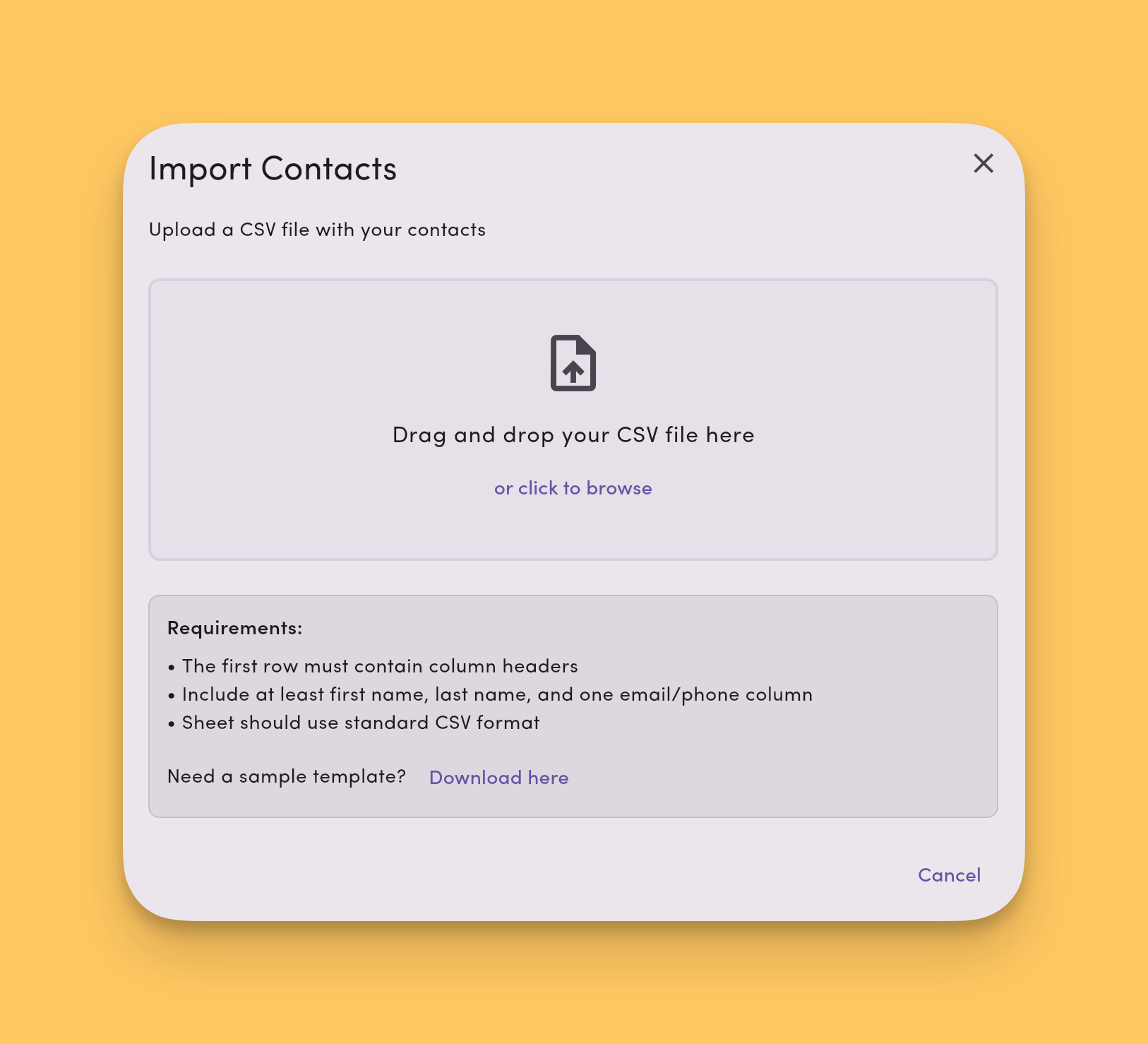 ### Map your columns
* Columns that match MessageDesk field names **auto-map**.
* Adjust mapping manually as needed.
* You can map [custom fields](/settings/workspace-settings/custom-fields). Make sure the CSV data type matches the field type.
### Review duplicates and errors
* **Duplicates** (by **email** or **phone**) are **updated** with the values in the import. Only mapped columns with a value are updated. Empty cells leave existing fields unchanged.
* **Invalid data** (e.g., bad phone/email format) is reported so you can fix and re-upload.
* Problem rows are **skipped** during processing.
### Monitor progress
After you start the import, you'll see the real-time status. When complete, a summary shows total **processed**, **imported**, **skipped**, and any **error reasons**.
See [**Create and Import Contacts**](/contacts/create-import) for a step-by-step walkthrough.
***
## How to import messages
Preserve conversation context by importing **past SMS** from any platform or service into MessageDesk.
### Start a message import
1. Open **Settings → Data Center**.
2. Click **Start Import**.
3. Upload your **.csv** file.
### Map your columns
* Columns that match MessageDesk field names **auto-map**.
* Adjust mapping manually as needed.
* You can map [custom fields](/settings/workspace-settings/custom-fields). Make sure the CSV data type matches the field type.
### Review duplicates and errors
* **Duplicates** (by **email** or **phone**) are **updated** with the values in the import. Only mapped columns with a value are updated. Empty cells leave existing fields unchanged.
* **Invalid data** (e.g., bad phone/email format) is reported so you can fix and re-upload.
* Problem rows are **skipped** during processing.
### Monitor progress
After you start the import, you'll see the real-time status. When complete, a summary shows total **processed**, **imported**, **skipped**, and any **error reasons**.
See [**Create and Import Contacts**](/contacts/create-import) for a step-by-step walkthrough.
***
## How to import messages
Preserve conversation context by importing **past SMS** from any platform or service into MessageDesk.
### Start a message import
1. Open **Settings → Data Center**.
2. Click **Start Import**.
3. Upload your **.csv** file.
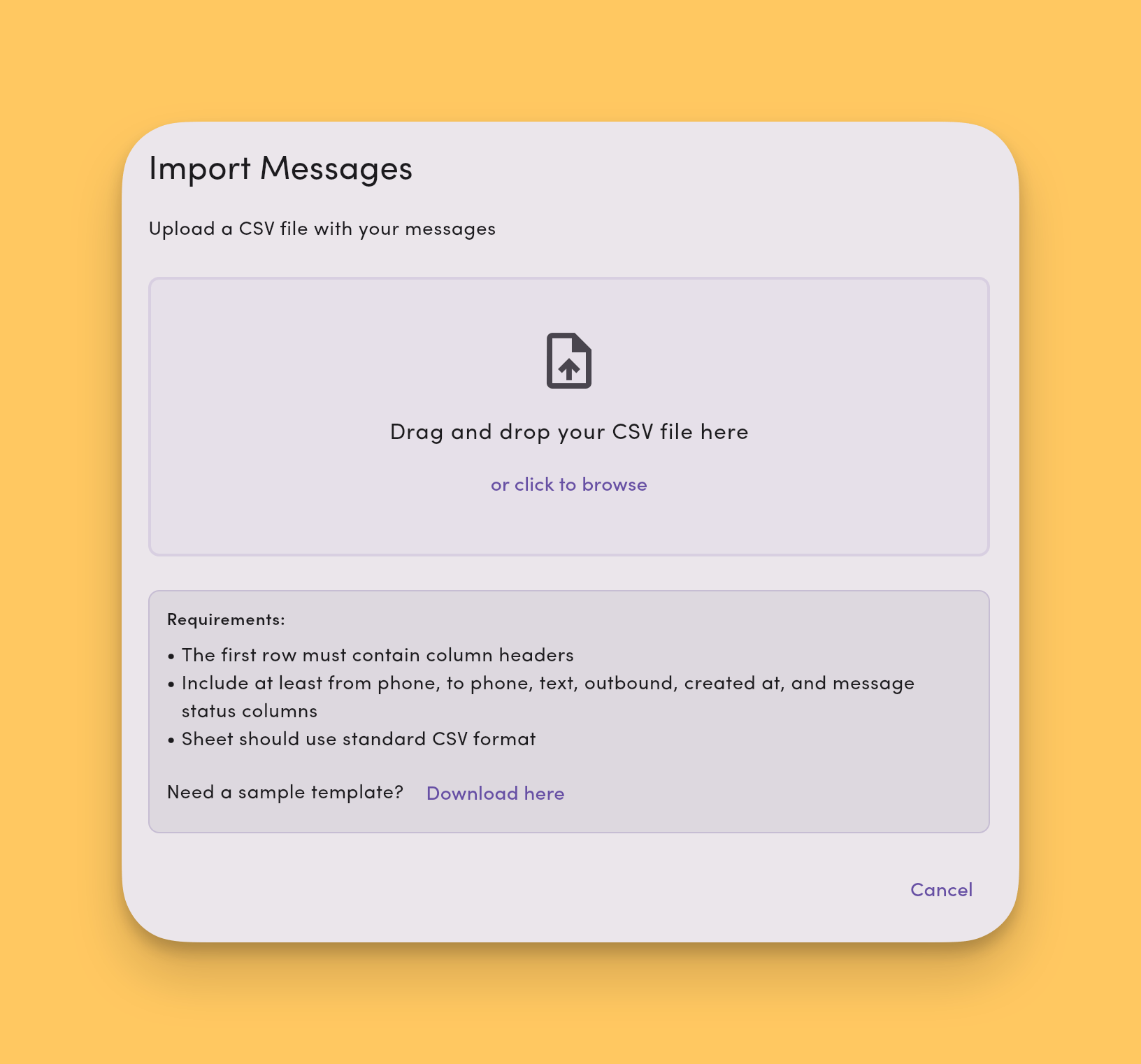 ### Map your data
* Map CSV columns to MessageDesk **message fields** (timestamp, direction, phone number, text, channel/line).
* Review and confirm the mapping for accuracy.
### Validate, review, and import
* Preview parsed messages and fix any errors the validator surfaces.
* Click **Import** to start processing. A bottom banner flags pre-import issues (if any).
### Supported message types
* **Outbound (sent)** messages.
* **Inbound (received)** messages.
* **1-on-1** conversations.
* **Group** conversations.
**Not supported for message import.** Media attachments (images, videos, files) and internal comments.
### How message import works
* **Automatic conversation creation:** If a conversation doesn't exist for a row, MessageDesk creates it.
* **Existing conversations:** Rows match into existing threads when possible.
* **Channel requirement:** Messages can only be imported into **outbound channels that already exist** in your workspace.
***
## File requirements and limits
**Format**
* **CSV only** (`.csv`).
* **UTF-8** encoding.
* Include a **header row**.
* Each row must have the **same number of columns** as the header.
**Required data**
* For **contacts**: At least one method: **email** *or* **phone**
* For **messages**: Required fields typically include **timestamp**, **direction** (inbound/outbound), **phone number(s)**, **message text**, and **channel/line identifier**
**Validation**
* Emails must be a valid email format.
* Phone numbers must be valid **E.164** (`+15551234567`).
* [Custom fields](/settings/workspace-settings/custom-fields) must match their **defined type**.
* Duplicate detection runs on **email** and **phone** (contact imports).
**Limits**
* **Max rows per file:** **5,000**
* **Max file size:** **10 MB**
* **Platform:** **Web only** (imports aren't supported on mobile or desktop apps)
If a limit is exceeded, you'll see errors like **"CSV file is too large"** or **"Imports are only supported on web."**
***
## What gets imported
* **Contacts**
* [**Custom fields**](/settings/workspace-settings/custom-fields) (when mapped)
* **Messages** (text content only. No media or internal comments.)
**Coming soon.** More workflows (labels, opt-outs). Watch the Data Center for new options.
***
## Message History
The **Message History** tab is a searchable, filterable archive of every message in your workspace. Use it to audit conversations, build reports, or export filtered slices to **CSV** or **PDF**.
### Access message history
Go to **Settings → Data Center → Message History**.
### Map your data
* Map CSV columns to MessageDesk **message fields** (timestamp, direction, phone number, text, channel/line).
* Review and confirm the mapping for accuracy.
### Validate, review, and import
* Preview parsed messages and fix any errors the validator surfaces.
* Click **Import** to start processing. A bottom banner flags pre-import issues (if any).
### Supported message types
* **Outbound (sent)** messages.
* **Inbound (received)** messages.
* **1-on-1** conversations.
* **Group** conversations.
**Not supported for message import.** Media attachments (images, videos, files) and internal comments.
### How message import works
* **Automatic conversation creation:** If a conversation doesn't exist for a row, MessageDesk creates it.
* **Existing conversations:** Rows match into existing threads when possible.
* **Channel requirement:** Messages can only be imported into **outbound channels that already exist** in your workspace.
***
## File requirements and limits
**Format**
* **CSV only** (`.csv`).
* **UTF-8** encoding.
* Include a **header row**.
* Each row must have the **same number of columns** as the header.
**Required data**
* For **contacts**: At least one method: **email** *or* **phone**
* For **messages**: Required fields typically include **timestamp**, **direction** (inbound/outbound), **phone number(s)**, **message text**, and **channel/line identifier**
**Validation**
* Emails must be a valid email format.
* Phone numbers must be valid **E.164** (`+15551234567`).
* [Custom fields](/settings/workspace-settings/custom-fields) must match their **defined type**.
* Duplicate detection runs on **email** and **phone** (contact imports).
**Limits**
* **Max rows per file:** **5,000**
* **Max file size:** **10 MB**
* **Platform:** **Web only** (imports aren't supported on mobile or desktop apps)
If a limit is exceeded, you'll see errors like **"CSV file is too large"** or **"Imports are only supported on web."**
***
## What gets imported
* **Contacts**
* [**Custom fields**](/settings/workspace-settings/custom-fields) (when mapped)
* **Messages** (text content only. No media or internal comments.)
**Coming soon.** More workflows (labels, opt-outs). Watch the Data Center for new options.
***
## Message History
The **Message History** tab is a searchable, filterable archive of every message in your workspace. Use it to audit conversations, build reports, or export filtered slices to **CSV** or **PDF**.
### Access message history
Go to **Settings → Data Center → Message History**.
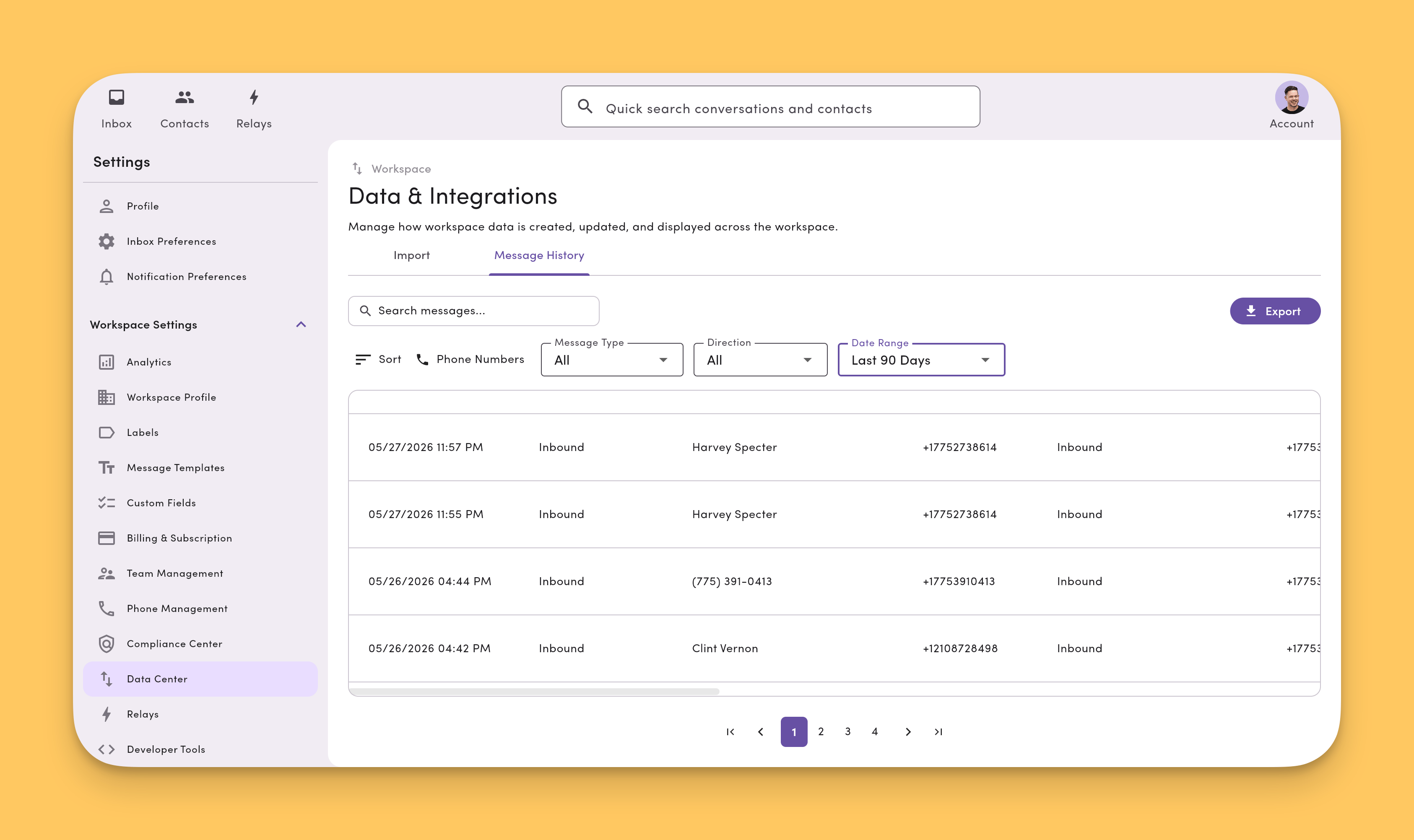 ### Filter your messages
Narrow the list using the filter controls at the top of the tab. Available filters:
* **Date range:** limit results to a specific window
* **Direction:** inbound or outbound
* **Channel/line:** the phone number or channel the message was sent on
* **Contact:** messages tied to a specific contact
* **Label:** conversations carrying a given [label](/inbox/labels)
* **User/agent:** messages sent by a specific teammate
* **Status:** delivery state (e.g., delivered, failed)
### Search within results
Use the **search bar** to run a free-text search across the messages currently shown. Search runs **on top of your active filters**, so you can drill into a filtered slice rather than the entire archive.
### Export your text message history to CSV or PDF
### Filter your messages
Narrow the list using the filter controls at the top of the tab. Available filters:
* **Date range:** limit results to a specific window
* **Direction:** inbound or outbound
* **Channel/line:** the phone number or channel the message was sent on
* **Contact:** messages tied to a specific contact
* **Label:** conversations carrying a given [label](/inbox/labels)
* **User/agent:** messages sent by a specific teammate
* **Status:** delivery state (e.g., delivered, failed)
### Search within results
Use the **search bar** to run a free-text search across the messages currently shown. Search runs **on top of your active filters**, so you can drill into a filtered slice rather than the entire archive.
### Export your text message history to CSV or PDF
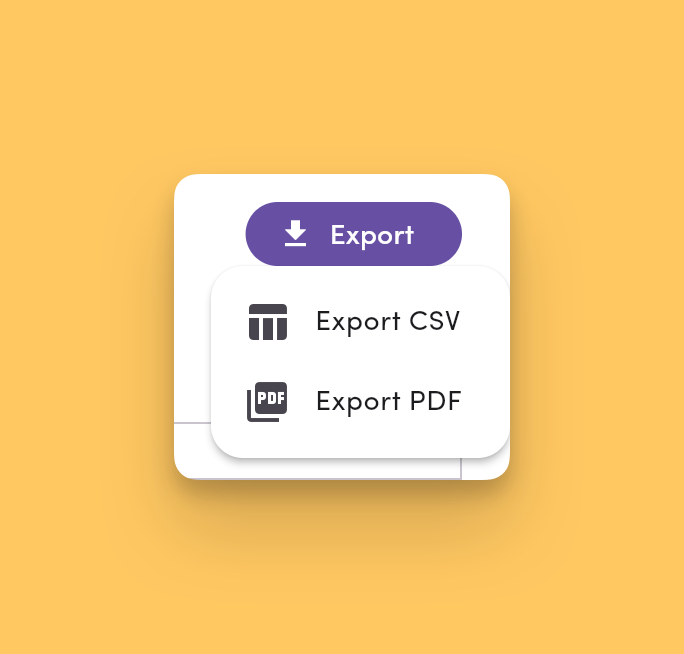 Click **Export** to download a CSV of the current view. Use CSV exports for **data analysis, reporting, and bulk archiving**. For a shareable, human-readable record, use **PDF** instead.
Exports include **only the messages that match your active filters and search**. Adjust filters before exporting if you need a broader set.
Once your export finishes processing, you'll see an in-app notification that reads **"Export Available"**. Click the notification to download your `.csv` or `.pdf` file.
Use PDF exports to create **shareable, human-readable records** of a conversation or a filtered slice of message history. Useful for audits, compliance reviews, or sharing context with stakeholders.
* **From a conversation.** Open the conversation in the Inbox, click the **⋯ More Options** menu in the conversation toolbar, and choose **Export → PDF**. See [Export a conversation](/inbox/export-conversation) for the full per-conversation flow.
* **From Message History.** Apply your filters in **Settings → Data Center → Message History**, then choose **Export to PDF**.
PDF exports include the full message thread with timestamps, participants, direction, and inline previews of supported media.
**Media handling**
* **Renderable media** (images and other formats supported in PDF) is embedded inline.
* **Non-renderable media** (videos and other unsupported file types) is replaced with a direct **S3 link to the file** and the note **"Could not load preview"** so the attachment stays accessible from the PDF.
### Permissions
Message History is available to roles with access to the Data Center (typically **Admin** and **Manager**). Ask an Admin to adjust your role if you don't see the tab.
## Frequently asked data import and export questions
### What file types can I upload?
**CSV only.** Export Excel files (`.xlsx`) to CSV first.
### Do contacts need both email and phone?
No. Each row must include **at least one**: **email** or **phone** (you can include both).
### How are duplicates handled on contact import?
We check **email** and **phone**. When a row matches an existing contact, that contact is **updated** with the values from the import. Updates only apply to columns you mapped, and only when the mapped column has a value. Empty cells leave existing fields unchanged. Updates apply to standard fields (name, email, phone, address, etc.) and custom fields.
### Why did some rows fail?
Common reasons: invalid email/phone format, missing required fields, custom field type mismatch, or a channel that doesn't exist (for message imports). Fix and re-upload.
### Can I import more than 5,000 rows?
Split your data into multiple CSV files. Each file can hold **up to 5,000 rows** and **≤ 10 MB**.
### Can I import from mobile?
No. Imports are **web-only**. Use a desktop browser.
**What's the difference between Inbox search and Message History?**\
The [Inbox](/inbox/filter-search-sort) is for working live conversations. **Message History** is the workspace-wide archive built for audit, reporting, and bulk export.
**What format are exports in?**\
**CSV** for data and reporting, or **PDF** for shareable conversation records.
**Are media attachments included in exports?**\\
* **CSV exports.** No. CSV files contain message text and metadata only.
* **PDF exports.** Renderable media (images) is embedded inline. Non-renderable media (videos and other unsupported types) is replaced with a direct S3 link and a **"Could not load preview"** note.
***
## Best practices
* **Normalize phone numbers** to **E.164** before upload.
* **Clean your data.** Dedupe and validate emails to cut skips.
* **Test with a small CSV** (10–20 rows) to confirm mapping and validation.
* **Keep a backup** of your source CSV and **import results** for audit.
Click **Export** to download a CSV of the current view. Use CSV exports for **data analysis, reporting, and bulk archiving**. For a shareable, human-readable record, use **PDF** instead.
Exports include **only the messages that match your active filters and search**. Adjust filters before exporting if you need a broader set.
Once your export finishes processing, you'll see an in-app notification that reads **"Export Available"**. Click the notification to download your `.csv` or `.pdf` file.
Use PDF exports to create **shareable, human-readable records** of a conversation or a filtered slice of message history. Useful for audits, compliance reviews, or sharing context with stakeholders.
* **From a conversation.** Open the conversation in the Inbox, click the **⋯ More Options** menu in the conversation toolbar, and choose **Export → PDF**. See [Export a conversation](/inbox/export-conversation) for the full per-conversation flow.
* **From Message History.** Apply your filters in **Settings → Data Center → Message History**, then choose **Export to PDF**.
PDF exports include the full message thread with timestamps, participants, direction, and inline previews of supported media.
**Media handling**
* **Renderable media** (images and other formats supported in PDF) is embedded inline.
* **Non-renderable media** (videos and other unsupported file types) is replaced with a direct **S3 link to the file** and the note **"Could not load preview"** so the attachment stays accessible from the PDF.
### Permissions
Message History is available to roles with access to the Data Center (typically **Admin** and **Manager**). Ask an Admin to adjust your role if you don't see the tab.
## Frequently asked data import and export questions
### What file types can I upload?
**CSV only.** Export Excel files (`.xlsx`) to CSV first.
### Do contacts need both email and phone?
No. Each row must include **at least one**: **email** or **phone** (you can include both).
### How are duplicates handled on contact import?
We check **email** and **phone**. When a row matches an existing contact, that contact is **updated** with the values from the import. Updates only apply to columns you mapped, and only when the mapped column has a value. Empty cells leave existing fields unchanged. Updates apply to standard fields (name, email, phone, address, etc.) and custom fields.
### Why did some rows fail?
Common reasons: invalid email/phone format, missing required fields, custom field type mismatch, or a channel that doesn't exist (for message imports). Fix and re-upload.
### Can I import more than 5,000 rows?
Split your data into multiple CSV files. Each file can hold **up to 5,000 rows** and **≤ 10 MB**.
### Can I import from mobile?
No. Imports are **web-only**. Use a desktop browser.
**What's the difference between Inbox search and Message History?**\
The [Inbox](/inbox/filter-search-sort) is for working live conversations. **Message History** is the workspace-wide archive built for audit, reporting, and bulk export.
**What format are exports in?**\
**CSV** for data and reporting, or **PDF** for shareable conversation records.
**Are media attachments included in exports?**\\
* **CSV exports.** No. CSV files contain message text and metadata only.
* **PDF exports.** Renderable media (images) is embedded inline. Non-renderable media (videos and other unsupported types) is replaced with a direct S3 link and a **"Could not load preview"** note.
***
## Best practices
* **Normalize phone numbers** to **E.164** before upload.
* **Clean your data.** Dedupe and validate emails to cut skips.
* **Test with a small CSV** (10–20 rows) to confirm mapping and validation.
* **Keep a backup** of your source CSV and **import results** for audit.