> ## Documentation Index
> Fetch the complete documentation index at: https://docs.messagedesk.com/llms.txt
> Use this file to discover all available pages before exploring further.
# Workspace Settings Overview
> Tour MessageDesk workspace settings. Manage organization details, branding, time zone, default behaviors, and admin controls for your team account.
# Workspace Settings Overview
Workspace Settings store **organization-level** info that applies to every user in your MessageDesk inbox: name, branding, address, website, and analytics.
**Workspace Settings vs. Tenant Management.** Workspace Settings (this section) configure a **single workspace**: labels, templates, team, billing, and other per-workspace details. **Tenant Management** is an **organization-level** concept that lives **outside** Settings, accessed from the **workspace switcher / workspace selection screen**, and is only available to tenant admins. Use it to update tenant company details or create additional workspaces under your company. See [Tenant Management](/get-started/tenant-management).
***
## Open Workspace Settings
1. Click your **profile icon** (top-right).
2. Select **Settings**.
3. In the left nav, open **Workspace Settings**.
**Desktop recommended.** Most Workspace Settings are available on desktop. Some (like Analytics) are also available on mobile.
***
## What you can view & edit
**General**
* **Workspace image/icon** (used across the app).
* **Workspace name** (shown to teammates and used in tags like `{{ WorkspaceName }}`).
* **Mailing address**.
* **Website URL**.
**Custom Fields**
* **[Custom Fields](/settings/workspace-settings/custom-fields).** Create and manage custom fields to store extra data on contacts (customer IDs, account types, appointment dates).
**Analytics**
* **[Workspace Analytics](/settings/workspace-settings/analytics).** View messaging metrics, delivery rates, and activity breakdowns by channel and user.
**Identifiers (read-only)**
* **Created date** (shown for reference).
**Who can edit?** Admins, and Managers (if permitted by your [Roles & Permissions](/settings/workspace-settings/team-management)), can update Workspace Settings.
***
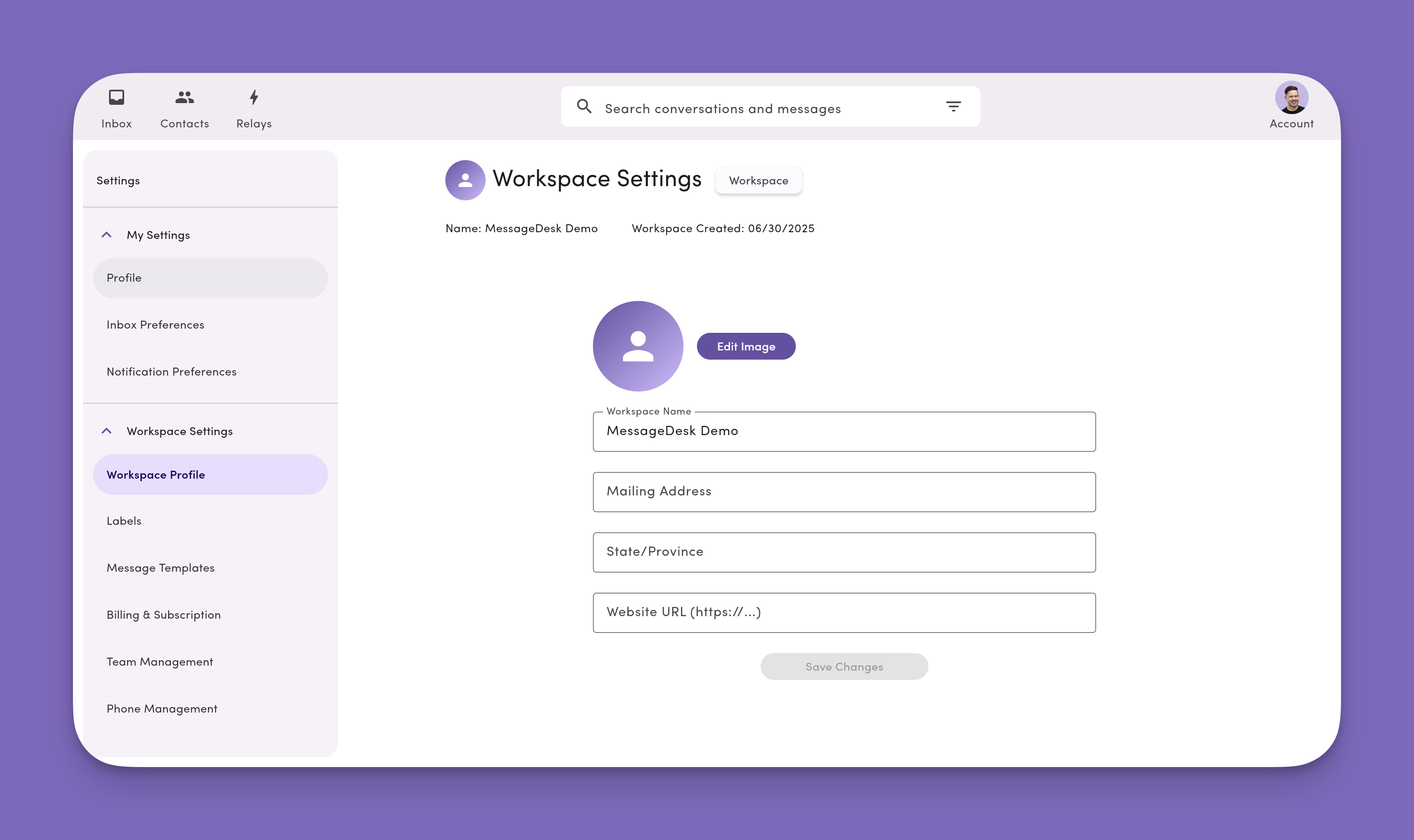
## Update general workspace information
1. Go to **Account → Settings → Workspace Settings → Workspace Profile**.
2. Click **Edit**.
3. Update your **image/icon**, **name**, **address**, or **website**.
4. Click **Save**.
Changes to name/branding take effect immediately for every user.
 ***
## Delete a workspace
You can't delete workspaces from the UI.
To request workspace deletion, contact support. We'll verify ownership and process the request per our data-retention and security policies.
***
## Delete a workspace
You can't delete workspaces from the UI.
To request workspace deletion, contact support. We'll verify ownership and process the request per our data-retention and security policies.