> ## Documentation Index
> Fetch the complete documentation index at: https://docs.messagedesk.com/llms.txt
> Use this file to discover all available pages before exploring further.
# Manage Phone Numbers & Lines
> Add, rename, organize, assign, and remove connected phone numbers and lines in your MessageDesk workspace. Best practices for naming and team routing.
# Manage connected phone lines, naming, and call forwarding
Connect new phone lines, rename existing ones (with emojis for easy ID), set up call forwarding, and keep everything organized for your team.
***
## Navigate to Phone Management
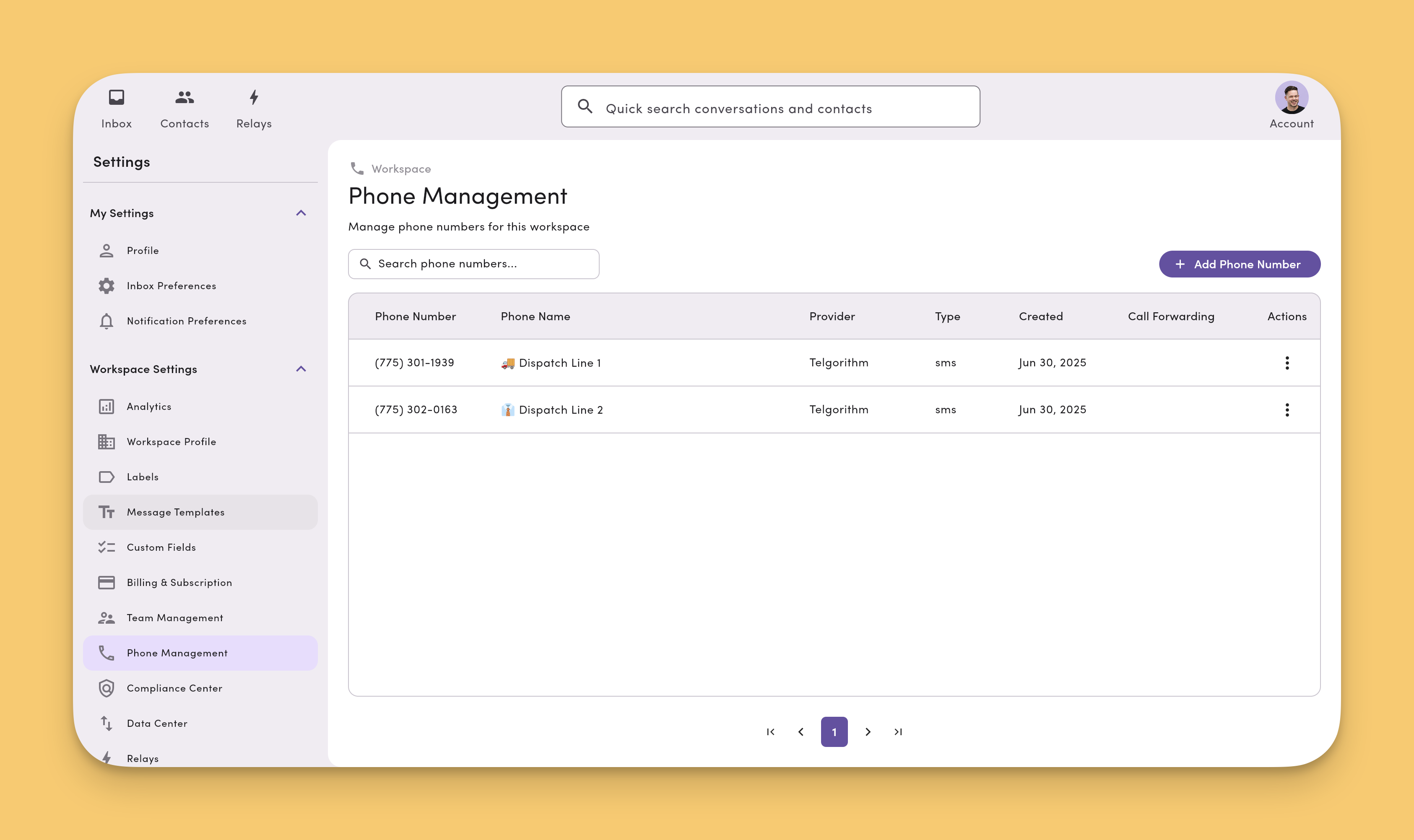
1. Go to **Account → Settings → Workspace Settings → Phone Management**.
2. You'll see every connected phone line with options to **Add** and **Edit**.
> **Permissions.** You'll need the right role to manage numbers (**Manager = Editor**, **Operator = Viewer** by default). See [**Roles & permissions**](/settings/workspace-settings/team-management) if you don't see controls.
 ***
## Add a new phone line / number to MessageDesk
1. In **Phone Management** under **Workspace Settings,** click **+ Add phone number**.
2. Choose the type you want to connect or purchase:
* [Overview (connecting phone lines)](/get-started/phone-numbers/overview).
* [Purchase a new text-only local number](/get-started/phone-numbers/purchase-new).
* [Host your existing Landline/VoIP](/get-started/phone-numbers/landline-voip).
* [Toll-Free (text-enabled)](/get-started/phone-numbers/toll-free).
* [Connect Twilio phone numbers](/get-started/phone-numbers/twilio).
To add additional non-Twilio phone lines, complete [Carrier Registration](/a2p-registration/a2p-overview) first (10DLC for local, verification for toll-free).
***
## Name/label phone lines (and add emojis)
Clear names make routing and triage faster, especially with multiple lines.
1. Go to **Settings → Phone Management**.
2. Click **Edit** next to a phone line.
3. Enter a **Line name** ("Support – West" or "Dispatch 🚚").
4. (Optional) Add an **emoji** for quick visual scanning in the Inbox.
5. Click **Update**.
***
## Add a new phone line / number to MessageDesk
1. In **Phone Management** under **Workspace Settings,** click **+ Add phone number**.
2. Choose the type you want to connect or purchase:
* [Overview (connecting phone lines)](/get-started/phone-numbers/overview).
* [Purchase a new text-only local number](/get-started/phone-numbers/purchase-new).
* [Host your existing Landline/VoIP](/get-started/phone-numbers/landline-voip).
* [Toll-Free (text-enabled)](/get-started/phone-numbers/toll-free).
* [Connect Twilio phone numbers](/get-started/phone-numbers/twilio).
To add additional non-Twilio phone lines, complete [Carrier Registration](/a2p-registration/a2p-overview) first (10DLC for local, verification for toll-free).
***
## Name/label phone lines (and add emojis)
Clear names make routing and triage faster, especially with multiple lines.
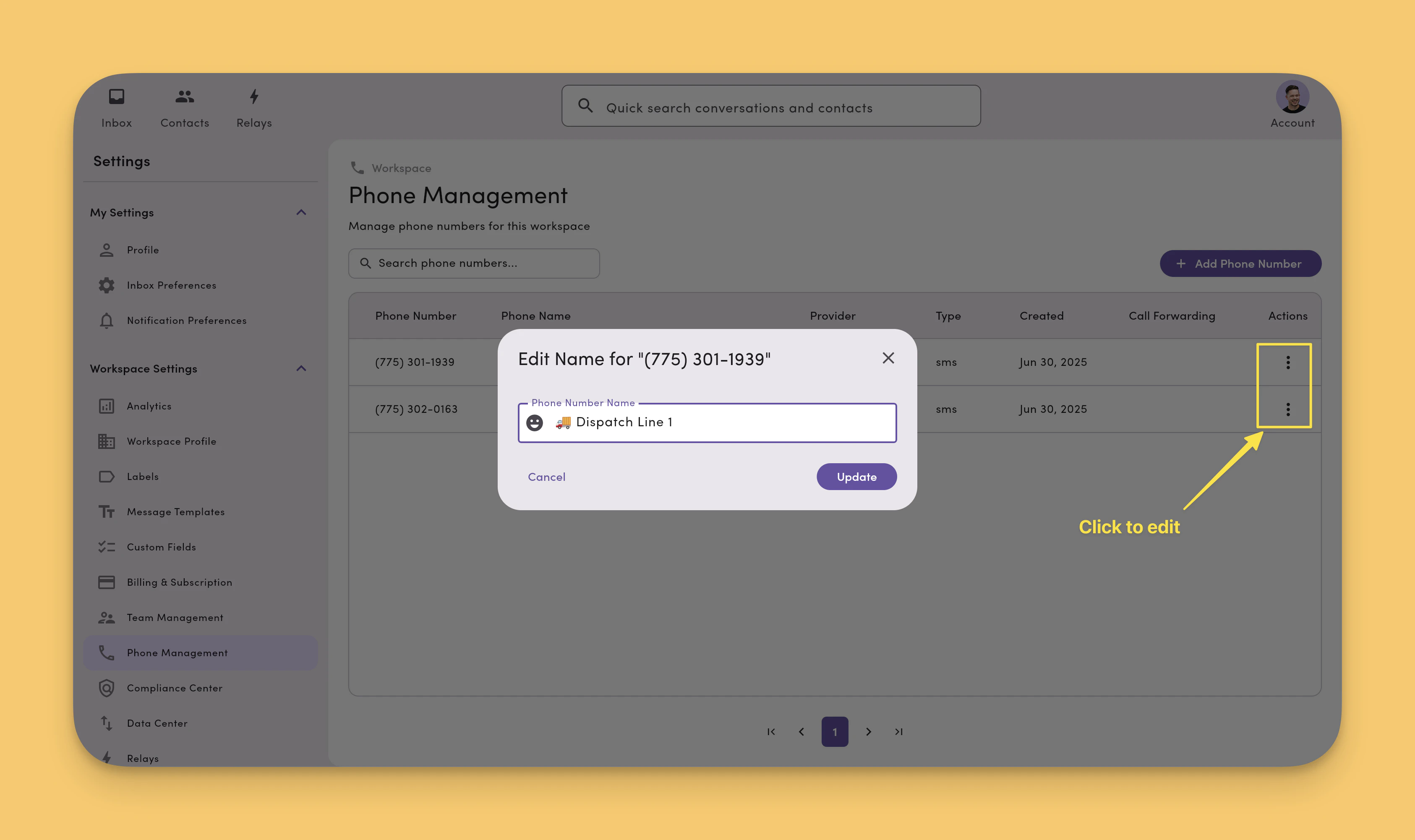
1. Go to **Settings → Phone Management**.
2. Click **Edit** next to a phone line.
3. Enter a **Line name** ("Support – West" or "Dispatch 🚚").
4. (Optional) Add an **emoji** for quick visual scanning in the Inbox.
5. Click **Update**.
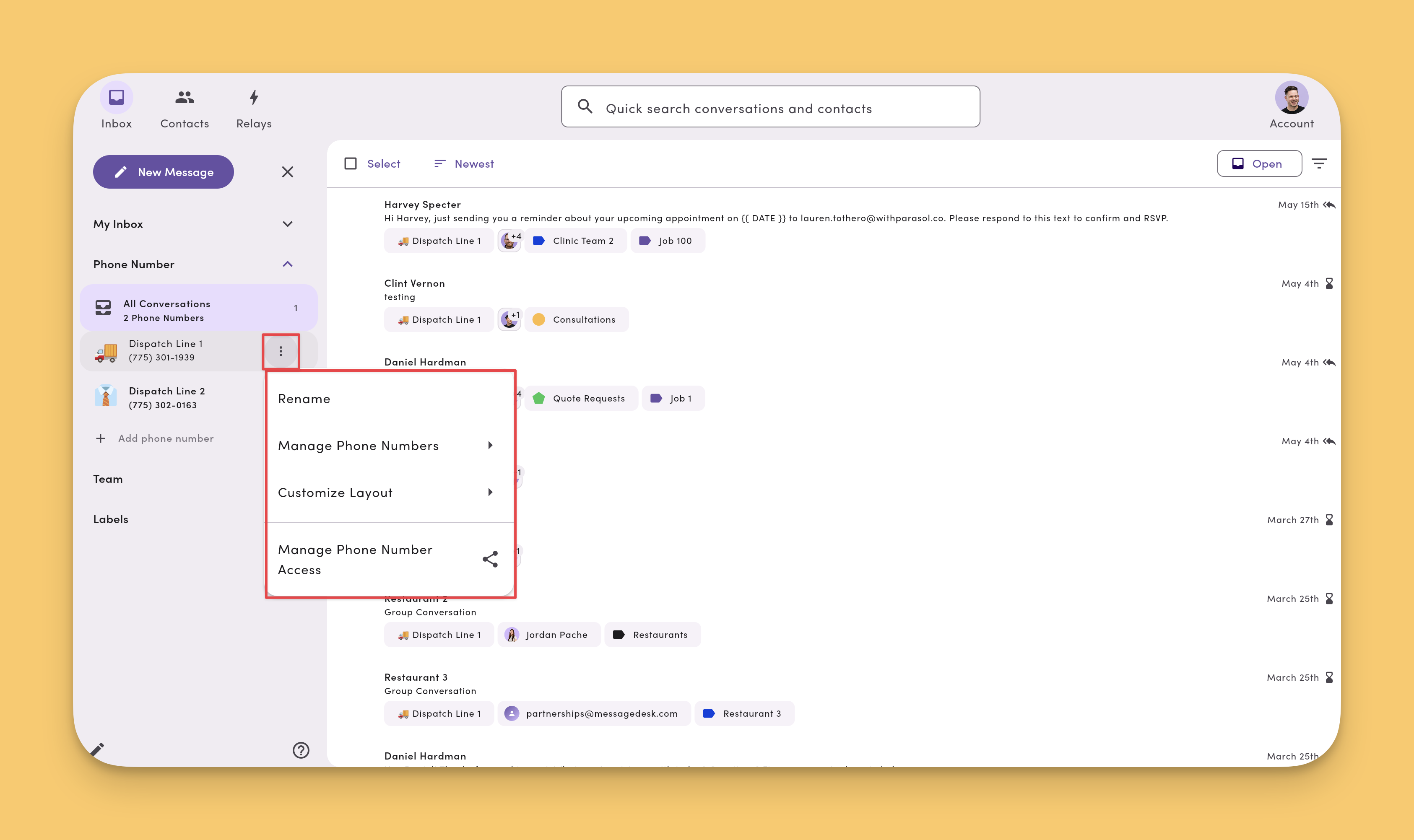
 You can also edit the name of a phone line from your **inbox**. Hover over a phone line, click the **three dots (more) icon,** and then click **Rename**.
 ***
## Move a phone number between workspaces
If your tenant has multiple workspaces, you can move a connected phone number from one workspace to another. [Contact support](/contact-us) to initiate the move.
**You'll lose the conversation history on that number.** To move a number, MessageDesk first removes it from the source workspace. This also removes every **conversation tied to that number** from that workspace. After the move, the destination workspace starts fresh, and **neither workspace can view** the previous conversation history.
**No fee to move the number itself**, but workspace seats are billed **per user, per workspace**. If a teammate needs access to both workspaces after the move, they're billed in each. Confirm seat impact before requesting the move.
If your only goal is to limit which users see a specific phone line, you usually **don't** need to move the number to a separate workspace. Use [Roles & permissions](/settings/workspace-settings/team-management#user-roles-and-permissions) to grant per-line access inside your existing workspace. See [Tenant management](/get-started/tenant-management#do-i-need-a-separate-workspace-or-just-user-permissions) for the full decision guide.
***
## Port your number away from MessageDesk
To move your phone number to a different provider:
1. **Submit a Letter of Authorization (LOA) to your new provider.**\
Your new provider needs an LOA to start the hosting or porting process.
2. **New provider starts the port/host request.**\
Once they have your LOA, your new provider begins managing your number configuration. The process typically takes up to 48 hours.
3. **Wait for the transfer to finish.**\
During the transfer period, MessageDesk can't take any action. The new provider handles the entire process.
**Carrier registration campaigns aren't transferable.** You can't move a carrier registration campaign completed with MessageDesk to your new provider. You'll need to complete a new carrier registration with your new provider before you can text.
**No porting PINs or account numbers required.** Moving your texting services out of MessageDesk doesn't require any porting PINs or account numbers. MessageDesk doesn't need to take any action to release your number.
Contact your new provider before starting the porting process to understand their specific porting and hosting requirements.
***
## Call forwarding
Route inbound calls to any phone number you choose. Voice calls to your MessageDesk lines reach the right person, while texts stay in the Inbox.
1. Go to **Settings → Workspace Settings → Phone Management**.
2. Click the phone number you want to configure to open its **Phone Profile** page.
3. Enter a **Call Forwarding number** and save.
Inbound calls to that line now forward to the destination number you set.
***
## Move a phone number between workspaces
If your tenant has multiple workspaces, you can move a connected phone number from one workspace to another. [Contact support](/contact-us) to initiate the move.
**You'll lose the conversation history on that number.** To move a number, MessageDesk first removes it from the source workspace. This also removes every **conversation tied to that number** from that workspace. After the move, the destination workspace starts fresh, and **neither workspace can view** the previous conversation history.
**No fee to move the number itself**, but workspace seats are billed **per user, per workspace**. If a teammate needs access to both workspaces after the move, they're billed in each. Confirm seat impact before requesting the move.
If your only goal is to limit which users see a specific phone line, you usually **don't** need to move the number to a separate workspace. Use [Roles & permissions](/settings/workspace-settings/team-management#user-roles-and-permissions) to grant per-line access inside your existing workspace. See [Tenant management](/get-started/tenant-management#do-i-need-a-separate-workspace-or-just-user-permissions) for the full decision guide.
***
## Port your number away from MessageDesk
To move your phone number to a different provider:
1. **Submit a Letter of Authorization (LOA) to your new provider.**\
Your new provider needs an LOA to start the hosting or porting process.
2. **New provider starts the port/host request.**\
Once they have your LOA, your new provider begins managing your number configuration. The process typically takes up to 48 hours.
3. **Wait for the transfer to finish.**\
During the transfer period, MessageDesk can't take any action. The new provider handles the entire process.
**Carrier registration campaigns aren't transferable.** You can't move a carrier registration campaign completed with MessageDesk to your new provider. You'll need to complete a new carrier registration with your new provider before you can text.
**No porting PINs or account numbers required.** Moving your texting services out of MessageDesk doesn't require any porting PINs or account numbers. MessageDesk doesn't need to take any action to release your number.
Contact your new provider before starting the porting process to understand their specific porting and hosting requirements.
***
## Call forwarding
Route inbound calls to any phone number you choose. Voice calls to your MessageDesk lines reach the right person, while texts stay in the Inbox.
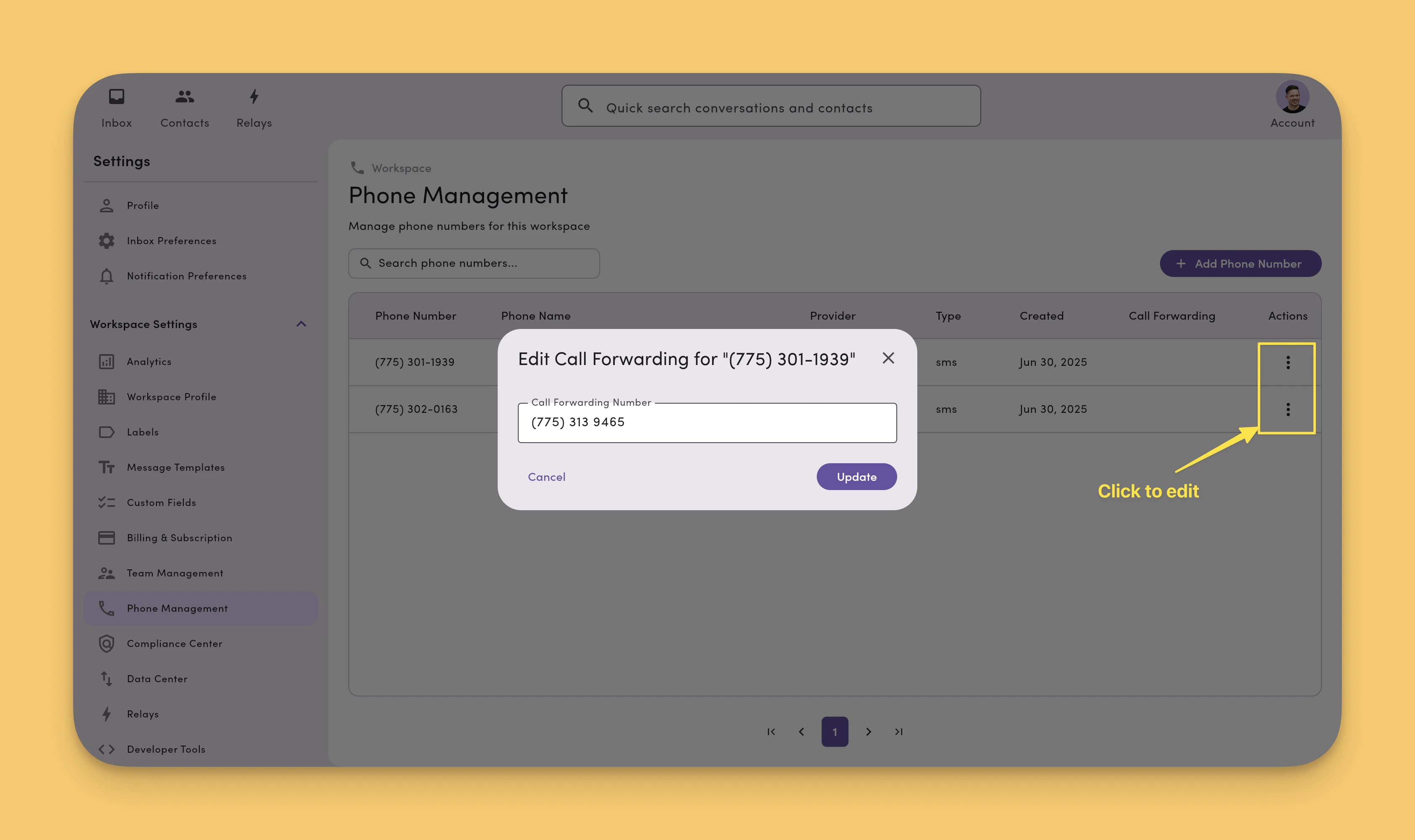
1. Go to **Settings → Workspace Settings → Phone Management**.
2. Click the phone number you want to configure to open its **Phone Profile** page.
3. Enter a **Call Forwarding number** and save.
Inbound calls to that line now forward to the destination number you set.
 Call forwarding works on most MessageDesk-connected phone lines. You can't configure call forwarding in-app for **Twilio-connected** numbers today. The setup process is different for Twilio numbers. If you need forwarding, contact [support@messagedesk.com](mailto:support@messagedesk.com) and we'll configure it manually on a per-number basis.
### Call logs
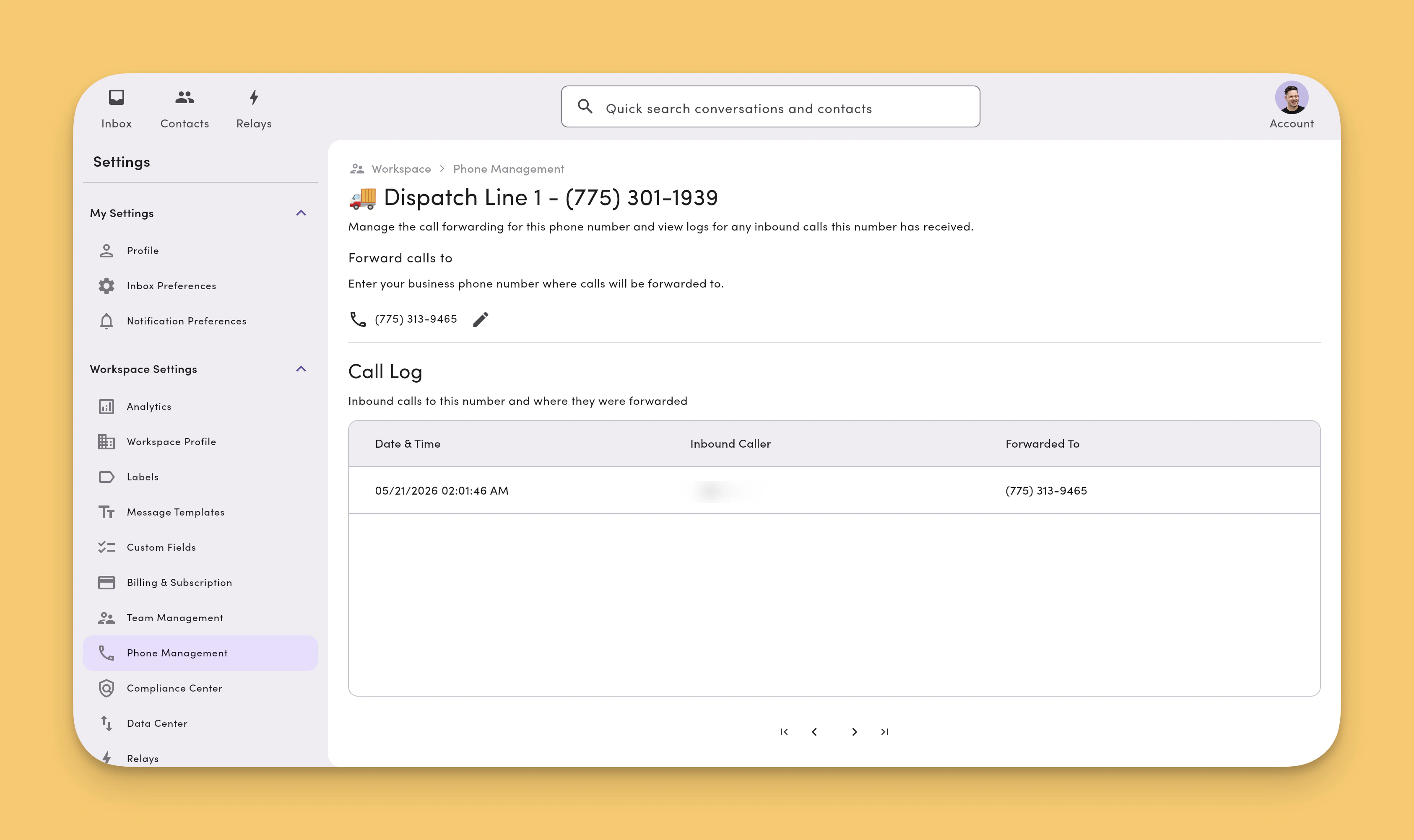
Each phone number's **Phone Profile** page includes a **Call Logs** table. It lists every inbound call MessageDesk forwarded, along with the forwarding details for that call.
Call forwarding works on most MessageDesk-connected phone lines. You can't configure call forwarding in-app for **Twilio-connected** numbers today. The setup process is different for Twilio numbers. If you need forwarding, contact [support@messagedesk.com](mailto:support@messagedesk.com) and we'll configure it manually on a per-number basis.
### Call logs
Each phone number's **Phone Profile** page includes a **Call Logs** table. It lists every inbound call MessageDesk forwarded, along with the forwarding details for that call.
 ### Call forwarding events in message threads
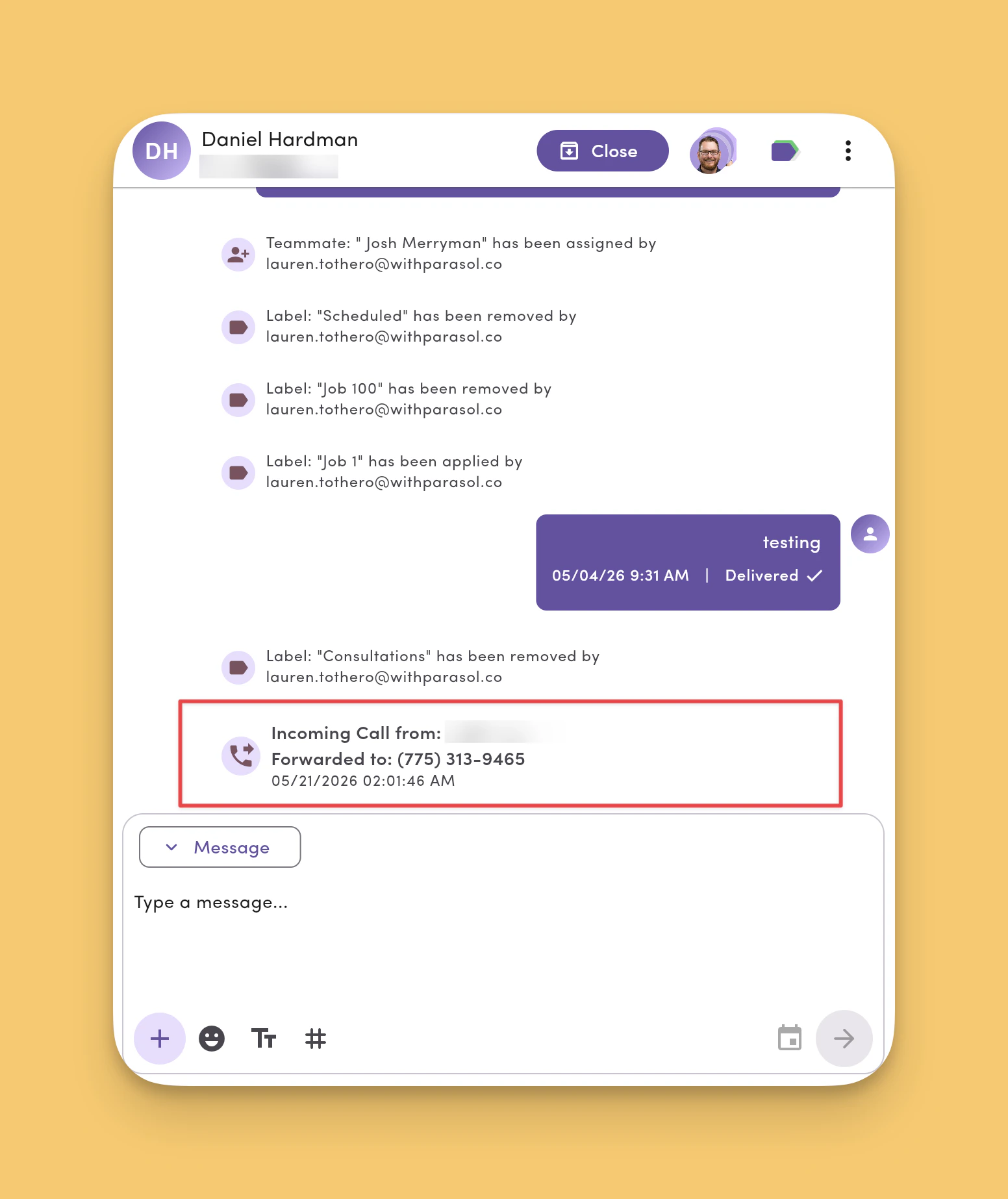
When MessageDesk forwards an inbound call, it adds a **Call Forwarded** event to the matching conversation thread in the Inbox. Your team gets full context on voice activity alongside the SMS history.
### Call forwarding events in message threads
When MessageDesk forwards an inbound call, it adds a **Call Forwarded** event to the matching conversation thread in the Inbox. Your team gets full context on voice activity alongside the SMS history.
 ## Best practices
* **Use a naming pattern.** `Team – Region` ("Sales – East"), or `Use-case` ("Reminders 📅").
* **One line per purpose.** Keep support, sales, and dispatch on their own lines for cleaner reporting and routing.
* **Complete carrier registration.** Finish **10DLC** (local) or **toll-free verification** before sending messages or connecting phone lines.
***
## FAQ
**How many phone lines can I connect?**\
Most workspaces can connect up to 48 phone lines to MessageDesk. Many teams run with several. If you plan to scale, contact support for guidance.
**Can I move a conversation to a different phone line?**\
Conversations live on the line where they started. For new outreach, compose from the line you want.
**Do I need carrier registration for each line?**\
No. You can apply one carrier registration to **every connected phone line**. Toll-free and Twilio-connected phone lines need separate **carrier registration and verification**.
**Who can add or edit lines?**\
Users with **Phone Numbers = Editor** permission (typically **Managers** or **Admins**).
## Best practices
* **Use a naming pattern.** `Team – Region` ("Sales – East"), or `Use-case` ("Reminders 📅").
* **One line per purpose.** Keep support, sales, and dispatch on their own lines for cleaner reporting and routing.
* **Complete carrier registration.** Finish **10DLC** (local) or **toll-free verification** before sending messages or connecting phone lines.
***
## FAQ
**How many phone lines can I connect?**\
Most workspaces can connect up to 48 phone lines to MessageDesk. Many teams run with several. If you plan to scale, contact support for guidance.
**Can I move a conversation to a different phone line?**\
Conversations live on the line where they started. For new outreach, compose from the line you want.
**Do I need carrier registration for each line?**\
No. You can apply one carrier registration to **every connected phone line**. Toll-free and Twilio-connected phone lines need separate **carrier registration and verification**.
**Who can add or edit lines?**\
Users with **Phone Numbers = Editor** permission (typically **Managers** or **Admins**).