

Schedule text messages in MessageDesk
Send the right message at the right time, without babysitting your inbox. MessageDesk lets you schedule any outbound text and manage all upcoming sends in one place.What is text message scheduling?
Text message scheduling is a lightweight automation that sends text messages at a future date/time. You can schedule from any Message Compose box in MessageDesk for:- 1-on-1 conversations
- Broadcasts (Send Individually) to up to 100 recipients
- Group SMS (small collaborative groups)
Note: Scheduled texts respect carrier registration/throughput limits. If compliance blocks delivery, the scheduled send will fail with an error you can review in the thread.
How to schedule a text message
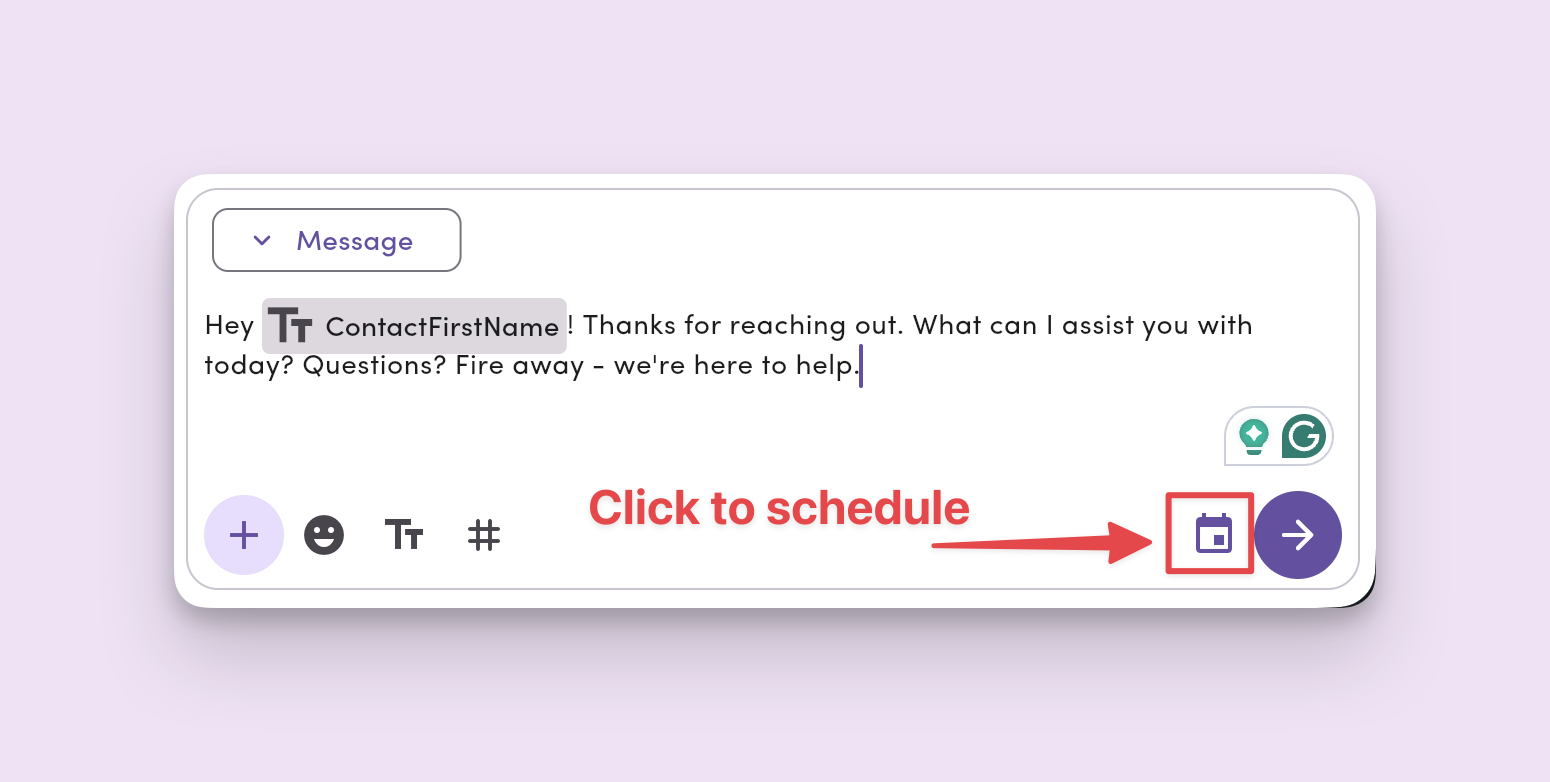
- In any Message Compose box, write your message (add media/templates/tags if needed).
- Click the Calendar icon.
- Choose a preset time (e.g., “Later today,” “Tomorrow morning”) or pick a custom date and time.
- Click Schedule Message to confirm.
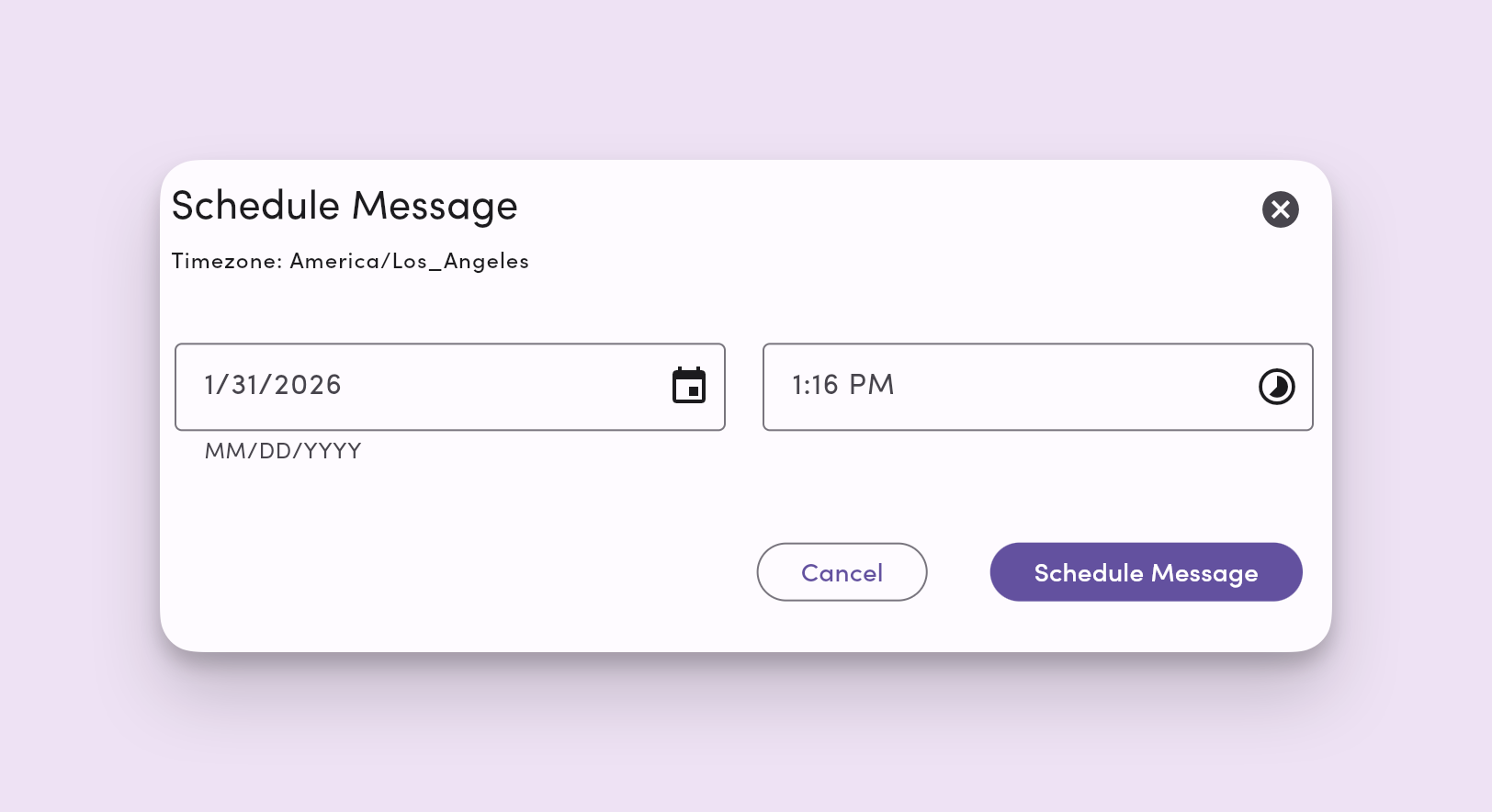
Timezone: Scheduling uses your device’s local timezone at the time of scheduling, not the timezone associated with your workspace. If you travel or your device’s timezone changes later, the message still sends based on the originally selected time in that original timezone.
View and edit scheduled messages in the conversation thread
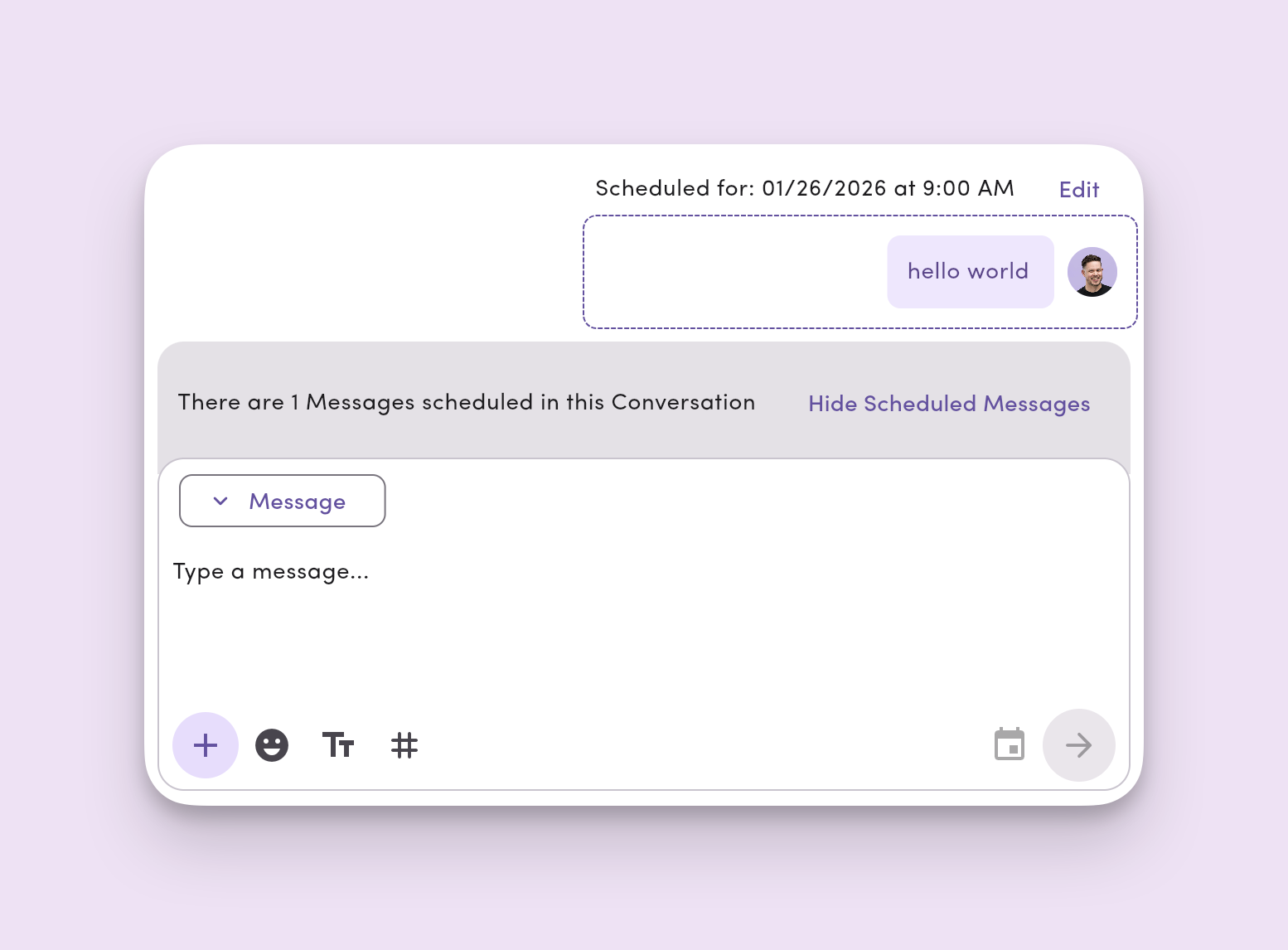
Scheduled messages appear directly in your message thread, so you can see what’s queued without leaving the conversation.- When scheduled messages are pending, a banner above the Message Compose box shows how many.
- Click the banner to show or hide scheduled messages in the thread.
- This keeps your thread clean if you don’t need to see upcoming sends, while still giving you quick access when you do.
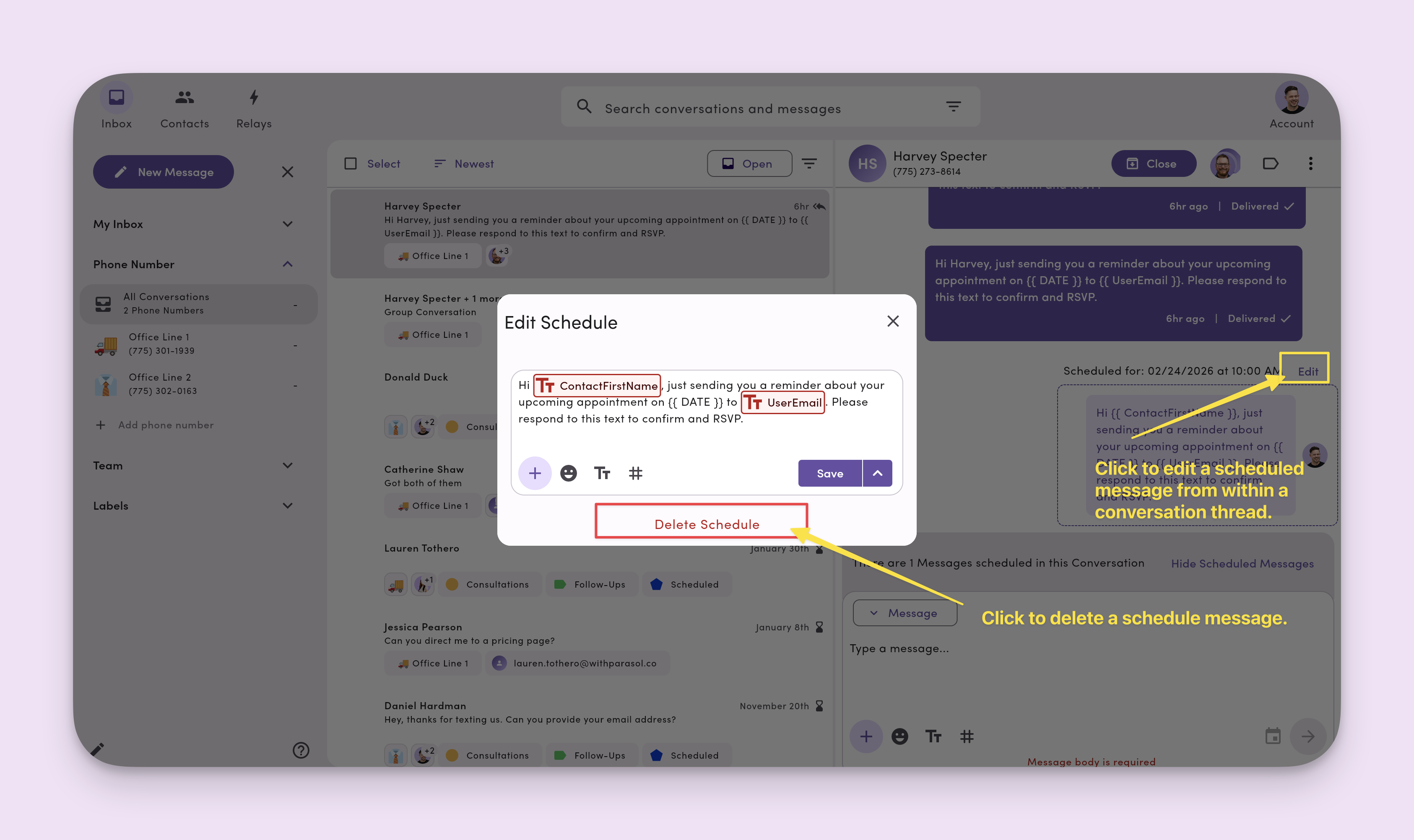
- Click Edit to edit or delete any scheduled messages directly from the message thread.
How to view, edit, or cancel scheduled text messages
- In the Inbox, open the My Conversations drop-down.
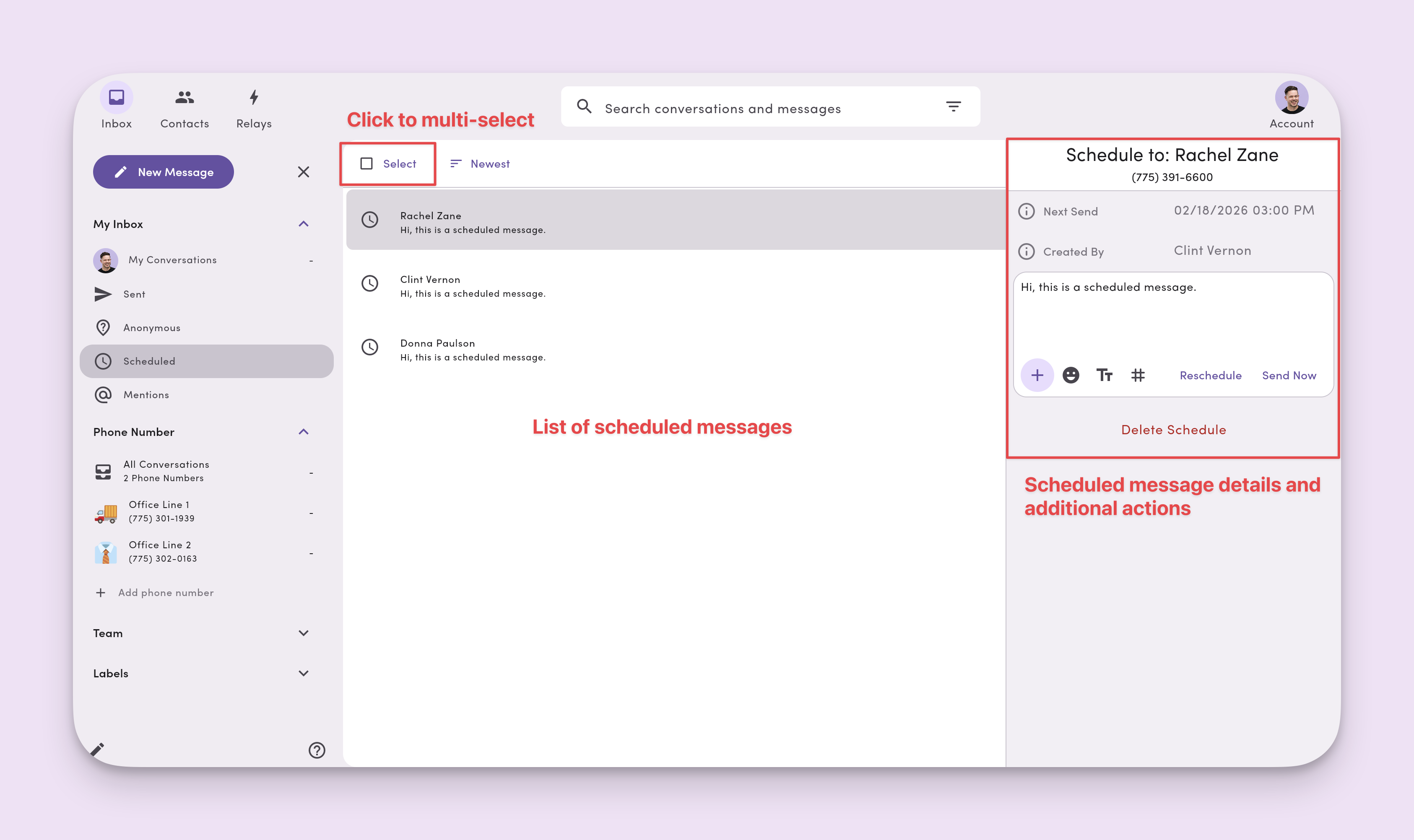
- Click Scheduled to see all scheduled messages across your workspace.
- Select a scheduled item to:
- See next send date/time
- See who created it
- Preview/edit message content
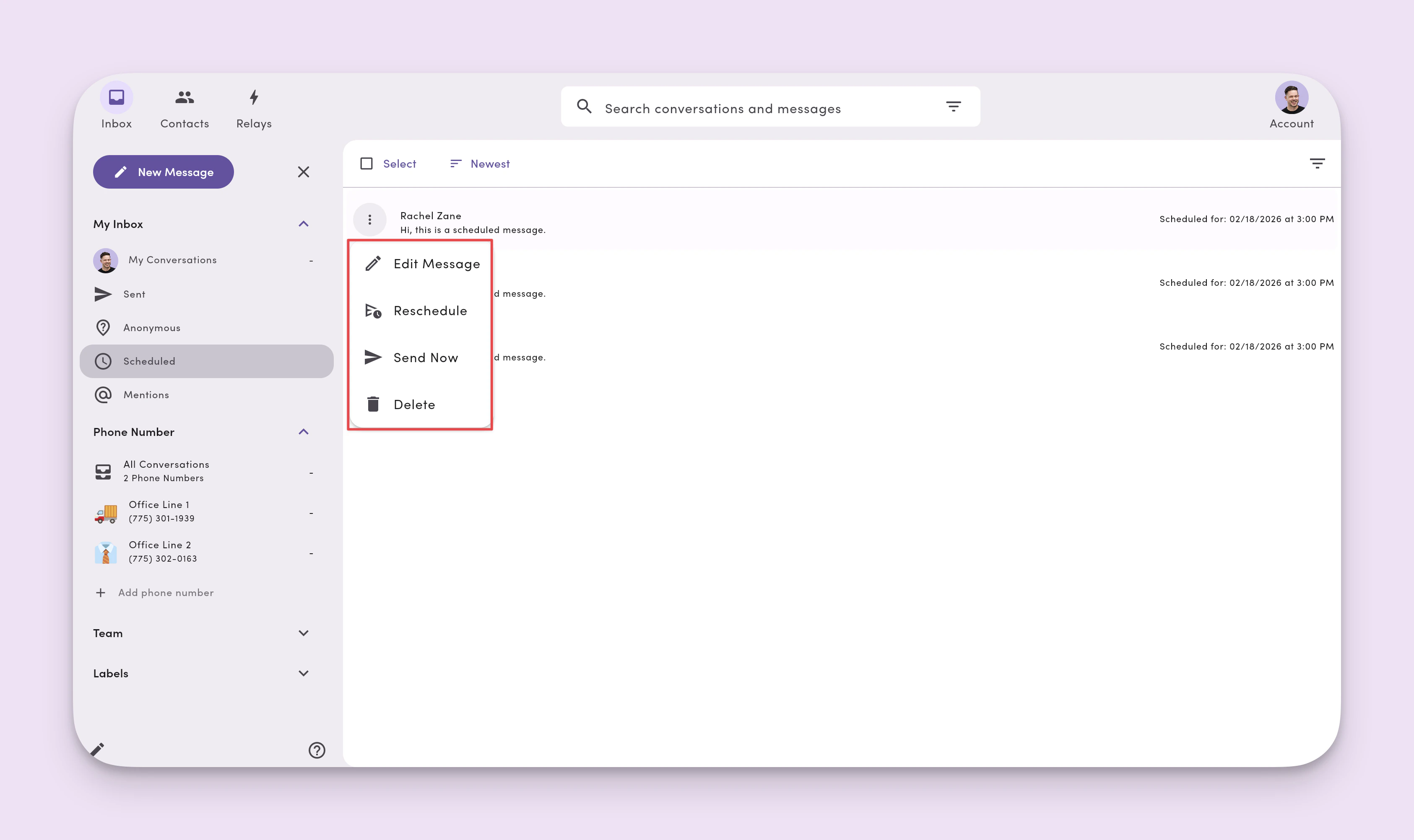
- Reschedule or Send now
- Delete (cancels the schedule)
Note: Editing a scheduled Broadcast (Send Individually) updates the template/content for all recipients in that scheduled send.
Filtering scheduled text messages
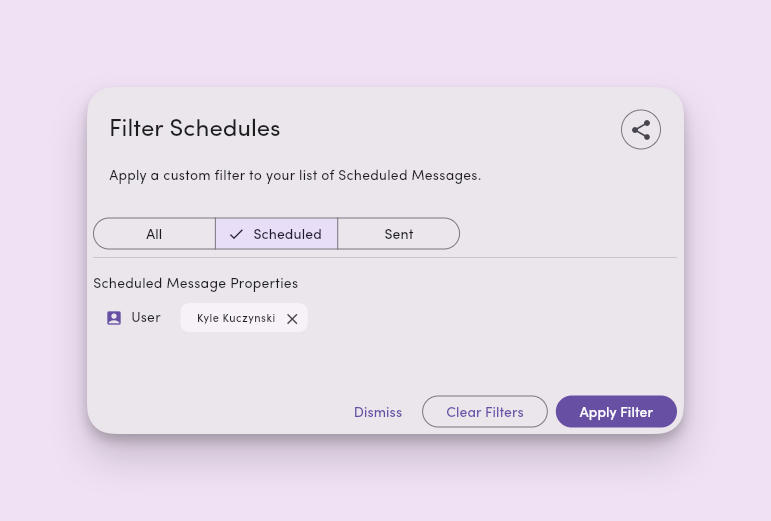
By default, the Scheduled view shows all scheduled messages across your workspace. Use the Schedules Filter to narrow results by who created the schedule:- Click the filter icon in the Scheduled view.
- Select one or more teammates to filter by.
- The list updates to show schedules created by any of the selected users.
Where text message scheduling works
- 1-on-1 messages in the Inbox: Sends once to the single contact.
- New Message Compose Broadcasts (Send Individually): Sends one text per recipient (max 100 recipients per scheduled broadcast). Replies stay private in each thread.
- Group SMS: Sends to the whole group thread at the scheduled time; all recipients see follow-ups.
Limits and behavior
- Recipient cap: Broadcasts are limited to 100 recipients per scheduled send.
- Media: You can schedule messages with attachments; files > 500 KB send as links automatically.
- Throughput: High-volume windows may queue briefly to meet carrier limits.
- Opt-outs: If a contact opts out before the scheduled time, that send won’t deliver to that contact.
- Closed threads: Scheduling in a closed conversation will reopen it when the message sends.
- Permissions: Users need Editor access on the feature/line to schedule and manage future sends.
Text message scheduling best practices
- Mind compliance windows: Avoid late-night hours where recipients might view messages as intrusive.
- Double-check your timezone: Confirm the scheduled time matches your messaging intent, especially around Daylight Savings Time changes.
Frequently asked scheduled messages questions
Can I schedule recurring messages?Recurring schedules aren’t supported yet. You can duplicate and schedule again. What happens if I change my device’s timezone after scheduling?
The message sends according to the original timezone set at scheduling time. Can I edit a schedule after it’s created?
Yes. Open My Conversations → Scheduled, select the item, then edit content, Reschedule, Send now, or Delete. How do I see only my scheduled messages?
The Scheduled view shows all schedules by default. Use the Schedules Filter to select your name and see only the schedules you created. Do scheduled messages include media?
Yes. Attachments are supported. Files > 500 KB will send as clickable links. What if my number isn’t registered (10DLC/toll-free)?
Delivery may be limited or filtered. Complete carrier registration for best results before scheduling large sends. Will I be notified if a scheduled message fails?
Failures show in the conversation with a Failed status and an error reason. You can Resend after fixing the cause.
Troubleshooting
I don’t see the Scheduled view.Open My Conversations and look for Scheduled. If it’s missing, refresh or check your role/permissions. My scheduled broadcast didn’t reach everyone.
Review the thread statuses. Common causes: opt-outs, invalid numbers, rate limits, or unregistered lines. I can’t schedule on this phone line.
You may have Viewer access only, or the line requires registration. Ask an Admin/Manager to adjust permissions or complete registration. A time I picked already passed.
If your selected time is in the past (due to timezone shift/DST), MessageDesk will prompt you to choose a future time.