

Download MessageDesk on mobile and desktop
Download the MessageDesk companion on your phone or set it up as a desktop app.What’s available on mobile vs. desktop
Mobile app features:- Access your Inbox and Conversations
- Send and receive messages
- View and manage contacts
- Update your user profile
- Change Inbox appearance (color theme only)
- Auto-capitalization at the start of sentences for easier typing
- Pull down to refresh your Inbox conversation list on iOS and Android
- Relays
- Comments and mentions (coming soon to mobile)
- Full settings access (layout, signatures, Workspace Settings)
Does MessageDesk require WiFi? No. The mobile app works on any internet connection, including cellular data (4G/5G). You don’t need WiFi for core functionality like sending messages, managing your Inbox, or viewing contacts.
Download MessageDesk for iOS
1. Download TestFlight app on iOS
To join our beta, download TestFlight on your phone here.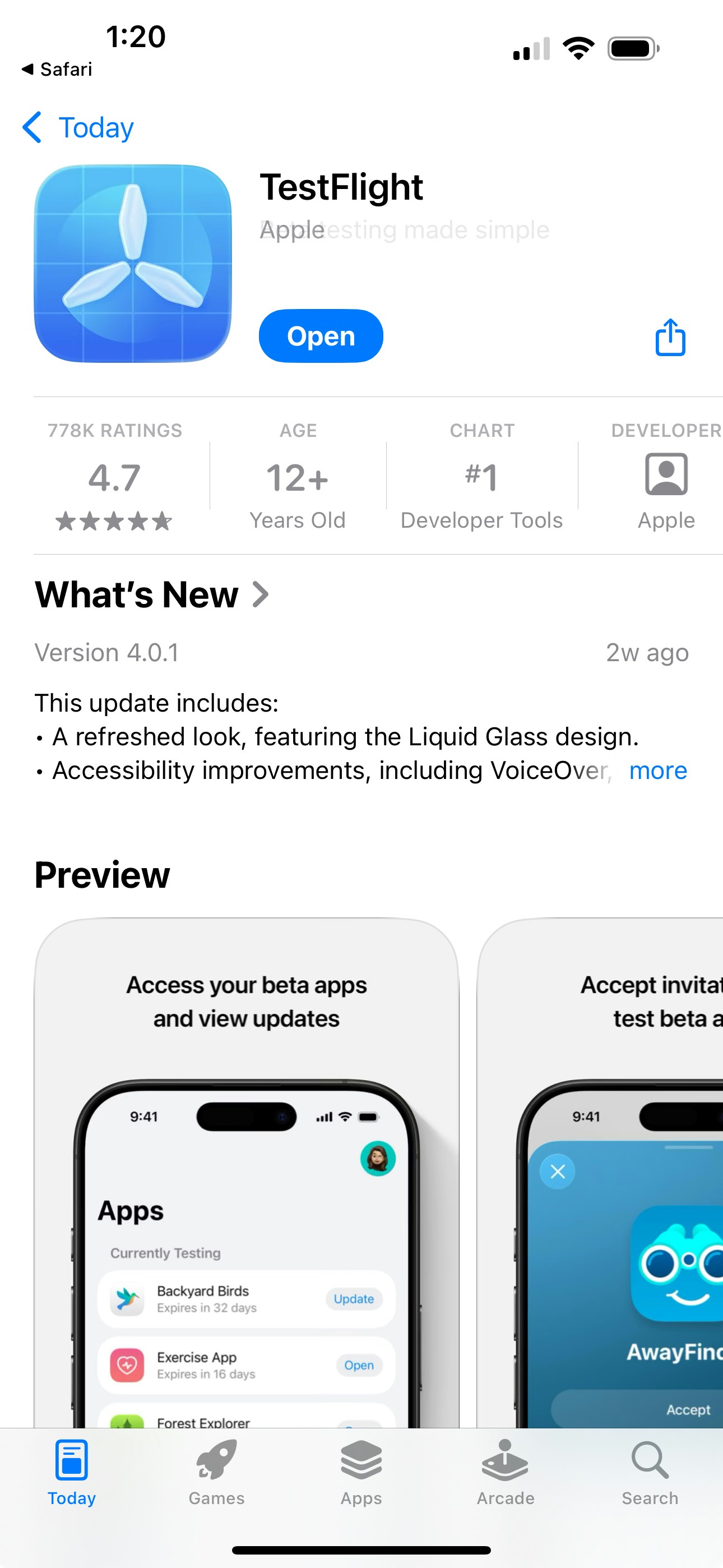
2. Open a web browser on your phone
Use a web browser like Safari or Chrome to visit the URL in the next step.3. Download the Inbox by MessageDesk App (Beta)
Visit this URL to download/add the iOS mobile app to your TestFlight account: https://testflight.apple.com/join/nXZRzunZ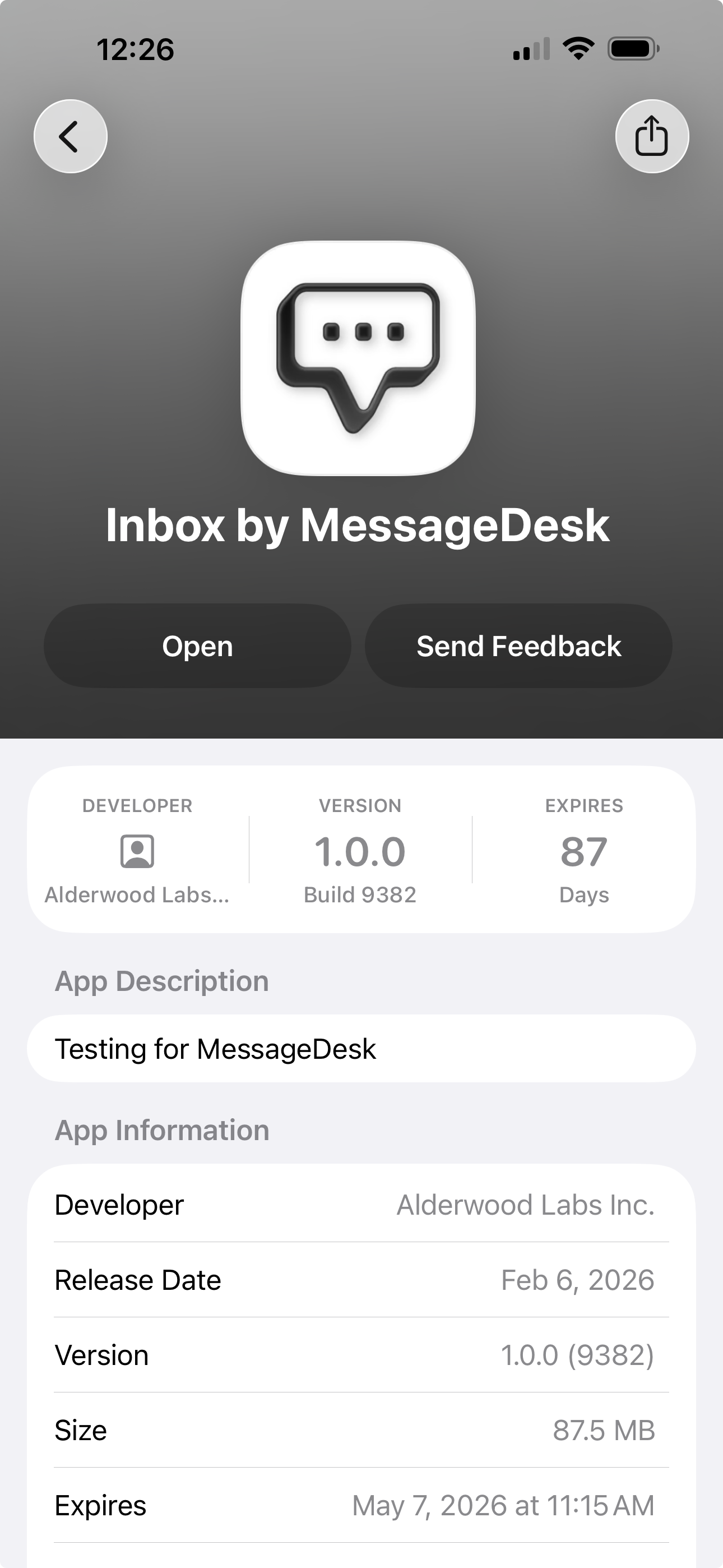
3b. Install from the invite page (not from inside TestFlight)
The invite page shows two items:- Get TestFlight: download the TestFlight app first if you don’t have it yet.
- View Inbox by MessageDesk Beta: tap this to install the app.
If you open TestFlight on its own and try to find the app from inside the app, you won’t see it listed yet. You must come from the invite link.
4. Turn automatic updates on
Open TestFlight and tap MessageDesk under apps. Scroll and toggle automatic updates on. Always make sure you have the latest app updates. If your app is out of sync with the newest version, you may encounter errors.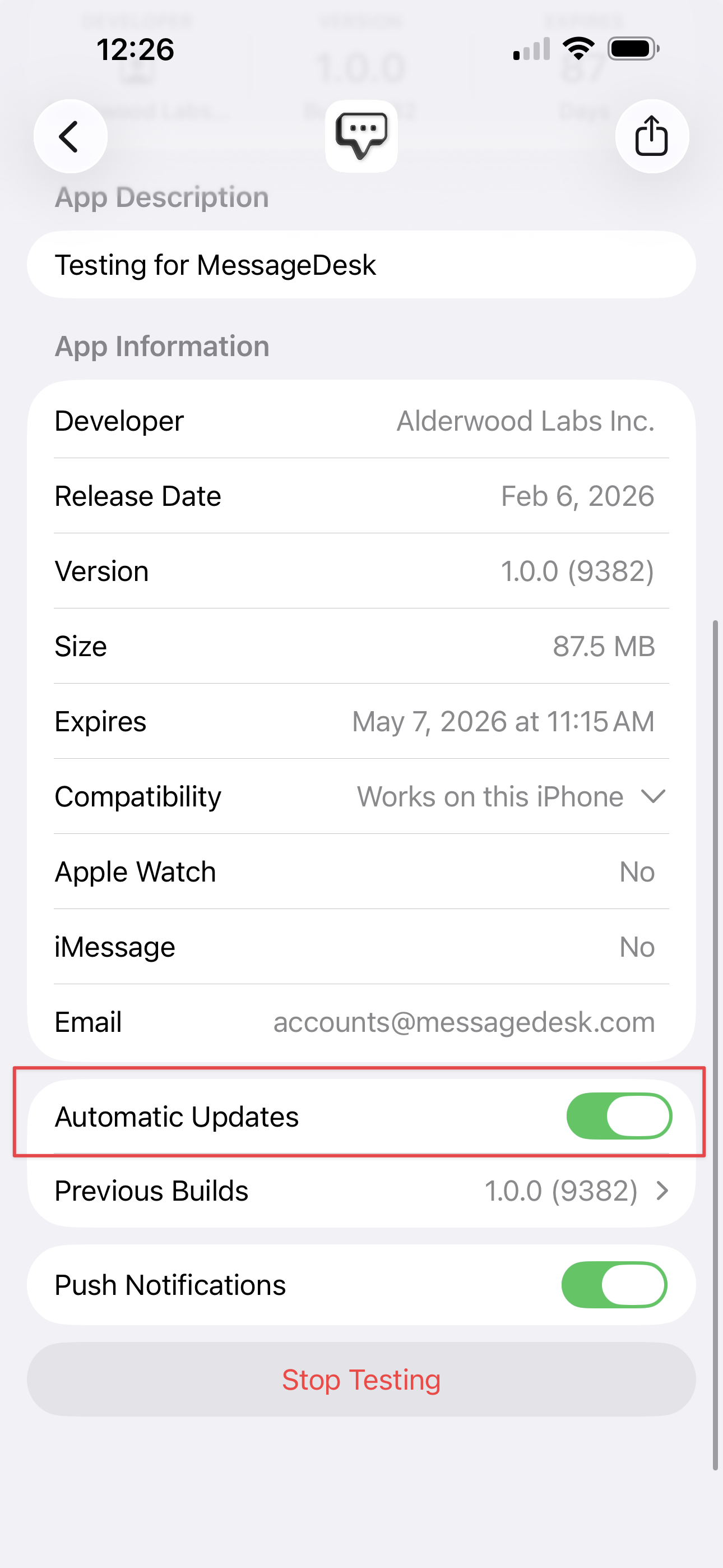
5. Start texting and leave feedback
Send SMS and MMS, assign replies, and collaborate in real-time. When using the mobile app, you can take screenshots and send “Developer Feedback” to our team.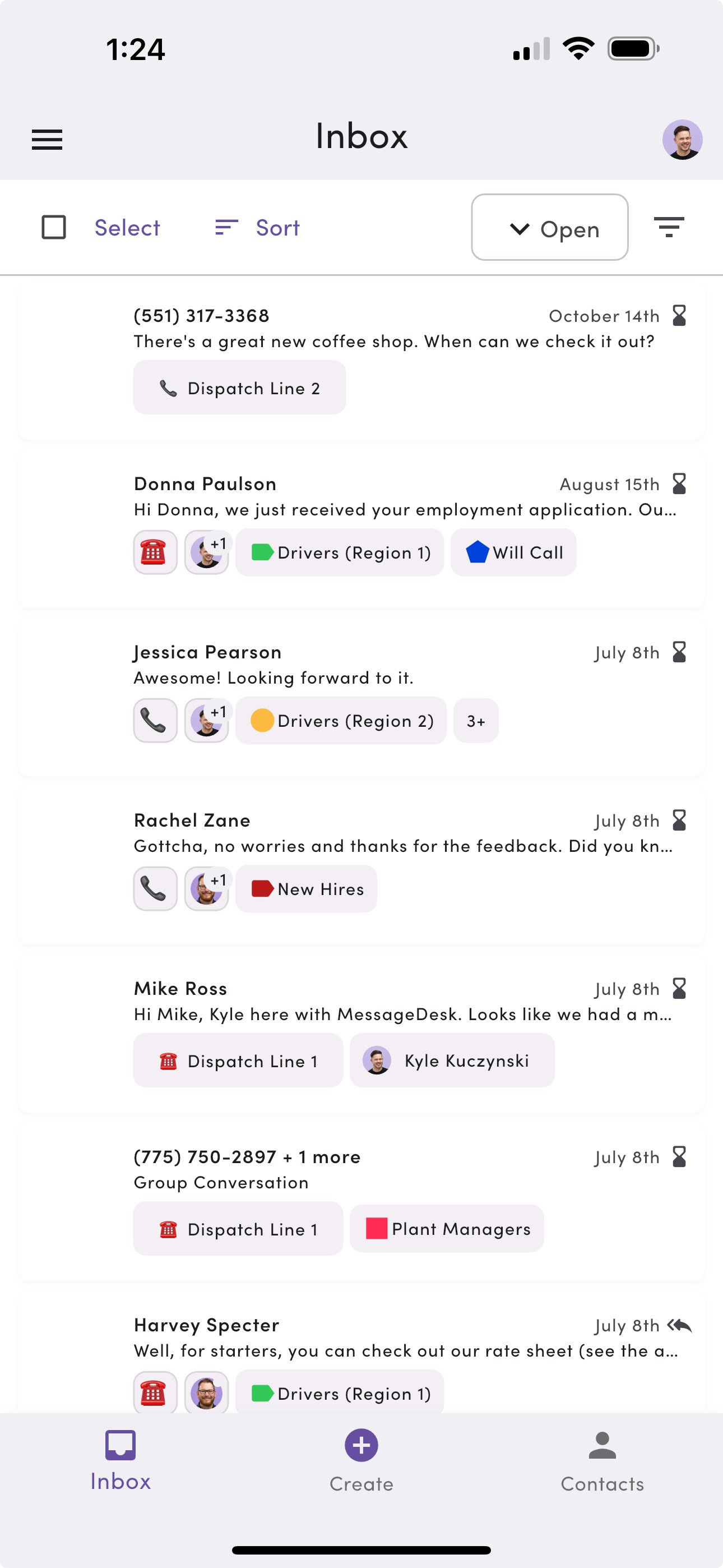
Android: Join the Google Play beta
1. Visit the Google Play Android app store
Download MessageDesk for Android here.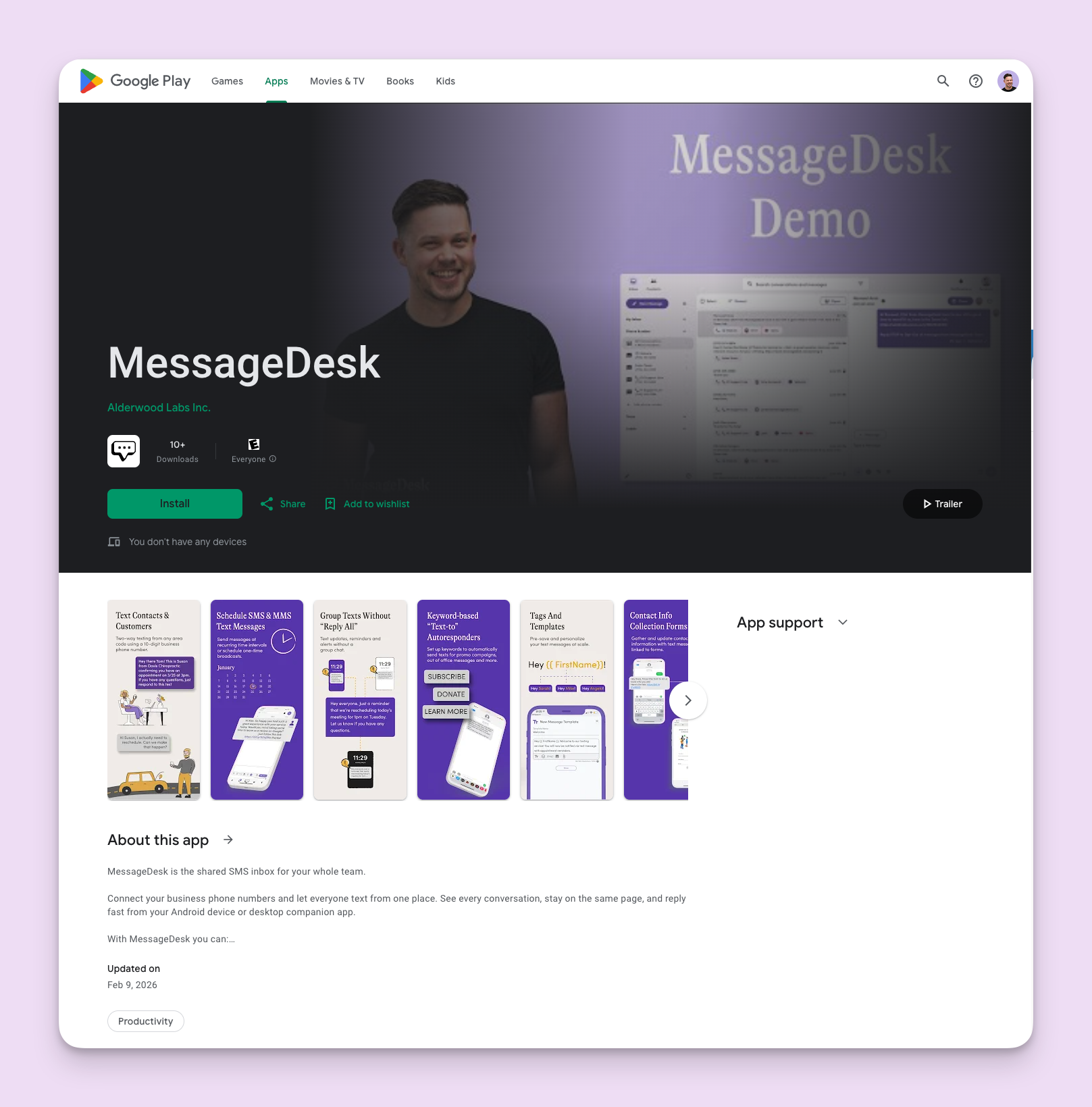
2. Tap Install and log in to your existing MessageDesk account from your Android
Tap Join the beta if prompted.You can send “Developer Feedback” from the app to our team.
How to install MessageDesk as an app on Chrome
Use Chrome to install MessageDesk as a PWA (progressive web app) that looks and behaves like a native app.1. Open Chrome and log in to your MessageDesk workspace.
- Click More (three dots)
- Select the option to Cast, Save, and Share
2. Select Install Page as App
You can also click the Install icon in the address bar (when available).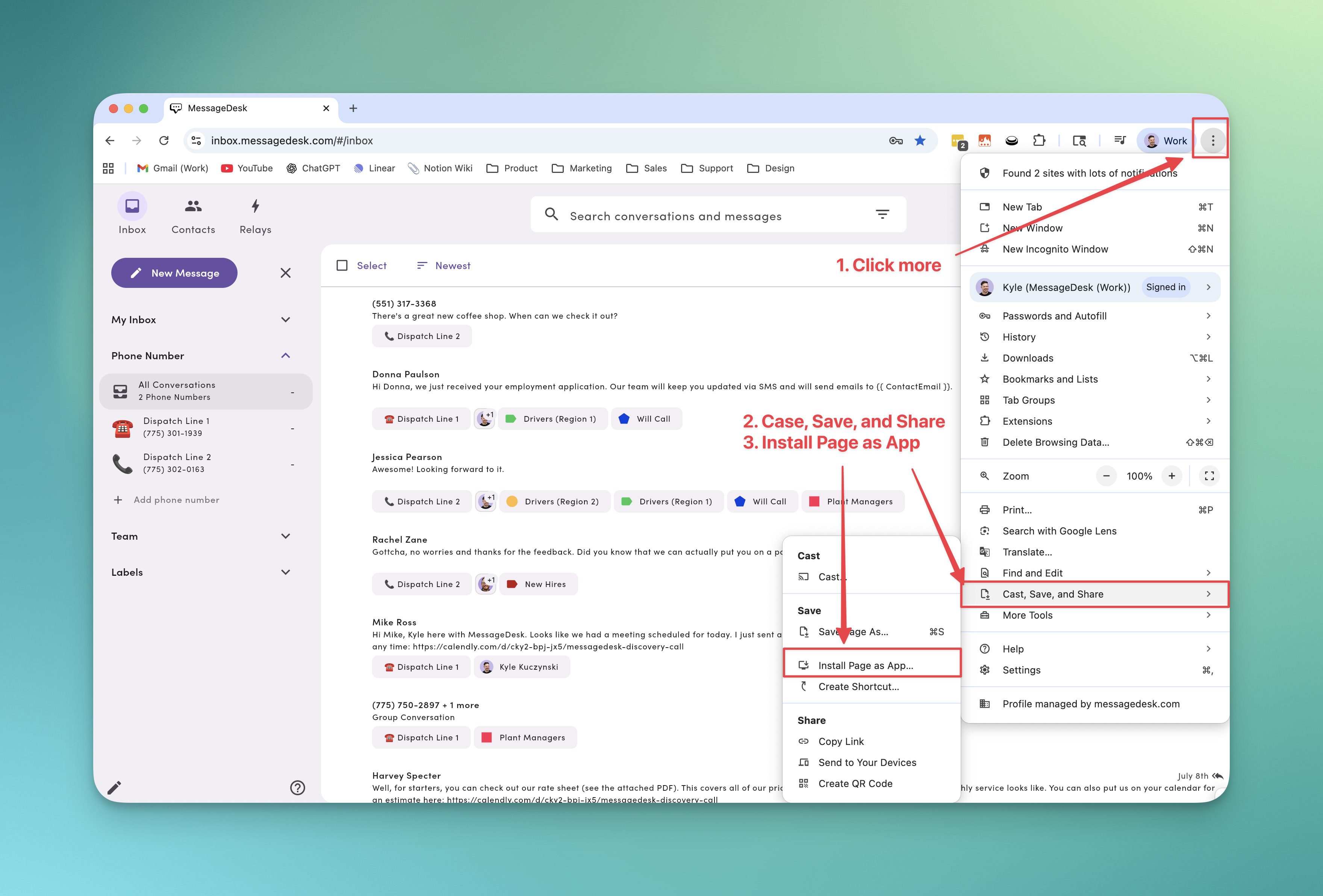
3. Name the app
Name it MessageDesk, or give it a name based on your organization name, etc.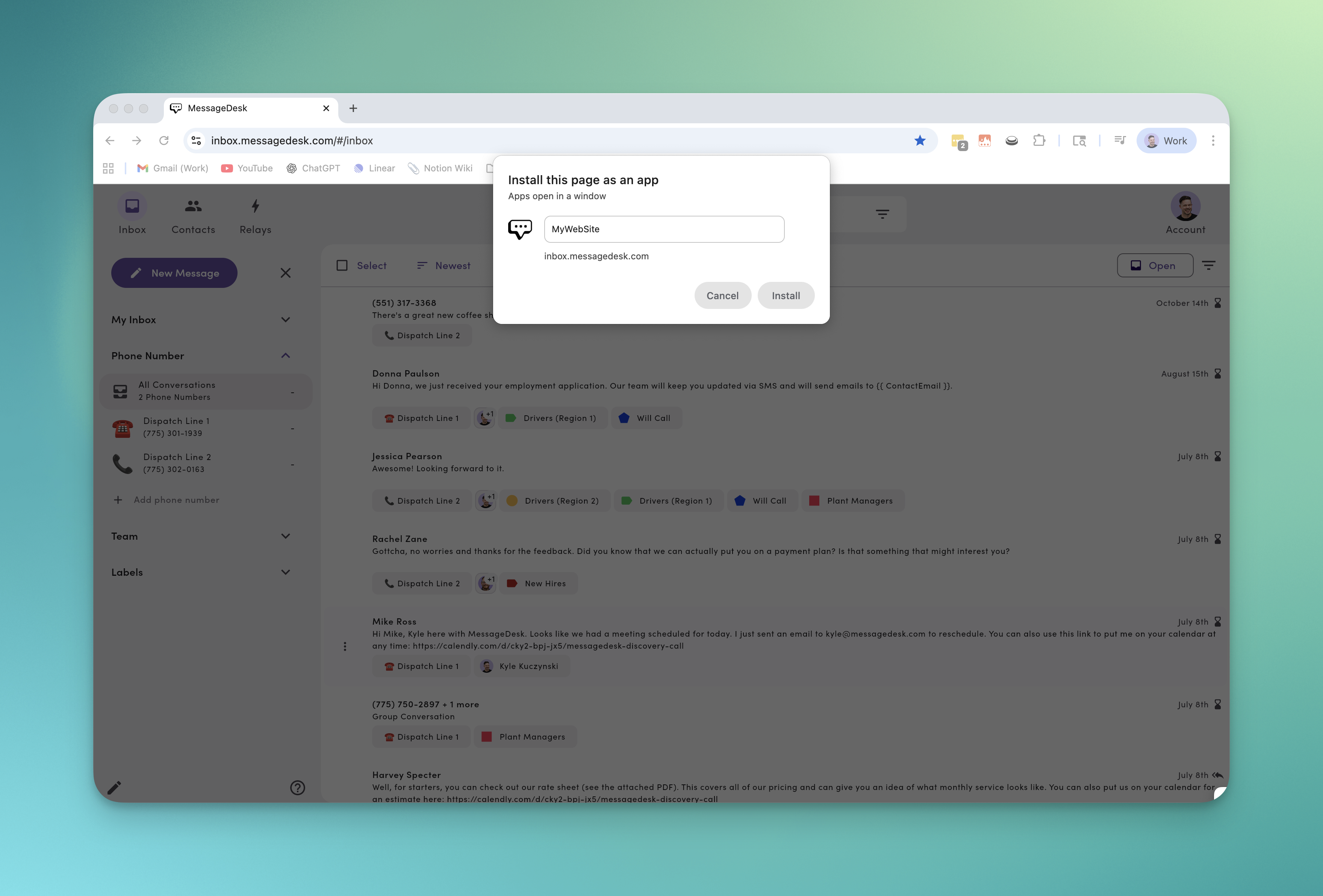
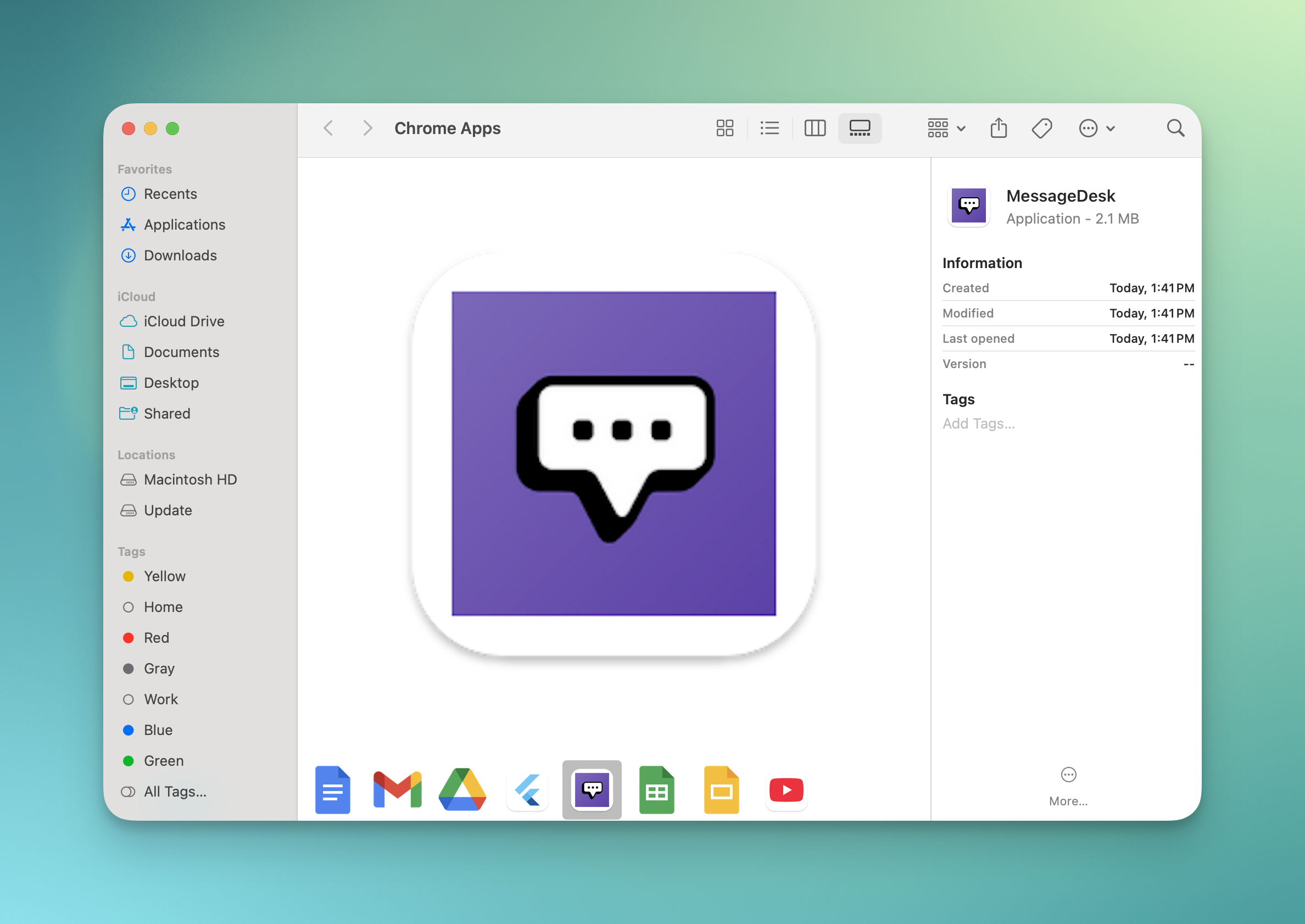
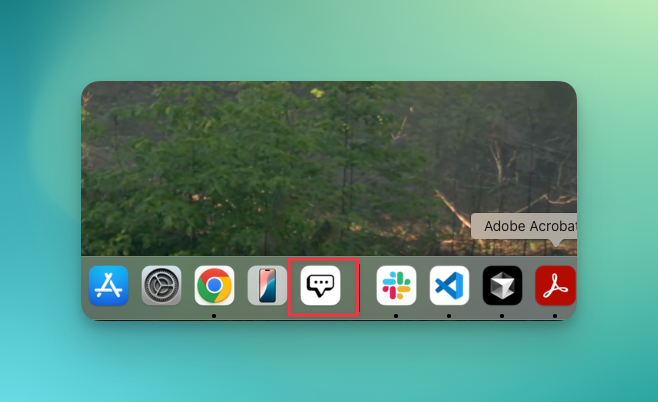
4. MessageDesk appears in your OS launcher or dock
How to install MessageDesk as an app on Safari / macOS Sonoma+
Safari can save any site as a standalone web app with separate cookies and history.1. Log in to MessageDesk using Safari
Go to File and select Add to Dock (or Share button > Add to Dock).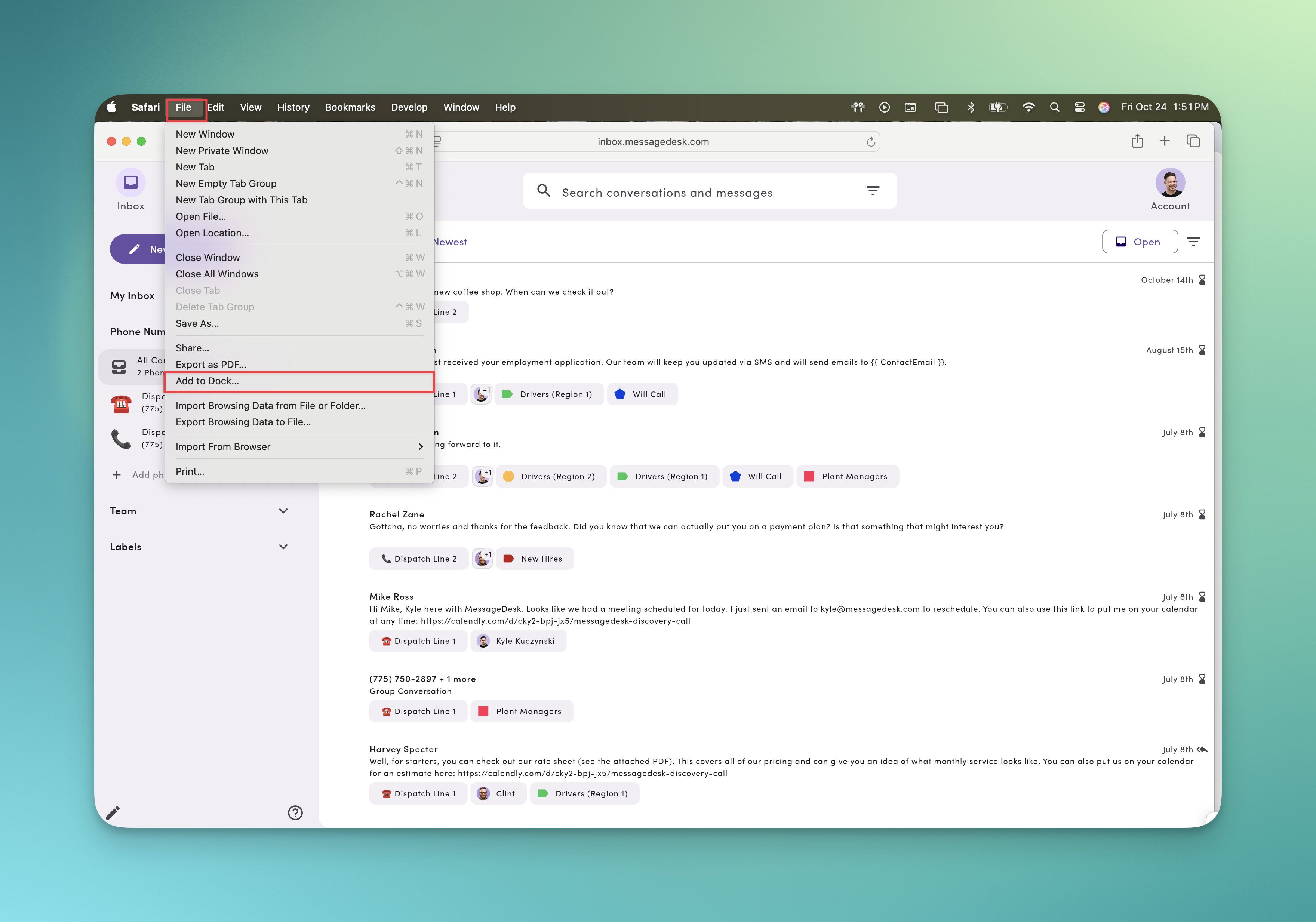
2. Name the app and click Add
macOS saves MessageDesk in your Home > Applications and adds it to the Dock.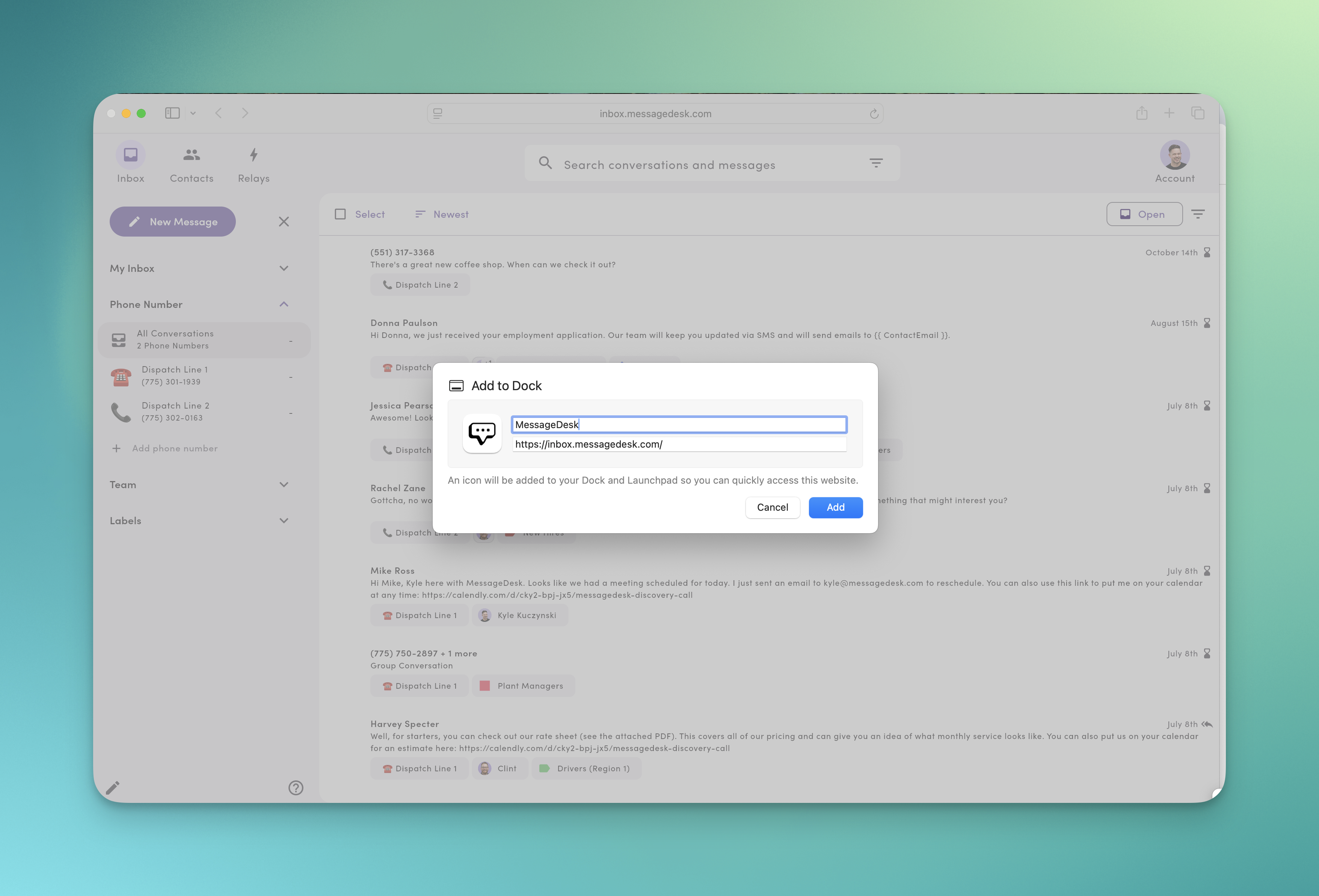
3. Open from Dock/Launchpad and sign in
Note:
- To change the app name, URL, or icon click: App menu > Settings.
- Optional: You can show/hide navigation controls or match title bar color to site.
- Notifications: Allow in the web app, then manage in System Settings > Notifications.
Quick troubleshooting
- Can’t find the install option in Chrome?
- Make sure you’re on the main app URL and using the latest Chrome.
- Safari “Add to Dock” missing?
- You need macOS Sonoma or later. Update macOS, then try again.
- Beta access issues on mobile?
- Reopen the TestFlight or Google Play link and ensure you’re logged into the correct Apple/Google account.
FAQ
Can I use MessageDesk on cellular data only (no WiFi)?Yes. MessageDesk has full functionality on cellular data. The only limitation is that automatic app updates require WiFi. You may need to update the app manually. Poor cellular signal can also affect performance, the same as any internet-connected app.