

Export a conversation
Export any individual conversation to CSV or PDF directly from the conversation toolbar. Use exports for audits, compliance reviews, customer records, or handing context to a stakeholder outside MessageDesk.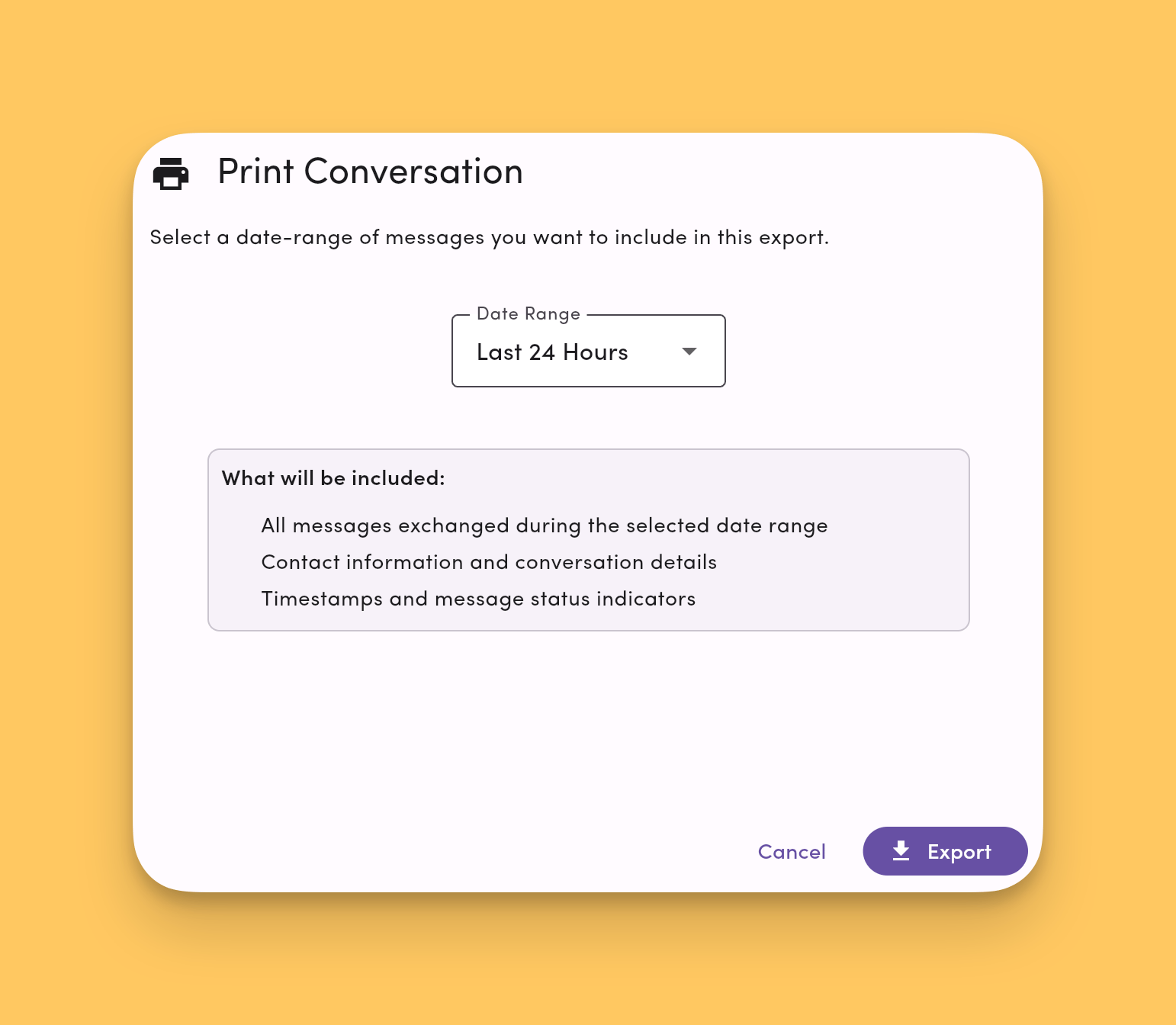
Need to export across many conversations by date, contact, label, and so on? Use Data Center → Message History instead.
Start an export
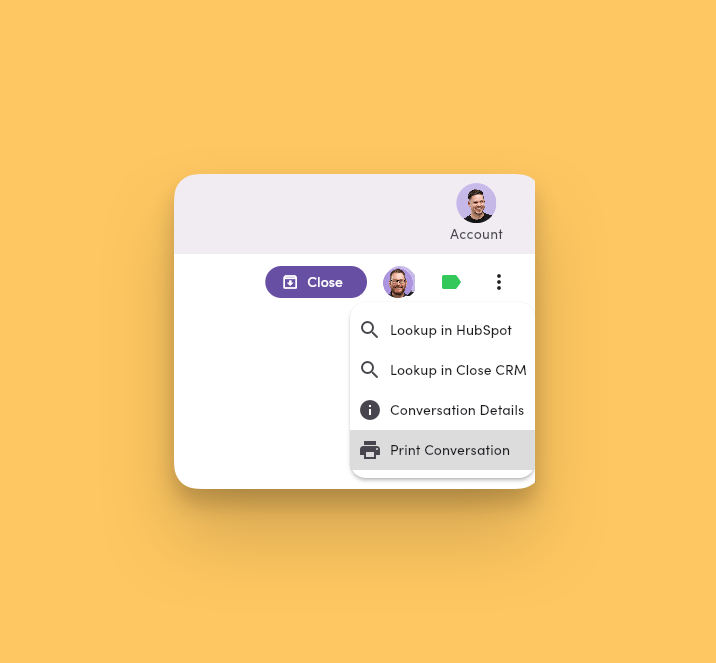
- Open the conversation you want to export from the Inbox.
- In the conversation toolbar, click the More Options ⋯ menu.
- Select Print Conversation.
- Choose a format:
- CSV. Best for data and reporting.
- PDF. A shareable, human-readable record of the conversation.
- If you narrow the export by date range, MessageDesk runs a background check on your selection.
Export is disabled when there’s nothing to export. If a date range or filter you apply produces zero messages, the Export button is greyed out so you don’t kick off an empty file. Adjust the date range or clear the filter to try again.
When your export is ready
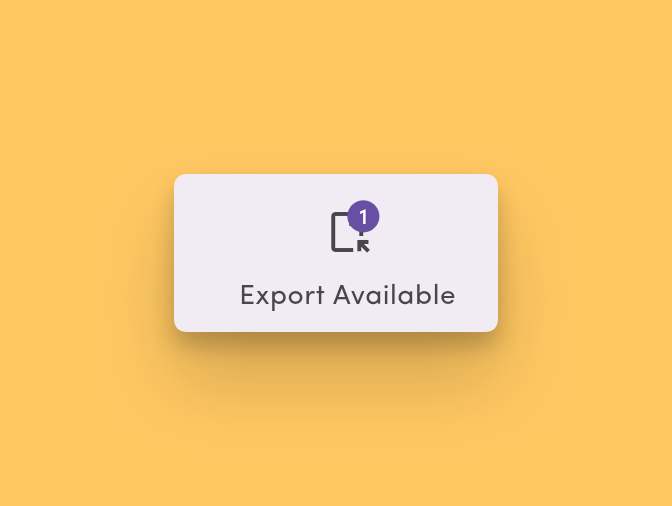
- Export Available button in the top nav. Click it to download your file.
- Export completed email with a download link, sent to the user who triggered the export.
- Push and browser notifications on devices where you’ve enabled them (mobile app, installed desktop app, or Chrome).
Export formats
CSV
CSV exports contain message text and metadata, built for analysis, reporting, and bulk archiving. Included for each row:- Message text.
- Direction (inbound / outbound).
- Timestamp.
- Sender / recipient (participant info).
- Channel / phone line.
- Internal comments alongside messages.
- Delivery status.
- Messages and internal comments interleaved in order.
- Timestamps and participant info on every entry.
- Renderable media (images) embedded inline.
- Non-renderable media (videos and other unsupported file types) appears as a direct S3 link to the file with the note “Could not load preview”, so the attachment stays accessible from the PDF.
What’s included
Deleted messages are still exportable. Deleting a message in MessageDesk soft-deletes it. The record stays on the backend. Exports include soft-deleted messages so the conversation record stays complete for audits and compliance.
FAQ
Who can export a conversation?Anyone with access to the conversation can export it from the ⋯ More Options menu. Permissions follow your Inbox Access for the phone line the conversation lives on. See Team Management → Permissions for the full breakdown. How long is the export file available?
The Export Available button stays in the top nav until you download the file or sign out. If you miss it, re-run the export from the conversation’s ⋯ menu. Are scheduled messages included?
No. Exports include messages that have actually been sent or received plus internal comments. Pending scheduled messages haven’t been sent yet, so they aren’t part of the conversation record. Once a scheduled message sends, it appears in future exports. Can I export many conversations at once?
Not from the per-conversation toolbar. For workspace-wide filtered exports across date ranges, labels, contacts, or channels, use Data Center → Message History. Is the export delivered by email?
Yes. You’ll get an export completed email with a download link once the file is ready. You can also grab it in-app by clicking the Export Available button in the top nav. Both go only to the user who triggered the export.
Export a contact profile to PDF
You can also export an individual contact profile to PDF. Use it to hand off a contact’s details (standard fields, custom fields, and other profile information) to a stakeholder outside MessageDesk, or to keep a point-in-time record.- Open the contact from the Inbox or Contacts module.
- In the contact profile, open the ⋯ More Options menu.
- Select Print profile to PDF.
See also
- Data Center → Message History. Workspace-wide search, filter, and export.
- Notification Preferences. Manage push and browser notifications for the Export Available alert.
- Comments, mentions & reactions. What’s captured alongside messages in exports.