

Zapier integration
Connect MessageDesk to thousands of other apps using Zapier.Start a workflow when a message arrives, a contact changes, or someone calls your number. Then send texts, log comments, look up contacts, and keep your CRM in sync without writing code.
Plan required. The Zapier integration is available on the Pro and Enterprise plans. See Pricing for the full comparison.
Permissions required. To build a Zap that authenticates with your MessageDesk account, your user role needs Editor or Owner on the Developer feature in Team Management. Admins have this by default. Viewers can’t authenticate Zapier under their own account, so any Zap a Viewer builds or owns won’t run.Each Zap runs under the MessageDesk account that authenticated it. If a Zap stops working, check the authenticated user’s role first.
Pick the right app in Zapier
MessageDesk is now a public app on Zapier. Searching for “MessageDesk” can still return two apps, and only one of them works with Inbox by MessageDesk.Use the latest version
Always use the latest version of the MessageDesk app on Zapier. Everything on this page describes the latest version.What’s new since the early beta
- Seven new triggers, including contact lifecycle events, opt-outs, inbound calls, and comments.
- Three new actions: Send Group Message, Send Broadcast Message, and Create Opt Out.
- Two searches for looking up contacts and conversations mid-Zap.
- MMS on every send action. Attach an image with a public media URL.
- No more phone formatting steps. MessageDesk accepts common number formats and cleans them up for you.
- A dropdown for your sending number instead of typing it by hand.
- Custom field support on contact triggers and contact actions.
What you can automate
- When a message is received → Create helpdesk tickets, send Slack or Teams notifications, or log messages to Google Sheets.
- When a message is sent → Update CRM records, trigger a follow-up task, or post delivery updates.
- When someone calls your number → Look up the conversation, draft a reply with an AI step, and text them back.
- When a contact is created or changed → Push the record to your CRM so both systems stay in sync.
- When a contact opts out → Flag the matching CRM record as unsubscribed so your sequences stop.
- From your CRM, forms, or scheduling tools → Create or update contacts in MessageDesk and send personalized texts.
- From payments or invoicing systems → Send SMS confirmations when a customer pays or an invoice goes out.
- From your HR or scheduling system → Keep your employee and crew contact lists current. See Contact and roster sync.
Requirements:
- A Zapier account and a connected MessageDesk workspace.
- Outbound texting via Zapier follows the same registration, delivery, and compliance standards as sending directly from MessageDesk.
How Zapier works
A Zap has three kinds of steps.Every MessageDesk step starts with your workspace. The first field on each trigger, action, and search is Workspace Name. It’s a dropdown built from the MessageDesk account you connected, so you pick your workspace instead of typing it. The field tables below only list what comes after that.
Available MessageDesk triggers
Available MessageDesk actions
There’s no Delete Contact action. Zapier can create and update MessageDesk contacts, but it can’t delete them. That makes contact sync one-way on the delete path: you’ll see a Contact Deleted trigger when a contact is removed in MessageDesk, but you can’t remove a MessageDesk contact from another app. See Contact and roster sync for what to do instead.
Available MessageDesk searches
Triggers
Message Received
Fires when your MessageDesk workspace receives an inbound message.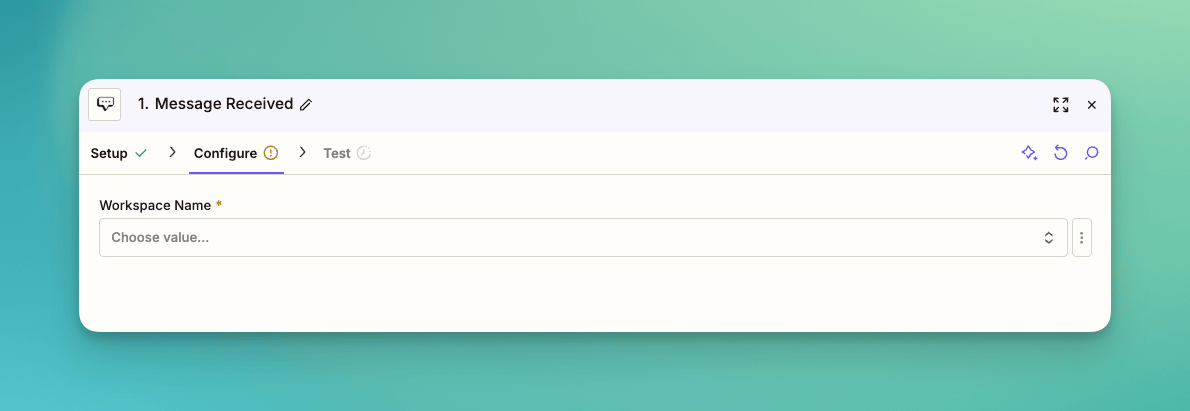
Message Sent
Fires when your MessageDesk workspace sends an outbound message.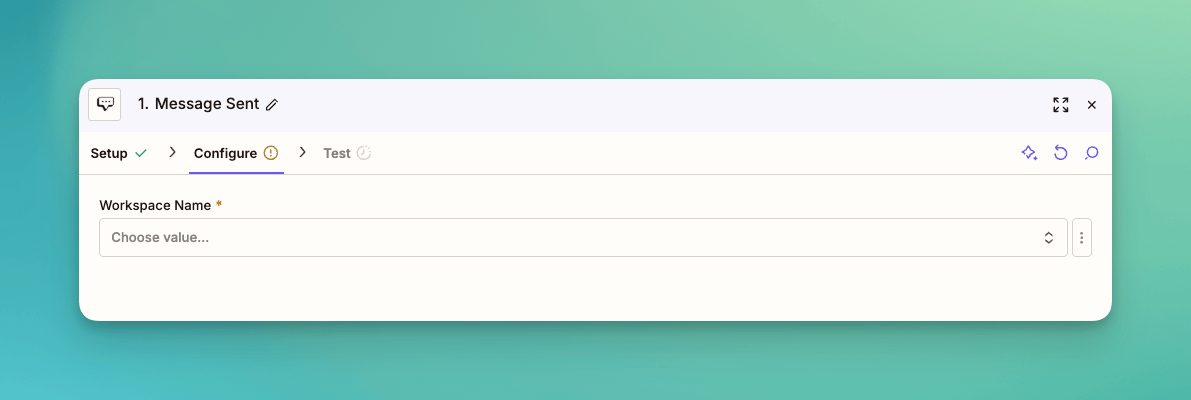
Contact Created
Fires when someone creates a contact in your workspace. The payload includes the contact’s custom fields. Use it to mirror new MessageDesk contacts into your CRM, or to kick off a welcome text.CSV imports don’t fire this trigger. A bulk import creates one import event rather than one event per row, and Zapier doesn’t listen for it. So importing 10,000 contacts won’t burn 10,000 Zap tasks. If you need imported contacts in another system, export them or sync from the other side.
Contact Updated
Fires when any field on a contact changes. That includes the name, phone number, email, and custom fields. There’s no separate trigger for custom field changes. One trigger covers every edit, because most people think of it as “the contact changed” rather than “field seven changed.”Contact Deleted
Fires when someone deletes a contact from your workspace. Use it to close out or archive the matching record elsewhere.This is a trigger only. There’s no matching action to delete a MessageDesk contact from another app. See Contact and roster sync.
Opt-Out Created
Fires when a phone number opts out of messaging. It covers every path: a STOP keyword, a manual opt-out in the Inbox, and the Create Opt Out action.Opt-outs belong to a phone number, not to a contact. One contact can have several numbers, and a conversation doesn’t need a contact record at all. So the payload tells you which number opted out, not which person. If you need contact details, add a Find or Create Contact search after the trigger.See Anonymous contacts and blocked opt-outs for how MessageDesk handles numbers with no contact behind them.
Opt-Out Deleted
Fires when an opt-out is removed, which means that number can receive messages again. Pair it with Opt-Out Created to keep your CRM’s subscription status accurate in both directions.Call Received
Fires when someone calls one of your MessageDesk numbers. This is the front half of the missed-call text-back recipe. Chain it with Find or Create Conversation, an AI step, and Send Message to answer a call with a text in seconds.The trigger fires on the call itself. It doesn’t tell you whether the call was answered, missed, or completed, and it doesn’t include a recording or transcript.
Comment Created
Fires when a teammate posts an internal comment on a conversation. Use it to push escalations into Slack, or to open a ticket when someone flags a thread. It won’t fire on customer-facing messages. Message Received and Message Sent cover those.Actions
Send Message
Sends an outbound text or MMS from MessageDesk. Each Zap run sends one message.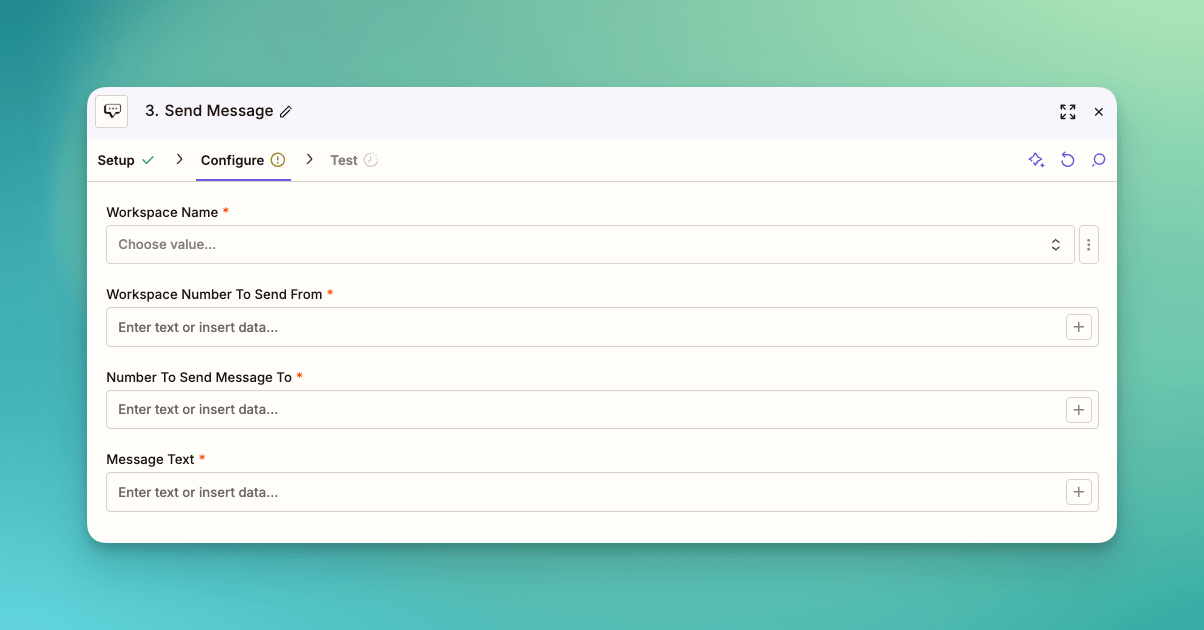
MessageDesk enforces opt-outs automatically. If the recipient has opted out in MessageDesk, the Send Message action fails and no text goes out, even if the Zap itself runs successfully on Zapier’s side. You can’t bypass opt-out enforcement. See the Compliance Center for how MessageDesk captures and manages opt-outs.This works in your favor when you automate outreach off CRM activity. You don’t need to check opt-out status in your Zap first, because MessageDesk checks it on every send.
Send Group Message
Sends one message to a small group as a single group thread, the same way group messaging works in the Inbox. Everyone sees everyone else’s replies.Group message or broadcast? A group message puts everyone in one thread and caps at seven recipients. A broadcast goes out to a list, and each reply comes back as a private 1-on-1 conversation. Pick the group message when the recipients should see each other.
Send Broadcast Message
Sends a message to a list of recipients. Each person gets it as a private 1-on-1 message, and replies open individual threads. This is the Zapier version of a broadcast.Broadcasts sent through Zapier follow the same compliance rules as broadcasts sent from the app. Segment your list, keep the message relevant, and include opt-out language.
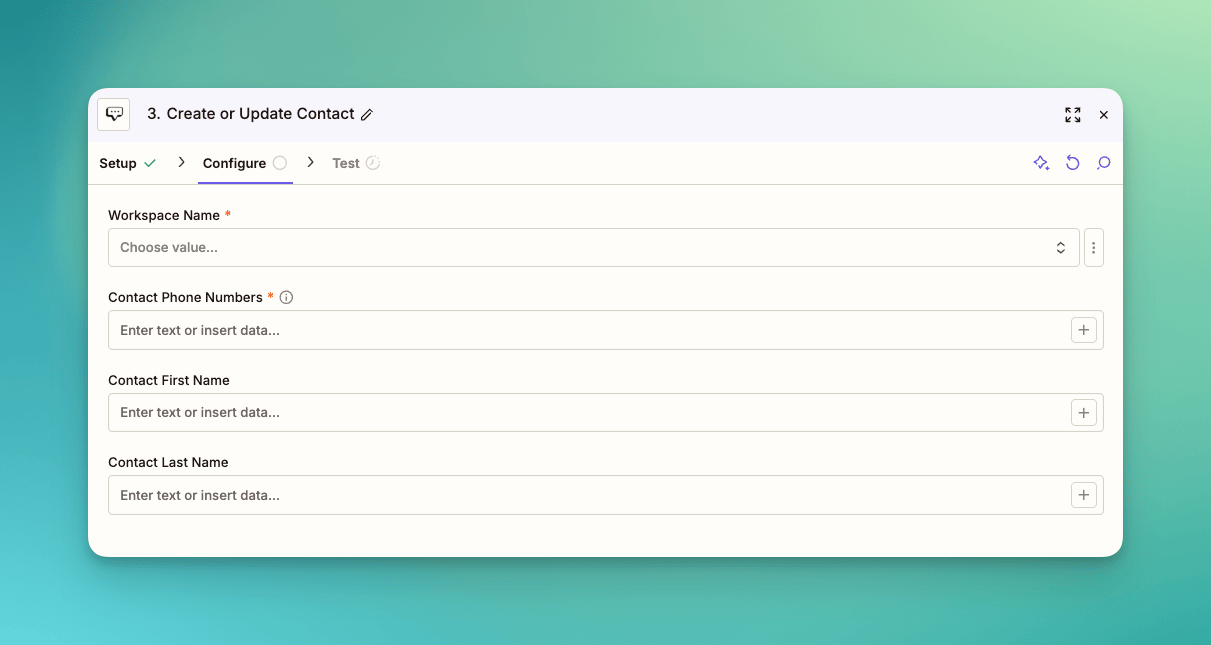
Create or Update Contact
Creates or updates a contact in your selected workspace, matched by phone number. Good for syncing leads, form submissions, or new customer signups.Matching is by phone number. If the number coming out of your other app doesn’t match what’s on the MessageDesk contact, you’ll get a second contact instead of an update. When a source app stores several numbers per record, map the one you actually text.
Create Comment
Posts an internal comment on a conversation. Use it to log notes from other apps, pull a teammate in, or leave context before someone picks up the thread.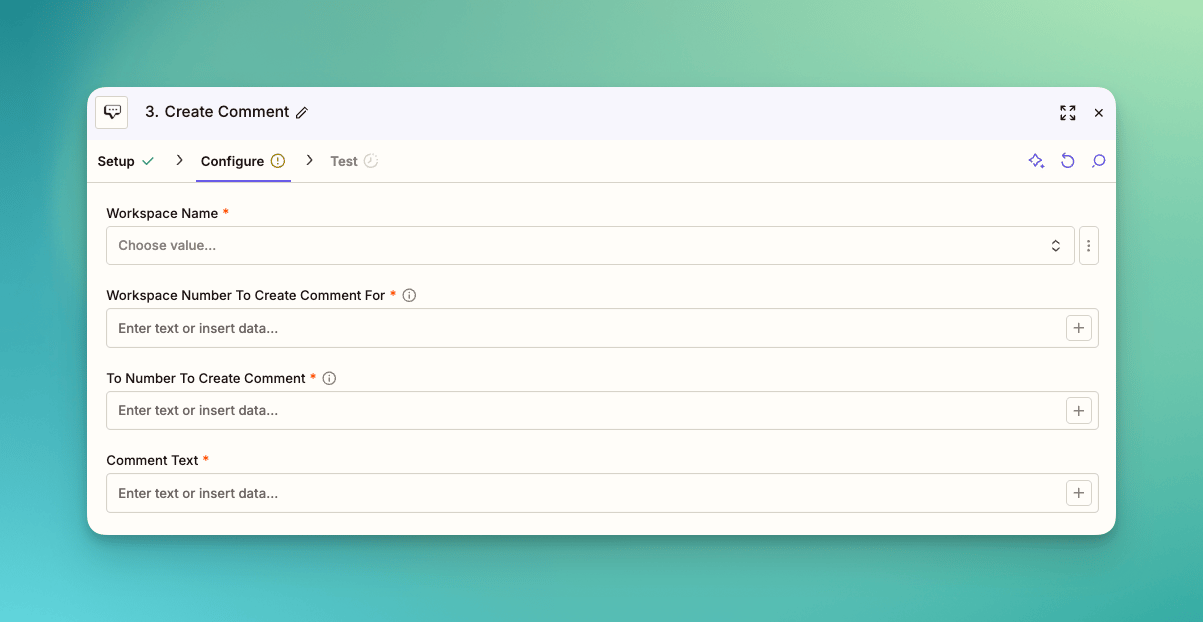
No conversation yet? The action creates one. The conversation gets created and the comment lands where you’d expect.Comments post to the conversation, not to each other. There’s no comment threading.
Create Opt Out
Opts one or more phone numbers out of messaging. The result matches what a STOP keyword does, so every downstream suppression rule applies.
Use it when someone unsubscribes in your CRM, your helpdesk, or a preference center, and that decision needs to reach MessageDesk.
Opting out a number that’s already opted out succeeds quietly, so you don’t need to check first. MessageDesk records the opt-out source as Zapier in your workspace audit trail.
Searches
A search looks up a MessageDesk record in the middle of a Zap so later steps can use it. Both searches can create the record when nothing matches, using the same create if it doesn’t exist yet checkbox Zapier uses everywhere else.Find or Create Contact
Looks up a contact by phone number. Turn on the create option and it falls back to Create or Update Contact, so the create path accepts the same fields, custom fields included.Find or Create Conversation
Looks up a conversation by phone number, optionally scoped to one of your workspace numbers. Two details do more than the name suggests:- It works without a contact. MessageDesk supports anonymous conversations, so you can find or create a thread for a phone number with no contact record attached and none created.
- A conversation doesn’t need messages. You can create one before anyone has texted, which is useful if you label and organize threads ahead of time.
No match isn’t a failure. When a search finds nothing and you haven’t turned on the create option, the step returns empty instead of erroring. Add a Zapier Filter or Path after it to branch on whether the record exists.
What’s in a trigger payload
MessageDesk trigger payloads carry the event itself and not much else. A Message Received payload is the message. A Comment Created payload is the comment. Related records don’t ride along. That’s deliberate. Fat payloads get slow, they break when one join fails, and they force you to receive data you didn’t ask for. If you need the contact behind a message, add a Find or Create Contact step and pull it in. Two things worth knowing:- Contact references can be empty. Conversations work without contact records, so any contact reference in a payload might be null. Build your Zap to handle that.
- Contacts are the exception. Contact payloads always include the custom fields map, because contacts are the one place the extra data is always worth carrying.
Reliability and limits
Here’s how delivery actually behaves, so you can decide what to trust it with.How triggers reach Zapier
MessageDesk triggers use REST hooks, not polling. We push the event to Zapier as it happens, so there’s no polling interval to wait through and no schedule that varies by Zapier plan.We don’t retry
If we can’t deliver an event to Zapier, that event is gone. There’s no retry, no backoff, and no queue holding it for later. In practice this is rare, and it isn’t the same as a Zap step failing. A Zap that runs and then errors on a later step can be replayed from your Zapier task history. An event that never reached Zapier at all never created a task, so there’s nothing to replay.Duplicates and ordering
- Events don’t fire twice. Each event delivers once.
- There’s no event ID or idempotency key in the payload. If you need your own dedupe key, build one from fields in the payload.
- Order isn’t guaranteed. Two events fired moments apart can arrive out of order. It’s uncommon, but don’t write a Zap that depends on Contact Created landing before Contact Updated.
Rate limits
MessageDesk doesn’t rate limit actions coming from Zapier, and Send Broadcast Message has no volume cap beyond what your plan includes. Normal carrier throughput still applies to anything you send, and so do your plan’s broadcast entitlements. Because nothing throttles you on our side, a misconfigured Zap can do real work before you notice. See below.Actions fire triggers
Every MessageDesk action fires the matching MessageDesk trigger. MessageDesk is event-driven, so an action taken by a Zap looks the same as an action taken by a person.
There are no loop guards on our side. If one Zap’s action feeds another Zap’s trigger, they’ll keep triggering each other until Zapier stops them.
When something breaks
- Errors show up in Zapier, in the Zap’s task history, with whatever detail the failing step returned. Validation errors name the value we couldn’t read, and a broadcast on an ineligible plan returns an entitlement error.
- MessageDesk has no Zapier activity view. There’s nowhere in your workspace to see Zap runs, successes, or failures. Zapier’s task history is the only place to look.
- We don’t email you when a Zap breaks. Zapier notifies you by default, based on your Zapier account’s notification settings. Check those if a silent failure would hurt.
Re-authentication
Your MessageDesk connection in Zapier needs to be re-authenticated at least every 30 days. It can happen sooner if something revokes the token, like a password reset on the MessageDesk account that authorized the connection. A Zap with an expired connection stops running until someone reconnects it.Custom fields
Your workspace’s custom fields show up on both sides of a Zap.- On contact triggers, custom fields and their values come through in the payload.
- On contact actions, MessageDesk pulls your custom fields into the Zap editor so you can map values into the right typed field instead of guessing at names.
Custom fields need the latest version. If your custom fields aren’t showing in the Zap editor, switch the step to the latest version and refresh it.
Phone number formatting
You don’t need a Formatter step. MessageDesk accepts the phone formats other apps hand you and normalizes them on our side, using the same rules as contact imports. All of these reach the same contact:(555) 123-4567555-123-456715551234567+15551234567
MessageDesk treats numbers without a country code as US or Canada (+1). If a number can’t be parsed, the step fails with an error naming the value that caused it, so you can fix the mapping instead of hunting through a Zap history.
Older versions needed a Formatter step to convert numbers to E.164 before MessageDesk would accept them. If you have old Zaps carrying a Formatter step just for phone numbers, switch them to the latest version and remove it.
Contact and roster sync
A common setup is to keep a list of people somewhere else, like an HR system, a scheduling tool, a project board, or a spreadsheet, and mirror it into MessageDesk contacts so your team can text them. Zapier handles most of this well, with one gap.Working around the delete gap
There’s no way to delete a MessageDesk contact from Zapier. Pick whichever of these fits how you work:- Mark instead of delete. Add a custom field like
Statusand have your Zap set it toInactivewith Create or Update Contact. Filter your inbox and broadcast lists on that field. This keeps message history intact, which is usually what you want anyway. - Opt out instead of delete. Use Create Opt Out on the person’s number. They stay in your workspace but can’t be messaged, deliberately or accidentally.
- Delete in bulk, by hand. For a periodic cleanup, export and re-import your contact list, or delete contacts directly in the Inbox.
Source-app limits matter too. Some apps don’t publish a usable “item deleted” or “row removed” trigger to Zapier, so even the detection half may not be available on their side. Check the source app’s trigger list before you plan a two-way sync.
For a large one-time roster load, a CSV import is faster and more reliable than a Zap, and it supports custom fields. Use Zapier to keep the list current afterward.
QuickBooks
Texting invoices, estimates, and payment confirmations is one of the most common reasons people connect MessageDesk to Zapier. A few specifics will save you time.Add a Find Customer step
QuickBooks invoice and estimate triggers usually return a customer reference, not the customer’s phone number. So a Zap that goes straight from “Invoice Created” to Send Message has nothing to send to. Build it in this order:- Trigger: QuickBooks Online → New Invoice or New Estimate.
- Search: QuickBooks Online → Find Customer, using the customer ID from the trigger. This is what gives you the phone number.
- Search: MessageDesk → Find or Create Contact, mapping the phone number from step 2.
- Action: MessageDesk → Send Message, with the invoice link or amount in the body.
Payment status is unreliable as a trigger
QuickBooks doesn’t always expose a clean “paid” state to Zapier. In practice the e-invoice status field can stay atviewed after an invoice is marked paid, and the Paid in Full state visible in the QuickBooks UI isn’t available to Zapier at all.
If a payment-received Zap never fires, don’t assume the problem is on the MessageDesk side. Try triggering on a linked payment or transaction record rather than on invoice status, and test against a real paid invoice before turning the Zap on.
Field mappings can break after a QuickBooks update
QuickBooks periodically renames or restructures fields, including phone number fields likeprimary phone free form number. When that happens, existing Zaps fail with a mapping error rather than silently sending the wrong thing.
If a working QuickBooks Zap suddenly starts failing, open the step and re-map the phone field before troubleshooting anything else.
Zapier or Relays?
Both automate MessageDesk. They’re built for different jobs.
The two share a vocabulary on purpose. A Send Message action means the same thing in both places, so what you learn in one carries over.
Why some things are Relays-only. Zapier’s actions cover programmatic tasks like sending a message, creating a contact, posting a comment, and opting someone out. Relays handle actions that mirror what a person does inside the Inbox, like assigning a conversation, changing its status, or adding and removing labels. Zapier doesn’t duplicate those.You can still react to those events in Zapier, since the corresponding triggers fire normally.
How to build your first MessageDesk Zap
1. Log in to Zapier
Visit zapier.com to log in or create a new account. No invitation is needed.2. Create a new Zap
Click Create Zap on your dashboard.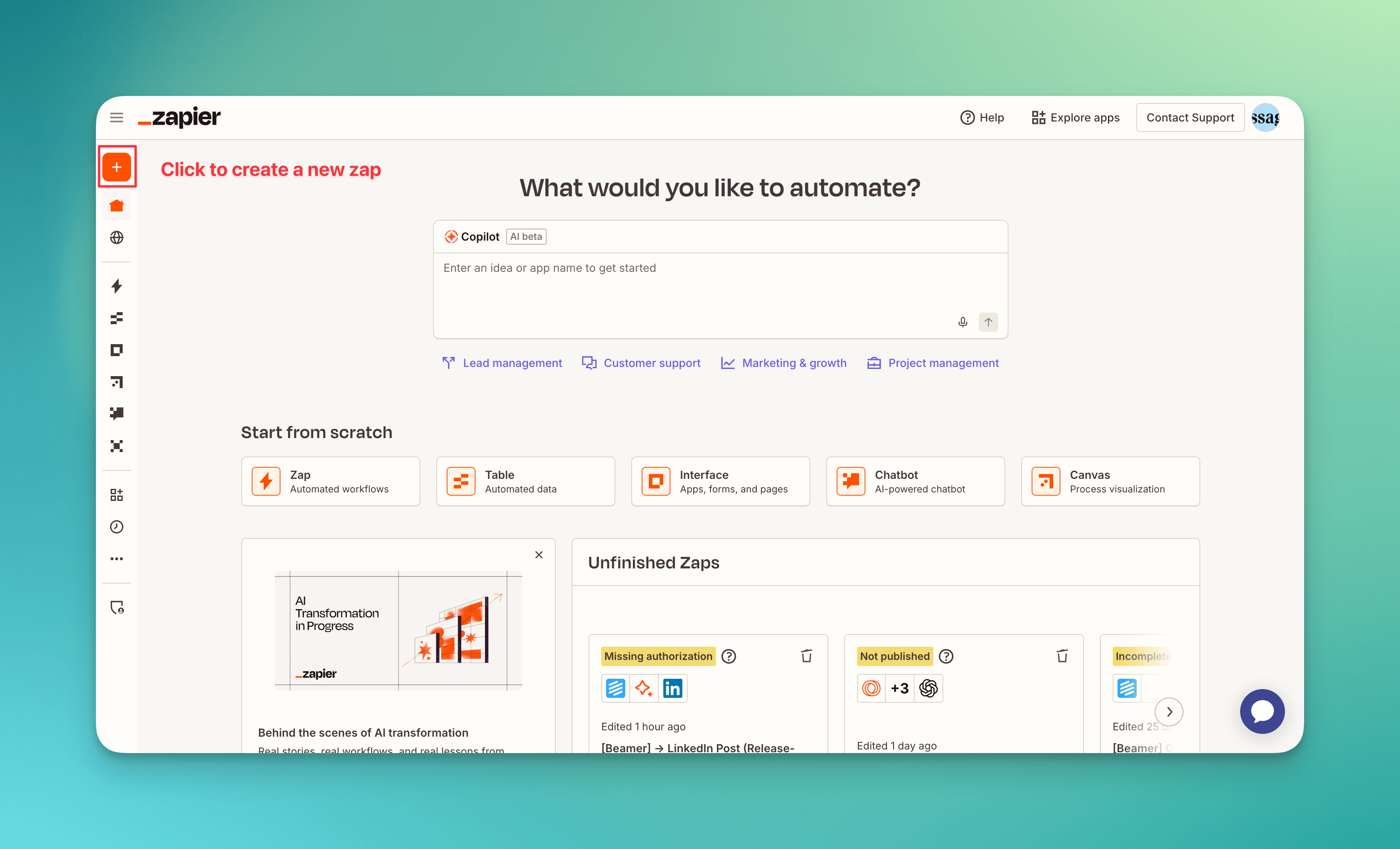
3. Add MessageDesk
Search for MessageDesk (the one with the Beta badge, not MessageDesk Reach). New Zaps use the latest version automatically. You can use MessageDesk as a trigger, an action, or a search.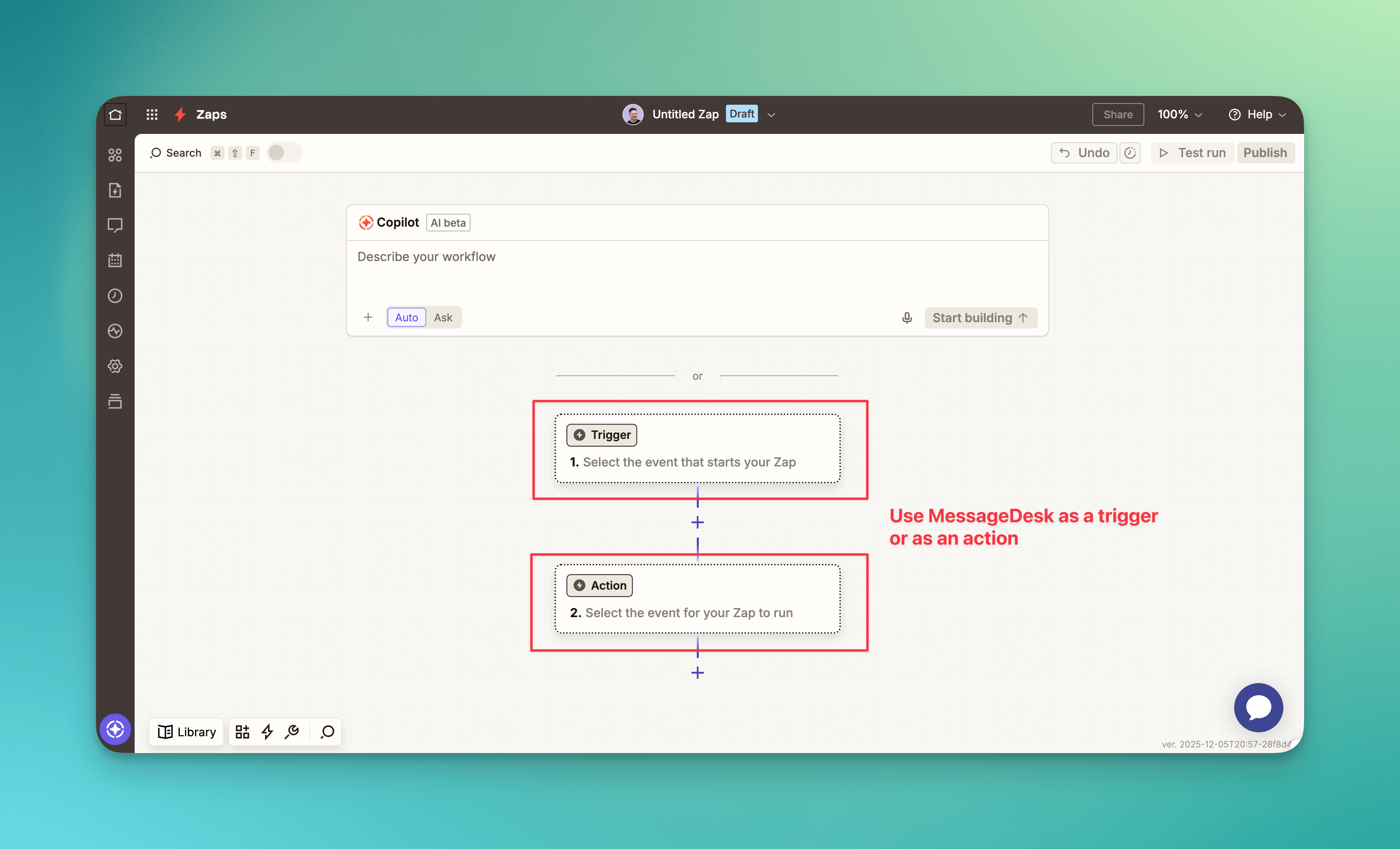
4. Choose a trigger
Pick from the nine triggers above, then connect your MessageDesk account and select your workspace.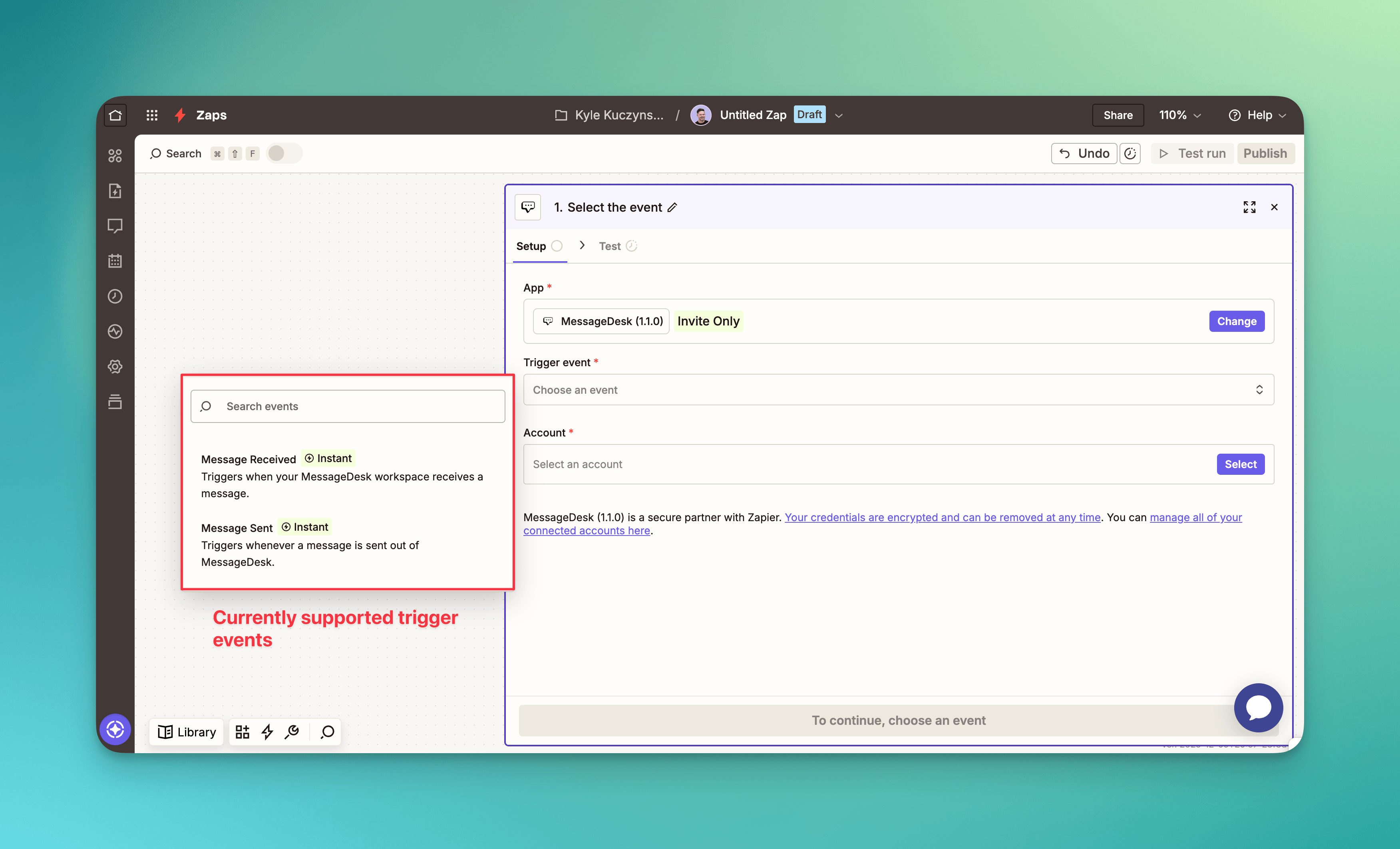
5. Add an action or search
Pick from the six actions and two searches above. Map your fields, test the Zap, and turn it on. Sending numbers come from a dropdown, so you don’t have to remember which line is which.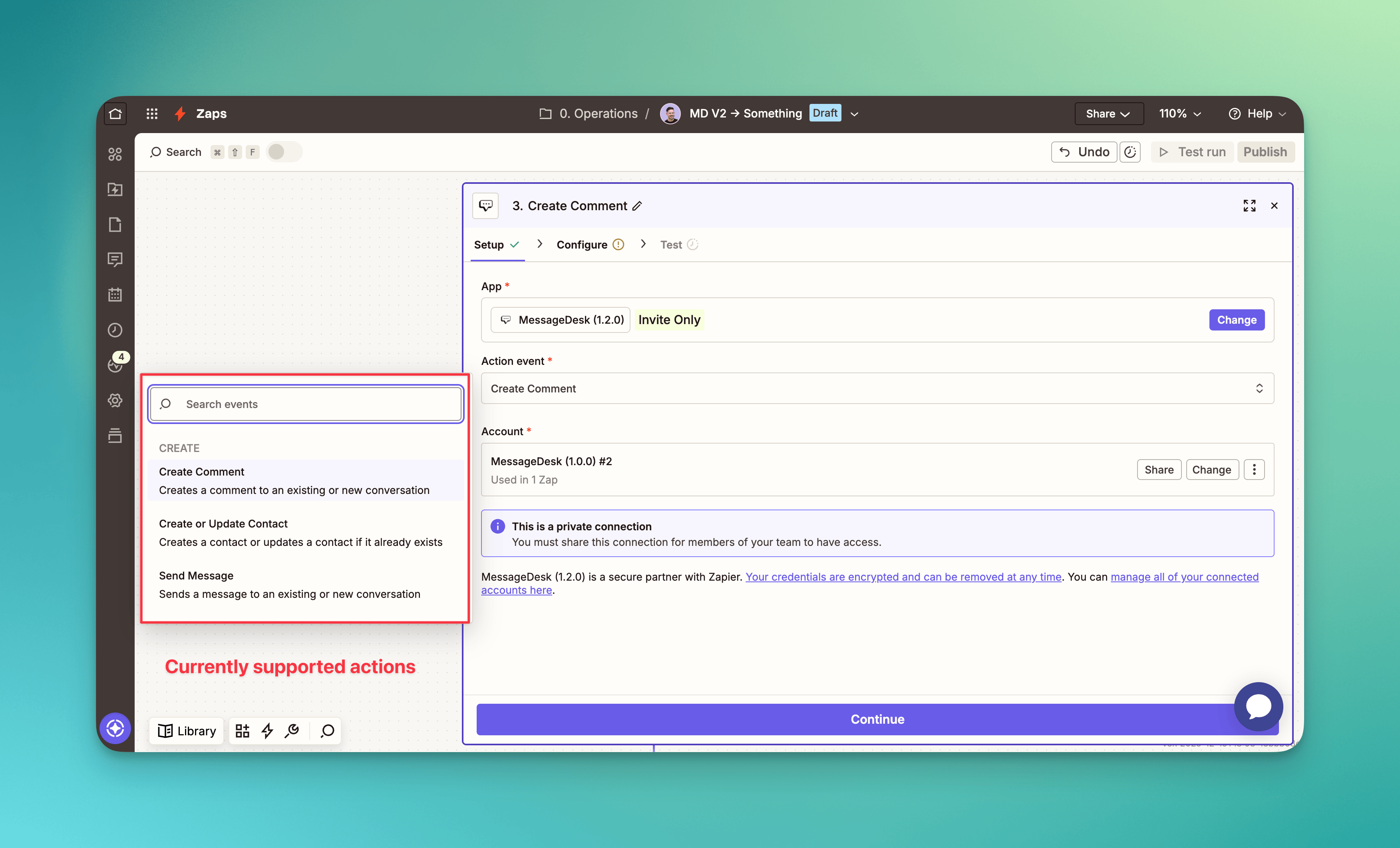
Popular Zapier workflows
Use these examples to get inspired and automate common MessageDesk tasks:Best practices
- ✅ Include opt-out text: “Reply STOP to opt out” for promotional or automated messages.
- ✅ Pick the right send action: one recipient uses Send Message, a small group that should see each other uses Send Group Message, and a list uses Send Broadcast Message.
- ✅ Test with real data before turning on your Zap.
- ✅ Add a Find step when you need more than the event: trigger payloads are intentionally small.
- ⚠️ Sync in one direction: pick the system that owns the record. Running a sync both ways creates a loop, because actions fire triggers.
- ⚠️ Watch Zapier for failures: MessageDesk has no Zapier activity view, so Zapier’s task history and notification settings are your only warning.
- ✅ Keep Zaps small and modular. Several short Zaps are easier to debug than one long branching Zap, and a failure takes down less of your workflow.
- ✅ Guard against duplicate sends. Zapier’s deduplication only stops the same trigger event from running twice. If a record can re-enter the same state later, log processed records in Zapier Tables or Google Sheets and filter on whether they’re already there.
- 🧩 Use filters and conditions: limit your Zaps to relevant events, like only messages containing “Support.”
Troubleshooting
Still stuck?
If a Zap won’t run and none of the above explains it, email support with:- The Zap’s name and the MessageDesk workspace it’s connected to.
- The email address that authenticated the MessageDesk connection.
- A screenshot of the failing step from your Zap history, including the error text.