

Create your account and sign up for MessageDesk
Create your account, verify your identity, and name your workspace.Requirements
- Valid email address
- Personal mobile phone number (for verification; not used as a workspace number)
1. Create your account
If you’re new (and haven’t been invited to an existing workspace), go to the sign-up page and enter your email and password, or choose Sign in with Google.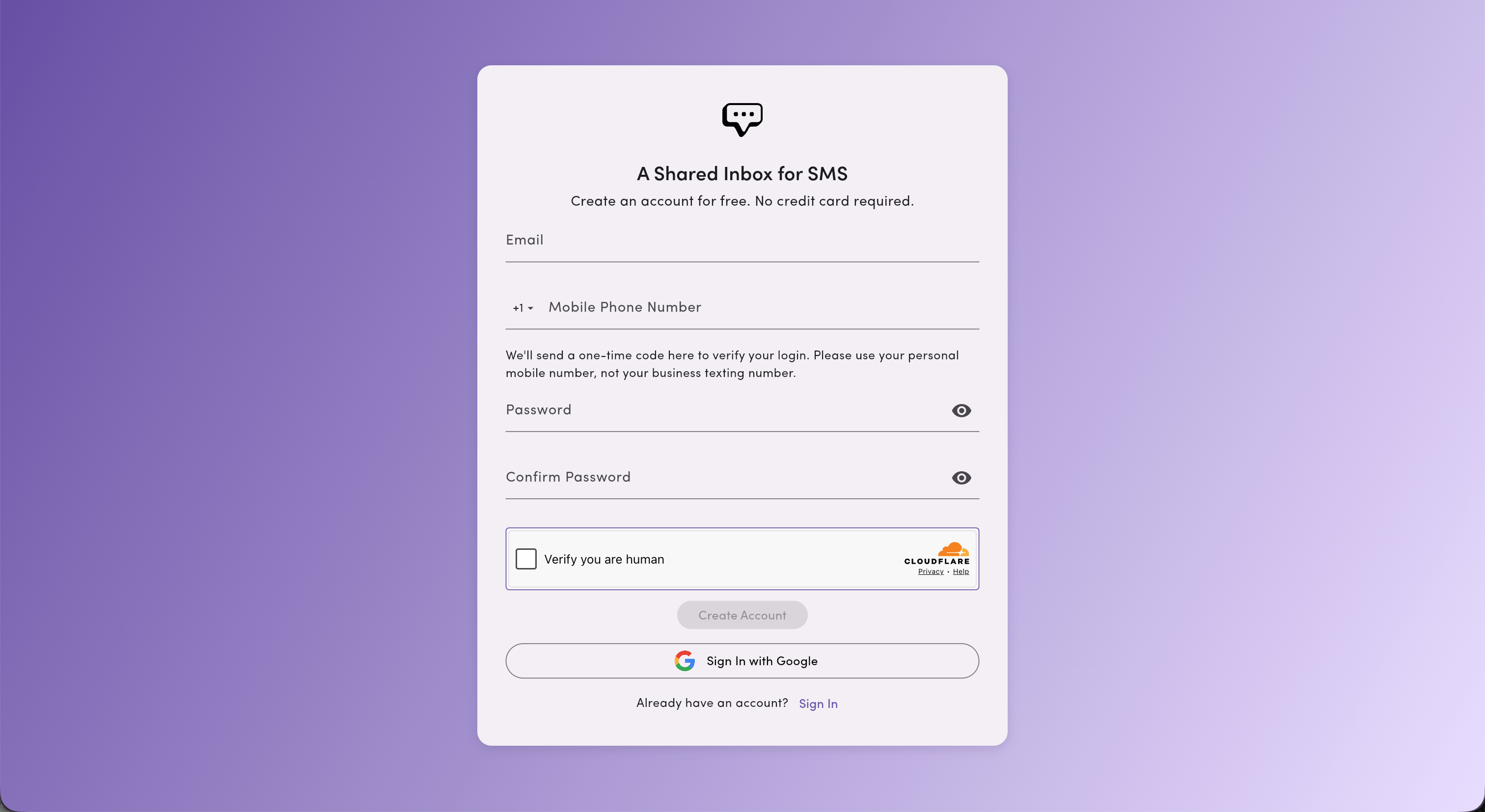
- At least 1 uppercase letter
- At least 1 number
- At least 1 symbol
Verify via mobile (SMS code)
You’ll receive a 6-digit code by SMS to your personal mobile number. Enter the code to continue. MessageDesk sends 2FA codes from a shortcode, which delivers them faster. You can also add a personal international phone number to receive 2FA login codes.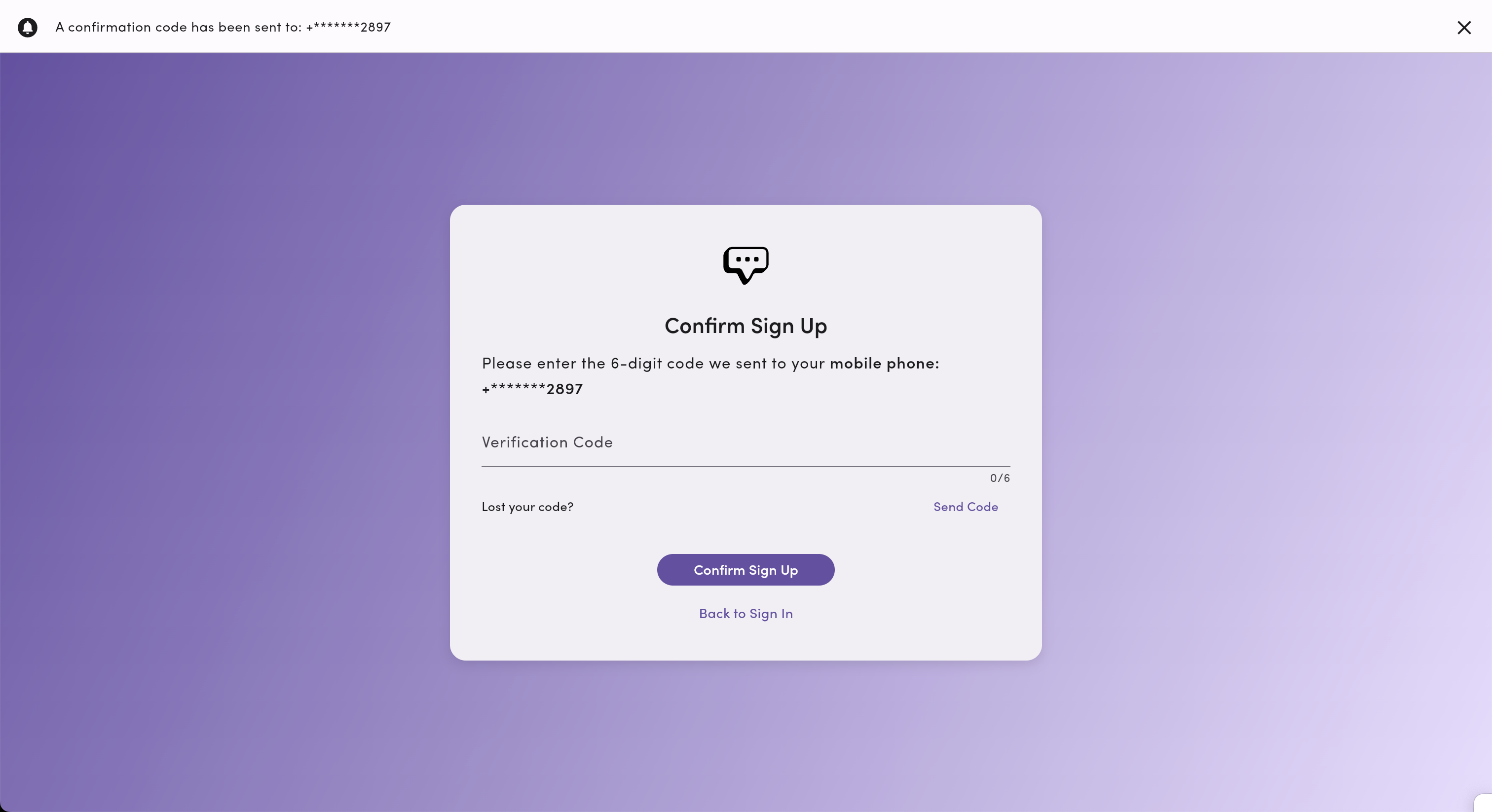
Verify your email (email code)
Next, we’ll send a second 6-digit code to your email. Enter the code to finish verification.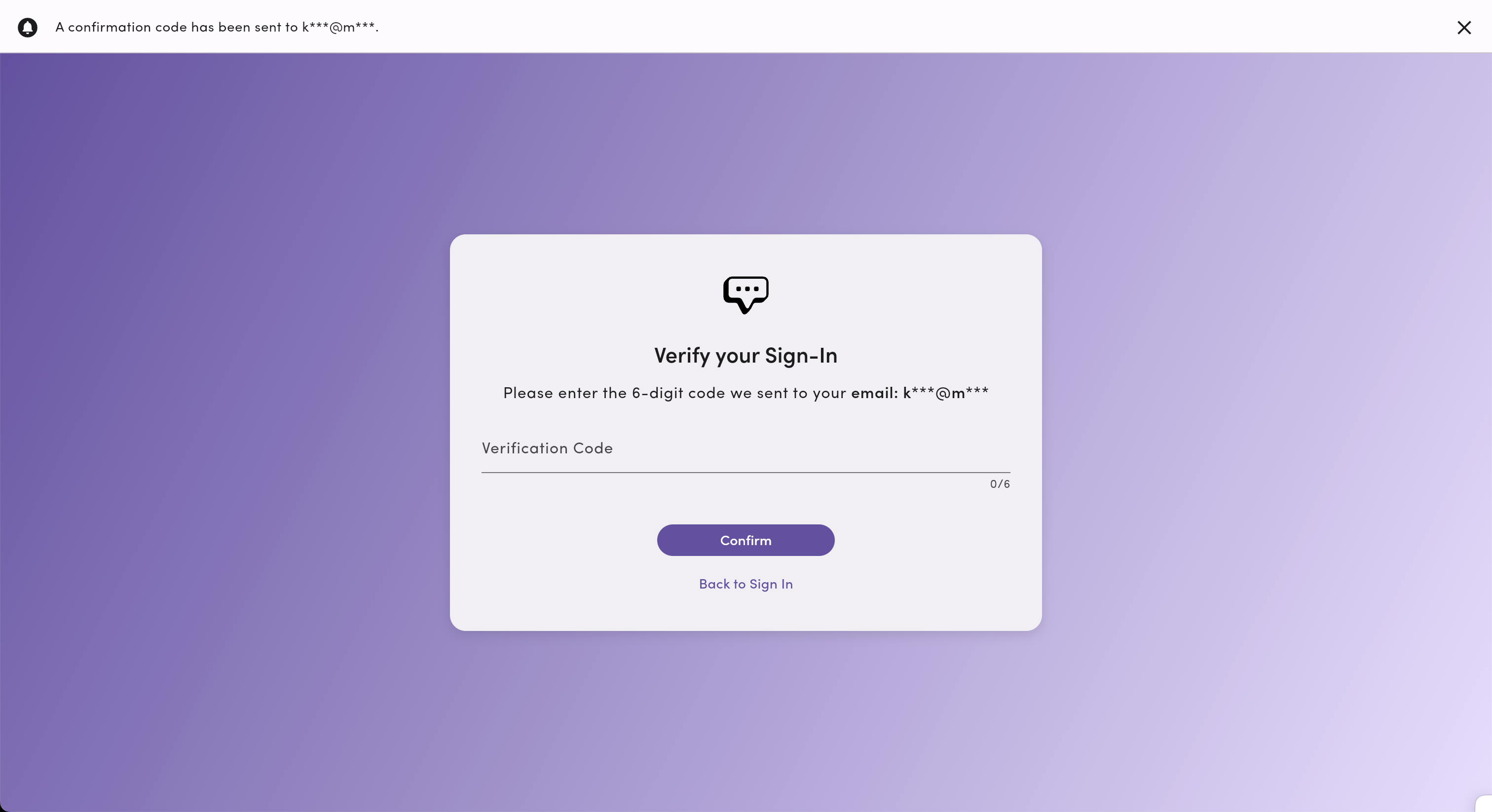
Name your workspace
Give your new workspace/inbox a name to complete the setup. You can change this later in Settings.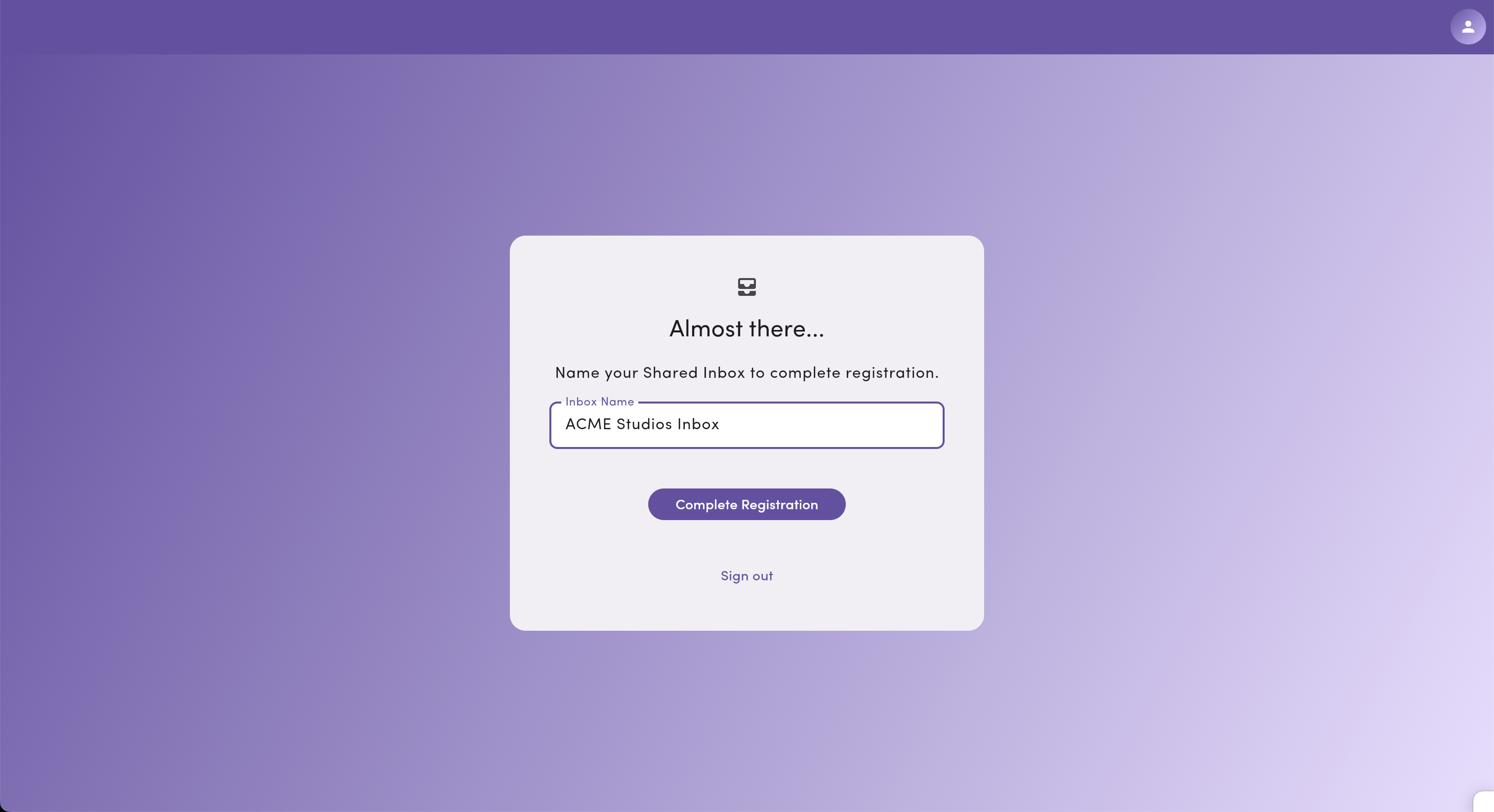
What happens next?
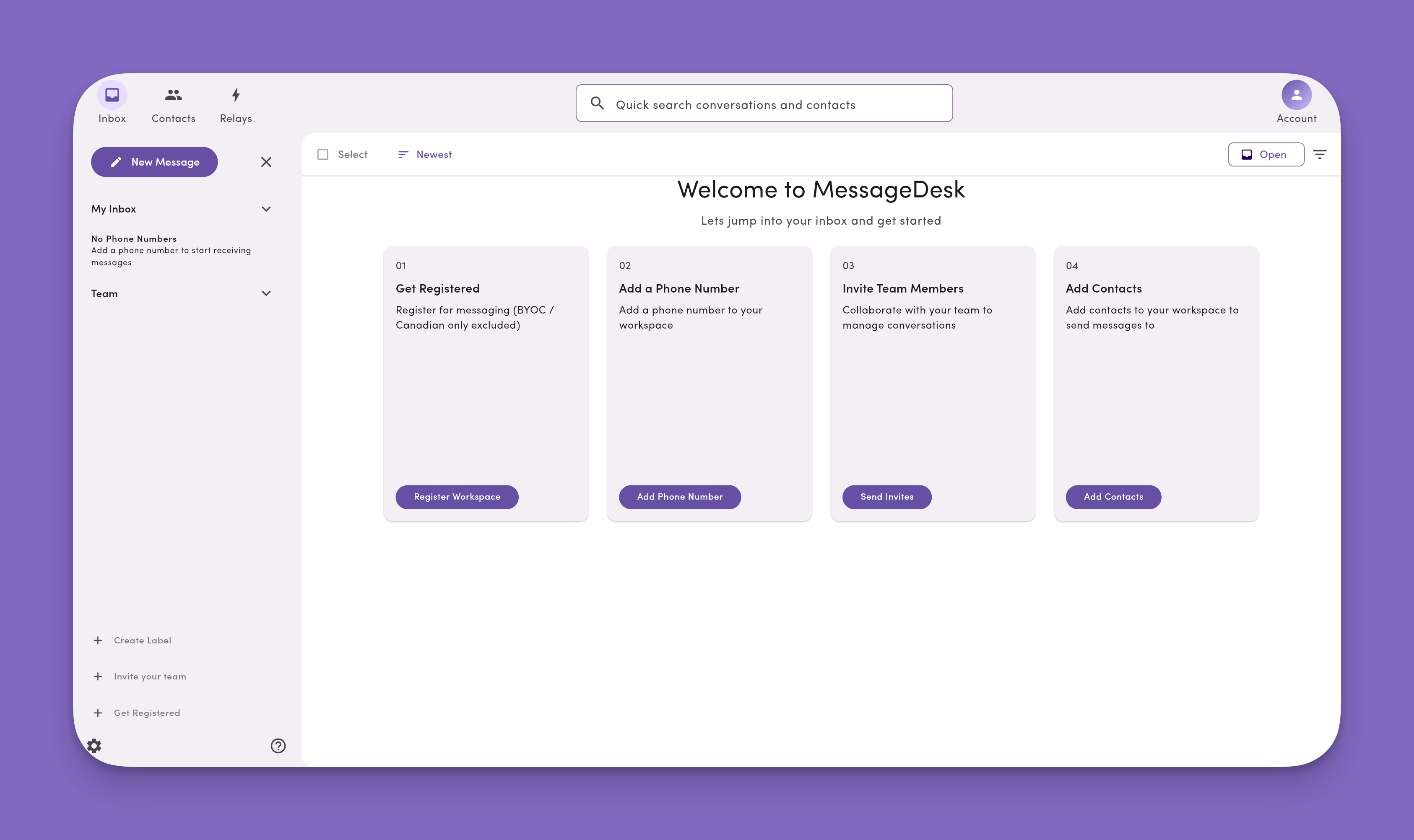
You’ll land in your new MessageDesk workspace with a prompt to complete the following steps:- Carrier Registration: your MessageDesk account includes this, and it’s required when you connect new phone numbers. The process varies depending on the types of phone numbers you connect.
- Connect phone numbers: you have several options here.
- Invite team members: bring your team to MessageDesk with set user roles and permissions.
- Import or add contacts: add contacts manually or via a .csv file upload.
Frequently asked questions
Is my personal mobile number used for texting customers?No. MessageDesk only uses it for account security and two-factor authentication (2FA). Your workspace uses separate business numbers you connect or purchase. Can I use an international phone number to create a MessageDesk account?
Yes. MessageDesk supports international phone numbers, but only for account creation, login, and two-factor account verification. MessageDesk doesn’t support sending or receiving messages from international numbers. Can I change my workspace name later?
Yes. Update it anytime in Settings → Workspace Profile. I was invited to a workspace. Do I still use this page?
Follow the invitation link you received to join the existing workspace: see Join a workspace.