

Compose and send new messages in MessageDesk
Send a quick 1-on-1, a small group text, or a one-to-many broadcast right from the New message composer. Here’s what each field does and where the limits are.At a glance: what makes up a new message
- Recipients: who you’re sending to
- Send from: which connected phone number you’re sending from
- Message: your text, plus options for template, media, and emoji
- Post-send actions: assign labels or teammates to conversations
- Send options: send now or schedule for later
How to compose and send a new message from MessageDesk
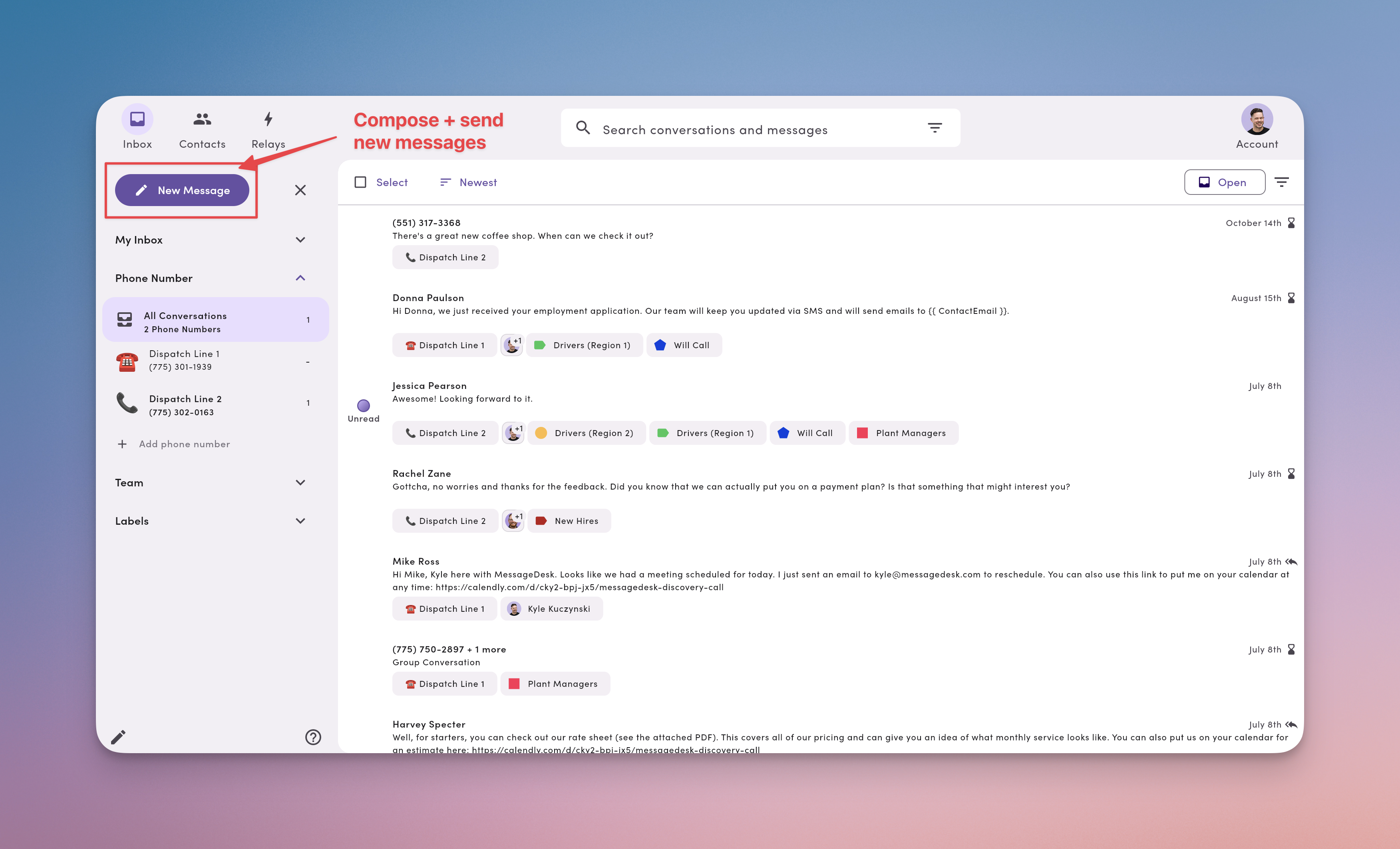
1. Click the New Message button from the Inbox
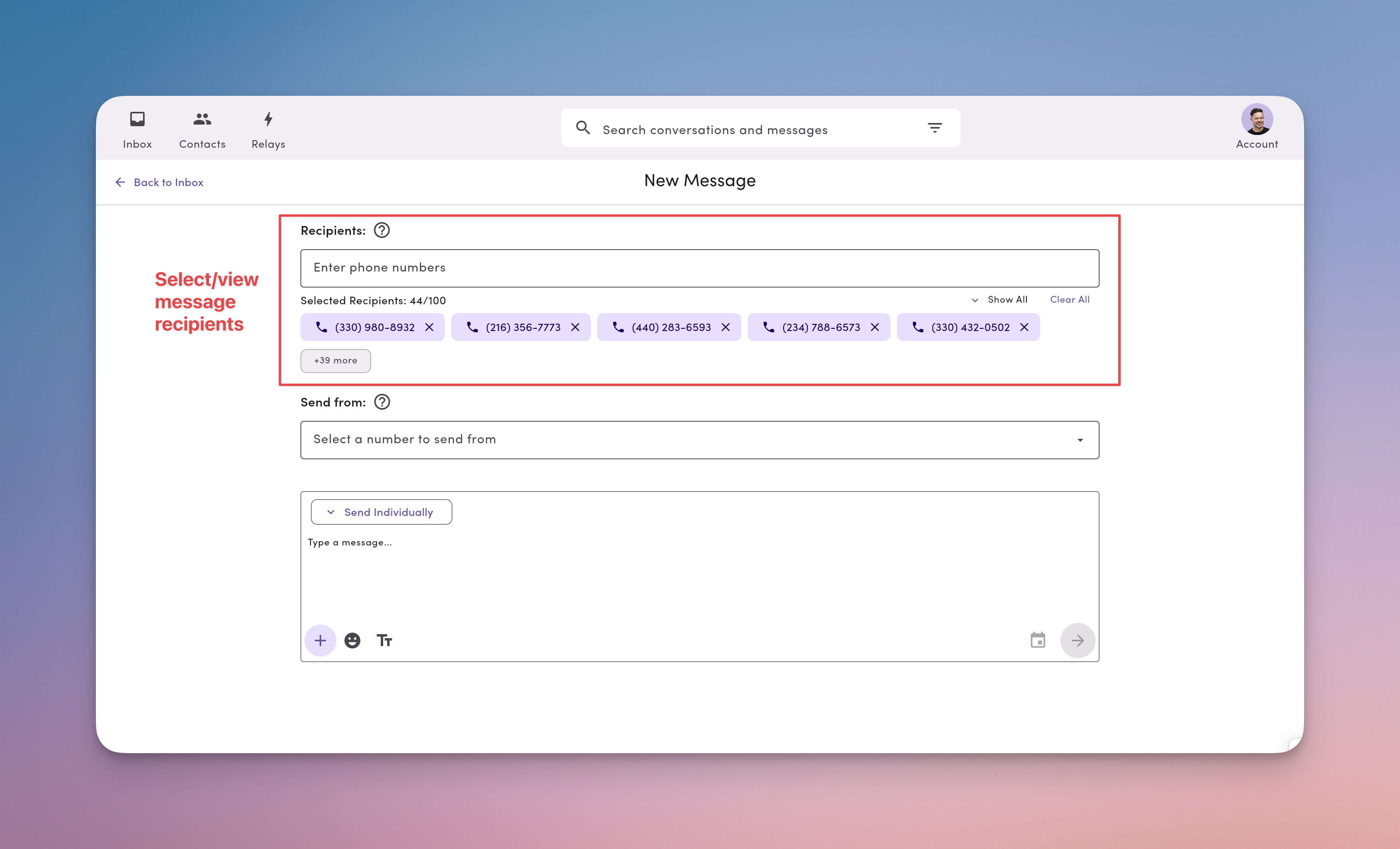
2. Add recipients
Search and add people by name, phone number, label, or assigned teammate. As you add them, you’ll see each recipient appear as a chip beneath the field to confirm they’re included.Recipient types
You can send messages to:- Individual contacts: search by name or phone number to add specific people
- Labels: select a label to send to all conversations with that label attached (up to 100 conversations)
- Assigned teammates: select a teammate to send to all conversations assigned to them (up to 100 conversations)
Filter your search
Use the filter icon to narrow your search results. You can filter by:- Conversations (individual contacts)
- Labels
- Assigned teammates
Recipient selection rules
- Only one label or assigned teammate can be selected per message.
- Once you select a label or assigned teammate, the search box is disabled.
- The message sends to the first 100 conversations with that label or assigned to that teammate.
- Once you select an individual contact, labels and assigned teammates no longer appear in search results.
- Mix individual contacts freely. Add up to 100 individual contacts by name or phone number.
- Copy/paste a list of numbers: You can copy/paste a list of phone numbers directly into the Recipients field. This works great for quick broadcasts.
- Per-send limit: You can add up to 100 recipients to a single message send. When using labels or assigned teammates, only the first 100 conversations receive the message.
- Editing: Remove anyone by clicking the “x” on their chip before you send.
- More: click + more to view all recipient phone numbers.
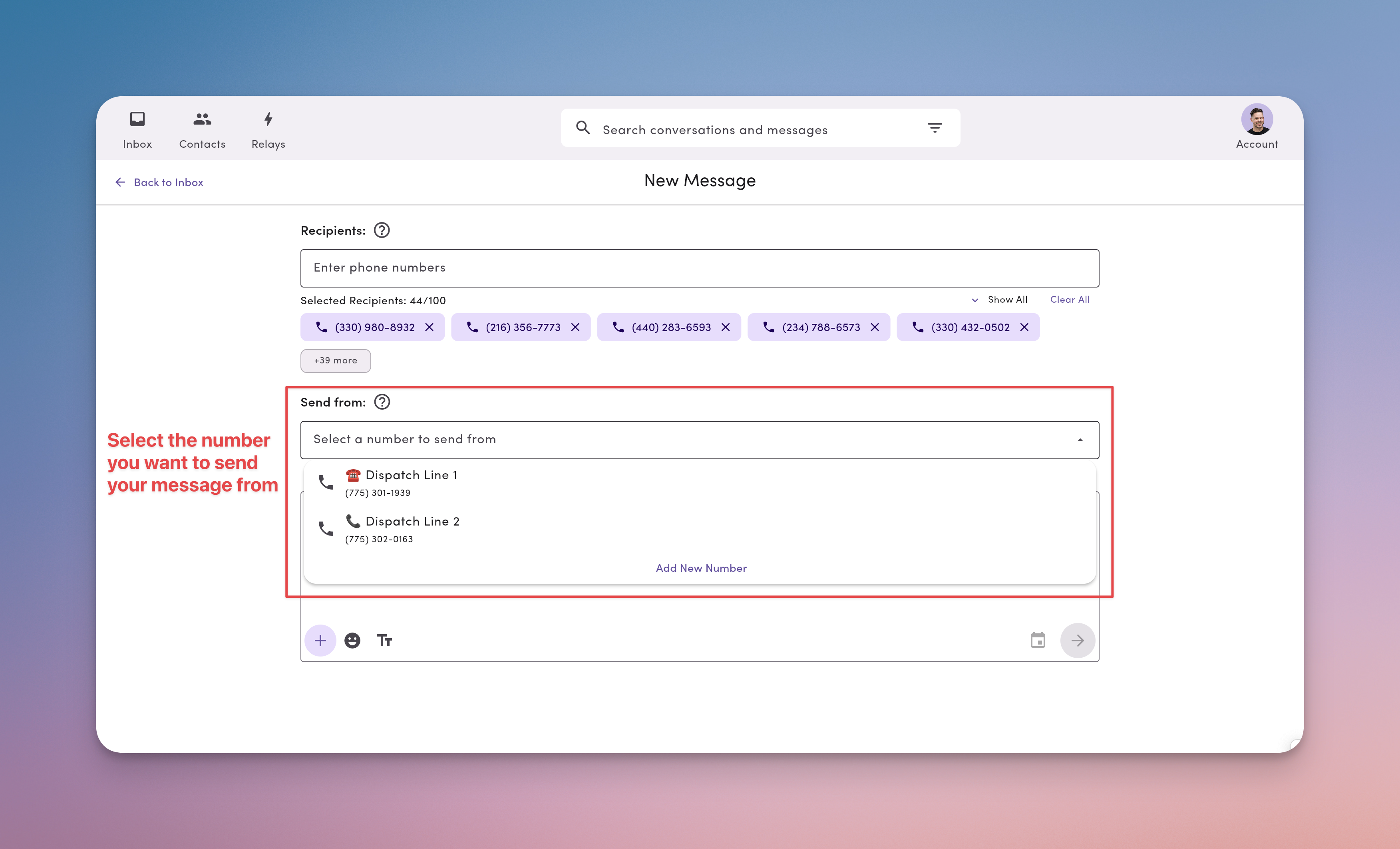
3. Select the phone number you want to send from
Choose the connected phone number you want to send from. You’ll see a dropdown of the active numbers available in your workspace.- Pick the number your contacts expect to hear from.
- If you don’t see a number, confirm it’s connected and active for your workspace.
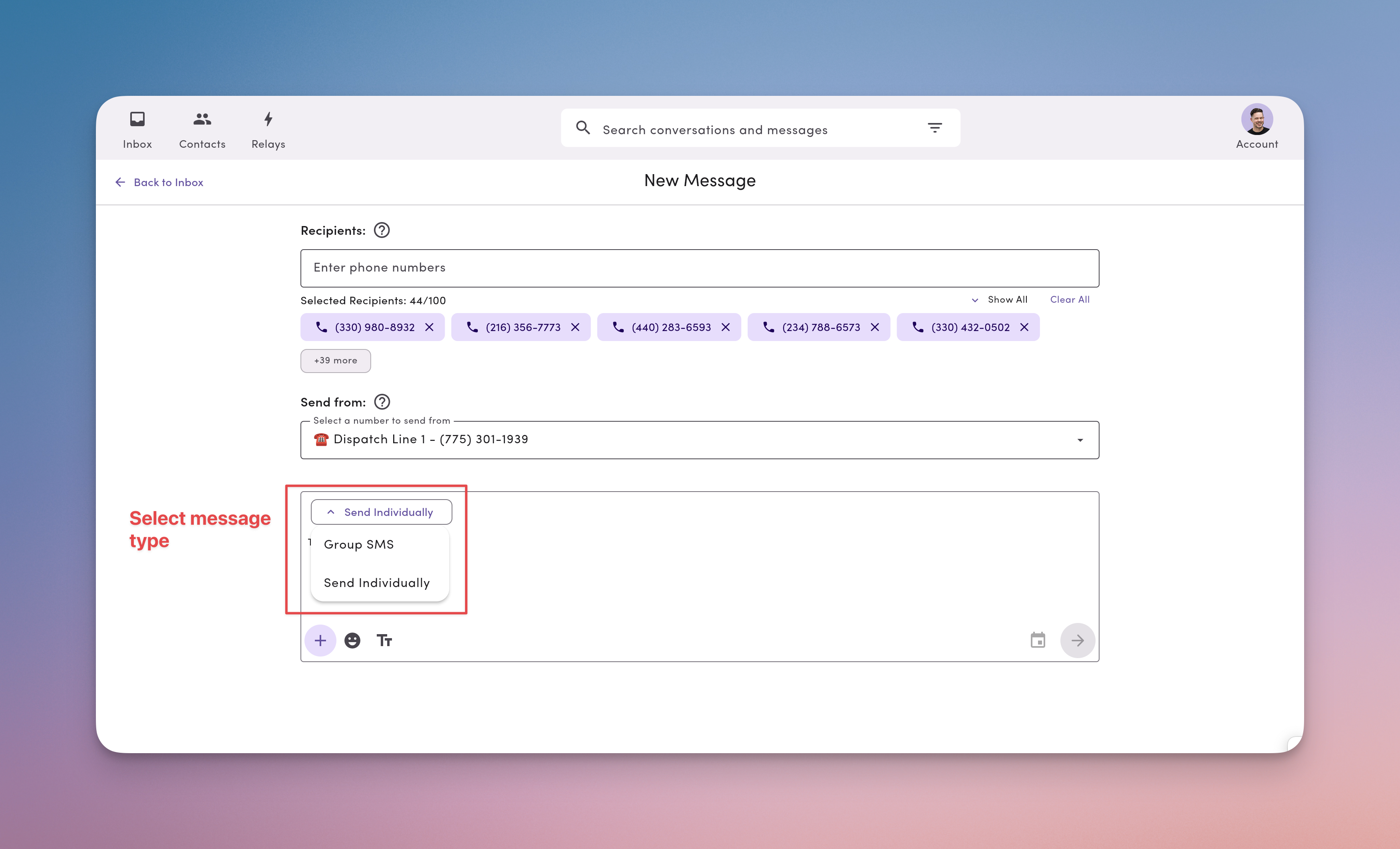
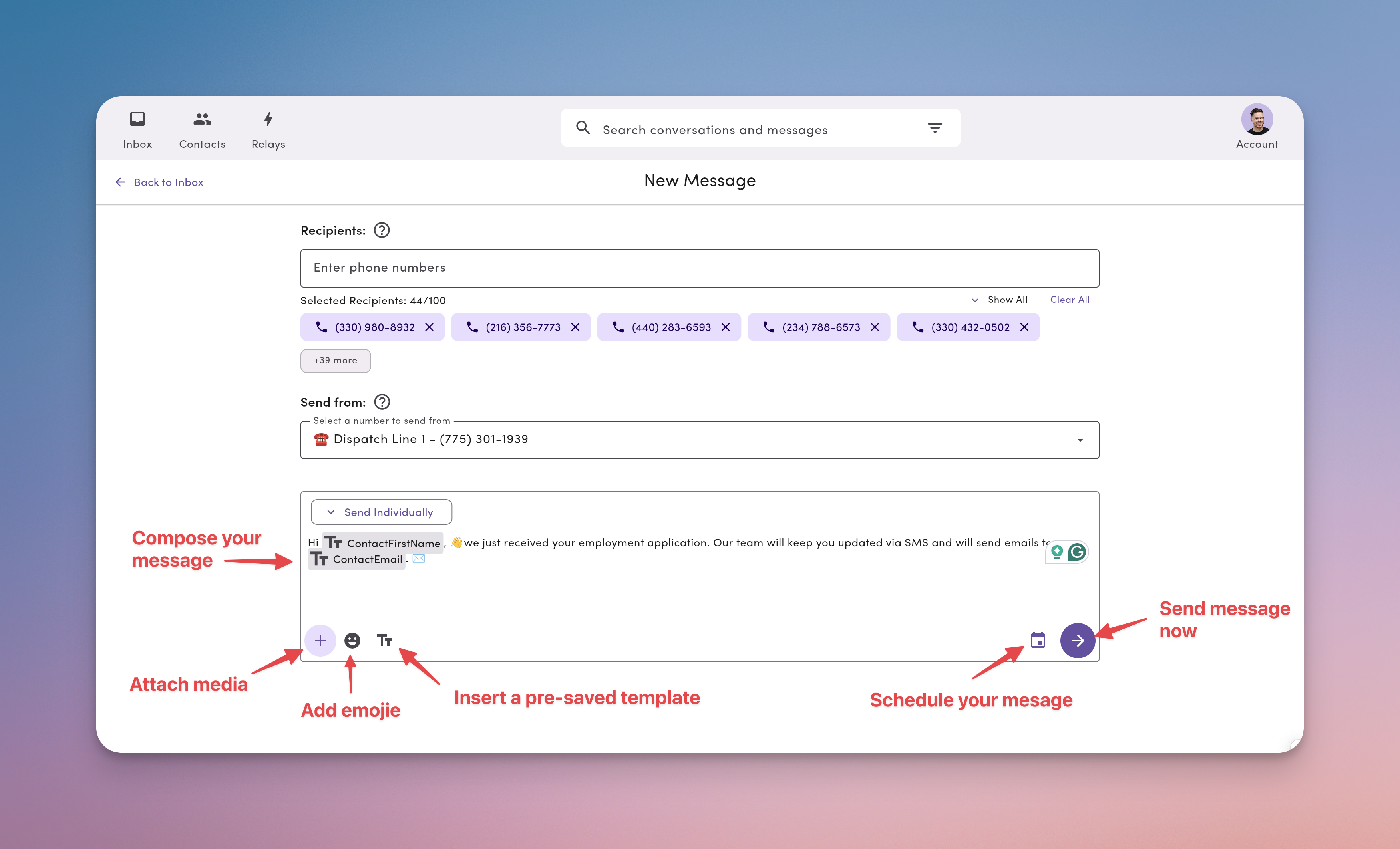
4. Compose your message
This is where you compose and configure what you’re sending.Select a message type
- Send individually
- Sends one message to each recipient.
- Replies come back as private 1-on-1 threads.
- Best for announcements, reminders, updates at scale (up to 100 per send).
- Group SMS
- Creates one shared thread where everyone sees all messages.
- Best for small, collaborative conversations.
- Note: Group SMS only works on 10-digit numbers. Toll-free numbers don’t support group texting due to carrier limitations.
Message types
Learn more about the various types of messages MessageDesk supports.
Write your message
- Type your text as usual.
- Apply a template to save time and maintain consistent wording.
- Add media (MMS) to include images, PDFs, or other supported files.
- Insert emoji for tone and clarity when it makes sense.
Preview your message before sending
MessageDesk shows a message preview so you can see exactly what each recipient will get before you send. The preview widget works on mobile and desktop, and it’s on by default.Turn the preview on or off
- From the preview widget: After your first send, dismiss the preview from the dialog itself.
- From Inbox Preferences: Toggle Message compose preview on or off in Account → Settings → Inbox Preferences (My Settings).
What the preview shows
- Resolved personalization tags. MessageDesk fills in contact properties and custom field values for the selected recipient, so you see the real message they’ll receive.
- Per-recipient iteration. Step through your recipient list to see the values populated for each individual contact. Use this to spot-check a broadcast before it goes out.
- Scheduled send time. If the message is scheduled, the preview shows the scheduled at time so you can confirm before saving.
Tag warnings in the preview
MessageDesk flags tags that may not resolve cleanly so you can catch problems before sending.- Red tag. A tag with no fallback and no data for that recipient. The tag sends as-is unless you set a fallback or fix the recipient’s data.
- Info notice on unresolvable tags. When you send to a label, assigned teammate, or group, MessageDesk can’t fetch per-recipient values until send time. The preview shows an info notice so you know those tags will only resolve once the message sends.
- Dynamic warnings for labels and assigned teammates. The compose UI adapts when you pick a label or teammate as your recipient. It shows warnings about which fields can and can’t be previewed.
When you send to a label, assigned teammate, or group, contact and custom field tags still resolve per recipient at send time. You just can’t preview each one individually in the composer.
Send a test message
Send a one-off test to any phone number before you commit to the full send.- Open the preview widget.
- Enter the phone number for the test. The field defaults to your own user phone number for a quick self-test.
- Send the test. The test uses the exact content and resolved tags from the preview.
Post-send actions
When sending a message, you can automatically apply actions to all recipient conversations after the message sends.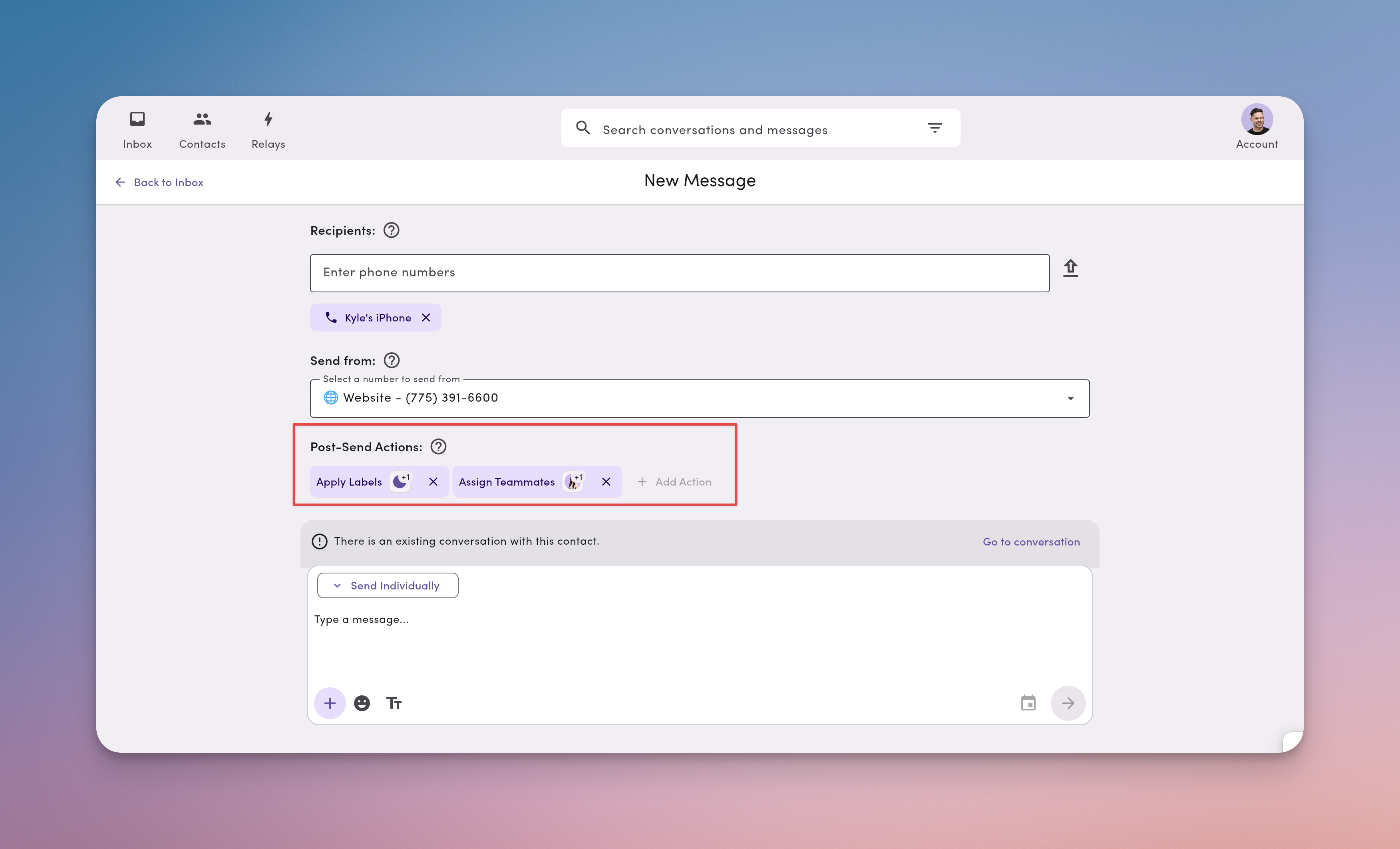
Available post-send actions
- Assign a teammate: automatically assign all recipient conversations to a specific teammate.
- Apply a label: automatically apply a label to all recipient conversations.
Note: Post-send actions are only available for broadcast message types. Post-send actions are disabled for Group SMS messages.
- Compose your one-to-many broadcast message with recipients.
- Select Send individually as your message type.
- In the Post-send actions section, choose one or both actions:
- Select teammates to assign conversations to.
- Select labels to apply to conversations.
- Send or schedule your message.
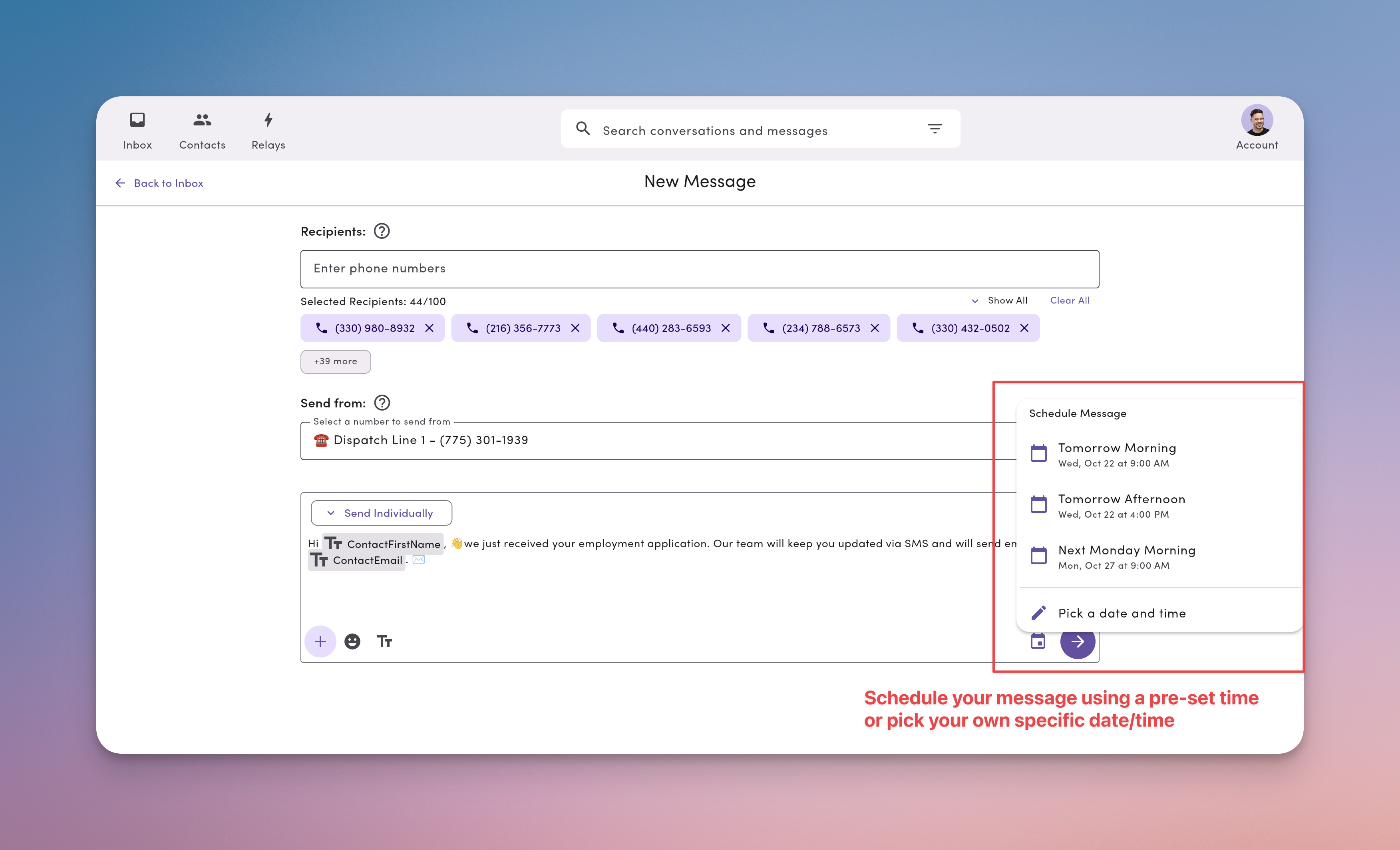
Schedule or send now
Choose when your message goes out.- Send now to send your message immediately.
- Schedule to send later.
- Pick from preset send times or select any date/time from the picker.
- Scheduled messages show the chosen send time so you can verify before confirming.
- Note: Scheduling is currently one-time only (not recurring). You can create as many scheduled messages as you like in advance and view them all in the Scheduled view in your inbox.
Tip: Schedule broadcasts during business hours for higher response rates and a better messaging experience.
New message examples
1-on-1 confirmation- Recipients: Add a single contact
- Send from: Your main business number
- Message: “Hi Alex, we have you for 2:00 PM today. Reply YES to confirm or 1 to reschedule.”
- Send: Now
- Recipients: Paste your list of today’s appointments
- Send individually: On
- Message: “Heads up: Our office is closing early today at 4 PM. Text us here with any questions.”
- Schedule: 9:00 AM today
- Recipients: Select the “VIP Customers” label
- Send individually: On
- Message: “Exclusive offer for our VIP customers: 20% off your next service. Reply to book!”
- Send: Now
- Recipients: Select teammate “Sarah”
- Send individually: On
- Message: “Quick reminder: Please follow up on your open conversations by end of day.”
- Send: Now
- Recipients: Add your field techs
- Send type: Group SMS
- Message: “Quick update: job 1842 running 20 min behind. Anyone nearby to swap?”
- Send: Now
Frequently asked message compose questions
What happens if I try to add more than 100 recipients?
What happens if I try to add more than 100 recipients?
You’re capped at 100 recipients per send. Create another message for the next batch.
Do replies to a broadcast go to everyone?
Do replies to a broadcast go to everyone?
No. Each reply creates a private 1-on-1 thread with you, not the whole list.
When should I use Group SMS instead of a broadcast?
When should I use Group SMS instead of a broadcast?
Use Group SMS when you want a short, collaborative thread where everyone can see replies. Use a broadcast when you want scale and private replies.
Can I edit or cancel a scheduled message?
Can I edit or cancel a scheduled message?
Yes. Visit the inbox and view Scheduled messages. Click to open the scheduled message to reschedule or cancel it before its send time.
What happens if a label or assigned teammate has more than 100 conversations?
What happens if a label or assigned teammate has more than 100 conversations?
Only the first 100 conversations with that label or assigned to that teammate receive the message.
Can I select multiple labels or assigned teammates?
Can I select multiple labels or assigned teammates?
No. You can only select one label or one assigned teammate per message. However, you can add multiple individual contacts (up to 100 total).
What are post-send actions and when can I use them?
What are post-send actions and when can I use them?
Post-send actions let you automatically assign conversations to a teammate or apply a label after sending a broadcast. They’re only available when using “Send individually” mode, not for Group SMS messages.
Can I preview a message before sending it?
Can I preview a message before sending it?
Yes. The message preview widget is on by default on mobile and desktop. It resolves personalization tags per recipient, flags tags that can’t be filled until send time, and lets you send a test message to any phone number. Turn it off from the widget after your first send, or in Inbox Preferences.