

Turn on browser notification sound
Use this page if MessageDesk browser notifications don’t appear, or they pop up but don’t make a sound. Browser notifications pass through three layers, and each one has to allow MessageDesk. If any one layer is off, you get a silent alert or no alert at all.The most common “I see the pop-up but hear nothing” case is layer 3. On macOS, Allow notifications and Play sound for notifications are two separate toggles.
Layer 1: Allow notifications for the MessageDesk site
Chrome
- Log in to MessageDesk in Chrome at
inbox.messagedesk.com. - Click the site settings icon to the left of the URL in the address bar.
- Toggle Notifications to On.
- For more options, click Settings in that same menu to open the full site settings page. Make sure Notifications is set to Allow and Sound isn’t set to Mute.
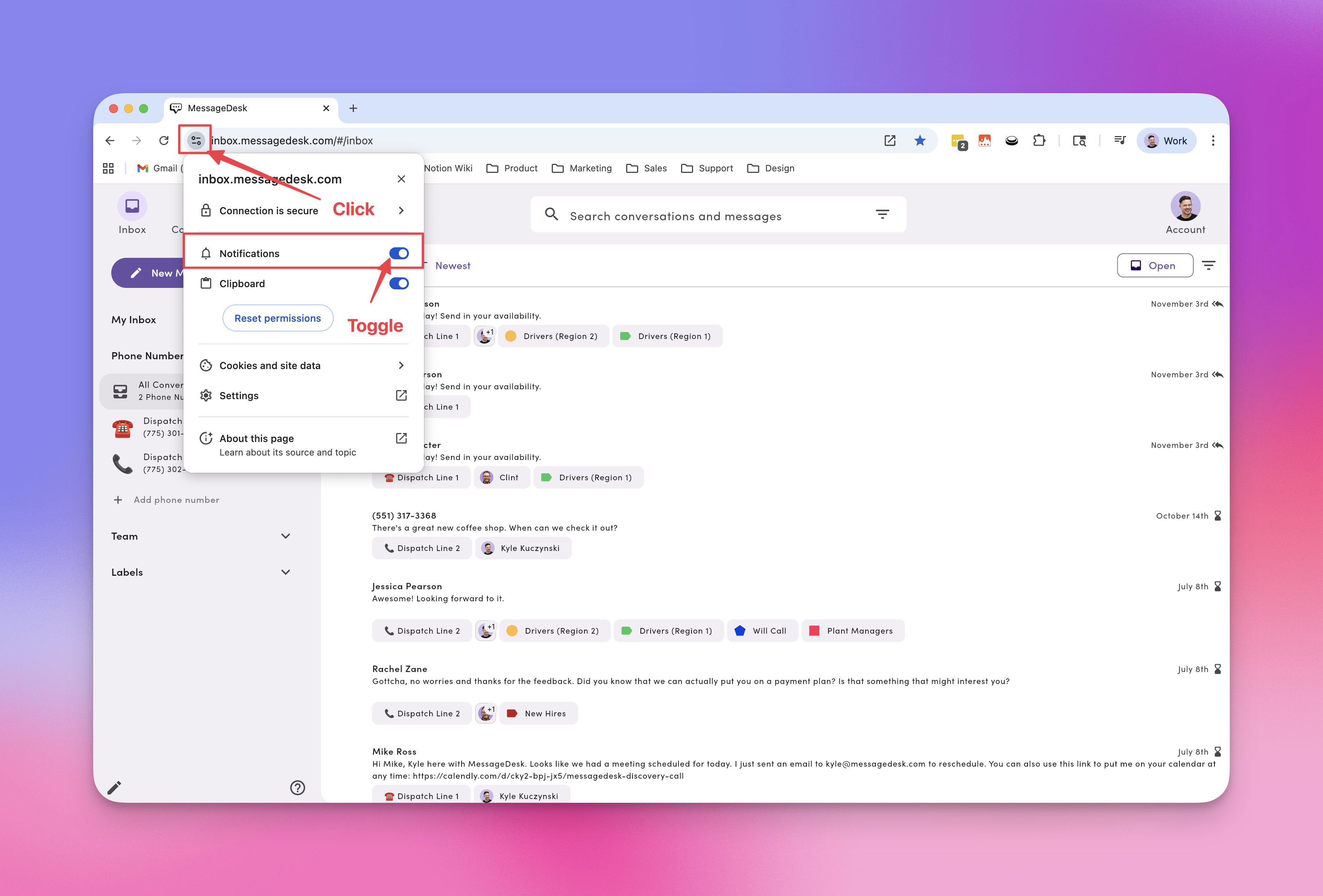
If you never saw Chrome’s “Allow notifications?” prompt when you first logged in, Chrome may have blocked it quietly. Setting the permission manually here fixes that. If you’d previously clicked Block, click Reset permissions in the site settings menu, reload MessageDesk, and click Allow when prompted.
Chrome App (installed PWA)
If you installed MessageDesk as a Chrome App, open the app, click the More menu (three dots) in the app’s title bar, then App info → Settings. Toggle Notifications on.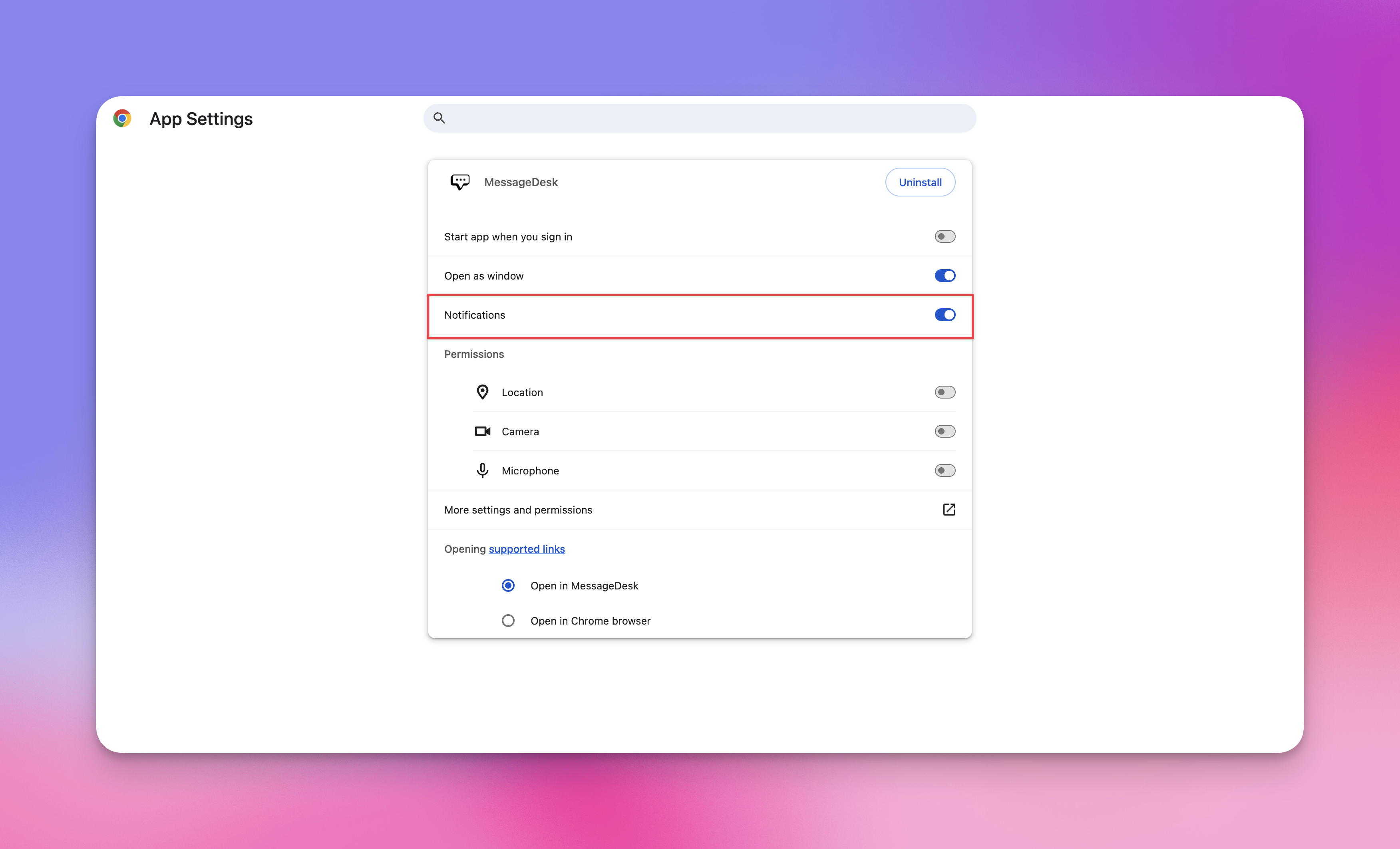
Microsoft Edge
Edge is built on Chromium, so the steps match Chrome: click the lock or site settings icon in the address bar, then set Notifications to Allow.Layer 2: Check your browser’s notification settings
Even with the site allowed, a browser-wide block stops every notification.Chrome
- Open Chrome → Settings → Privacy and security → Site settings → Notifications. You can also paste
chrome://settings/content/notificationsinto the address bar. - Under Default behavior, select Sites can ask to send notifications.
- Scroll to Customized behaviors. Make sure
inbox.messagedesk.comis under Allowed to send notifications, not Not allowed to send notifications. If it’s blocked, click the three dots next to it and choose Allow.
Chrome’s Use quieter messaging option suppresses permission prompts. If it’s on, Chrome won’t ask you to allow notifications, so you need to add MessageDesk to the allowed list manually.
Microsoft Edge
- Open Edge → Settings → Cookies and site permissions → Notifications.
- Turn on Ask before sending.
- Make sure
inbox.messagedesk.comis under Allow, not Block.
Layer 3: Allow the browser to notify you at the OS level
This is the layer that controls sound. Your operating system plays notification sounds, not MessageDesk or the browser.macOS
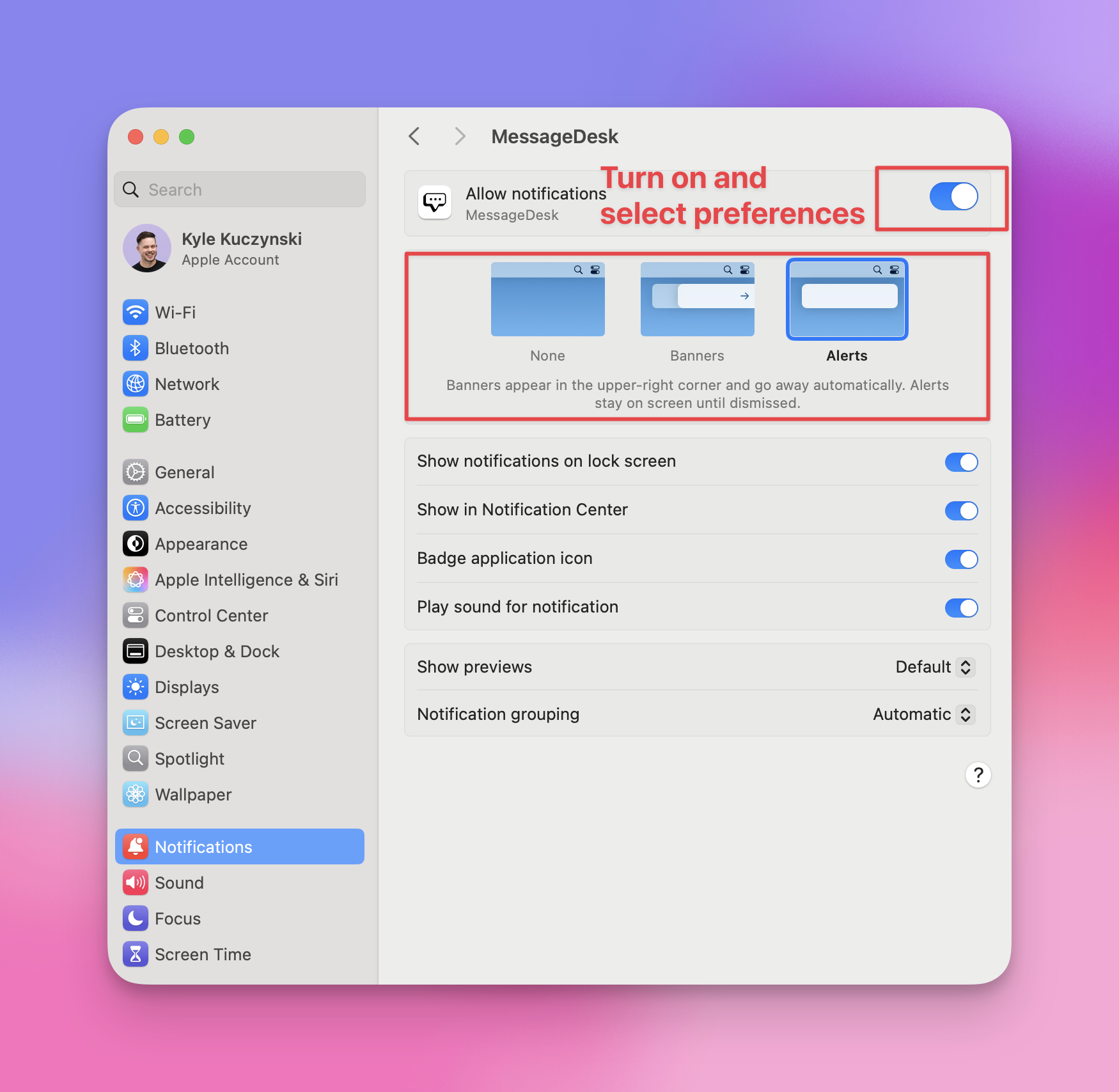
- Open System Settings → Notifications.
- In the app list, select Google Chrome (or Microsoft Edge). If you use the installed Chrome App, look for MessageDesk instead.
- Turn on Allow notifications.
- Choose Banners or Alerts as the style. None hides notifications entirely.
- Turn on Play sound for notifications. This is a separate toggle from Allow notifications, and it’s the one most often missed.
- Optional: turn on Show in Notification Center and Badge application icon.
Windows 10 and 11
- Open Settings → System → Notifications.
- Turn on the main Notifications toggle at the top.
- Scroll to Notifications from apps and other senders and turn on Google Chrome (or Microsoft Edge).
- Click the app’s name to open its detail page. Turn on Show notification banners and Play a sound when a notification arrives.
- Check Do not disturb (Windows 11) or Focus assist (Windows 10) is off, or that your browser is on the priority list.
Safari and Firefox
- Safari (installed app, macOS Sonoma and later): Install MessageDesk as a Safari App, allow notifications when the app asks, then manage sound and style in System Settings → Notifications → MessageDesk (the screenshot above).
- Safari (browser tab): Not covered by this guide. Use the installed Safari App instead for reliable notifications.
- Firefox: Not covered by this guide. MessageDesk supports Chrome, Edge, and the installed Safari App for browser notifications.
Test it
- Restart the browser after changing any of the settings above. If notifications still don’t appear, restart your computer. macOS and Windows sometimes don’t apply notification changes to a running app.
- Keep MessageDesk open in a tab or in the installed app, and stay signed in.
- Have someone text your MessageDesk number from their phone. Sending a message from MessageDesk yourself won’t trigger a notification. Notifications only fire for inbound messages (and for @mentions in comments).
- You should see a banner and hear your system’s notification sound.
Quick checklist
Work through these in order when a teammate says “I don’t hear notifications”:- Notification Preferences in MessageDesk isn’t set to Don’t send me notifications.
- Site permission for
inbox.messagedesk.comis Allow (layer 1). - Browser settings allow sites to send notifications, and MessageDesk isn’t on the blocked list (layer 2).
- OS settings allow the browser to notify, with Play sound on and the style set to Banners or Alerts (layer 3).
- Focus / Do Not Disturb is off.
- Browser restarted after changes.
- Tested with an inbound text, not an outbound send.
- Your computer’s volume is up and not muted.
FAQ
Why do I see the notification but don’t hear a sound?Your OS controls notification sounds. On macOS, turn on Play sound for notifications for Google Chrome (or MessageDesk) under System Settings → Notifications. On Windows, turn on Play a sound when a notification arrives for your browser under Settings → System → Notifications. I changed the settings and still get nothing.
Restart the browser, then the computer if needed. Then test with an inbound text from another phone. I never got asked to allow notifications.
Your browser may have suppressed the prompt. Set the permission manually using the steps in Layer 1 and Layer 2. Does this apply to the mobile app?
No. Mobile push sound is controlled by your phone’s settings. See Configure mobile push. Can MessageDesk change the notification sound?
No. The sound comes from your operating system’s notification settings for the browser.