

Filter contacts and save filters for reuse
The Contacts module lets you filter contacts based on their properties saved in MessageDesk. You can use Criteria and Conditions to create various types of filters, then save a filter as a reusable view. A saved filter effectively gives you a reusable group of contacts that you can select and message together.Filters organize contacts. Labels organize conversations. If you’re looking to group message threads in your Inbox, see Labels. For a side-by-side comparison, see Labels vs. contact filters below.
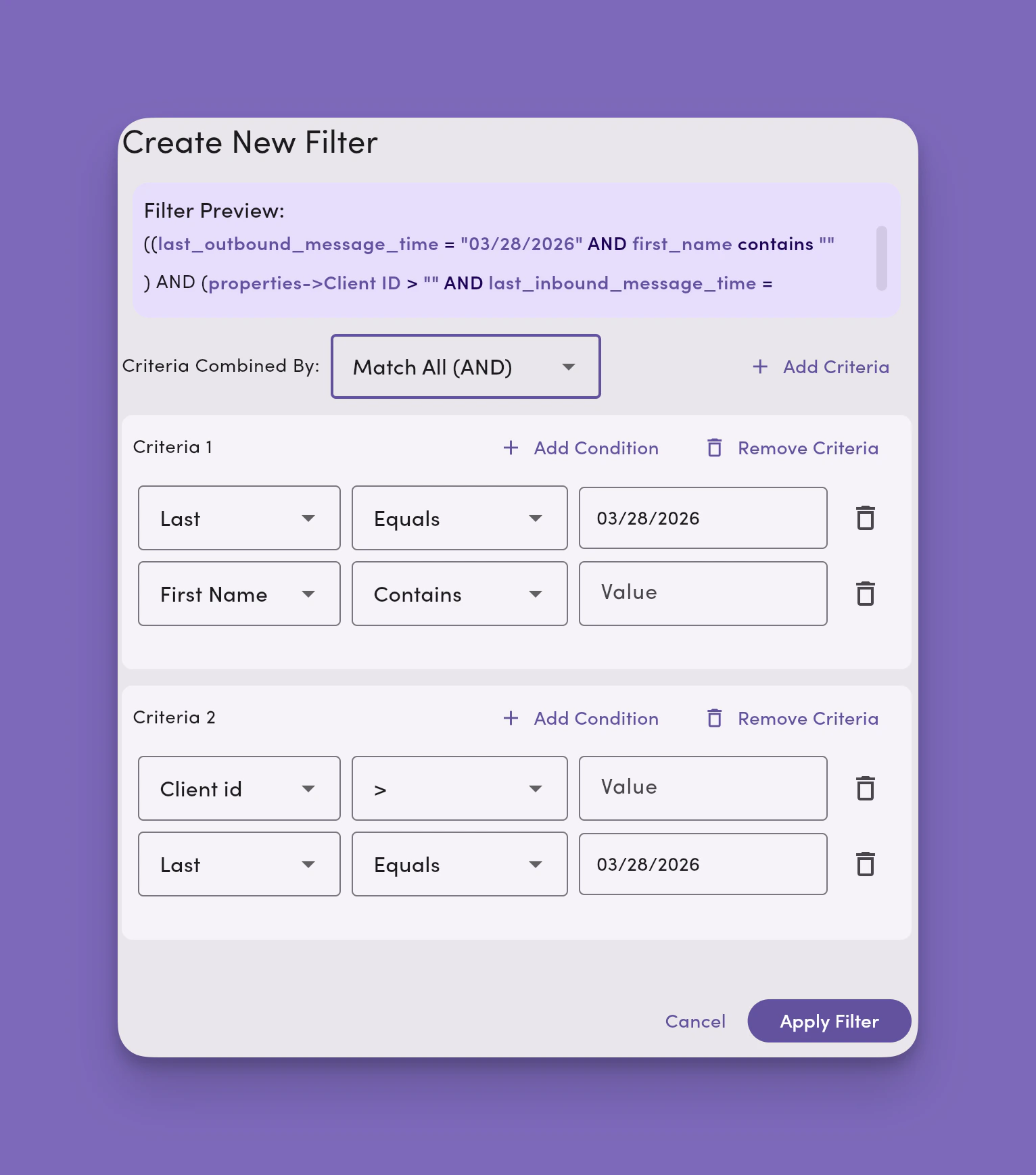
Add criteria
Criteria are a set of conditions. You can add as many criteria as you like to a filter. As you add criteria, you’ll see a filter preview. Criteria work in two ways: creating AND and OR statements.- Selecting Match All (AND) means all criteria must meet the filter’s conditions.
- Selecting Match ANY (OR) means any criteria must meet the filter’s conditions.
Add conditions
Conditions are based on data fields saved and populated as part of the contact’s profile in MessageDesk. You set your filter on conditions on standard fields like:- First Name
- Last Name
- Last Outbound Message Time
- Last Inbound Message Time
Condition operators
Use condition operators to create logical expressions for your filters. The types of operators available depend on the field’s data type (true/false, dropdown, date, number, phone, and text).Available condition operators
- Contains
- Equals
- In
- Is Empty
- > (greater than)
- >= (greater than or equal to)
- < (less than)
- <= (less than or equal to)
- NOT Contains (doesn’t contain)
- NOT Equals (doesn’t equal)
Is Empty doesn’t take a value. When you select Is Empty, the value selector is removed. The operator alone defines the match. Use it to find contacts missing a value in a given field (for example, contacts with no opt-in status set).
Save and edit filters
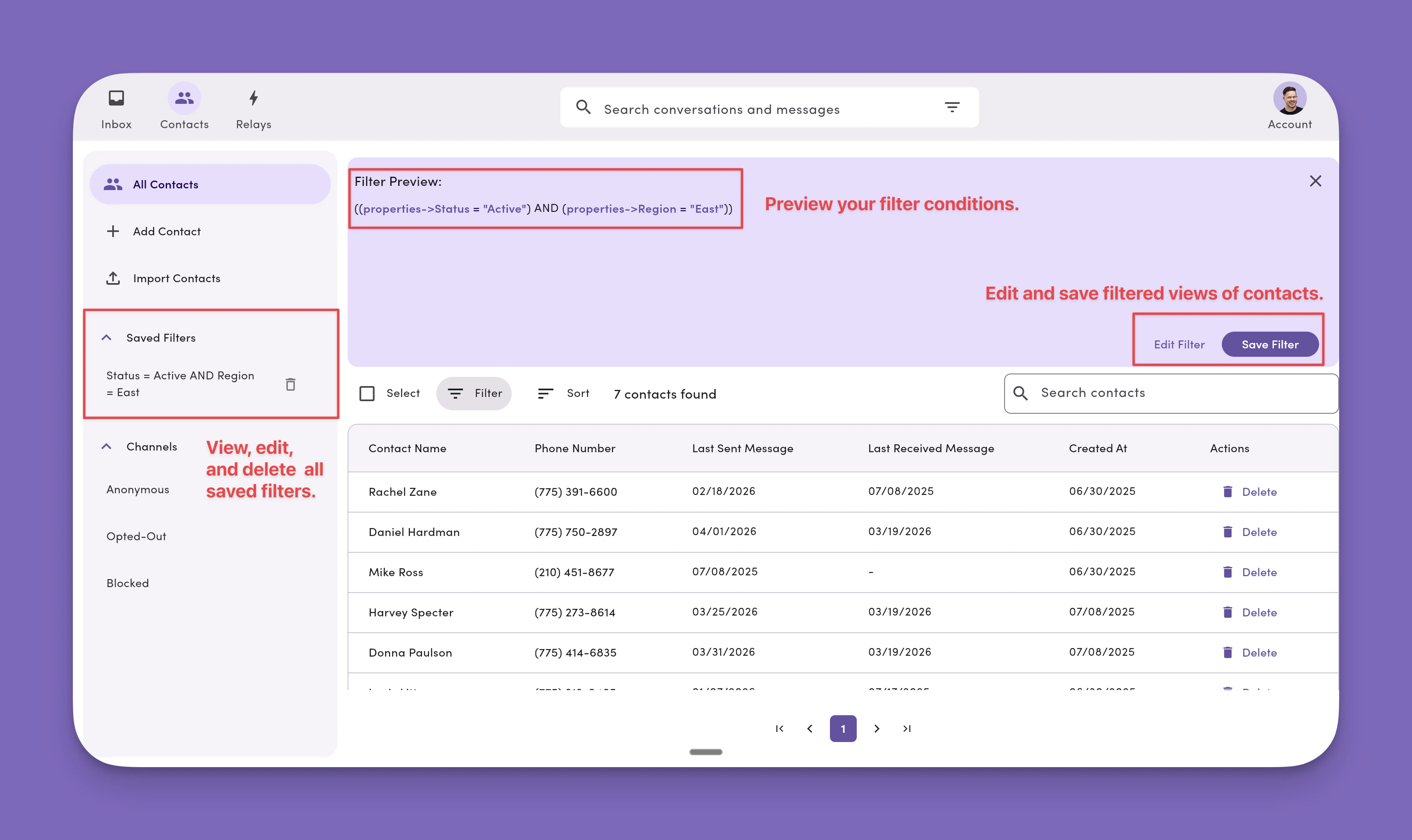
- Click Save Filter.
- Give your filter a name.
- Click Save.
Search saved filters
Use the search widget in the Contacts side menu to quickly find a saved filter by name. Selecting a result navigates to Contacts with that filter applied.Saved filter search is available on the desktop web app only. It’s not available on tablet or mobile, since filters can’t currently be managed in Contacts on those platforms.
- Search matches against the filter name only (not its criteria or conditions).
- The widget follows the same design as the global search bar and the Contacts search bar for a consistent experience across MessageDesk.
Delete a saved filter
To remove a saved filter:- Open Contacts in the desktop web app.
- In the Contacts side menu, find the saved filter you want to remove.
- Click the Delete button on the filter.
- Confirm the deletion.
Message contacts from a saved filter
Open a saved filter in Contacts, select the contacts in that filtered view, and send a message to that group. When sending, you can also apply one or more labels to the conversations the message creates. Use post-send actions in the New Message Compose screen to choose the labels before sending.Labels vs. contact filters
Labels and contact filters serve different purposes in Inbox by MessageDesk.- Labels organize conversations. They can be applied when sending a message, directly from the Inbox, or automatically using a Relay. See Labels.
- Contact filters organize contacts. You filter contacts based on properties such as custom fields and save those filters for future use. A saved filter effectively gives you a reusable group of contacts that you can select and message together.
FAQ
Can I apply a label to a contact in a saved filter?Labels apply to conversations, not directly to contacts. To label contacts from a filter, select them and send a message with a label chosen under post-send actions. The label applies to each conversation the message creates. See How to apply labels to contacts for the full breakdown. Can I export the contacts in a saved filter?
No. Contact exports are a full workspace dump. Filtered exports aren’t supported in this version. See Data Center.