

Data Center
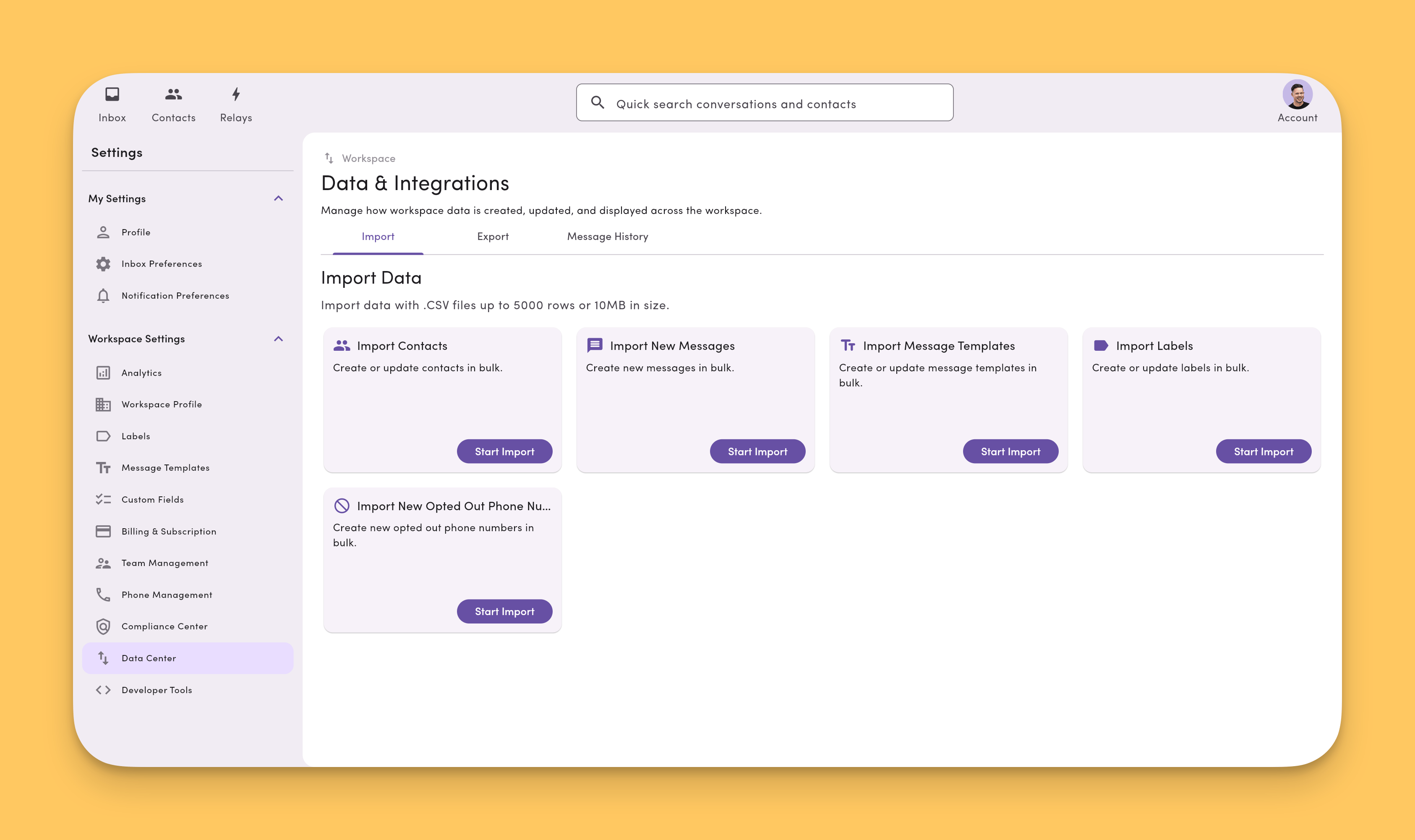
The Data Center is your hub for managing workspace data in MessageDesk. It has three tabs:- Import: upload CSVs of contacts and historical messages, map fields, resolve duplicates, and monitor progress.
- Message History: search, filter, and export every message sent or received in your workspace.
- Export: run a full CSV export of your workspace’s contacts.
Message History exports, contact exports, and per-conversation exports all run through the same universal export system. Each one processes asynchronously in the background. MessageDesk delivers the file through the Export Available button in the top nav, plus an export completed email to the user who triggered it.Imports work the same way. When a contact, message, message template, label, or opt-out import finishes, MessageDesk sends an import completed email to the user who started it with a summary of the run.
Access the Data Center
Go to Account → Settings → Data Center (under Workspace Settings), then choose the Import, Message History, or Export tab.Don’t see Data Center? Your role may not include access. Ask an Admin or Manager to adjust your permissions.
How to import contacts
Build your contact list quickly by uploading a CSV and mapping it to MessageDesk fields.Start an import
- Open Settings → Data Center.
- Click Start Import.
- Choose your .csv file and upload.
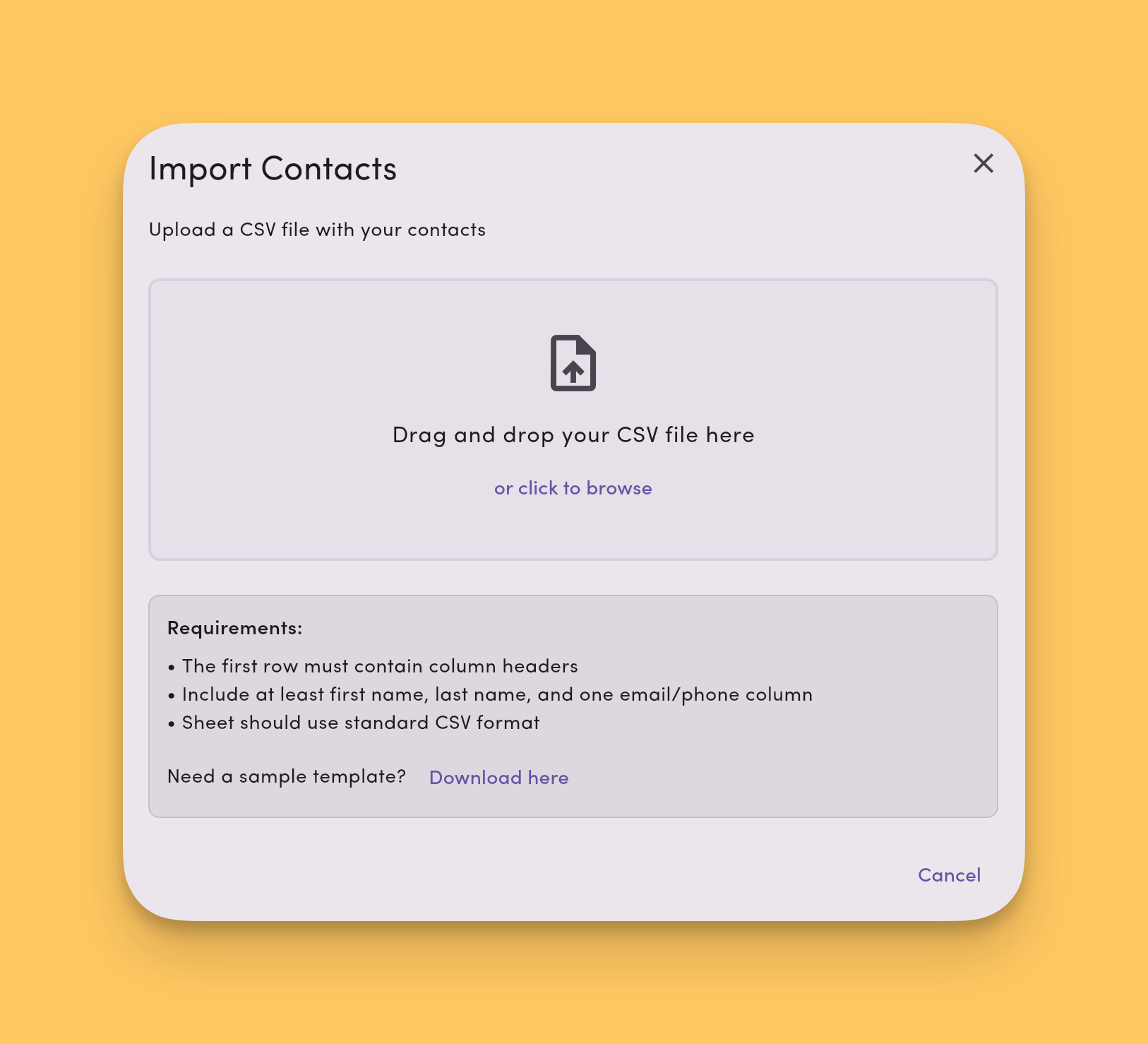
Map your columns
- Columns that match MessageDesk field names auto-map.
- Adjust mapping manually as needed.
- You can map custom fields. Make sure the CSV data type matches the field type.
- A single contact can carry multiple phones, emails, and addresses. Map each column (for example,
mobile,work_phone,email_home,email_work,address_billing,address_shipping) to its own field. They all attach to the same contact record.
Review duplicates and errors
- MessageDesk updates duplicates (matched by email or phone) with the values in your import. Only mapped columns with a value get updated. Empty cells leave existing fields unchanged.
- The importer flags invalid data (for example, bad phone or email format) so you can fix it and re-upload.
- Processing skips problem rows.
Monitor progress
After you start the import, you’ll see the real-time status. When complete, a summary shows total processed, imported, skipped, and any error reasons.See Create and Import Contacts for a step-by-step walkthrough.
How to import messages
Import past SMS from any platform or service into MessageDesk so you keep the full conversation context.Start a message import
- Open Settings → Data Center.
- Click Start Import.
- Upload your .csv file.
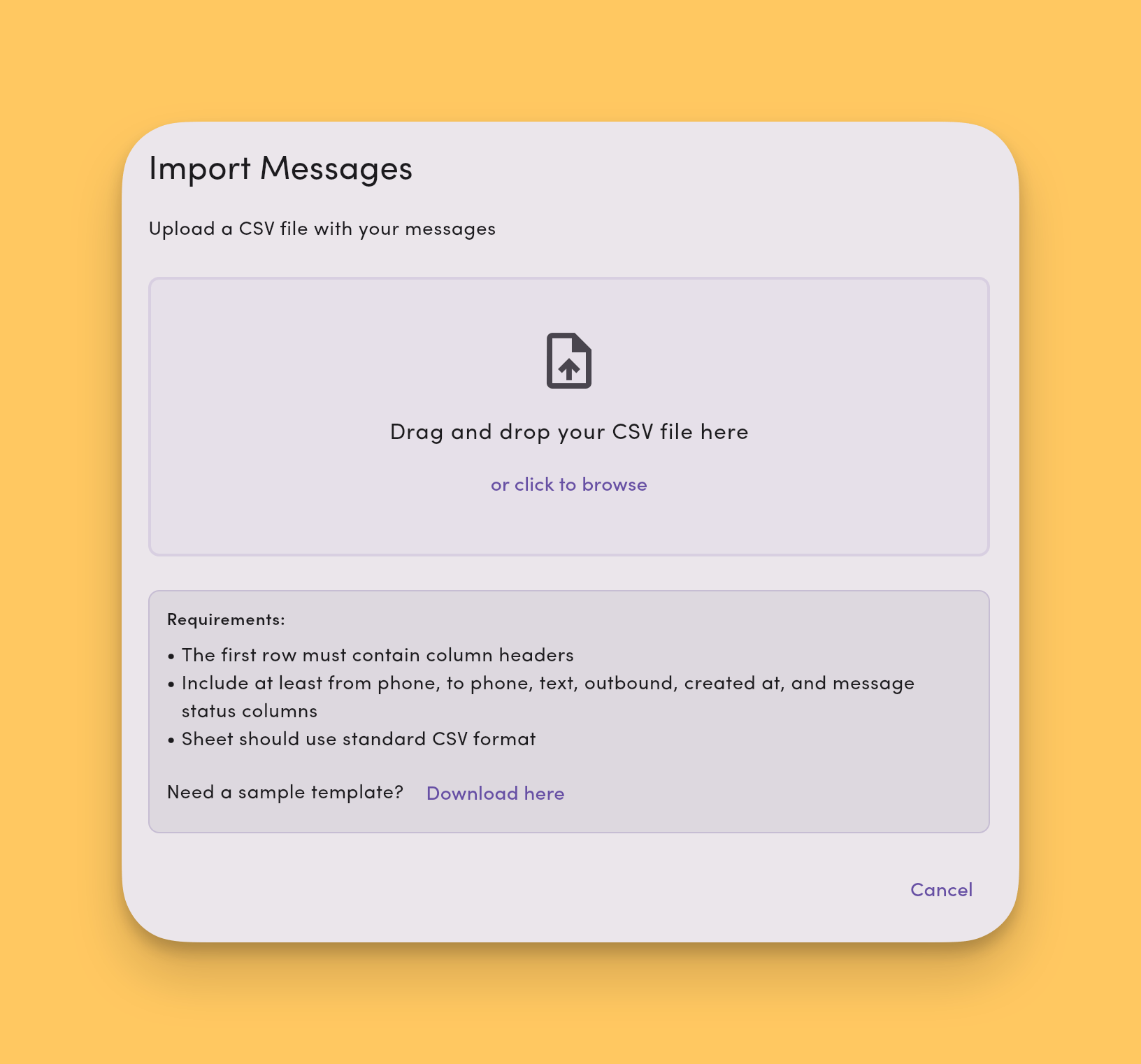
Map your data
- Map CSV columns to MessageDesk message fields (timestamp, direction, phone number, text, channel/line).
- Review and confirm the mapping for accuracy.
Validate, review, and import
- Preview parsed messages and fix any errors the validator surfaces.
- Click Import to start processing. A bottom banner flags pre-import issues (if any).
Supported message types
- Outbound (sent) messages.
- Inbound (received) messages.
- 1-on-1 conversations.
- Group conversations.
How message import works
- Automatic conversation creation: If a conversation doesn’t exist for a row, MessageDesk creates it.
- Existing conversations: Rows match into existing threads when possible.
- Channel requirement: You can only import messages into outbound channels that already exist in your workspace.
How to import message templates, labels, and opt-outs
Bulk-load your workspace’s shared message templates, labels, or opt-out list from CSV. Each importer runs from the same Import tab as contacts and messages, and delivers an import completed email when it finishes.Import message templates
Migrate a template library from another platform or seed a new workspace.- Open Settings → Data Center → Import.
- Click Start Import and upload your .csv of templates.
- Map columns to template fields (name, body, tags, and any media URL).
- Review the preview, then click Import.
Import labels
Recreate a label library in bulk instead of adding labels one at a time.- Open Settings → Data Center → Import.
- Click Start Import and upload your .csv of labels.
- Map columns for name, color, and icon.
- Click Import.
Import opt-outs
Move an existing opt-out list into MessageDesk so MessageDesk blocks those numbers from all outbound sends in the workspace.- Open Settings → Data Center → Import.
- Click Start Import and upload your .csv of opt-outs.
- Map the phone column (E.164 format).
- Click Import.
File requirements and limits
Format- CSV only (
.csv). - UTF-8 encoding preferred. MessageDesk strips a byte order mark (BOM) and other invalid bytes automatically.
- Include a header row.
- Each row must have the same number of columns as the header.
- For contacts: phone. Email and name columns are optional
- For messages: Required fields typically include timestamp, direction (inbound/outbound), phone number(s), message text, and channel/line identifier
- Emails must be a valid email format.
- Phone numbers must be valid E.164 (
+15551234567). - Custom fields must match their defined type.
- Duplicate detection runs on email and phone (contact imports).
- Max rows per file: 5,000
- Max file size: 10 MB
- Platform: Web only (imports aren’t supported on mobile or desktop apps)
What gets imported
- Contacts
- Custom fields (when mapped)
- Messages (text content only. No media or internal comments.)
- Message templates (name, body, tags, and any media references from the source template)
- Labels (name, color, icon)
- Opt-outs (phone numbers that should be blocked from receiving messages in this workspace)
Message History
The Message History tab is a searchable, filterable archive of every message in your workspace. Use it to audit conversations, build reports, or export filtered slices to CSV or PDF.Access message history
Go to Settings → Data Center → Message History.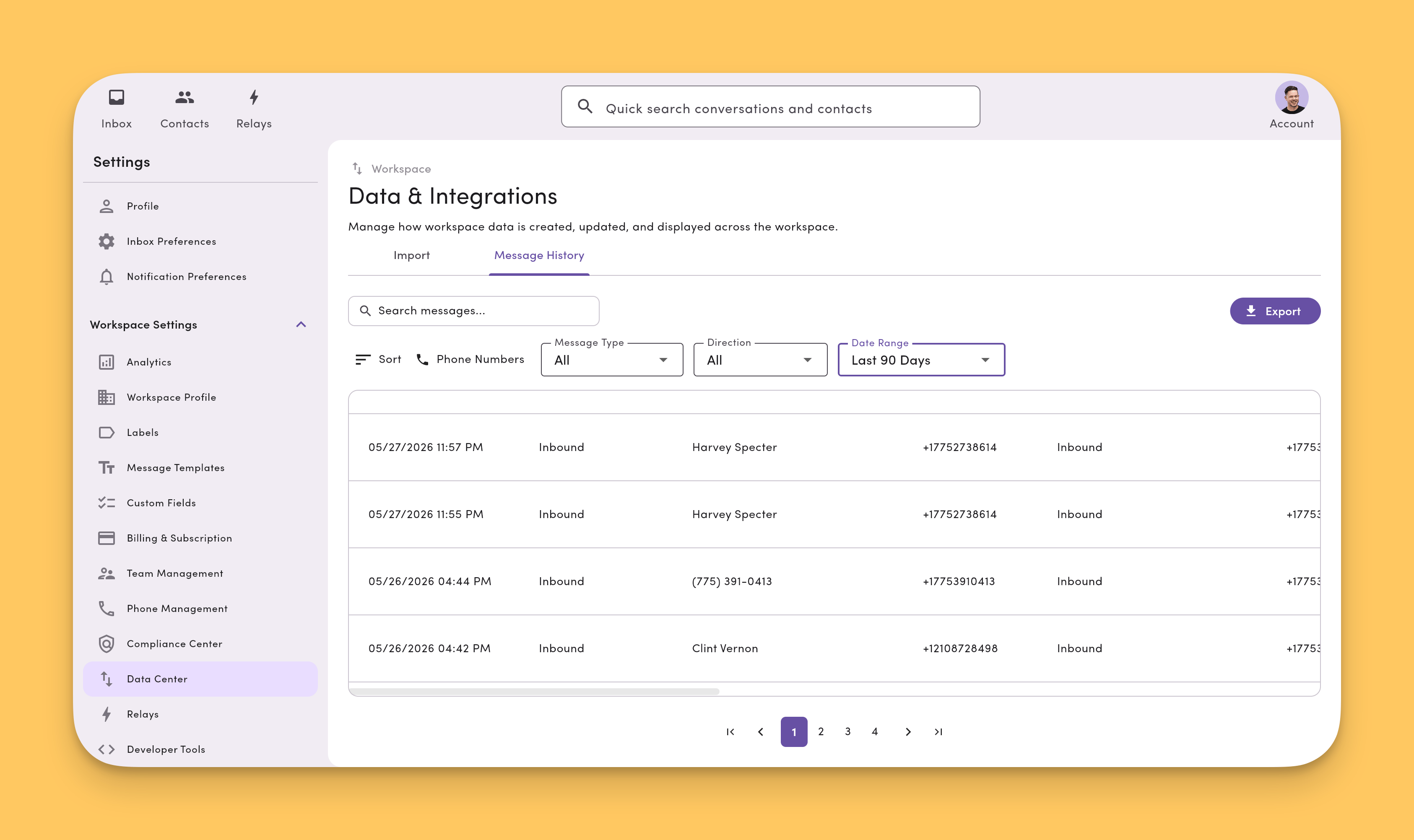
Filter your messages
Narrow the list using the filter controls at the top of the tab. Available filters:- Phone Numbers: scope results to one, several, or all phone lines in the workspace (see Scope by phone number)
- Date range: limit results to a specific window. Setting the same date for start and end returns the full day’s messages (00:00 – 23:59 in your workspace time zone).
- Direction: inbound or outbound
- Message Type: filter by message type
- Contact: messages tied to a specific contact
- Label: conversations carrying a given label
- User/agent: messages sent by a specific teammate
- Status: delivery state (e.g., delivered, failed)
Scope by phone number
Use the Phone Numbers filter to control which phone lines are included in the view and any export.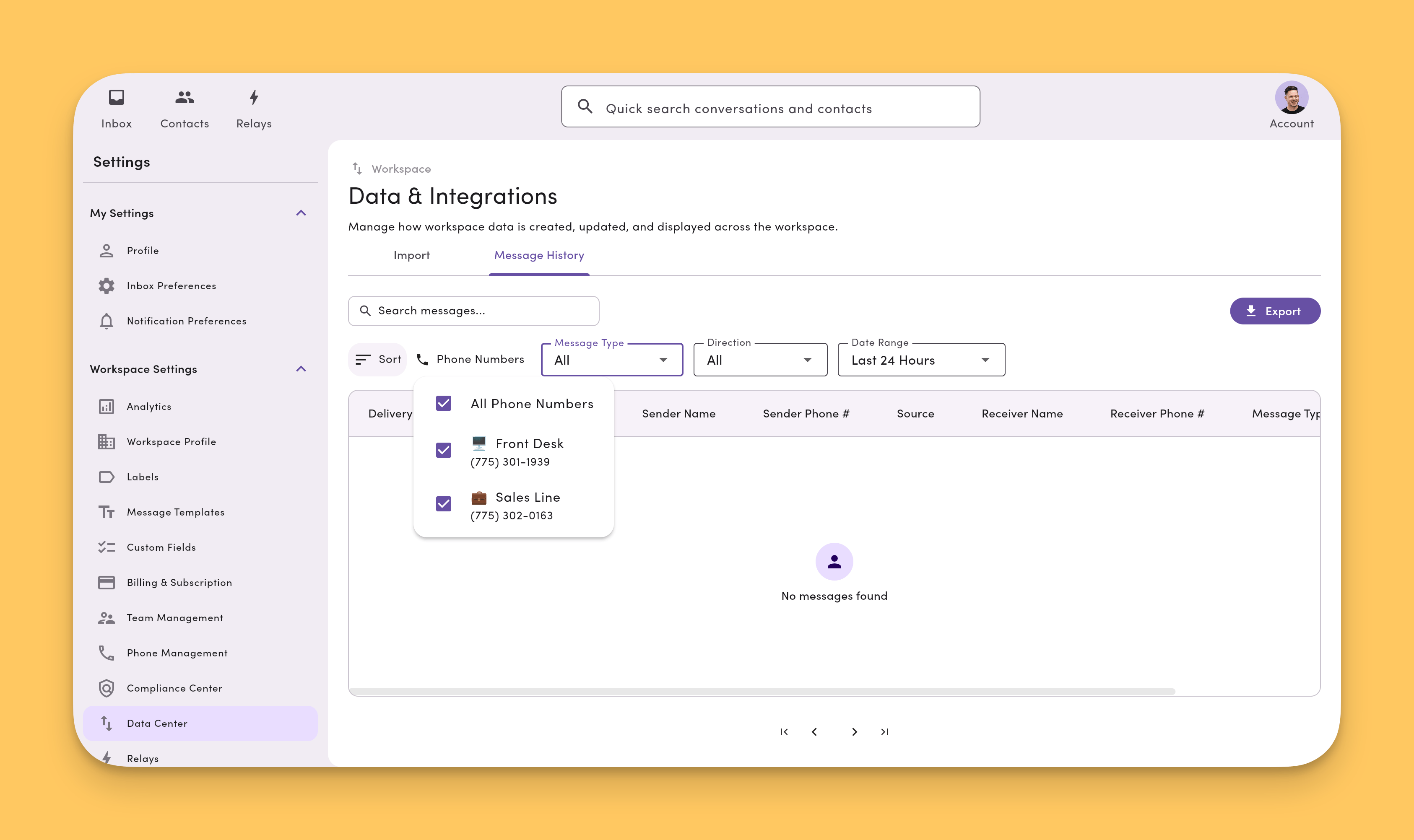
- All Phone Numbers. Leave every line checked to include the entire workspace’s Message History across all phone lines in a single export.
- A single phone number. Uncheck the others to scope Message History (and the resulting export) to just that line. For example, only your Front Desk or only your Sales Line.
- A subset of lines. Check any combination of lines to export just those.
Search within results
Use the search bar to run a free-text search across the messages currently shown. Search runs on top of your active filters, so you can drill into a filtered slice rather than the entire archive.Export your text message history to CSV or PDF
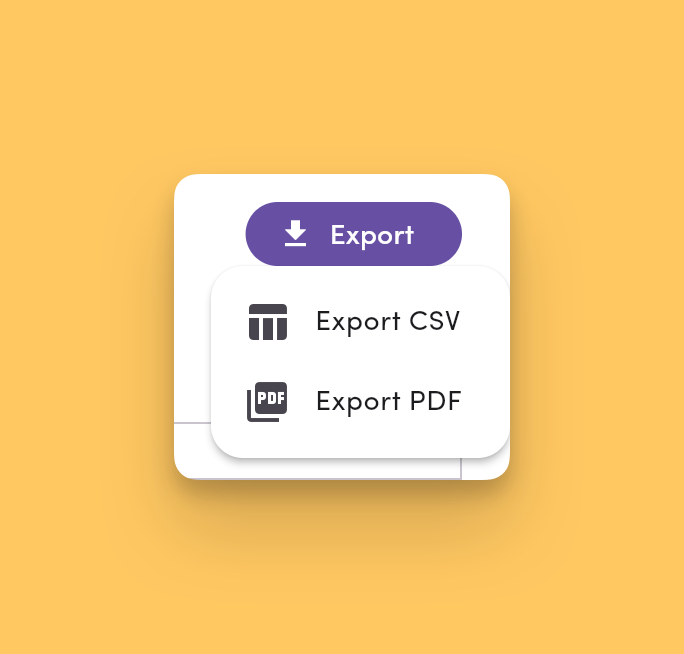
- All phone lines in a workspace. Leave every line checked in the Phone Numbers filter to export the workspace’s full Message History in one file.
- A single phone number. Uncheck the other lines in the Phone Numbers filter to export Message History for just that line.
Export is disabled when the current view has zero results. If your filters, date range, or search return no messages, the Export button is greyed out. Adjust filters to widen the result set before exporting.
Tenant-level exports aren’t supported. If your tenant has more than one workspace, Message History exports run per workspace. There’s no way to export across all workspaces on a tenant in a single file.
When your export finishes processing, you’ll get it two ways:
- An in-app “Export Available” button in the top nav. Click it to download your
.csvor.pdffile. - An export completed email with a download link, sent to the user who triggered the export.
- From a conversation. Open the conversation in the Inbox, click the ⋯ More Options menu in the conversation toolbar, and choose Export → PDF. See Export a conversation for the full per-conversation flow.
- From Message History. Apply your filters in Settings → Data Center → Message History, then choose Export to PDF.
- The PDF embeds renderable media (images and other formats supported in PDF) inline.
- For non-renderable media (videos and other unsupported file types), the PDF shows a direct S3 link to the file alongside the note “Could not load preview.” The attachment stays accessible through the link.
Permissions
Roles with Data Center access (typically Admin and Manager) can use Message History. Ask an Admin to adjust your role if you don’t see the tab.Export
The Export tab runs full CSV exports of your workspace’s contacts, message templates, labels, and opt-out list. Use it when you need a complete backup of a list for archiving, reporting, or moving data to another system.Access the Export tab
Go to Settings → Data Center → Export.Export your contacts to CSV
- Open the Export tab.
- Click Export Contacts.
- The export runs asynchronously in the background. Keep working in MessageDesk while it’s preparing.
Contact exports are a full workspace dump. The CSV includes every contact in the workspace. Filtered contact exports (by label, custom field, saved filter, and so on) aren’t supported in this version.
Tenant-level exports aren’t supported. Contact exports are scoped to a single workspace. If your tenant has multiple workspaces, run the export in each one separately.
What’s included in a contact export
Each row in the CSV contains a contact’s standard fields (name, phone numbers, email, address, and so on) plus every custom property defined in your workspace.- Standard fields. First and last name, all phone numbers, all emails, all addresses, and other built-in contact properties.
- Custom properties. Each custom field on the workspace becomes its own column. Contacts without a value for a given custom property leave that cell blank.
When your export is ready
Contact exports run through the same universal export system as Message History and per-conversation exports. When the file is ready, you’ll get it two ways:- The Export Available button appears in the top nav. Click it to download the CSV.
- An export completed email with a download link, sent to the user who triggered the export.
Export message templates, labels, and opt-outs
The Export tab also runs full workspace exports of your shared message templates, labels, and opt-out list.- Open the Export tab.
- Click Export Message Templates, Export Labels, or Export Opt-outs.
- Each export runs asynchronously and delivers through the same Export Available button and export completed email as contact exports.
Permissions
Roles with Data Center access (typically Admin and Manager) can use the Export tab. Ask an Admin to adjust your role if you don’t see it.Frequently asked data import and export questions
What file types can I upload?
CSV only. Export Excel files (.xlsx) to CSV first.
Do contacts need both email and phone?
No. Each row must include at least one: email or phone (you can include both).How are duplicates handled on contact import?
MessageDesk checks email and phone. When a row matches an existing contact, MessageDesk updates that contact with the values from the import. Updates only apply to columns you mapped, and only when the mapped column has a value. Empty cells leave existing fields unchanged. Updates apply to standard fields (name, email, phone, address, and so on) and custom fields.Why did some rows fail?
Common reasons: invalid email/phone format, missing required fields, custom field type mismatch, or a channel that doesn’t exist (for message imports). Fix and re-upload.Can I import more than 5,000 rows?
Split your data into multiple CSV files. Each file can hold up to 5,000 rows and ≤ 10 MB.Can I import from mobile?
No. Imports are web-only. Use a desktop browser. What’s the difference between Inbox search and Message History?The Inbox is for working live conversations. Message History is the workspace-wide archive built for audit, reporting, and bulk export. What format are exports in?
CSV for data and reporting, or PDF for shareable conversation records. Can I export Message History across every phone line at once?
Yes. In Settings → Data Center → Message History, leave every line checked in the Phone Numbers filter and click Export. That produces a single file covering the entire workspace. To export just one line, uncheck the others before exporting. Can I export Message History across all workspaces on my tenant?
No. Message History exports are scoped to a single workspace. If your tenant has multiple workspaces, run the export in each workspace separately. Can I export my contacts?
Yes. Open Settings → Data Center → Export and click Export Contacts to run a full CSV dump of every contact in the workspace. Filtered contact exports (by label, custom field, saved filter, and so on) aren’t supported yet. How do I know when an export is ready?
Every export delivers two ways: an Export Available button in the top nav, and an export completed email with a download link to the user who triggered it. Contact, Message History, and per-conversation exports all share the same in-app notification because they all run through the universal export system. Are media attachments included in exports?
- CSV exports. No. CSV files contain message text and metadata only.
- PDF exports. The PDF embeds renderable media (images) inline. For non-renderable media (videos and other unsupported types), the PDF shows a direct S3 link and a “Could not load preview” note.
Best practices
- Normalize phone numbers to E.164 before upload.
- Clean your data. Dedupe and validate emails to cut skips.
- Test with a small CSV (10–20 rows) to confirm mapping and validation.
- Keep a backup of your source CSV and import results for audit.