

Manage connected phone lines, naming, and call forwarding
Connect new phone lines, rename existing ones (with emojis for easy ID), set up call forwarding, and keep everything organized for your team.Navigate to Phone Management
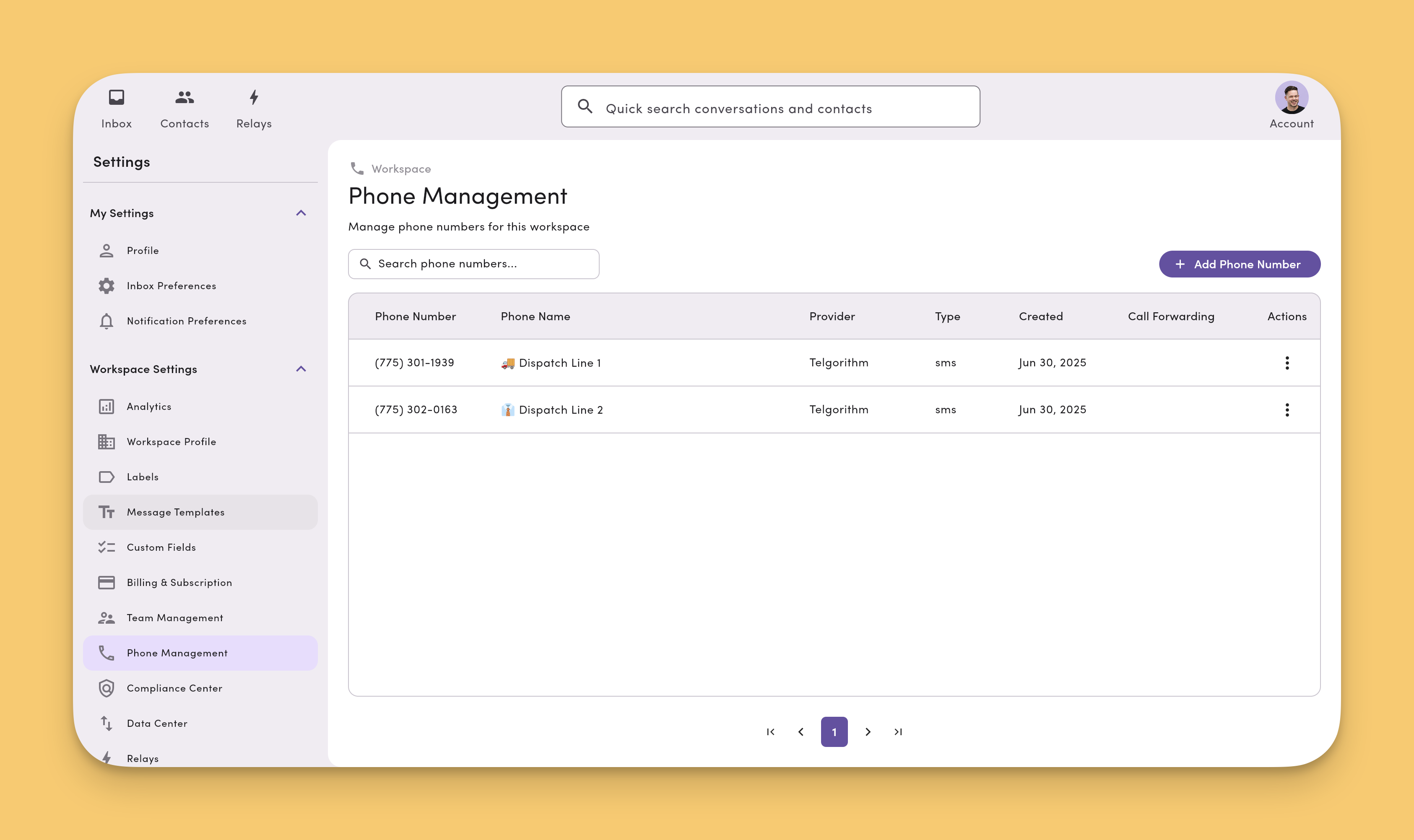
- Go to Account → Settings → Workspace Settings → Phone Management.
- You’ll see every connected phone line with options to Add and Edit.
Permissions. You’ll need the right role to manage numbers (Manager = Editor, Operator = Viewer by default). See Roles & permissions if you don’t see controls.
What the Phone Management table shows
Each row in the table lists a connected number along with its registration state, so you can see at a glance which numbers are ready to send and which still need attention.- Phone number. The line’s number and label.
- Campaign ID. The carrier registration campaign the number is associated with. Numbers without a campaign show as unassociated and can’t send messages until you assign one.
- Status. The current state of the number. MessageDesk tracks status through the whole lifecycle, so a number you’re hosting or porting stays visible in the table while the carrier works on it.
Reading the status column
Canadian numbers without a campaign can only text Canada. You can add a Canadian number without completing carrier registration, but it lands in a Canadian-traffic-only state and can’t message US numbers. To text US recipients from it, complete carrier registration and associate the number with an approved campaign.
Removed numbers and snapbacks
A hosted number can show as removed without you asking for it. This usually happens after a snapback: you move the voice side of a hosted number to a new provider, and that provider also pulls the texting side back, because MessageDesk never owned the number outright. If a hosted line stops sending and shows as removed, contact support. Restoring texting requires submitting a new hosting request and Letter of Authorization for that number.Add a new phone line / number to MessageDesk
- In Phone Management under Workspace Settings, click + Add phone number.
- Choose the type you want to add or connect:
- Overview (connecting phone lines).
- Add a new text-only local number (no extra charge; included in your subscription).
- Host an existing number (landline, VoIP, or local).
- Port a number to MessageDesk (moves voice and texting).
- Toll-Free (text-enabled).
- Connect Twilio phone numbers.
Name/label phone lines (and add emojis)
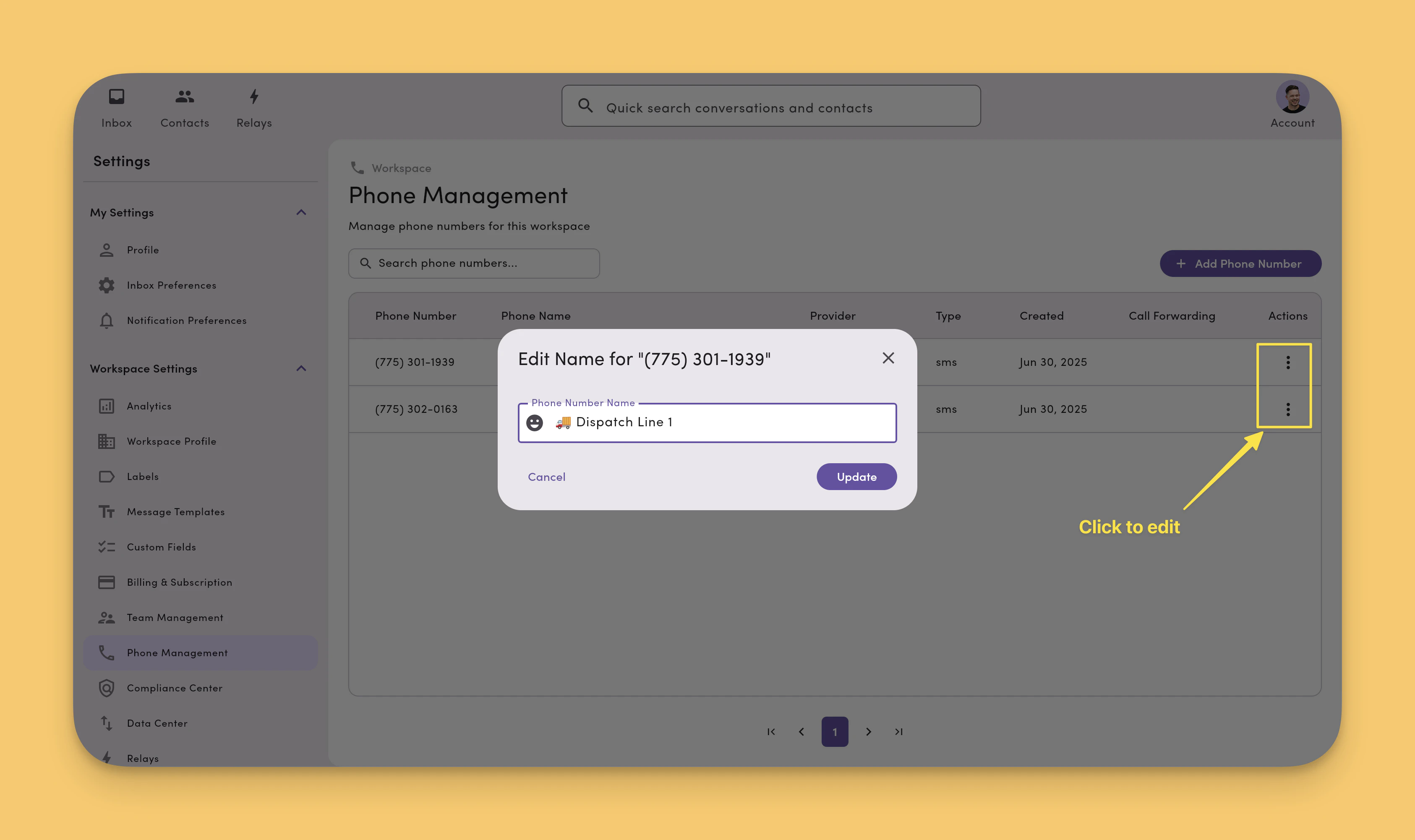
Clear names make routing and triage faster, especially with multiple lines.- Go to Settings → Phone Management.
- Click Edit next to a phone line.
- Enter a Line name (“Support – West” or “Dispatch 🚚”).
- (Optional) Add an emoji for quick visual scanning in the Inbox.
- Click Update.
You can also edit the name of a phone line from your inbox. Hover over a phone line, click the three dots (more) icon, and then click Rename.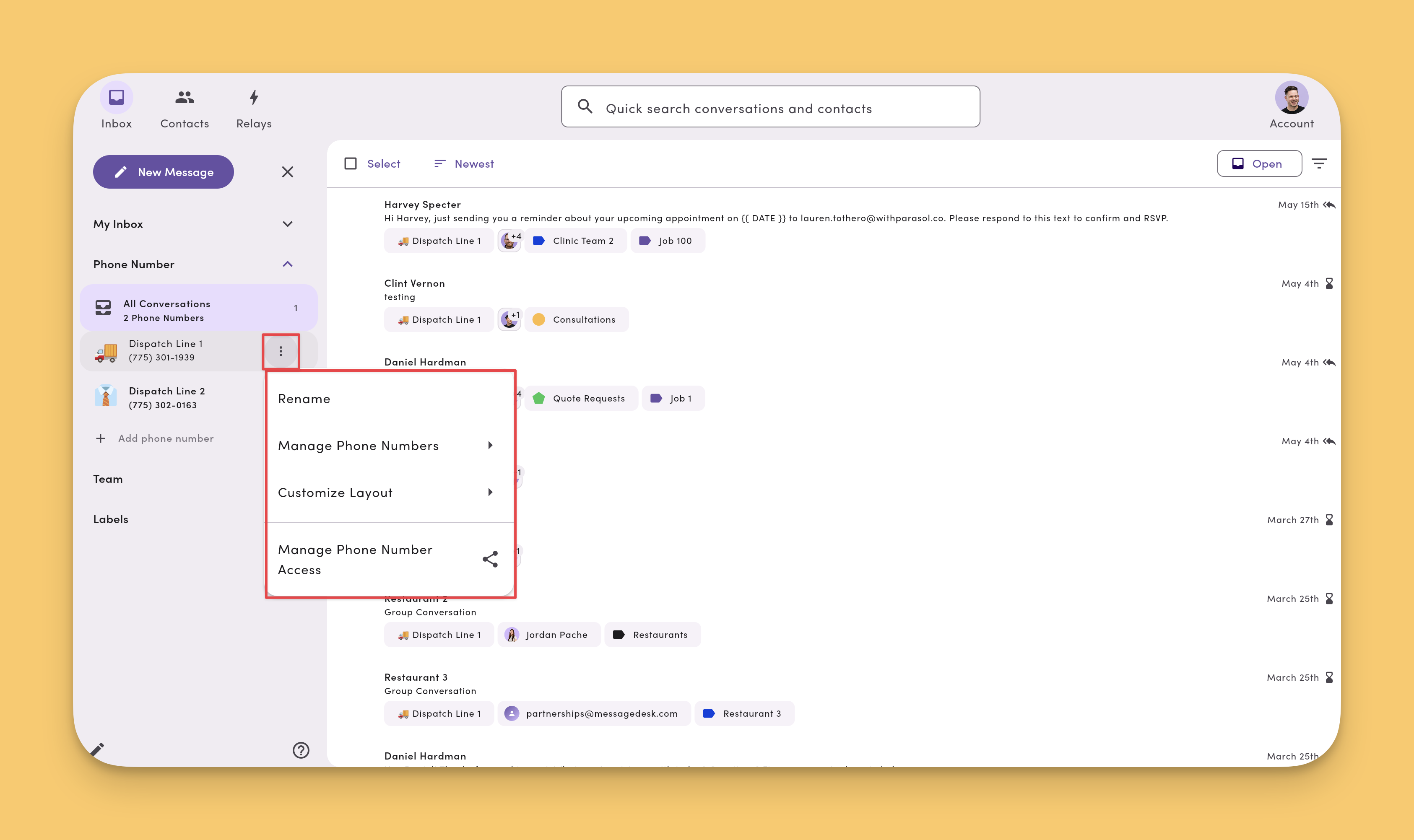
Change a number’s campaign association
If a number isn’t yet tied to a carrier registration campaign, you can assign it to one from Phone Management without contacting support.- Go to Settings → Phone Management.
- Click the number you want to update to open its Phone Profile page.
- Click Change campaign and select the campaign to associate.
- Click Save.
Reassignment is only available for numbers with no current campaign. If a number is already associated with a campaign, you can’t switch it to a different campaign in-app. Contact support if you need to change the campaign on an already-associated number.
Move a phone number between workspaces
If your tenant has multiple workspaces, you can move a connected phone number from one workspace to another. Contact support to initiate the move.No fee to move the number itself, but workspace seats are billed per user, per workspace. If a teammate needs access to both workspaces after the move, they’re billed in each. Confirm seat impact before requesting the move.
Port your number away from MessageDesk
Use this path when you want to keep your phone number but use it with a different messaging or VoIP provider. The transfer is driven entirely by your new provider pulling the number into their system. To move your phone number to a different provider:- Submit a Letter of Authorization (LOA) to your new provider.
Your new provider needs an LOA to start the hosting or porting process. - New provider starts the port/host request.
Once they have your LOA, your new provider begins managing your number configuration. The process typically takes up to 48 hours. - Wait for the transfer to finish.
During the transfer period, MessageDesk can’t take any action. The new provider handles the entire process.
No porting PINs or account numbers required. Moving your texting services out of MessageDesk doesn’t require any porting PINs or account numbers. MessageDesk doesn’t need to take any action to release your number.
Remove a phone number from MessageDesk
“Removing” a number can mean two different things. Pick the path that matches your goal:- Move the number to a different provider. The number keeps working; only the service changes. This is a port-out. Your new provider pulls the number into their system, and MessageDesk takes no action. Follow Port your number away from MessageDesk. Most customers asking to “remove” a number want this path.
- Delete the number and its data from MessageDesk. MessageDesk removes the number and every conversation tied to it from your workspace. This is a support request, covered in the rest of this section.
Twilio (BYOC) numbers: Removing the number record from your workspace is still a support request, but stopping the message sync is something you do yourself in your Twilio account. See Disconnect or remove a Twilio number for each scenario, including replacing one Twilio number while keeping MessageDesk.
Before you request removal
- Export the message history for the phone line you’re removing. See Data Center → Export your text message history to CSV or PDF.
- Decide whether you actually want to remove the number or port it away to a different provider. Porting preserves the number itself; removal releases it.
- If you want to keep the number but reassign it to a different workspace under the same tenant, see Move a phone number between workspaces instead.
How to request removal
Email support@messagedesk.com with the following:- Send from an admin email associated with your workspace.
- Workspace name and tenant (if you have more than one).
- The phone number(s) you want removed, in E.164 format (for example,
+13802101240). - Confirmation that you’ve exported any message history you need to keep.
Call forwarding
Route inbound calls to any phone number you choose. Voice calls to your MessageDesk lines reach the right person, while texts stay in the Inbox.- Go to Settings → Workspace Settings → Phone Management.
- Click the phone number you want to configure to open its Phone Profile page.
- Enter a Call Forwarding number and save.
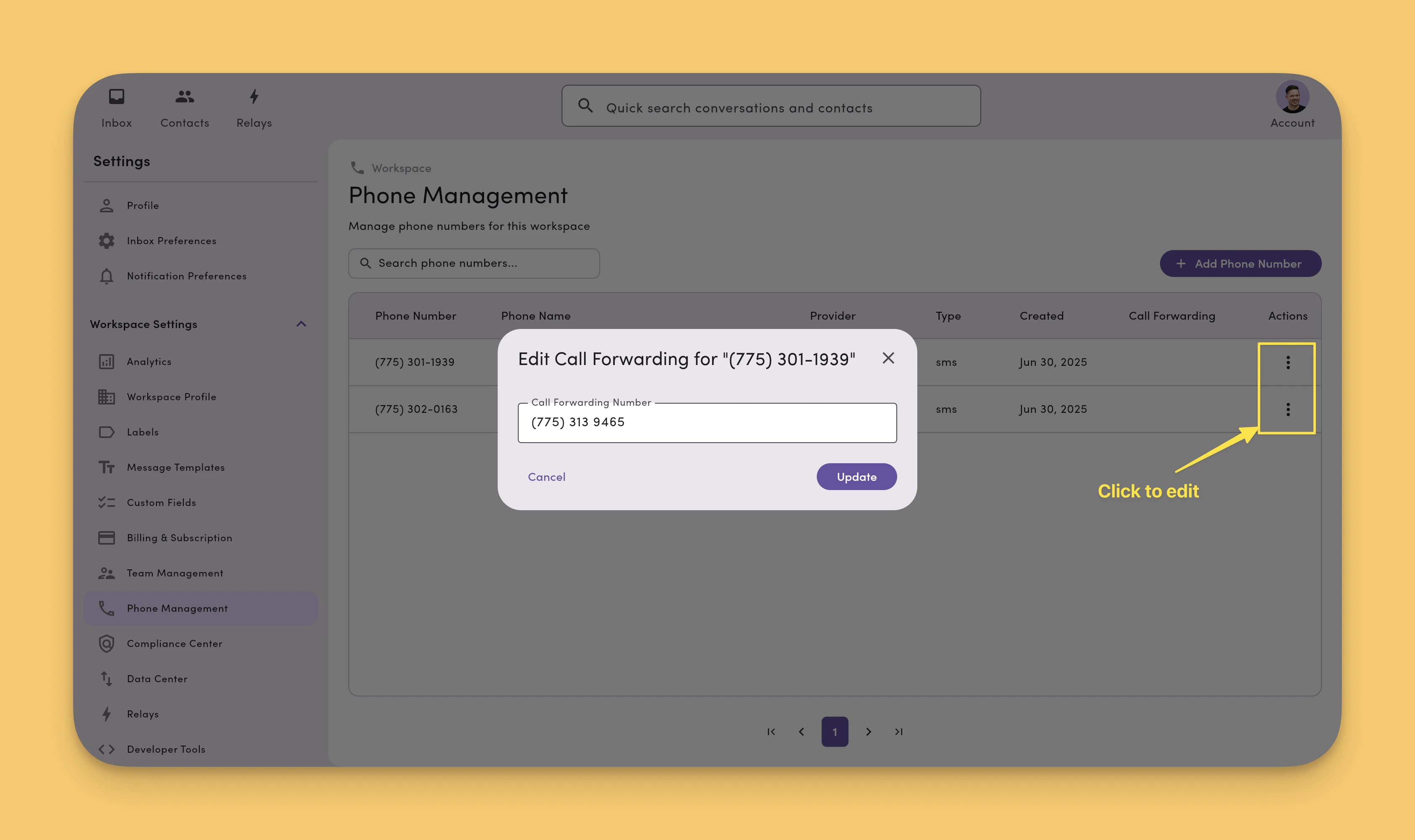
Call forwarding works on most MessageDesk-connected phone lines. You can’t configure call forwarding in-app for Twilio-connected numbers today. The setup process is different for Twilio numbers. If you need forwarding, contact support@messagedesk.com and we’ll configure it manually on a per-number basis.
Call logs
Each phone number’s Phone Profile page includes a Call Logs table. It lists every inbound call MessageDesk forwarded, along with the forwarding details for that call.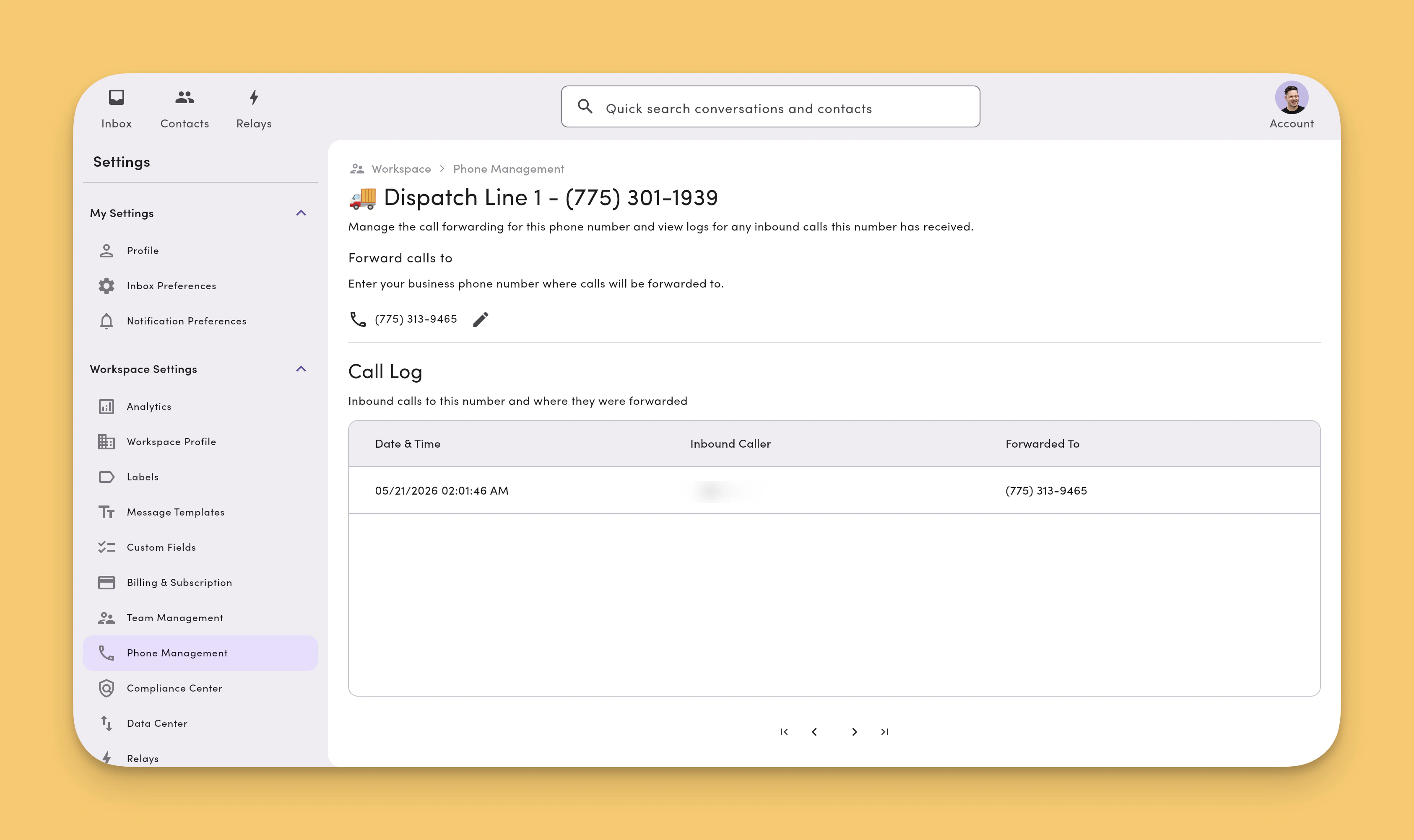
Call forwarding events in message threads
When MessageDesk forwards an inbound call, it adds a Call Forwarded event to the matching conversation thread in the Inbox. Your team gets full context on voice activity alongside the SMS history.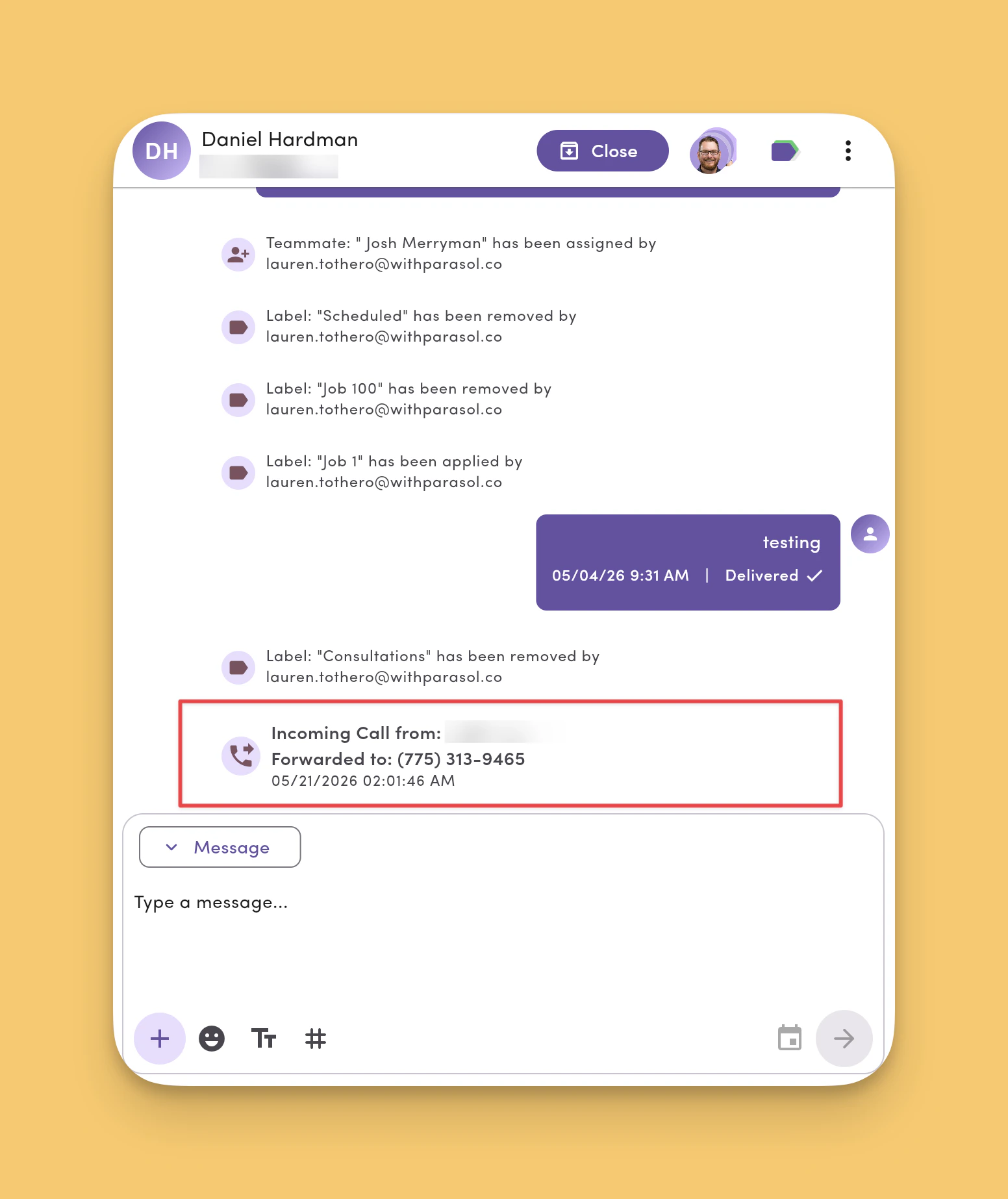
Best practices
- Use a naming pattern.
Team – Region(“Sales – East”), orUse-case(“Reminders 📅”). - One line per purpose. Keep support, sales, and dispatch on their own lines for cleaner reporting and routing.
- Complete carrier registration. Finish 10DLC (local) or toll-free verification before sending messages or connecting phone lines.
FAQ
How many phone lines can I connect?Most workspaces can connect up to 48 phone lines to MessageDesk. Many teams run with several. If you plan to scale, contact support for guidance. Can I move a conversation to a different phone line?
Conversations live on the line where they started. For new outreach, compose from the line you want. Do I need carrier registration for each line?
No. You can apply one carrier registration to every connected phone line. Toll-free and Twilio-connected phone lines need separate carrier registration and verification. Who can add or edit lines?
Users with Phone Numbers = Editor permission (typically Managers or Admins). How do I remove a phone number from MessageDesk?
It depends on your goal. To keep the number and use it with a different provider, follow Port your number away from MessageDesk; your new provider handles the transfer and MessageDesk takes no action. To delete the number and its data from MessageDesk, email support@messagedesk.com from an admin address with the workspace name and the number(s) you want removed. Removing a number permanently deletes all message history tied to it. Export the history first if you need to keep it. See Remove a phone number from MessageDesk for the full checklist. For Twilio (BYOC) numbers, also see Disconnect or remove a Twilio number to stop the message sync yourself.