

Billing & subscription management
View your plan, update payment methods, download invoices, and change your MessageDesk subscription, all from Account → Billing.TL;DR
- Go to Account → Billing to see plan, next charge, seats, billing cycle, and invoice history.
- You can add/update a payment method, download invoices, and cancel from the same page.
- To change plans (upgrade/downgrade), contact support. Upgrades prorate immediately. Downgrades apply on your next billing cycle.
Open your billing settings
- Click your profile icon (top-right).
- Choose Account → Billing.
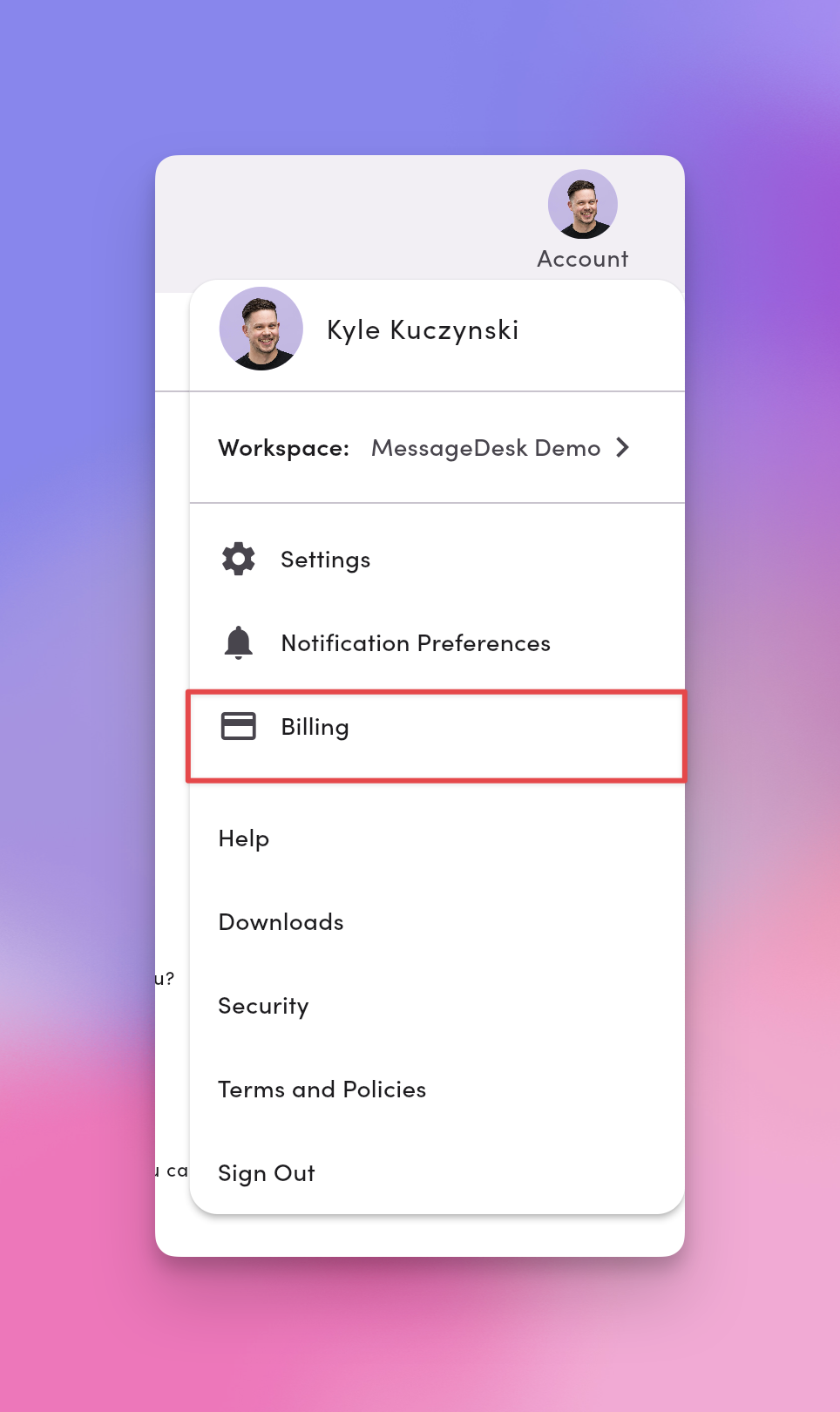
Manage your subscription
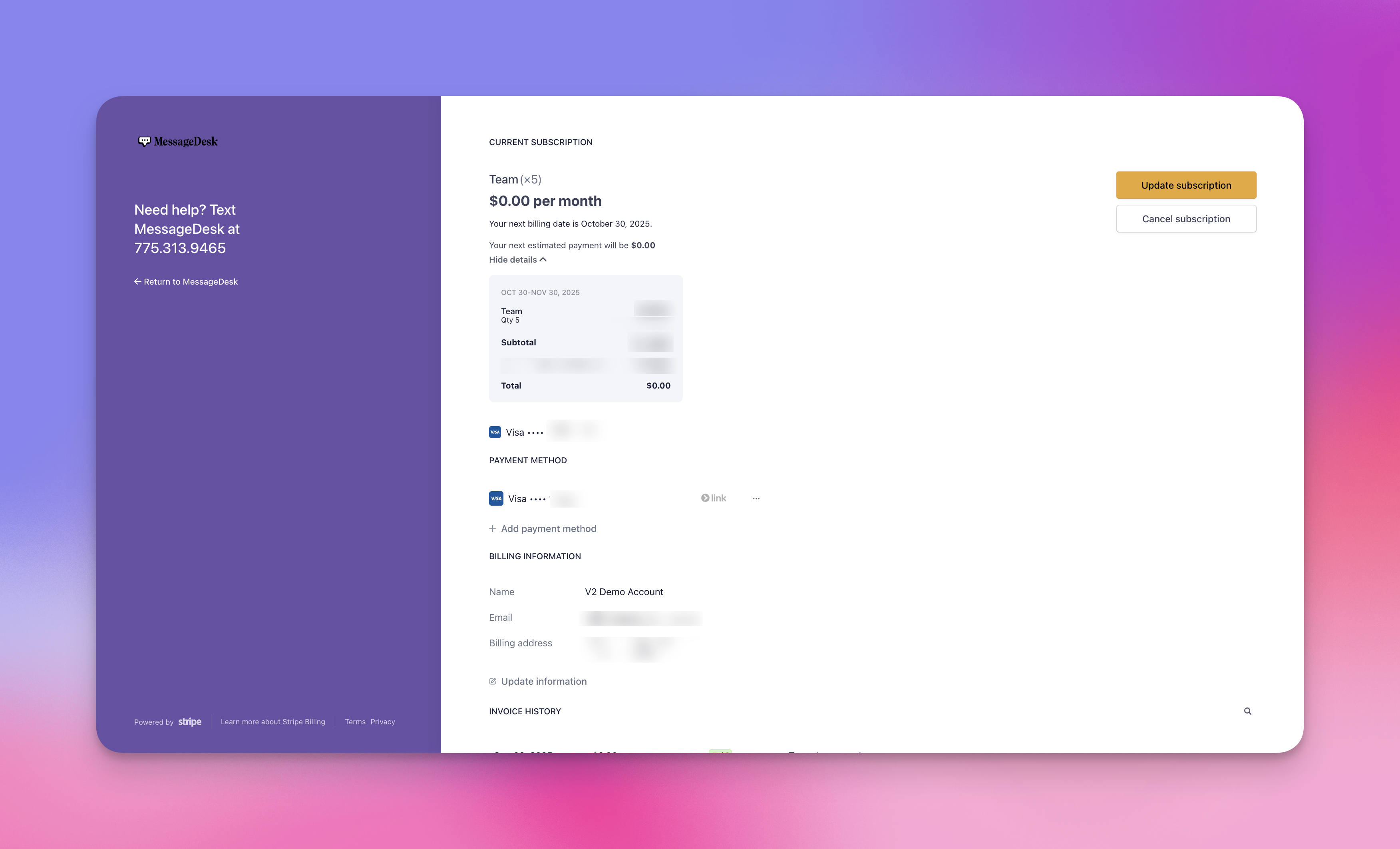
View current plan & billing details
The Billing page shows:- Plan name and price.
- User seats (quantity).
- Billing cycle (monthly or annual).
- Next billing date.
- Billing contact: name, email, address, phone.
- Invoice history.
Seat minimums. The Team plan needs at least 3 user seats. The Pro plan starts at 1 user seat. See Pricing for plan details.
Change plans (upgrade or downgrade)
To change plans, contact support.- Upgrades. Take effect immediately and prorate.
- Downgrades. Take effect on your next billing date.
Payment methods
Supported options
- Card (Visa, Mastercard, Amex, Discover).
- Bank (ACH).
Add or update a payment method
- Go to Account → Billing.
- Click + Add payment method.
- Enter your details.
- Click Add.
Remove a payment method
You must have at least one active payment method on file.- Add a new method first, then remove the old one.
Billing information & history
Update billing contact info
On Account → Billing, edit name, email, address, or phone in the Billing information section, then Save.View & download invoices
- Go to Account → Billing.
- Scroll to Invoice history.
- Click any invoice to view or download (PDF).
Tax-exempt status
If your organization is exempt from sales tax (nonprofits, government agencies, educational institutions, tribal entities, First Nations, foreign diplomats, and similar), MessageDesk can apply your exemption to future invoices.How to submit your exemption
- Email a signed copy of your exemption document to support@messagedesk.com.
- Send from an email tied to a workspace admin so we can match the request to your account.
- We’ll apply the exemption on our end. Future invoices will render without sales tax.
We don’t automatically refund sales tax already charged on prior invoices. If you need a retroactive adjustment, mention it in your email and we’ll review it case by case.
What document to send
A W-9 isn’t a sales-tax exemption certificate. Send the state- or country-specific document below. United States
Canada
Cancel subscription
Cancelling a subscription stops billing. It doesn’t delete your workspace or your data.- Go to Account → Billing.
- Click Cancel subscription.
- Confirm Cancel subscription.
Subscriptions and workspaces are separate entities. Cancelling a subscription doesn’t immediately delete the workspace. It enters a locked state and is deleted 90 days later if you don’t resubscribe.
FAQ
When will I be charged?On the same day each month (monthly plans) or once per year (annual plans). Your next billing date shows in Billing. What happens if my payment fails?
We’ll retry the charge and send an email. Update your payment method to avoid service interruption. Can I get a refund?
Refunds are handled case-by-case. Contact support to review your situation. Can I switch plans later?
Yes. Contact support to upgrade or downgrade. Upgrades prorate immediately. Downgrades apply on your next cycle. Do you support sales tax exemption? Can I submit a W-9?
Yes, we support sales tax exemption. Email a signed state- or country-specific exemption certificate to support@messagedesk.com from a workspace-admin email, and we’ll apply it to future invoices. For US 501(c)(3) nonprofits, that’s a Sales Tax Certificate of Exemption or your IRS determination letter. For Canadian First Nations exemptions, it’s a Certificate of Indian Status. A W-9 alone isn’t a sales-tax exemption. We need the state- or country-issued exemption document. See Tax-exempt status for the full list.