

Workspace Settings Overview
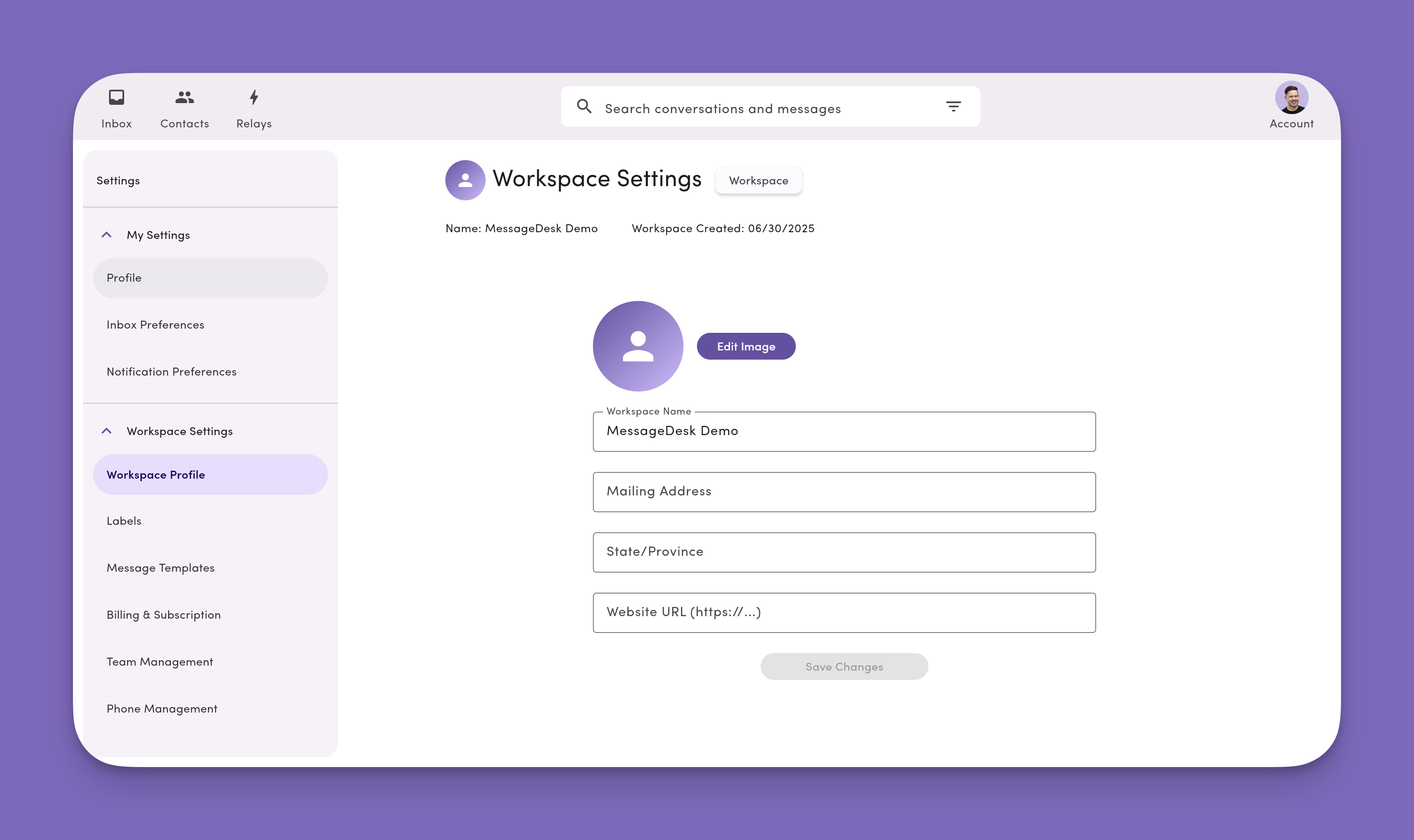
Workspace Settings store organization-level info that applies to every user in your MessageDesk inbox: name, branding, address, website, and analytics.Workspace Settings vs. Tenant Management. Workspace Settings (this section) configure a single workspace: labels, templates, team, billing, and other per-workspace details. Tenant Management is an organization-level concept that lives outside Settings, accessed from the workspace switcher / workspace selection screen, and is only available to tenant admins. Use it to update tenant company details or create additional workspaces under your company. See Tenant Management.
Open Workspace Settings
- Click your profile icon (top-right).
- Select Settings.
- In the left nav, open Workspace Settings.
What you can view & edit
General- Workspace image/icon (used across the app).
- Workspace name (shown to teammates and used in tags like
{{ WorkspaceName }}). - Mailing address.
- Website URL.
- Custom Fields. Create and manage custom fields to store extra data on contacts (customer IDs, account types, appointment dates).
- Workspace Analytics. View messaging metrics, delivery rates, and activity breakdowns by channel and user.
- Created date (shown for reference).
Who can edit? Admins, and Managers (if permitted by your Roles & Permissions), can update Workspace Settings.
Update general workspace information
- Go to Account → Settings → Workspace Settings → Workspace Profile.
- Click Edit.
- Update your image/icon, name, address, or website.
- Click Save.
Changes to name/branding take effect immediately for every user.
Cancel a subscription vs. delete a workspace
Subscriptions and workspaces are separate. Cancelling a subscription doesn’t delete a workspace, and deleting a workspace isn’t tied to your billing cycle.
To cancel a subscription, see Cancel subscription.
Delete a workspace
Workspace deletion is a support-only, permanent action. There is no in-app button to delete a workspace.When to request deletion
- You want workspace data permanently removed before the automatic 90-day deletion window ends.
- You only want to stop paying: cancel the subscription instead. Your data stays intact for 90 days after the billing period ends, and you can reactivate the workspace by resubscribing within that window.
You don’t have to contact support just to have a cancelled workspace deleted. All cancelled workspaces are automatically deleted 90 days after cancellation. Contact support only if you want the workspace deleted sooner than that.
How to request deletion
To authorize a workspace deletion, email support@messagedesk.com with the following:- Send from an email tied to an admin user on the workspace.
- Workspace name and tenant (if you have more than one).
- Last 4 digits of the card on file for verification.
- (Optional) Request a final data export before deletion. See Data Center for what can be exported.