

Relay templates
MessageDesk ships 58 Relay templates, grouped by outcome in the app. Install one and adjust it to your workflow. This page has three parts. The catalog lists every shipped template. How the builds work shows the trigger, conditions, and actions behind each one, so you know what a template does before you turn it on. Industry starting points maps common situations to the right build.Every template is a starting point. Adjust the wording, labels, assignees, active hours, and conditions to fit your team. For step-by-step instructions, including AND/OR between conditions, chained actions, and delays, see Create and edit a Relay. For every available trigger, condition, and action, see Relay building blocks.
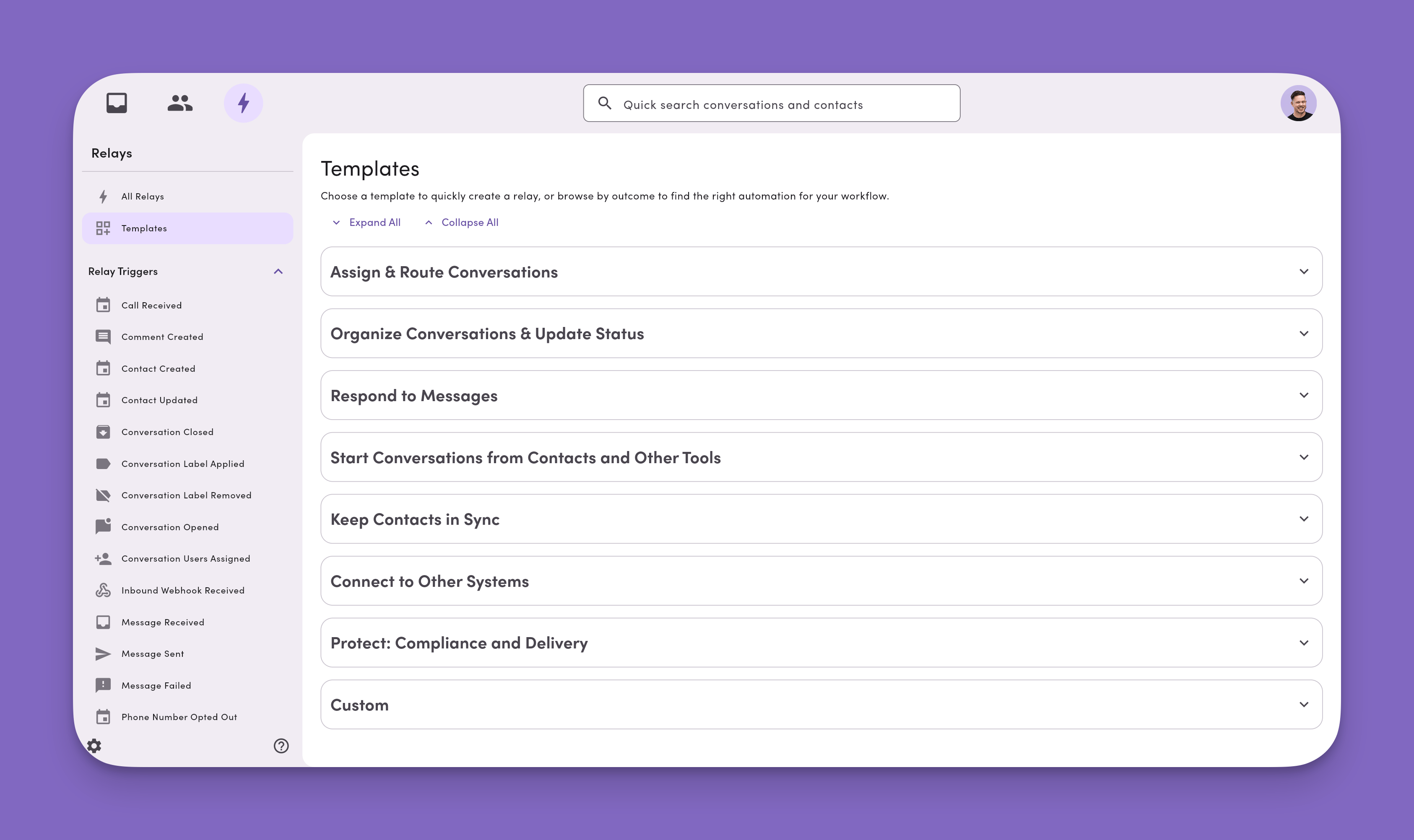
Templates that ship in the app
Seven outcome groups, 58 templates. Pick one, name it, and adjust the fields. Every template arrives paused, so nothing runs until you toggle it On. Each group below lists every shipped template and what it does. Where this page documents the underlying build, the third column links to it, so you can either install the template or build the same outcome by hand.Assign & Route Conversations
Route by Contact Property takes both halves. Contact triggers fire against a contact, not a conversation, so they can’t label or assign on their own. Part 1 writes the property value into a comment; Part 2 reads that comment and does the labeling and assignment. Install both, or neither works. Part 2 also needs one copy per possible value. See Bridge a contact property to a label and an owner for the full build.
Organize Conversations & Update Status
Respond to Messages
Add your own opt-out language. Templates that send a message ship with placeholder copy. Keep “Reply STOP to opt out.” in any automated outbound text so you stay aligned with carrier requirements.
Start Conversations from Contacts & Other Tools
Keep Contacts in Sync
Connect to Other Systems
Webhook templates need an endpoint first. Configure your webhook endpoint and signing secret in Settings → Developer Tools before you turn any of these on.
Protect: Compliance & Delivery
MessageDesk already blocks sending to opted-out contacts at the workspace level. The compliance templates are for internal awareness, ownership, and audit trails, not for blocking the outbound message.
How the builds work
Every template above is one of the builds below. They’re grouped by trigger, because the trigger is the first thing you pick in the app. Each build lists the conditions, the actions, and why it works. Adjust the wording, labels, assignees, and scoping to fit your team.The Add Action menu varies by trigger. Not every action appears on every trigger. If a build lists an action you don’t see, check the Add Action menu for the trigger you picked. See Relay building blocks for which actions are scoped to which triggers.
Confirmed vs. pending. The Add Action menu can vary by trigger. The templates below cover only the combinations confirmed to appear in the app today. Three additional foundational templates (on Conversation Opened, Comment Created, and Conversation Label Applied) are staged for a follow-up once their action menus land.
Message Received
The busiest trigger. Eight builds cover almost everything teams do with inbound texts.Scope by phone line
Why it works: Every inbound text on a line lands with an owner and a label you can filter on. This is how a shared line replaces one person’s cell phone. A dispatch line routes to that region’s dispatcher. A service line routes to the advisor on duty. A front-desk line goes to whoever’s covering. Add Conversation label equals to split one line further by region or job type.
There’s no round-robin action. Nothing rotates to the next teammate automatically. Real round-robin takes one Relay per teammate, each scoped by a different line or label so they don’t all fire on the same message. That’s the supported approach.
Match a keyword
Why it works: Keyword matching is the fastest triage you can build. The contact gets an instant acknowledgement, the right team picks up the thread, and the label gives you a filter. Use as many of those actions as the case needs. A safety keyword wants all four. A billing keyword wants an assignee and a label.
Build one Relay per keyword to make a texted menu.
support, pricing, and sales each get their own reply and owner, all on the same number.
Routing a keyword to a specific person multiplies. A Relay matches one keyword and does one thing. It can’t branch, so “route each of these five phrases to whichever of our fourteen people owns the thread” is 5 × 14 = 70 Relays, one per pair. That’s deliberate: Relays stay simple so they stay predictable.Three ways to keep it manageable. Pick one shared keyword like
urgent and build one Relay per person, which is 14 instead of 70. Route the keyword to a single triage owner and let them reassign. Or move the branching to Zapier, which handles multi-condition logic in one Zap at the cost of a separate subscription.Greet a new or anonymous contact
Why it works: Texts from unsaved numbers arrive as anonymous conversations. Asking for a name while the contact is still typing keeps your directory clean and every thread attributable. The label gives sales or intake one filter to work from. See Anonymous, opted out & blocked for how anonymous status is determined.
Reply outside business hours
Why it works: Inverting the Active hours window fires the Relay only when a text lands outside your hours, so nobody waits until morning for an acknowledgement. Mark Conversation Unread is the part teams miss: without it, the auto-reply moves the thread to Replied and out of the Unread filter, and the customer’s actual question never gets reviewed. See Relays and conversation status.
Keep “Reply STOP to opt out.” in the reply text.
Cover several shift windows with one set of Relays
Why it works: Most teams don’t have one open window and one closed window. They have the hours the admin works, the evenings one group covers, the weekend another group covers, and the hours nobody works. One Relay can’t express that, but one Relay per window can.
Build a separate Relay for each window, each with its own Active hours and its own assignee. Then order them with the narrowest or highest-priority window first. Every matching Relay runs, and no Relay knows another already fired, so Stop Processing as the last action is what stops the later windows from also assigning. See Order your Relays.
Stream every message to another system
Why it works: Every inbound text flows to your CRM, warehouse, ticketing tool, or retention store. Build a matching Relay on Message Sent to capture both directions, which is what an audit or recordkeeping requirement usually needs. Scope by line to avoid a firehose.
Auto-close threads that don’t need a reply
Why it works: Courtesy replies like “thanks!” reopen threads nobody needs to touch. Label a conversation
No Reply Needed when you’re done, and the next inbound message closes it and clears the label. A real follow-up later reopens the thread normally.
Ships as a template: This build is available as the Auto-Close No-Reply-Needed starter from the Relays module. MessageDesk doesn’t create the label for you. Create a label named
No Reply Needed before turning the Relay on, or change the name in both the condition and the action to a label you already use. See Labels. The Label name equals condition and Remove Label where name equals action are documented in Relay building blocks.Route a whole label namespace
Why it works: Conversation label equals is a matcher, not a fixed equality check. One
startsWith "Region:" rule catches Region:North, Region:South, and every label you add later. You skip maintaining one Relay per region. See the operator list in Relay building blocks.
Flag unclaimed threads
Why it works: Anything that slips past your routing gets flagged instead of aging in the queue. Pair it with an Inbox filter on Assignee = Unassigned.
Message Sent
Assign to whoever replies first
Why it works: The first teammate to reply owns the follow-up. The conversation is no longer unassigned, so later replies don’t steal it, and new inbound messages route to that teammate by default. Drop the condition if you want the sender to take ownership even on threads someone else already owns.
Assign to sender only appears on the Message Sent trigger.
Ships as a template: This template is available as the Auto Assign to First Responder starter from the Relays module. Install it as-is or use the fields above to build it yourself.
Auto-close after an acknowledgement
Why it works: One-shot confirmations (appointment reminders, delivery pings, “on my way”) don’t need to sit in the Inbox after they go out. Closing keeps the Inbox focused on threads that still need a person. A new inbound message reopens the thread and fires any Conversation Opened Relays you’ve built.
Message Failed
Catch every text that fails to deliver
Why it works: A failed text is invisible, because the sender assumes it went through. This surfaces the failure, reopens and flags the thread, and puts it on someone. Most valuable for time-sensitive dispatch, staffing, and safety messages.
Branch on the reason a message failed
Why it works: Not every failure is worth retrying. Matching the failure text lets you queue the temporary ones and clean up the permanent ones. Build a second Relay on the same trigger that matches a permanent-failure reason and labels it
Bad number instead. Use provider-agnostic wording in your matches so the Relay survives a carrier change. See Delivery status and errors.
Verify before enabling. If your workspace doesn’t see the Message failure contains text condition on the Message Failed trigger yet, hold this build until it appears.
Conversation Opened
Re-triage on reopen
Why it works: When a customer replies days later, the original assignee may not be the right owner anymore. Clearing assignees sends the thread back through normal triage, where your Message Received routing picks it up fresh.
Conversation Users Assigned
Hand off with context
Why it works: MessageDesk doesn’t notify anyone when they’re assigned a conversation. Assignment is silent, so a thread can sit with a new owner who has no idea it’s theirs. This Relay is how the handoff actually gets noticed: the comment carries the context, and @mentioning the new owner in it fires the @Mention in a comment notification they do receive. The contact never sees any of it.
Assigning more than one teammate works too, which is how a manager lets their team reply on their behalf. Mention each of them in the comment.
Assignment isn’t a notification event. MessageDesk notifies on new messages, @mentions in comments, and finished exports and imports. Being assigned isn’t on that list, and the Only notify me about conversations assigned to me email setting filters new message notifications to your threads rather than alerting you when you’re assigned one. See Notification preferences.
Conversation Closed
Reset and sync when a thread closes
Why it works: Closing a conversation doesn’t unassign anyone on its own, and a new inbound message reopens the thread with those assignees still attached. That’s how a closed thread comes back owned by whoever handled it last, even when they’re not the right owner now. This Relay resets assignment so the next message lands unassigned and your routing handles it fresh. The
Resolved label keeps reporting clean, and the webhook pushes the close event to your CRM, warehouse, or ticketing tool. Gating on Teammate Assigned set to Any teammate means the Relay only runs when someone’s actually assigned.
Ships as a template: This template is available as the Unassign on Close starter from the Relays module. Install it in one click, or build it from the fields above.
Conversation Label Removed
Sync the change when a label comes off
Why it works: A label coming off usually signals a state change, so firing on removal keeps your CRM or reporting in sync without anyone remembering to update it. Remove labels isn’t available on this trigger, so this Relay reacts to a removal rather than performing one.
Call Received
Log and route inbound calls
Why it works: Voice activity lives in the same thread as SMS. Firing on the call assigns an owner, drops an internal note, and pings your notifier the moment the phone rings. No waiting for a follow-up text.
Call Received works on MessageDesk-owned numbers only. It doesn’t fire for Twilio-connected, Telegorithm, or hosted (text-enabled) numbers. Reply to message isn’t available on this trigger. See Call Received actions.
Call Received works only for fully ported (voice and text) and text-only numbers. It doesn’t fire for Twilio-connected numbers or hosted (text-enabled) numbers that are already tied to a voice service. Reply to message isn’t available on this trigger. See Call Received actions for the full action list.
Inbound Webhook Received
Text a contact from another tool
Why it works: Your CRM, form, or scheduling tool texts a contact through MessageDesk the moment something happens. Appointment reminders and order updates stop being a copy-paste job. Include “Reply STOP to opt out.” in the message.
Keep a contact property in sync
Why it works: When a value changes in another system, the webhook updates the matching property in MessageDesk. Text properties accept any payload value. Non-text properties map the matching Custom Property from the payload, and the value has to pass type validation.
This is a non-conversation trigger. It runs against the contact in the payload, so conversation-scoped conditions don’t apply. Add labels to the conversation is still available. See Webhooks for the endpoint URL, the
X-MD-Signature header, and the payload schema.Contact Created, Contact Updated, and Comment Created
Three triggers that work as one pattern. The two contact triggers fire against a contact rather than a conversation, so on their own they can’t label or assign anything. Comment Created is what connects them to a conversation.Bridge a contact property to a label and an owner
That’s a problem when the thing deciding ownership lives in a contact property: aClinician, Account owner, or Territory field.
The way through is a comment. Send Comment creates the conversation and writes the property value into it. Comment Created is a conversation trigger, so it can label and assign. The comment is the bridge.
Part 1: write the property into a comment. Build this twice, once on each trigger.
Part 2: read the comment, then label and assign. Build one of these per possible value.
Why it works: Updating one contact property does the rest. The contact Relay drops a comment carrying the value, and the matching Comment Created Relay turns that value into a label and an owner. Nobody labels or assigns by hand, and the label keeps working as a scope for every other Relay you build.
Expect a comment every time the property changes. The Part 1 Relay on Contact Updated fires on every update to that contact, so the internal comment reposts each time. That’s what keeps the label correct if someone edits the field later, and the comments accumulate in the thread.If the noise outweighs that, turn off the Contact Updated half and keep only Contact Created. The cost: a label that gets removed later won’t come back on its own, and any Relay scoped to that label quietly stops matching that conversation. Contacts are visible to your team; internal comments are not visible to the contact either way.
A Relay’s comment does fire Comment Created. It won’t re-trigger the Relay that posted it, so this can’t loop, but it does reach other Comment Created Relays. That’s the whole mechanism. See Comment Created.
Opt Out Created
Follow up on an opt-out
Why it works: The trigger fires on the opt-out event, so it catches opt-outs that never arrive as a STOP text. Labeling keeps the thread visible to compliance. An owner confirms you honored the request. The webhook syncs it downstream, so no other system texts the contact.
MessageDesk already blocks sending to opted-out contacts at the workspace level. This Relay is for awareness, ownership, and audit trails, not for blocking the message. Message-sending actions aren’t available on this trigger, and conversation actions run only on channel-specific opt-outs. See Opt Out Created.
Industry starting points
Every row below is one of the builds above with a different keyword, label, or line attached. Find the situation closest to yours, then go build it.MessageDesk facilitates 10DLC registration as your CSP and honors opt-outs at the workspace level. That covers the compliance floor for the retention and recordkeeping rows above. It doesn’t replace your own retention policy.
See also
- Relay building blocks: every trigger, condition, and action
- Create and edit a Relay: step-by-step building, AND/OR conditions, delays, ordering, and conversation status
- Send Webhook: payload structure, signature validation, and retry behavior
- Developer Tools: configure your webhook endpoint and signing secret
- Relays overview: concepts and what Relays are for