

Documentation Index
Fetch the complete documentation index at: https://docs.messagedesk.com/llms.txt
Use this file to discover all available pages before exploring further.
Customize your Inbox: theme, layout, and personal signature
Make your Inbox easier to read, faster to navigate, and on-brand without affecting anyone else on your team.Mobile users. On mobile, you can only change the color theme. Layout and signature settings are desktop-only.
Change your Inbox appearance (theme and color)
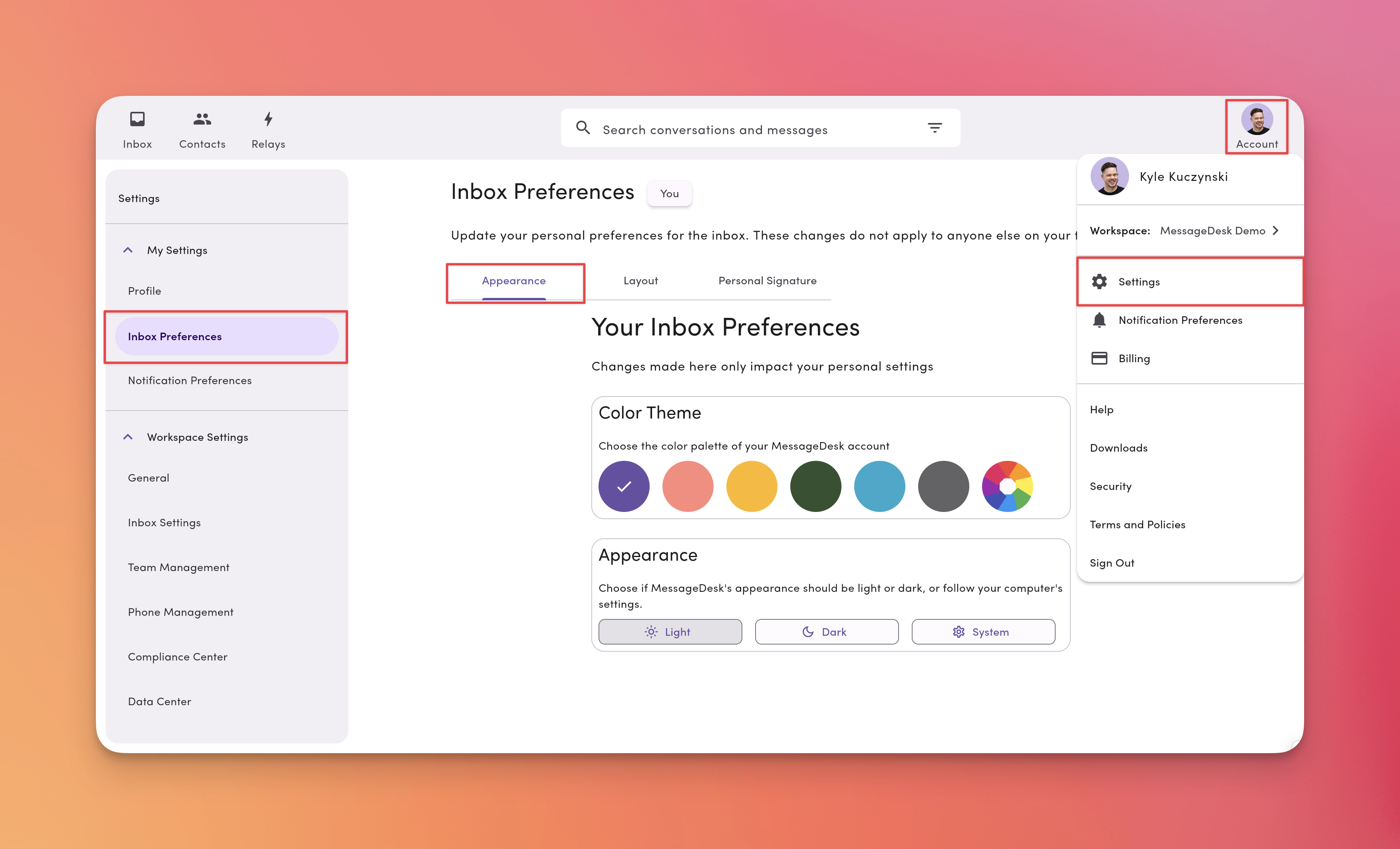
1) Go to Account → Settings → Inbox Preferences (My Settings)
Open the Appearance tab.2) Pick a Color Theme
Choose a preset palette or use the color picker for a custom accent.3) Choose a mode
- Light mode: light UI using your selected color palette
- Dark mode: dark UI using your selected color palette
- System mode: follows your device’s appearance. If your device switches by time of day, MessageDesk follows
Organize your Inbox layout (what you see in the left nav)
You control which phone lines, teammate inboxes, and labels appear, and in what order.1) Go to Account → Settings → Inbox Preferences (My Settings)
Open the Layout tab to view your current configuration.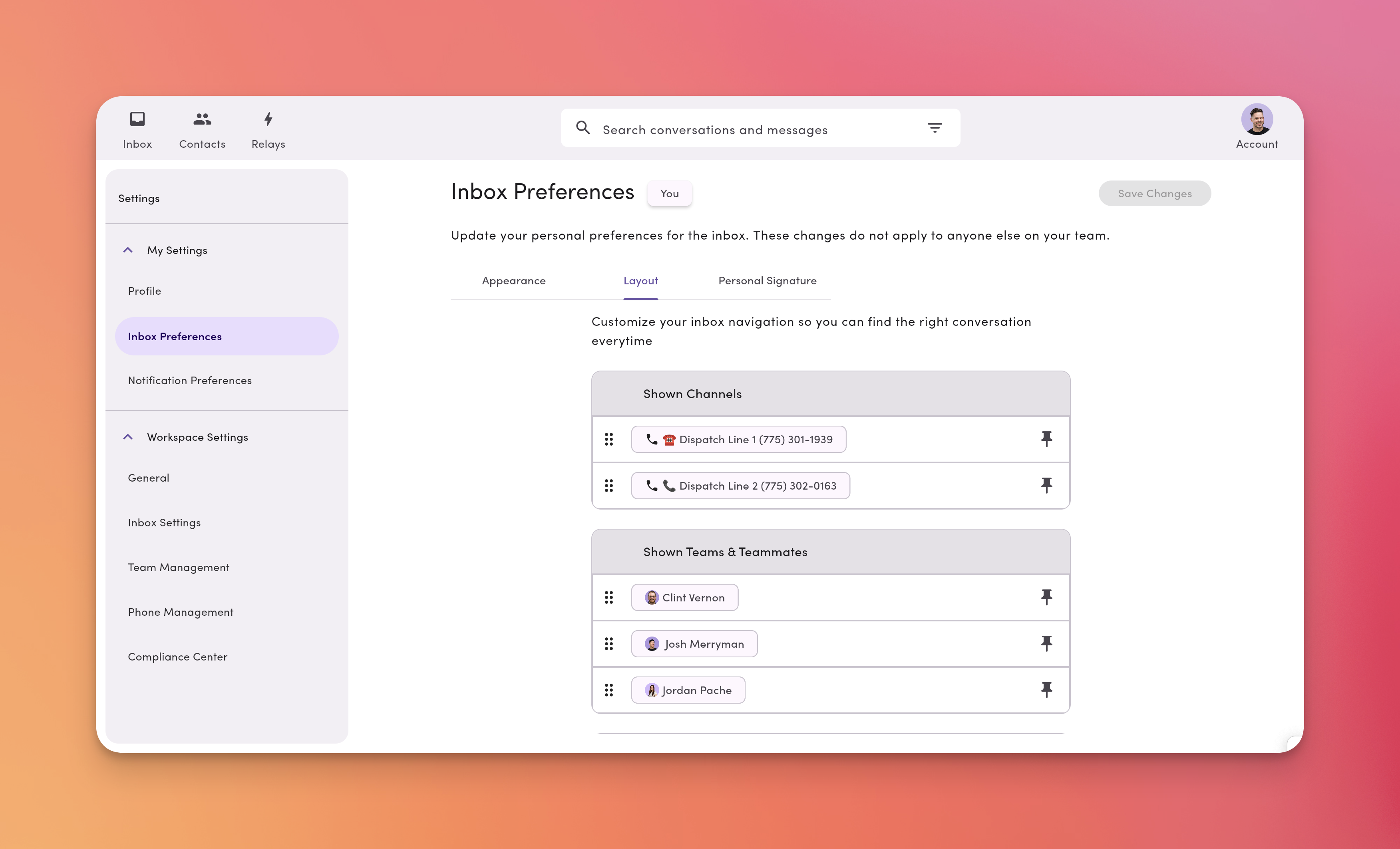
2) Pin, unpin, and reorder
- Pin / Unpin items to show or hide them
- Drag and drop to reorder sections and items
- Click Save changes when you’re done
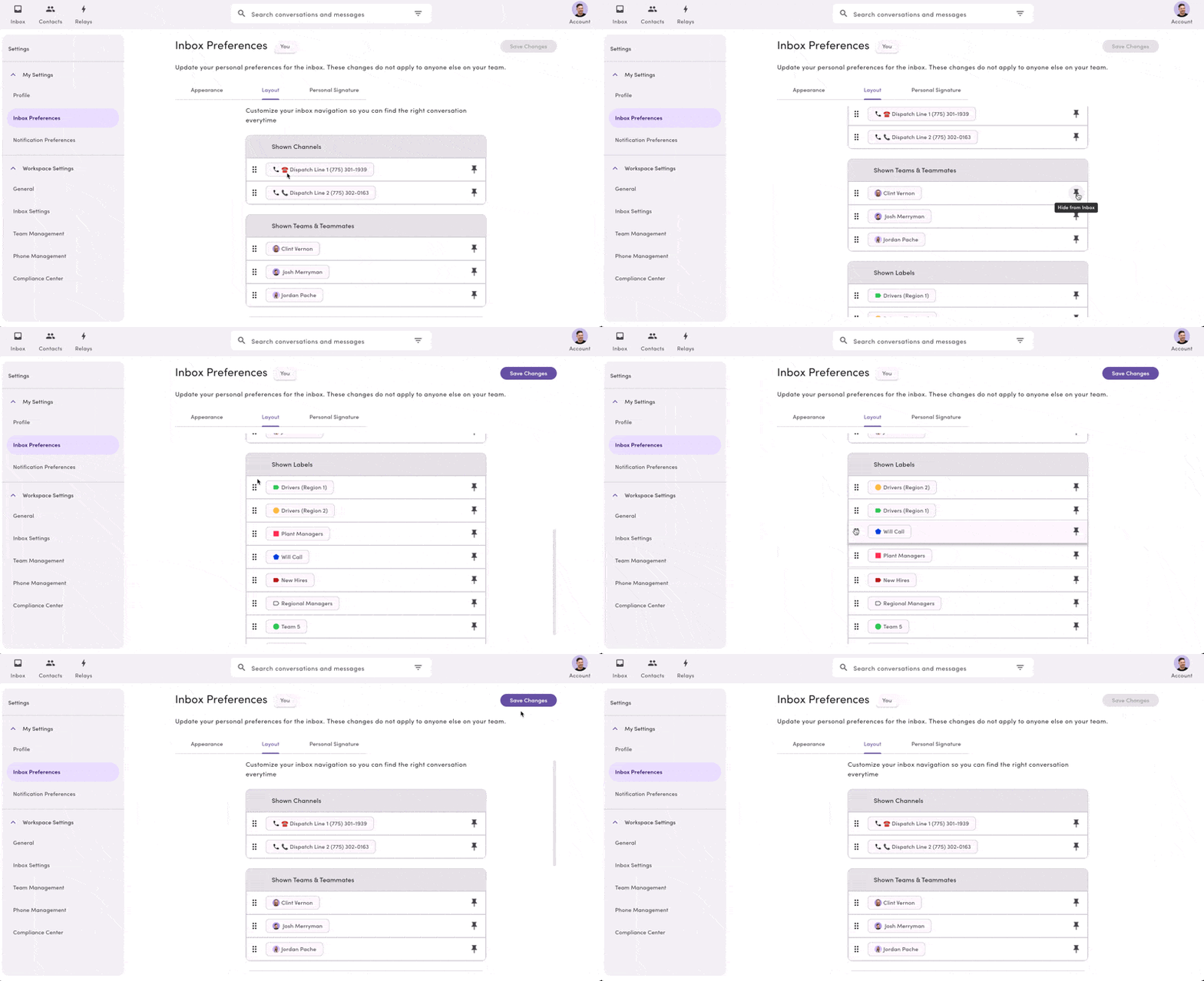
Your layout changes are personal. Pinning, unpinning, and reordering only affect your view, not your teammates’.
Create and edit your personal text message signature
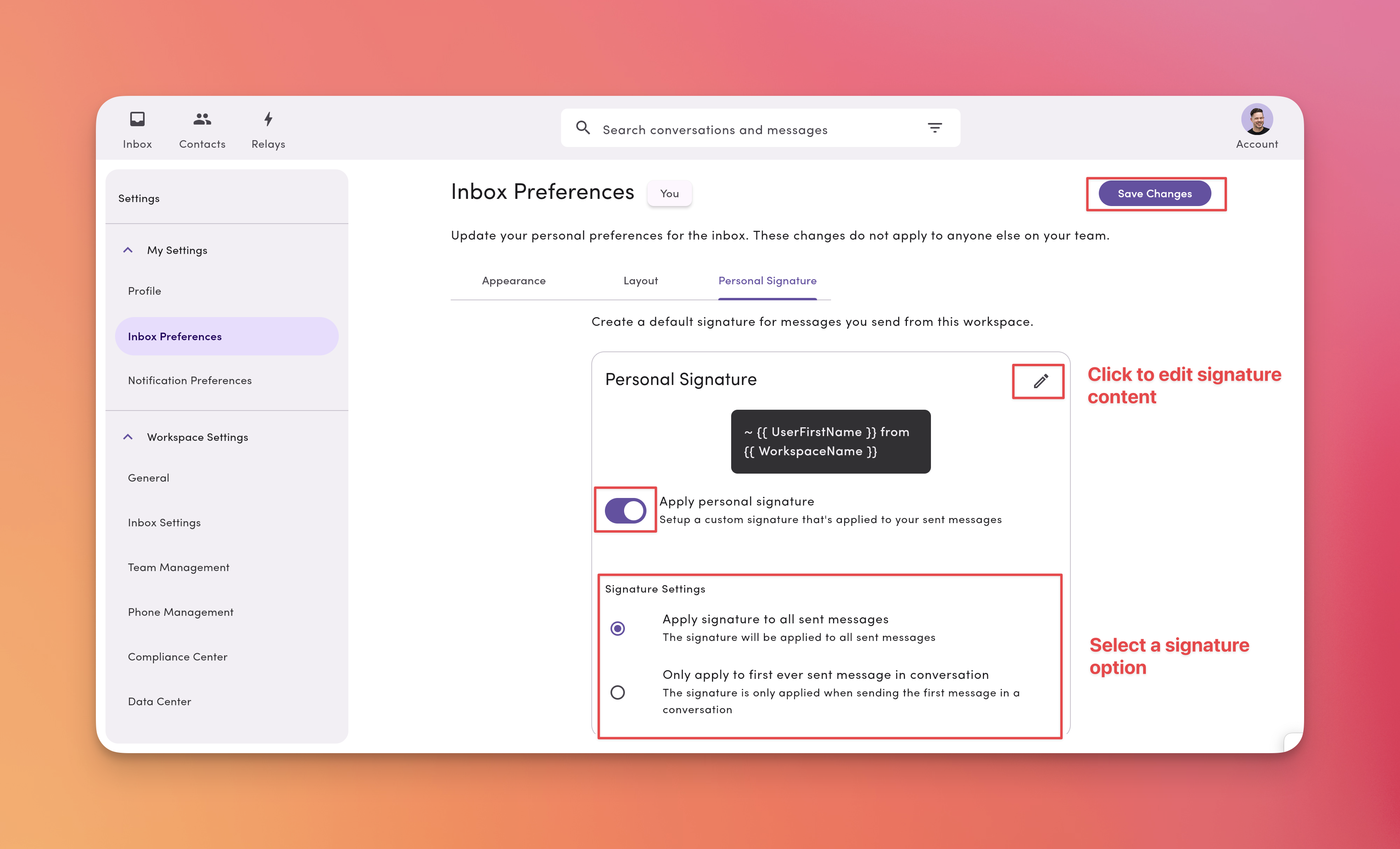
Add a short sign-off that auto-appends to your outbound texts from your user profile.1. Go to Account → Settings → Inbox Preferences (My Settings)
Open the Personal Signature tab.2. Toggle Apply personal signature ON
This turns your signature on.3. Click the pencil icon to edit your signature
By default, MessageDesk uses tags like:{{ UserFirstName }}: your user first name{{ WorkspaceName }}: your workspace name
4. Choose when the signature applies
- Apply signature to all sent messages: appends to every message you send
- Only apply to first ever sent message in conversation: appends only to your first outbound in a thread
Language localization
MessageDesk doesn’t currently support native language localization or translation features. You can use third-party browser extensions to translate the interface and messages into your preferred language.Browser translation tools
Most modern browsers offer built-in or extension-based translation:- Google Chrome: Use the built-in Google Translate feature or install the Google Translate extension
- Microsoft Edge: Built-in Microsoft Translator
- Firefox: Install translation extensions like To Google Translate
- Safari: Use the built-in translation feature (macOS Monterey and later)
Third-party translation tools aren’t affiliated with MessageDesk. The extension provider manages translation accuracy and privacy policies.